So your important PDF won’t open, displays garbage characters, or throws an error. Before you panic, know that free PDF recovery software can often bring your file back to life. This guide is for anyone—from students to small business owners—who needs to salvage a corrupted PDF without spending a dime. By the end, you’ll have a step-by-step plan to recover your document using reliable free tools.
We’ll focus on two popular approaches: using a dedicated PDF repair tool with a graphical interface (like PDF Repair Toolbox Free) and a command-line method (like Ghostscript). Both are tested and effective for most common corruption issues. We’ll also cover what to do when the software can’t fix everything.
What You’ll Need
- A corrupted PDF file that you want to recover
- A Windows PC (steps are similar for Mac – check out our guide for specifics)
- Internet connection to download the recovery software
- Backup of your original file (just in case)
- About 10–15 minutes
Step 1: Download and Install a PDF Recovery Tool
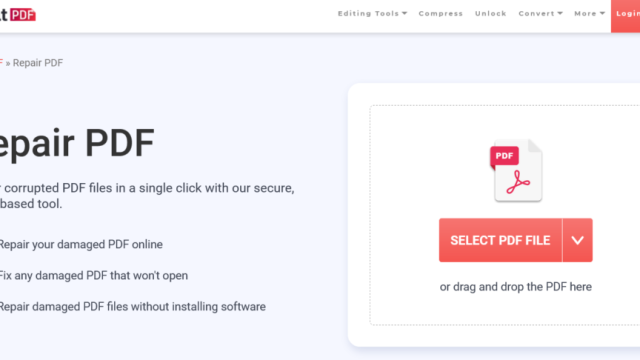
First, grab a reliable tool. For this guide we’ll use PDF Repair Toolbox Free, but you can also try the free online service PDFaid or the open-source Ghostscript. Download the installer from the official site and run it. Accept the defaults, but opt out of any extra adware if prompted.

Step 2: Load Your Corrupted PDF
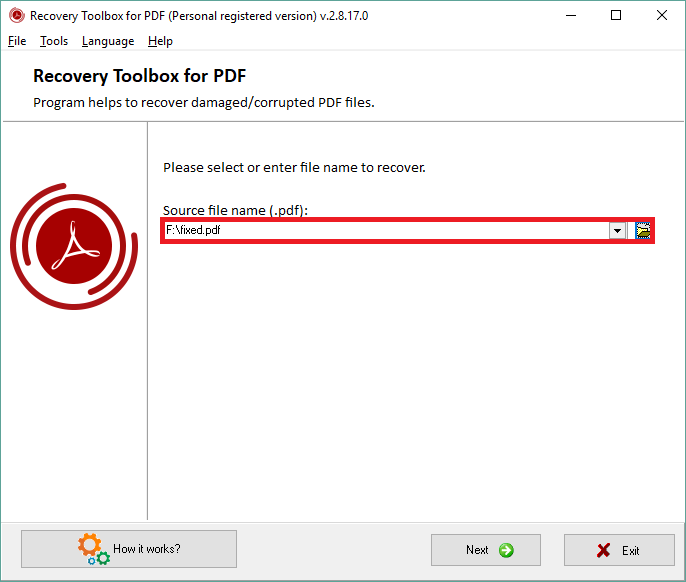
Open the software and look for a button like “Add Files” or “Open PDF.” Click it and select your corrupted file. The tool will analyze the file and show a preview of what it can recover. Don’t worry if the preview looks weird—that’s normal.
Step 3: Run the Recovery Process
Click the “Repair” or “Recover” button. The software will attempt to rebuild the PDF structure, fix cross-reference tables, and restore content. This may take a few seconds to a minute. Some tools offer multiple repair modes—try the default first, then experiment with others if needed.

Step 4: Preview and Save the Recovered File
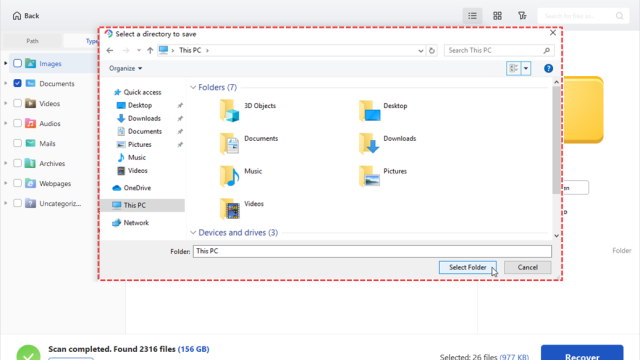
Once the repair finishes, the tool will let you preview the recovered pages. Scroll through to check if the content is intact. If everything looks good, click “Save” and choose a new file name—never overwrite the original. Save it to a different folder to avoid confusion.

Common Pitfalls
- **Overwriting the original file:** Always save the recovered PDF with a new name. If the repair goes wrong, you’ll still have the original to try another method.
- **Expecting perfection:** Not all corruption is reversible. Images may be missing, or text may remain garbled. In that case, try the garbled PDF text fix or use Ghostscript for deeper recovery.
- **Skipping backups:** Before any repair, copy your original file. Some aggressive repair tools can further damage the file if they misread the structure.
The best time to back up your PDF is before you need to recover it. Don’t learn that the hard way.
A PDF repair veteran
Where to Next?
Your recovered file looks good, but you might run into other issues. If the PDF still has problems, check out our guides on how to repair a PDF document or restore a corrupted PDF. For more advanced fixes, learn how to fix a damaged PDF file with command-line tools. And if you’re on a different operating system, our free PDF repair for Mac guide has you covered.
Don’t forget to scan your PDF for errors regularly to catch problems early. Happy recovering!