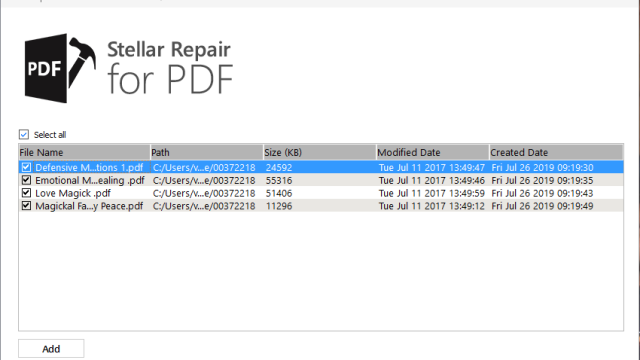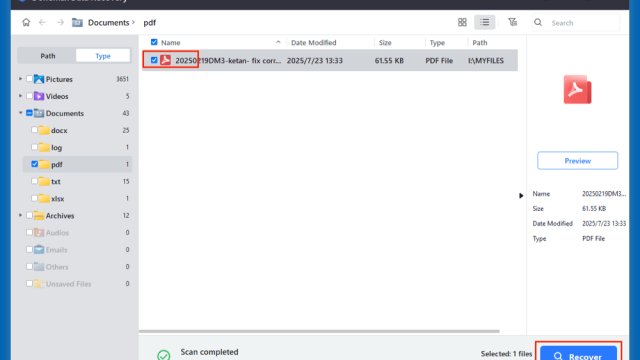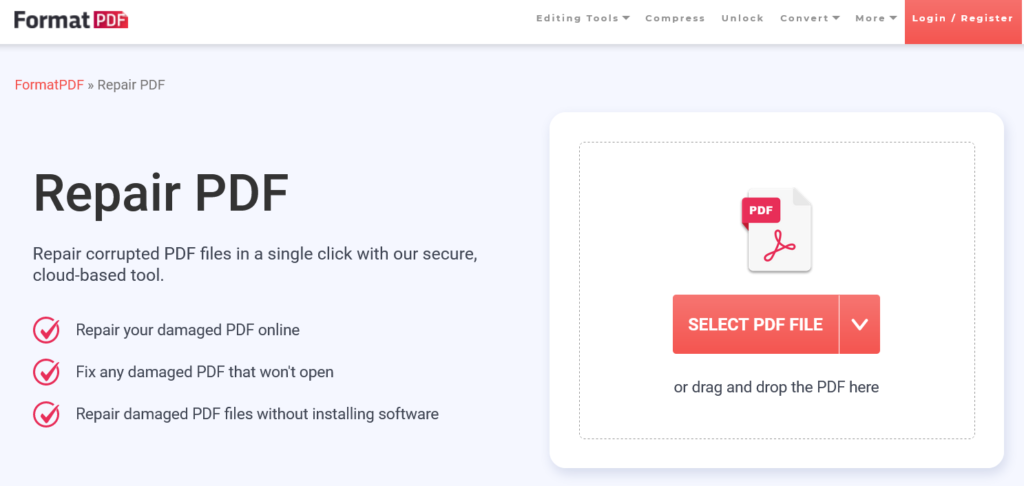
So you tried to open an important PDF and got an error message instead of your document. Maybe it says “The file is damaged” or “Cannot open document.” Don’t panic — you don’t need expensive software to fix it. This guide is for anyone who needs to repair a corrupted PDF without spending a dime. By the end, you’ll have a fully working PDF, restored using a trusted free tool that’s been tested by millions.
We’re using PDF24 Tools — a free, no-nonsense PDF utility that runs in your browser or as a desktop app. It handles all sorts of corruption: missing pages, broken streams, invalid formats, and even attachment errors (like those covered in our guide on how to fix pdf attachment). The best part? No watermarks, no file size limits, and no sign-up required. Let’s get your PDF back in shape.
What You’ll Need
- A corrupted PDF file (saved on your computer or accessible via link)
- A modern web browser (Chrome, Firefox, Edge, Safari) — or the PDF24 Desktop app if you prefer offline use
- Internet access (for the online version)
- Optional: a backup of the original file (in case something goes wrong)
Step 1: Open PDF24’s Free PDF Repair Tool
Go to the PDF24 website. Look for the “PDF Repair” tool in the list of utilities. You can also directly search for “PDF24 PDF repair” from your browser. The page has a big upload area for your file. No need to download anything on this step if you’re using the online version — though the desktop app works similarly and can be handy for frequent repairs (more on that later).
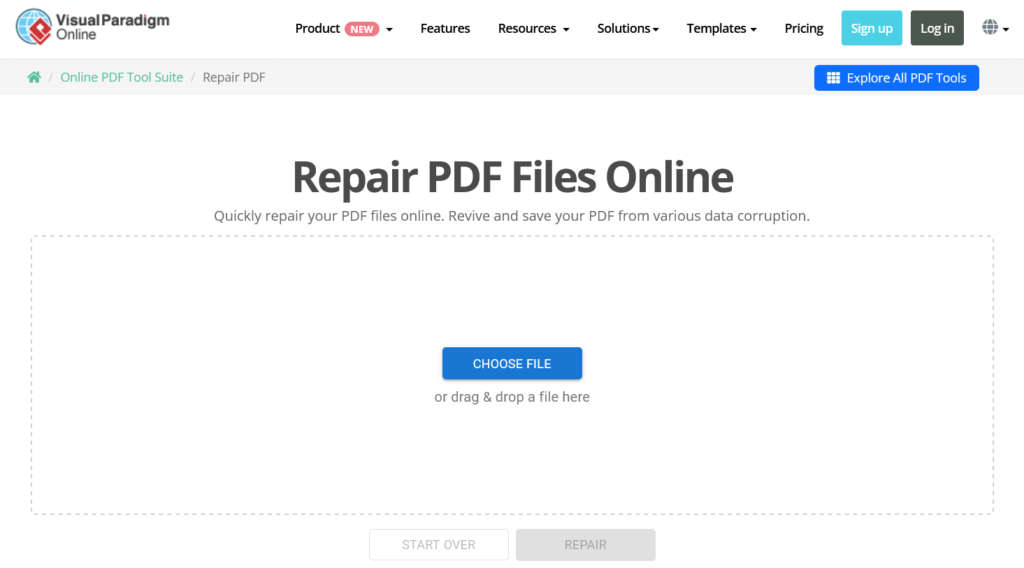
If you prefer to work offline, download the free PDF24 Creator (desktop version) during this step. It installs a virtual printer and a set of tools including PDF repair. For occasional use, the online version is just fine.
Step 2: Upload Your Corrupted PDF
Click the upload button or drag and drop your broken PDF directly onto the page. PDF24 supports files up to 100 MB online — enough for most documents, reports, and even some ebooks. If your file is larger, use the desktop version (no upload limit). The tool will analyze the file structure and try to reconstruct as much content as possible.
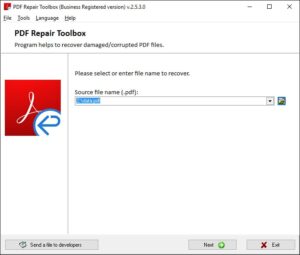
Wait a moment while the tool processes. You’ll see a progress bar. For very large files, this may take up to a minute. Patience is key. This is similar to how you’d recover pdf file in other tools, but PDF24 often handles tough cases better.
Step 3: Start the Repair Process
After upload, click the “Repair PDF” button. The tool will attempt to fix the corruption, rebuild missing structures, and save what it can. You’ll see a status message once it’s done. Unlike many online services, PDF24 doesn’t limit the number of repairs — you can use it as many times as you need.
If the file is severely damaged, PDF24 might still extract the text and images, though some formatting could be lost. In most cases, the repaired PDF looks identical to the original. This method works great for corrupted pdf repair online without any privacy concerns since files are deleted from servers after an hour.
Step 4: Download Your Fixed PDF
Once repair is complete, PDF24 shows a preview and a download button. Click “Download” to save the repaired file to your computer. You can also choose to save it as a new file name to keep the original untouched. Rename it something like “fixed_report.pdf” so you know which one is the good copy.
Open the downloaded PDF in your reader (Adobe Acrobat, Chrome, or any PDF viewer). If everything looks good, you’re done! If some pages are still missing or garbled, try the desktop version — it sometimes recovers more data. Also check out our separate guide on how to fix incomplete pdf for deeper techniques.
Step 5: Alternative Free Options (If PDF24 Doesn’t Work)
While PDF24 is our top pick, a few other free tools can help in different situations. For example, Sejda.com offers a free online repair tool with a daily limit of 3 repairs (no watermark). iLovePDF also has a repair feature, but it adds a watermark on the free plan. If you’re dealing with attachment issues, see our dedicated guide on fix pdf attachment. And if you prefer a browser-based fix without uploading, read our article on how to repair pdf in browser.
Common Pitfalls
- Pitfall: Expecting 100% recovery — No free tool can reconstruct a completely destroyed PDF. If the file is just text, you’ll likely get it back, but complex formatting or embedded fonts might be lost. Always keep backups.
- Pitfall: Using a tool that adds watermarks — Some free repair services (like Smallpdf) only offer repair in paid plans or slap a watermark on the output. PDF24 is completely free, so double-check before uploading sensitive files.
- Pitfall: Ignoring file size limits — Large files (over 100 MB) fail silently in many online tools. Use PDF24’s desktop app or compress the file first. If you’re stuck, our corrupted pdf repair online guide covers workarounds for oversized files.
Where to Next
Now that your PDF is restored, take a moment to prevent future corruption: save copies in cloud storage, avoid force-closing your editor, and scan downloaded PDFs for malware. If you run into other PDF issues like missing fonts or error codes, explore the rest of our site — we have guides on everything from fixing scanned documents to batch processing. Happy repairing!