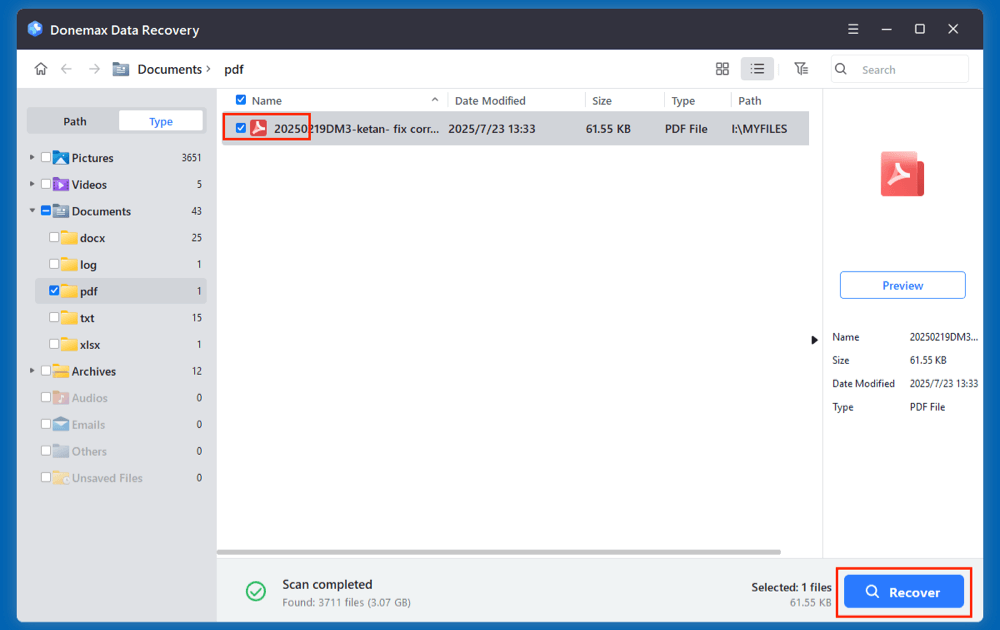
Have you ever lost an important PDF? Maybe you deleted it by accident, or it got corrupted after a crash. Don’t panic — recovering a PDF is often possible with the right steps. This guide is for anyone who needs to get a PDF back, whether it’s missing from your computer or won’t open correctly. By the end, you’ll have a recovered PDF file and know how to prevent future loss.
We’ll cover checking the Recycle Bin, using free recovery software, trying online repair tools, and more. No advanced skills required — just follow along. Let’s get your PDF back.
What You’ll Need
- A computer (Windows or Mac) with internet access
- The PDF file you want to recover (or its location)
- Optional: a free recovery tool like Recuva or PhotoRec
- Optional: an online repair service like PDFRepairs.click
Step 1: Check the Recycle Bin (or Trash)
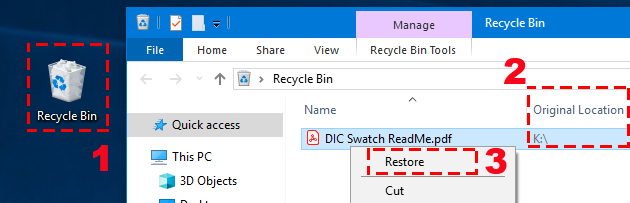
The easiest possibility is that your PDF is sitting in the Recycle Bin (Windows) or Trash (Mac). Open it up and look for your file. If you see it, right-click and select “Restore” to put it back in its original location.
Step 2: Use File History or Time Machine
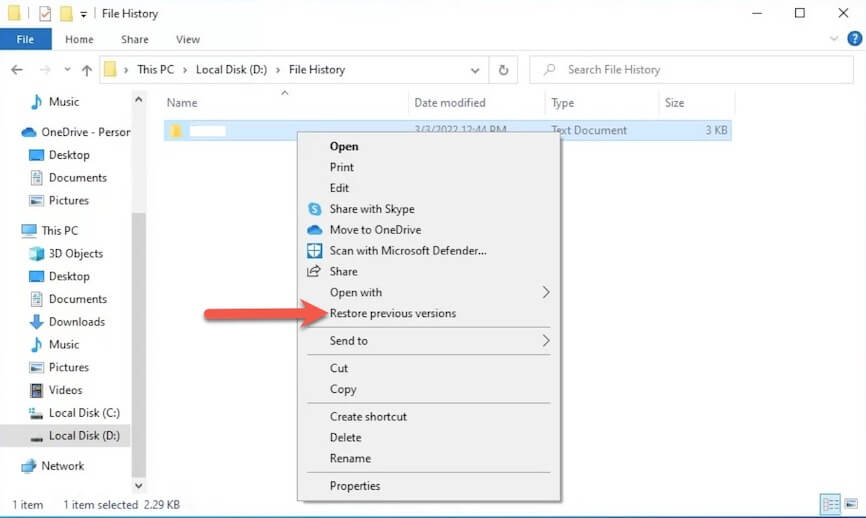
If the file was deleted permanently, check your backup system. On Windows, use File History or Previous Versions. Right-click the folder where the PDF was, select “Restore previous versions,” and look for a version containing your file. On Mac, open Time Machine and navigate to the date when the PDF existed.
Step 3: Scan with Free Recovery Software
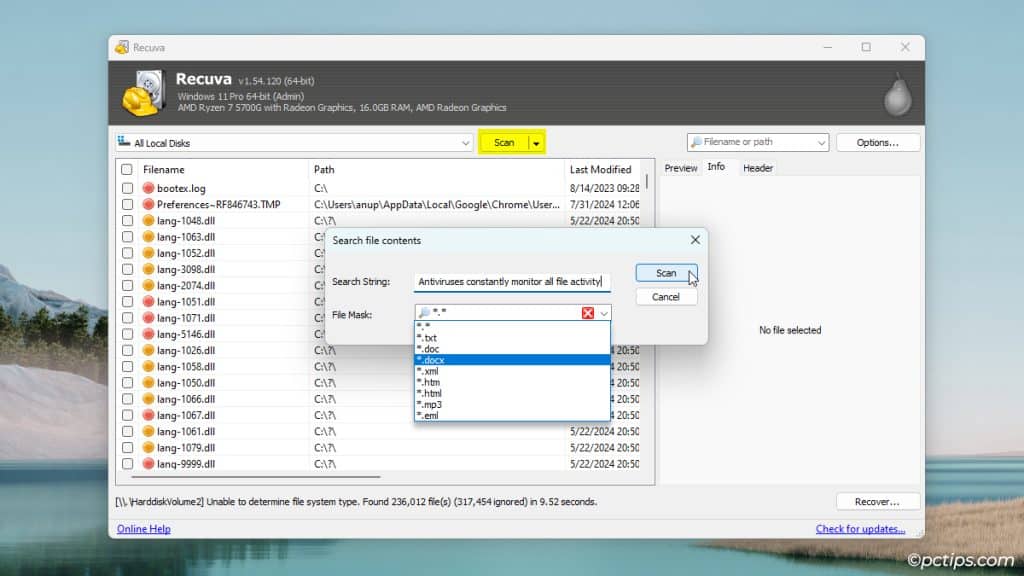
No backup? No problem. Free tools like Recuva (Windows) or PhotoRec (Windows/Mac) can scan your drive for deleted files. Download and install Recuva, select the file type as “Documents,” choose the location where the PDF was, and run the scan. When it finds your PDF, select it and click “Recover.” If the file is corrupted instead of deleted, you’ll need to repair it — see the corrupted PDF repair online guide.
Step 4: Repair a Corrupted PDF Online
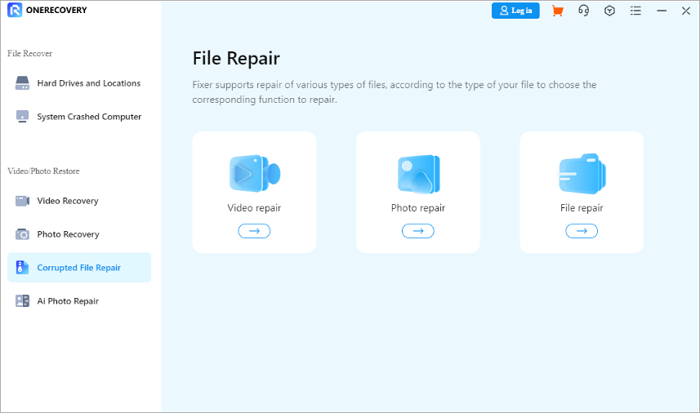
If your PDF exists but won’t open, it might be corrupted. Try an online repair service like PDFRepairs.click. Upload your broken file, let the tool analyze it, and download the fixed version. This method works for various issues — even if the PDF is unreadable, you can recover unreadable PDF online. For damaged files from incomplete downloads, check fix incomplete PDF.
Step 5: Restore from Email or Cloud Storage
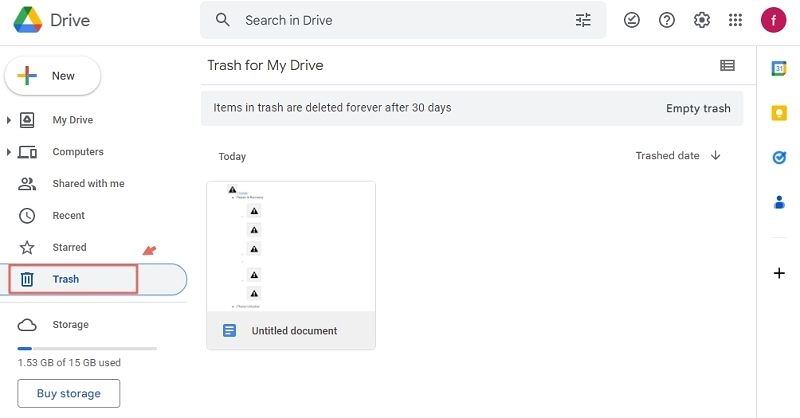
Did you email the PDF to anyone? Check your sent folder. Or maybe you uploaded it to Google Drive, Dropbox, or OneDrive. Those services often keep version history — you can revert to an earlier version or find the file in the trash. Even if you repair PDF without Acrobat, cloud backups can save the day.
Common Pitfalls
- Overwriting the file: After deleting a file, avoid saving anything new to the same drive — recovery software works best when the file’s data hasn’t been overwritten.
- Using shady tools: Stick to reputable recovery software (Recuva, PhotoRec) and online services like the instant PDF fixer. Avoid sites that ask for payment upfront.
- Ignoring temporary files: Sometimes a PDF is auto-saved by your application. Check the app’s temp folder or autosave location before giving up.
Where to Next
Congratulations — you’ve recovered your PDF! To avoid future headaches, set up regular backups (cloud or external drive) and consider a dedicated PDF repair tool for emergencies. If you run into other PDF issues, explore more guides on PDFRepairs.click.




