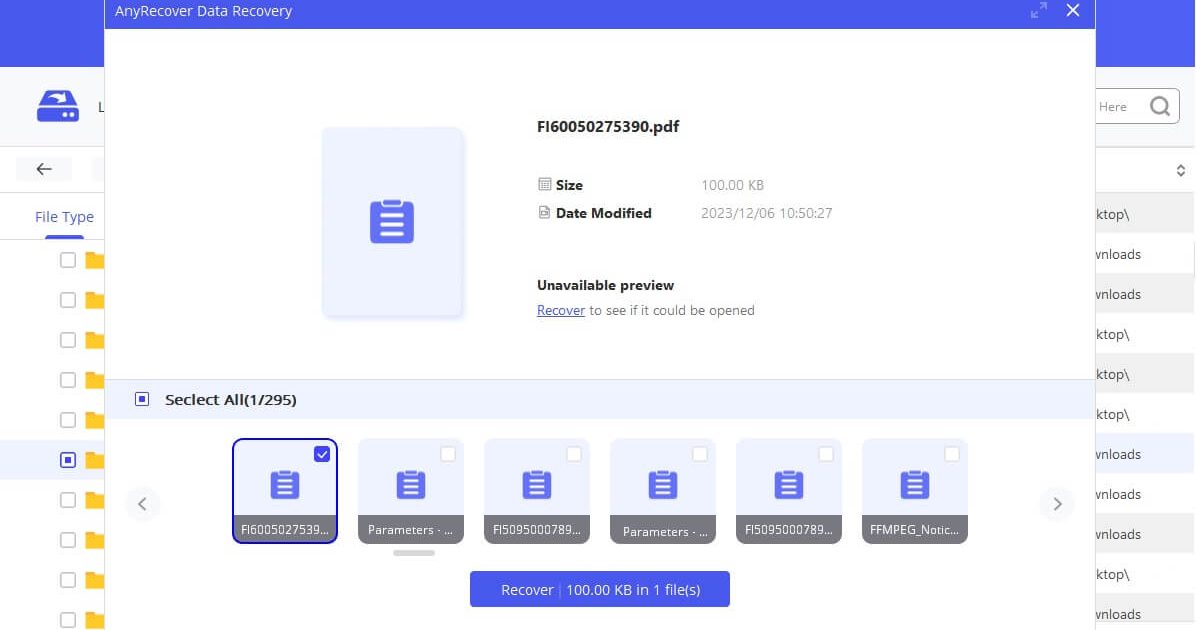
Have you ever opened a PDF only to be greeted by garbled text, blank pages, or error messages like ‘PDF file is invalid‘? It’s frustrating, especially when the document contains important info. This guide is for anyone with an unreadable PDF who wants to recover it without installing heavy software or spending money. By the end, you’ll have a readable PDF restored using free online tools — no tech skills required.
We’ll walk through the entire process step by step, from identifying the problem to verifying the fixed file. You’ll learn which online services are trustworthy, how to upload and repair your PDF, and what to do if the first attempt fails. Whether your PDF is corrupted, incomplete, or just shows up as blank, these methods have worked for thousands of users. Let’s get that file back in shape!
What You’ll Need
- The unreadable PDF file (keep a backup just in case)
- A stable internet connection
- A modern web browser (Chrome, Firefox, Edge, or Safari)
- A bit of patience (online repairs usually take under 5 minutes)
Step 1: Identify the Problem Type
Before jumping into repair, take a moment to see what’s wrong. Open the PDF and note the symptoms: Is it completely blank? Does it give an error like ‘PDF file is invalid’? Are pages missing or text garbled? Understanding the issue helps you pick the right approach. For example, a blank PDF might need a different fix than one with scrambled content. Sometimes the file is actually fine but your viewer is old — try opening it in a different browser or tool first.

Step 2: Choose a Reliable Online PDF Repair Tool
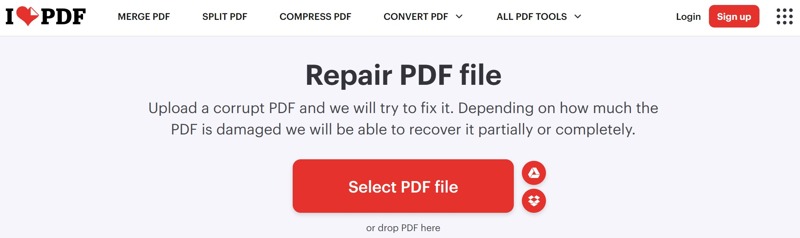
Not all online PDF repair services are equal. Some are scams, others have file size limits, and many compromise your privacy. To safely repair PDF online safely, pick a tool that uses HTTPS, doesn’t store your files longer than needed, and has positive user reviews. Popular options include Smallpdf, iLovePDF, and PDF2Go. For a free and secure choice, try the official Adobe Acrobat online repair tool (limited to certain errors). Always read the privacy policy before uploading sensitive documents.
Step 3: Upload Your PDF
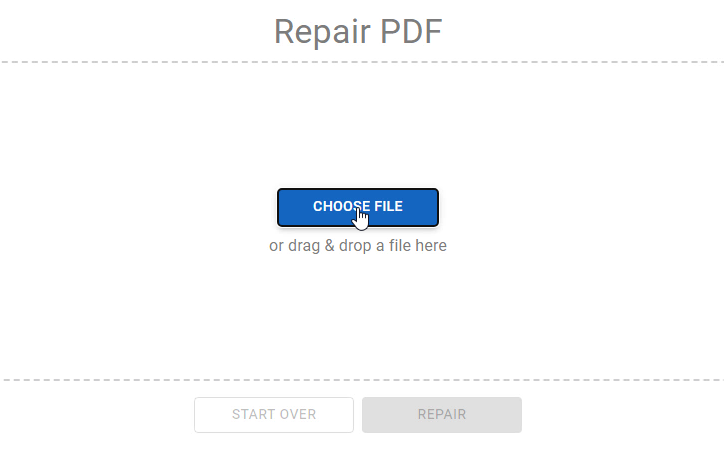
Once you’ve selected a service, find the ‘Upload’ or ‘Choose File’ button. Click it and navigate to the unreadable PDF on your computer. Most tools accept files up to 100 MB for free, which covers typical documents. If your PDF is larger, you may need to compress it first or use a tool that supports bigger files. Drag-and-drop is usually supported too — just drop the file into the designated area. After uploading, the service may automatically analyze the damage.
Step 4: Initiate the Repair Process
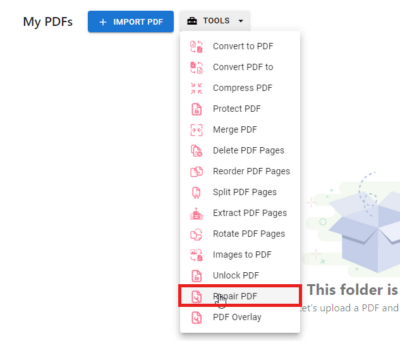
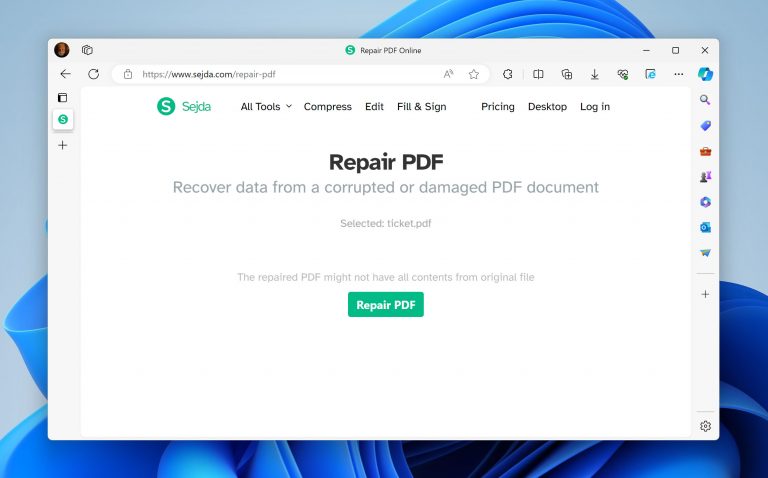
With the file uploaded, look for a button that says ‘Repair’, ‘Fix’, or ‘Start’. Click it to begin. The tool will scan the PDF and attempt to reconstruct the file. This usually takes a few seconds to a couple of minutes. While waiting, keep the tab open — some tools warn not to navigate away. If the process fails, try a different service or consider using a desktop tool like the one we cover in our guide to “repair corrupted PDF” files.
Step 5: Download the Repaired PDF
Once the repair is complete, the tool will offer a download link. Click ‘Download’ to save the repaired PDF to your computer. Some services also allow you to preview the result before downloading — do that to check if the content looks readable. If the file still seems broken, you may need to try a second service or a different method, such as using the “extract pages from damaged PDF” technique to salvage parts of the document.
Step 6: Verify the Repaired PDF
Before celebrating, open the downloaded PDF and go through it page by page. Look for missing images, garbled text, or layout issues. If it looks good, you’re done! If there are minor issues, you might need to “fix incomplete PDF” using a specialized tool. For persistent problems, the original file may be severely damaged — in that case, consider recovering an earlier version from backups or using a professional PDF repair suite.
Common Pitfalls
- Ignoring file size limits: Many free online tools cap uploads at 100 MB. If your PDF is larger, you’ll hit an error. Compress the file first or use a service with higher limits.
- Uploading sensitive documents: PDFs with personal info (tax forms, contracts) can be exposed if the service isn’t secure. Always check privacy policies or redact sensitive data before uploading.
- Expecting a miracle: Not all damage is repairable. If the PDF is severely corrupted or the structure is gone, even the best tools may fail. In that case, try to find the original source file.
Where to Next
Now that you’ve recovered your PDF, you might want to learn more about preventing future corruption. Check out our guide on how to repair PDF online safely to avoid common mistakes. If you run into specific errors, we have tutorials for errors like ‘PDF file is invalid’ and general steps to repair corrupted PDF. And if you ever need to salvage content from a hopeless file, learn how to extract pages from damaged PDF. Happy reading!




