Ever opened a PDF only to get a garbled mess or an error message? You’re not alone. Corrupted PDFs happen all the time—failed downloads, disk errors, or software crashes can all leave your file unreadable. This guide is for anyone who wants to fix a broken PDF quickly and safely using an online tool, without installing software or risking your privacy. By the end, you’ll have a clean, working PDF ready to use.
We’ll walk through choosing a trustworthy online service, uploading your file, repairing it, and verifying the result. I’ll also point out common pitfalls so you don’t accidentally compromise your data. If you need a desktop alternative, check out our free pdf repair tool guide for an offline option.
What You’ll Need
- A corrupted PDF file (make a backup copy first!)
- A stable internet connection
- A web browser (Chrome, Firefox, Edge, etc.)
- An email address (only if the tool asks for it—skip tools that require this)
- Patience: large files take longer to upload and repair
Step 1: Choose a Safe Online PDF Repair Tool
Not all online PDF repair services are created equal. Some are sketchy, upload your file to shady servers, or even infect your computer with malware. Stick with well-known, reputable tools like Smallpdf, ILovePDF, or PDF2Go. Look for sites that use HTTPS (the padlock in your browser bar) and have a clear privacy policy. Avoid any site that asks for your email before uploading—that’s a red flag. For a deeper dive on specific tools, read our pdf repair tool overview.
Step 2: Upload Your Corrupted PDF
Once you’ve picked a tool, look for a big “Upload” or “Choose File” button. Click it and navigate to your corrupted PDF. If the file is large (over 50MB), some free tools may reject it—try splitting the file first, or use a premium service. After selecting, the upload usually starts automatically. Wait for a confirmation message or thumbnail preview. If you’re dealing with a failed download, see our guide on repair pdf after failed download.
Step 3: Initiate the Repair Process
Most tools will show a “Repair” button after the upload finishes. Click it and let the magic happen. The tool will scan the file structure, fix corruption, and rebuild the PDF. This can take anywhere from a few seconds to a couple of minutes. Don’t close the browser tab during this step. If the tool offers options like “recover images” or “restore text,” keep defaults unless you know what you’re doing. For a fast no-frills fix, consider using a free pdf repair tool that works directly in your browser.
Step 4: Download the Repaired PDF
Once repaired, the tool will offer a “Download” button. Click it and save the file to your computer. Always rename the file so you don’t overwrite the original corrupted version—something like “report_fixed.pdf.” Some tools will also let you preview the repaired file before downloading. Take a quick look: if the preview is still garbled, try a different tool or see our unreadable pdf repair guide for more advanced methods.
Step 5: Verify the Repaired PDF
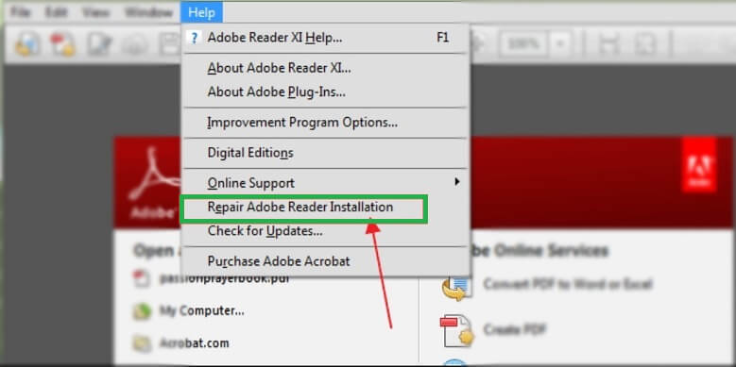
Before you trust the repaired file, open it in your regular PDF viewer (Adobe Acrobat, Preview, etc.). Check that all pages are there, images load, and text is selectable. If something’s off, try another online tool or a desktop-based repair. You can also use a pdf validity checker to confirm the file structure is intact. Remember: no online tool can fix 100% of corruption, but a good one will save you 90% of the time.
Common Pitfalls
- Uploading sensitive or confidential PDFs to a website you don’t trust. Always read the privacy policy. If you’re worried about privacy, use a local tool like qpdf instead.
- Forgetting to back up the original file. If the online tool messes up, you’ll lose your only copy. Keep a backup before uploading.
- Expecting a miracle from free tools. Severe corruption may not be fixable with a free online service. You might need a paid tool or professional recovery software.
Where to Next
Now that your PDF is fixed, you might want to learn how to prevent future corruption. Check out our guide on how to repair pdf for desktop alternatives, or fix password protected pdf if your file has security issues. For ongoing maintenance, bookmark a reliable online repair tool so you’re always prepared.




