
Ever downloaded a PDF only to have your viewer spit out an error? Or maybe you received an important document that just won’t open. Before you panic, it helps to know if the file is actually corrupted or just being stubborn. This guide is for anyone who needs to quickly check whether a PDF is valid — no fancy tools required, just a few practical steps.
By the end of this tutorial, you’ll be able to spot a corrupted PDF using free online tools, command-line utilities like qpdf, and even your regular PDF viewer. You’ll also learn what to do if the file turns out to be invalid. Let’s dive in!
What You’ll Need
- A PDF file you want to check
- A PDF viewer (e.g., Adobe Acrobat Reader, browser, or any free reader)
- Optional: A command-line tool like qpdf (installable on Windows, Mac, Linux)
- Optional: Internet access for online PDF checkers
Step 1: Try Opening the PDF in a Viewer
The simplest test is to open the PDF in a standard viewer. If it opens without errors, it’s likely valid. If you get error messages, the file may be corrupted. Try multiple viewers to rule out software issues. For example, a file that opens in a browser but not in Adobe Reader might have minor issues.

Step 2: Use an Online PDF Validity Checker
Several free websites can analyze your PDF’s structure. Upload your file to a trusted service like PDF2Go or iLovePDF’s repair tool. They’ll scan for common corruption and tell you if the file is valid. This is a quick, no-install method.

Step 3: Check File Size and Metadata
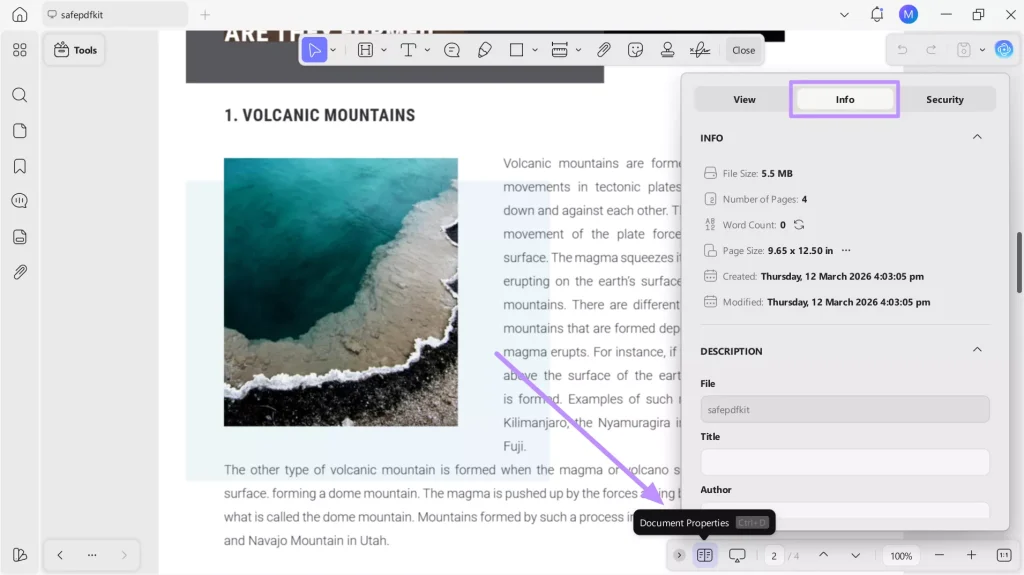
A suspicious file size can indicate corruption. For example, a 0KB PDF is obviously invalid. Right-click the file, go to Properties (Windows) or Get Info (Mac), and check the size. Also, open the PDF’s metadata in a viewer. If fields like ‘Author’ or ‘Title’ are garbled, the file may be damaged.
Step 4: Run qpdf to Check PDF Structure
qpdf is a powerful command-line tool that can validate PDFs. Install it from qpdf.sourceforge.io, then run: qpdf --check input.pdf. If the file is valid, you’ll see a confirmation; if not, errors will point to the issue. This is the most reliable method.

Step 5: Inspect the PDF with a Text Editor (Advanced)
Open the PDF in a plain text editor like Notepad++. Look for the header: it should start with ‘%PDF-1.x’. If the header is missing or garbled, the file is corrupted. Also check for the ‘%%EOF’ trailer at the end. This method confirms structural integrity.

Common Pitfalls
- False positives with large files: Some valid PDFs may take time to open, giving the impression of corruption. Be patient and try multiple tools.
- Overlooking minor corruption: A PDF might open but have missing images or garbled text. Always verify content thoroughly.
- Relying only on file extension: A file named .pdf could actually be another format in disguise. Check the internal header to be sure.
Where to Next
Now that you know how to check PDF validity, you might need to repair a damaged file. Check out our guides on how to detect corrupted pdf, repair pdf after failed download, or use a free pdf repair tool. For advanced fixes, learn how to repair pdf with qpdf. And if the PDF is unreadable, our unreadable pdf repair guide can help. Happy fixing!




