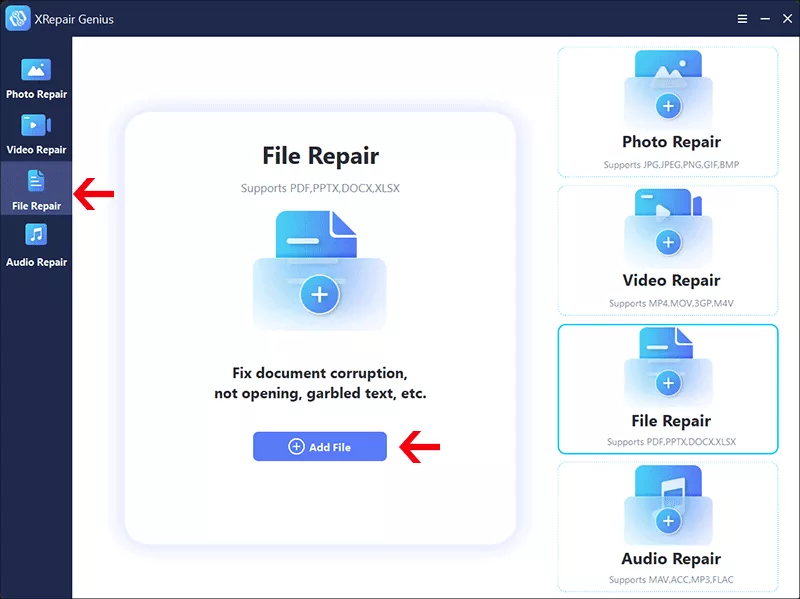
Ever opened a PDF only to find half the pages missing, images broken, or the file just stops loading? You’re not alone. Incomplete PDFs happen all the time — from failed downloads, sync errors, or just bad file creation. This guide is for anyone who’s staring at a partial PDF and needs the full document back. By the end, you’ll have either a fully repaired PDF or at least the salvageable pages extracted and readable.
We’ll cover quick checks, free online tools, desktop software, and page extraction. No prior experience needed — just follow the steps in order.
What You’ll Need
- The incomplete PDF file
- A stable internet connection (for online tools)
- Optional: A PDF reader like Adobe Acrobat Reader or a browser
- Optional: Desktop PDF repair software (some free, some paid)
Step 1: Check the File Size and Re-download if Needed
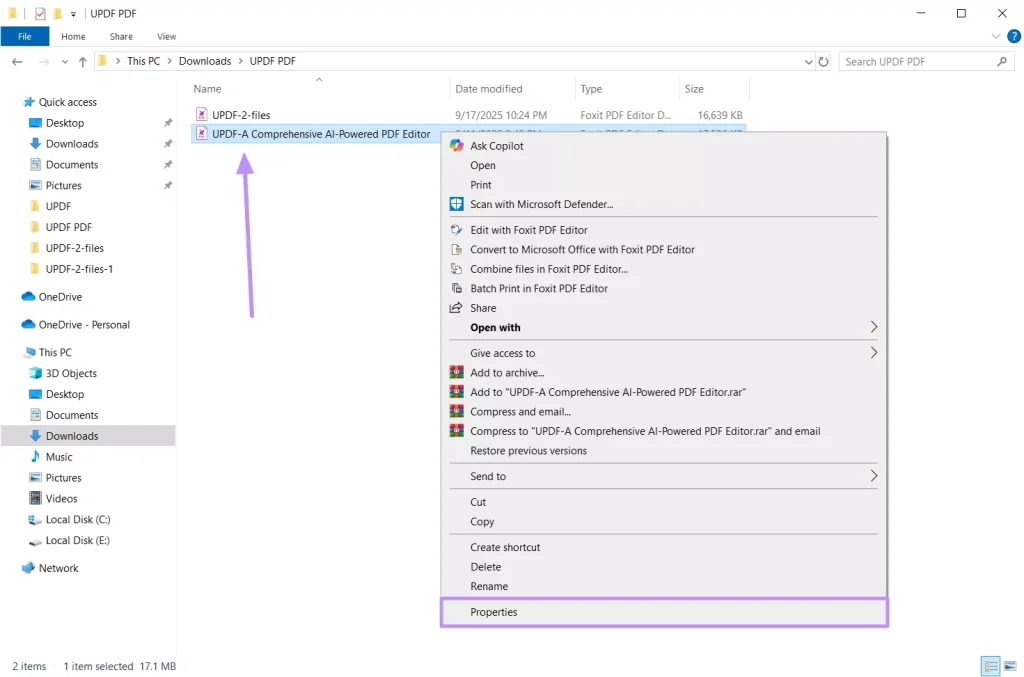
First, check if the PDF file size matches what you’d expect. Right-click the file and choose Properties (Windows) or Get Info (Mac). Compare the size to the original if you know it. If the file is way smaller than it should be, it likely downloaded incompletely. In that case, try re-downloading from the source. This alone often fixes the issue — especially for failed downloads. For more on that, see our guide on how to repair pdf after failed download.
Step 2: Open the PDF in a Different Viewer
Sometimes the PDF is fine, but your viewer can’t render it properly. Try opening the file in a web browser (Chrome, Edge, Firefox) or a different PDF reader like Foxit Reader. If the file opens completely in another viewer, the issue is your original viewer — update or switch it.
Step 3: Use an Online PDF Repair Tool
If re-downloading and switching viewers don’t work, try an online repair tool. These are free and don’t require installation. Sites like iLovePDF, Smallpdf, or PDF2Go can often fix incomplete structure. Upload your PDF, let the tool process it, and download the repaired version. Remember that you’re uploading a potentially sensitive file, so check the site’s privacy policy. For safety tips, read our guide on pdf repair online safe.
Step 4: Repair with Desktop Software (Free Options)
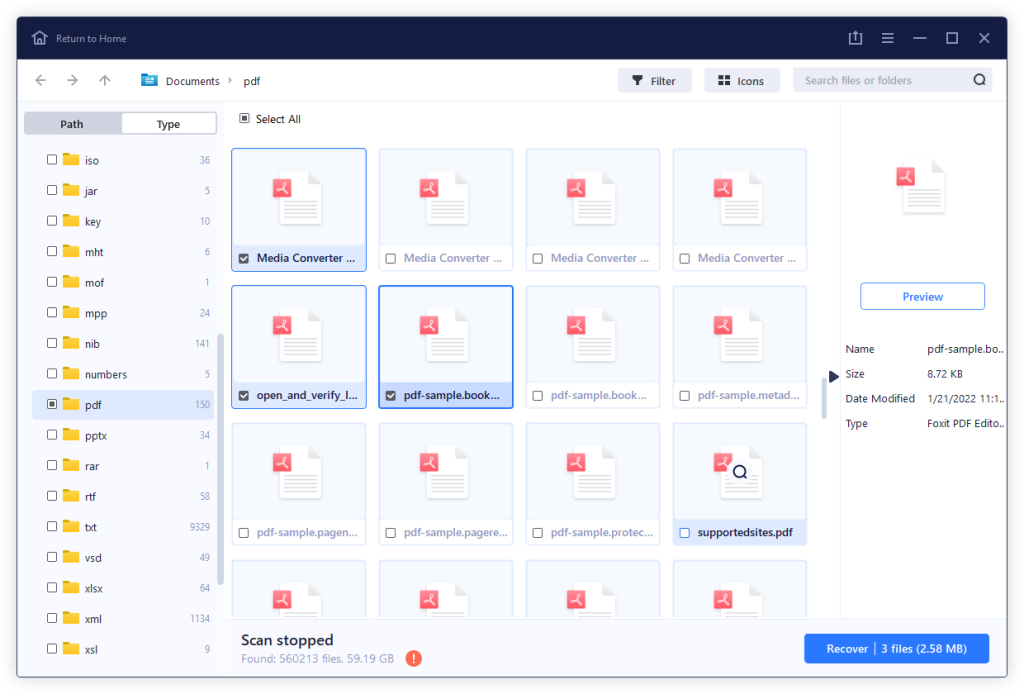
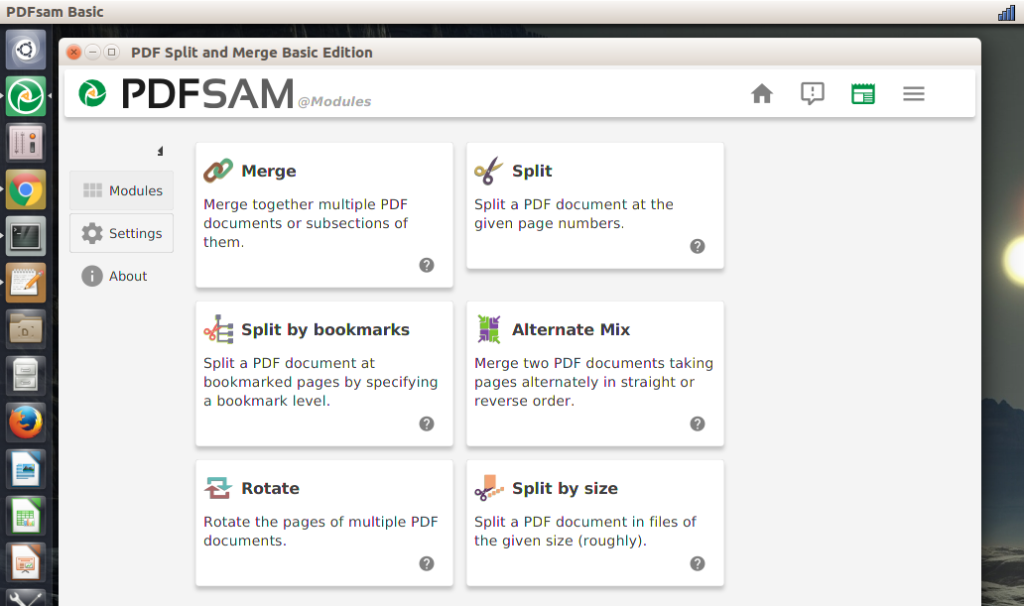
For more stubborn cases, desktop software gives you more control. Free tools like PDFsam (PDF Split and Merge) or the open-source PDFtk can sometimes recover incomplete files. Install the tool, open the PDF, and try exporting or saving as a new PDF. Another good free option is the ‘Repair’ function in Adobe Acrobat Pro (trial). Follow our general steps on how to use a pdf repair tool if you need more details.
Step 5: Extract What’s Salvageable
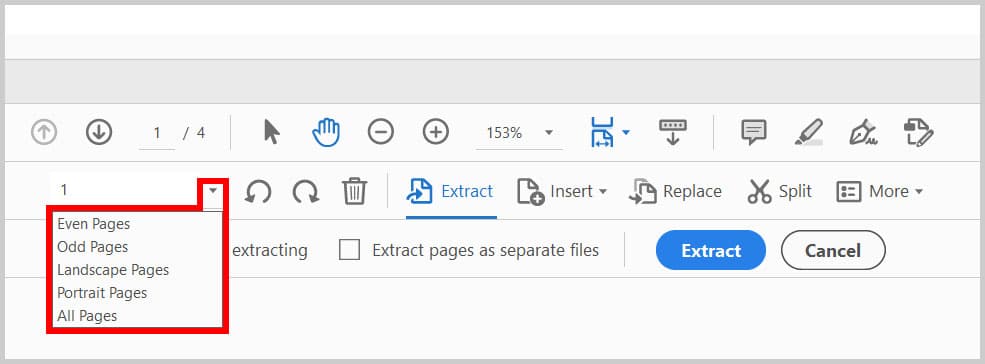
If repair fails, don’t give up — you can often extract the pages that are intact. Many PDF tools allow you to select a range of pages and save them as a new file. For example, in Adobe Acrobat Reader (free), open the PDF, go to the ‘Organize Pages’ tool, select the pages that load correctly, and click ‘Extract’. This gives you at least part of your document. For advanced extraction, check our guide on how to extract pages from damaged pdf.
Step 6: Verify the Repaired PDF
After repair or extraction, always verify the result. Check that all original pages are present, text is searchable, and images load. Use a pdf validity checker tool online or in your PDF reader. If it passes, you’re good. If not, try a different method or consider that the original file may be too damaged. For a complete walkthrough, see our step-by-step on how to repair corrupted pdf.
Common Pitfalls
- Trying to repair a PDF that’s actually a different file format (like an HTML file renamed to .pdf). Always check the file extension and open with a text editor to see if it starts with ‘%PDF’.
- Using online tools for sensitive documents without checking privacy policies. For confidential PDFs, use offline desktop software instead.
- Overwriting the original file before verifying the repair. Always keep a backup copy of the incomplete PDF so you can try another method if the first fails.
Where to Next
Now that you’ve fixed your incomplete PDF, you might need to repair other issues like missing signatures or bookmarks. Check out our guides on how to recover pdf bookmarks and how to fix certificate pdf for specific fixes. If you often deal with damaged PDFs, bookmark our PDF Repair category for future reference.




