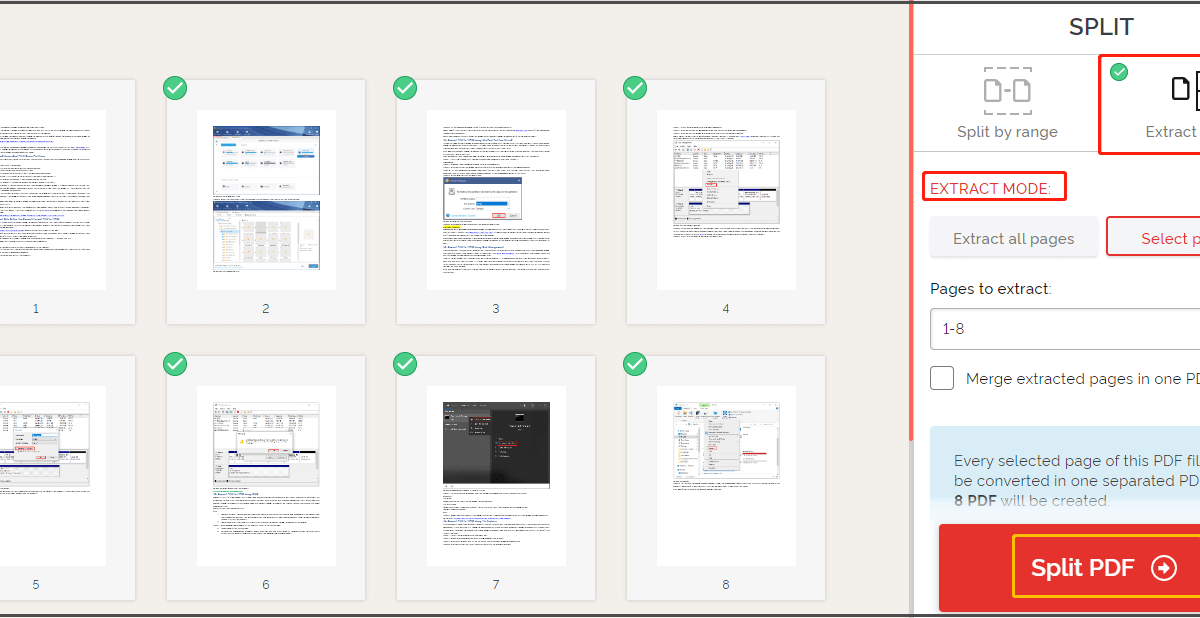
So you’ve got a damaged PDF that won’t open properly or has garbled pages, but you know some of it is still readable. Don’t trash the whole file yet. This guide is for anyone who needs to pull out the usable pages from a corrupted PDF—students, office workers, or just someone trying to save a critical document. By the end, you’ll have a clean new PDF containing only the pages that survived the damage.
We’ll use free tools you probably already have, plus a couple of online helpers if needed. No expensive software required. I’ll walk you through assessing the damage, extracting readable pages via print-to-PDF, and falling back to online extraction or repair if things get messy. Let’s rescue those pages!
What You’ll Need
- Your damaged PDF file
- A PDF viewer (Google Chrome, Adobe Acrobat Reader, or SumatraPDF)
- Optional: A free online PDF tool (like Smallpdf or iLovePDF)
- Optional: A dedicated PDF repair tool (like the ones we cover in our repair corrupted pdf guide)
Step 1: Assess the Damage
First, try to open the PDF in your regular viewer. See which pages load correctly and which ones are blank, garbled, or throw errors. If the file won’t open at all, try opening it in a different viewer—sometimes Chrome handles damaged PDFs better than Adobe Reader. Make a mental note of the page numbers that look usable. This step tells you if extraction is even worth attempting.
Step 2: Use Your PDF Viewer to Navigate to Good Pages
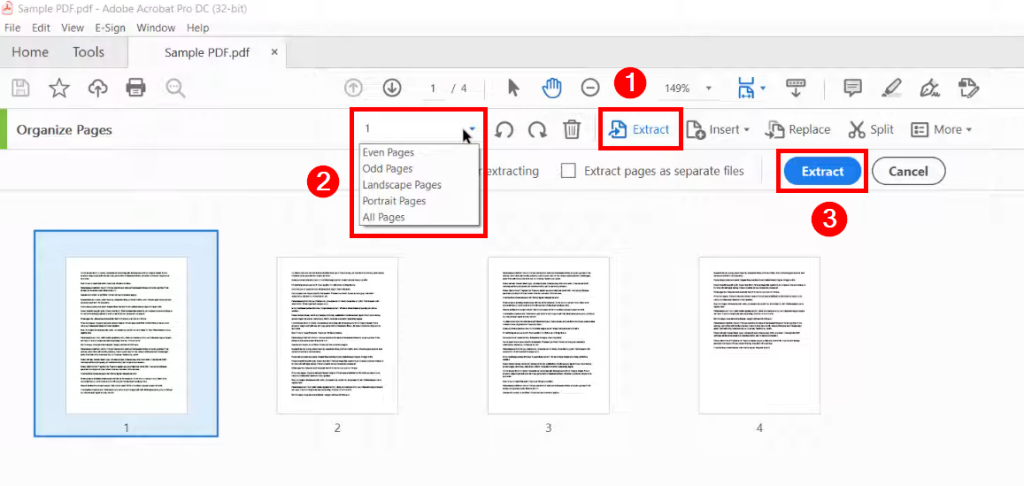
Open the PDF in a viewer that allows page-by-page navigation (like Adobe Reader or Chrome). Scroll through the document slowly. If a page looks okay, note its number. If the viewer crashes on a certain page, skip that page and move on. For severely damaged files, try using a lightweight viewer like SumatraPDF—it’s less likely to choke on corruption. If you can see at least one page clearly, proceed to Step 3.
Step 3: Extract Pages Using ‘Print to PDF’
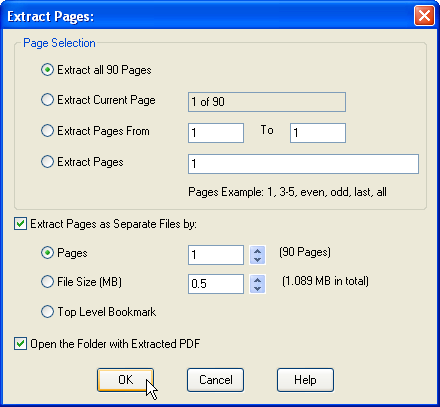
This is the simplest method. In your PDF viewer, go to File > Print (or press Ctrl+P). Instead of a physical printer, select ‘Microsoft Print to PDF’ (Windows) or ‘Save as PDF’ (Mac). In the print dialog, look for ‘Pages’ and enter the range of good pages you noted earlier—for example, ‘3-5, 7, 9-12’. Make sure to uncheck any options like ‘Fit to Page’ or ‘Shrink to Fit’ that might re-render the damaged parts. Click Print, name the new file, and save it. You now have a PDF containing only those selected pages.
Step 4: Fall Back to an Online PDF Extractor
If the print-to-PDF method fails (e.g., the print dialog hangs or produces a blank document), try a free online tool. Upload your damaged PDF to a site like Smallpdf or iLovePDF’s ‘Split PDF’ feature. These tools can often read pages that your local viewer couldn’t. However, be cautious with sensitive documents—for private files, use a reputable service that promises to delete uploads after processing. We have a guide on pdf repair online safe that covers trusted tools.
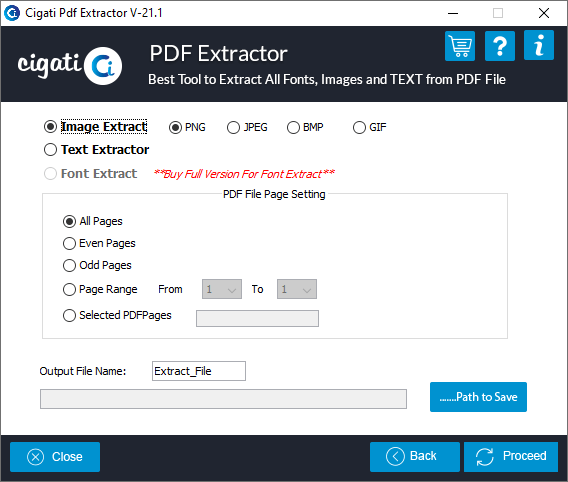
Step 5: If Nothing Else Works, Repair First Then Extract
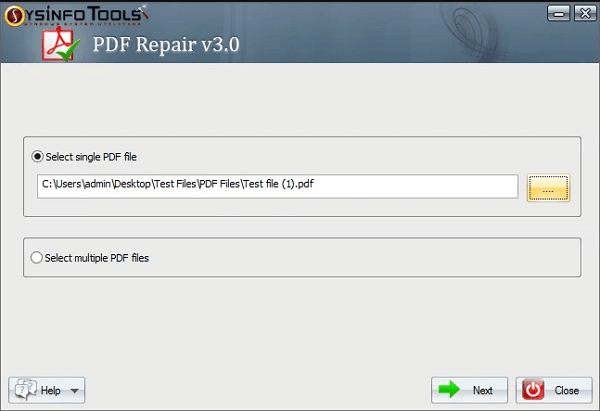
Sometimes the PDF is so corrupted that even extraction fails. In that case, run the file through a repair tool first. Options like Adobe Acrobat’s built-in repair, or free tools like PDF Repair Toolbox (see our unreadable pdf repair article) can often reconstruct the file structure enough to salvage pages. After repair, repeat Step 3 or 4. If you can’t extract after repair, the PDF might be a total loss—but at least you tried.
Common Pitfalls
- Printing the entire file instead of a page range. Always double-check the ‘Pages’ field in the print dialog.
- Using shady online tools that don’t delete your uploads. Stick to well-known services, especially for private documents.
- Trying to extract pages from a completely unrecoverable PDF without attempting repair first. Sometimes you need to fix missing pdf pages or run a repair before extraction.
Where to Next
If you got your pages out, congrats! For more stubborn cases, check out our guides on repair pdf without acrobat or using a dedicated repair tool. And if you ever lose pages inside a healthy PDF, our fix missing pdf pages tutorial has you covered.




