You’ve got an important document to print, you hit the print button, and instead of a satisfying whirring sound, you get an error: “PDF printing failed.” It’s frustrating, right? This guide is for anyone who’s ever seen that message and felt their blood pressure rise. By the end of these steps, you’ll have your PDFs printing smoothly again—no tech degree required.
We’ll cover everything from quick driver checks to more thorough file repairs. Whether you’re using Windows, Mac, or Linux, the fixes here are straightforward. You won’t need to buy any expensive software; most solutions are free or use tools you already have. Let’s get that printer working.
What You’ll Need
- The problematic PDF file
- A computer with internet access
- Up-to-date printer drivers (check manufacturer’s site)
- A PDF reader (Adobe Acrobat, Foxit Reader, or browser PDF viewer)
- Optional: A PDF repair tool (like Ghostscript or Mutool) if the file is corrupted
Step 1: Check Your Printer and Drivers
Before blaming the PDF, make sure your printer is ready. Check that it’s turned on, has paper, and isn’t showing any error lights. Then, update your printer drivers. Outdated or corrupted drivers are a common cause of failed prints. Go to your printer manufacturer’s website, download the latest driver for your OS, and install it. Reboot your computer and try printing again.
Step 2: Verify PDF File Integrity
Sometimes the PDF itself is the issue. Open it in a different PDF viewer (like your browser) to see if it displays correctly. If you see garbled text or missing pages, the file may be corrupted. You can use a free online tool or a desktop app to scan pdf for errors. This will identify structural problems like a damaged cross-reference table.

Step 3: Repair the PDF File
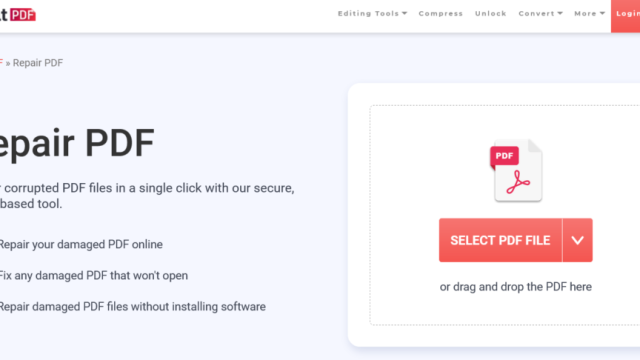
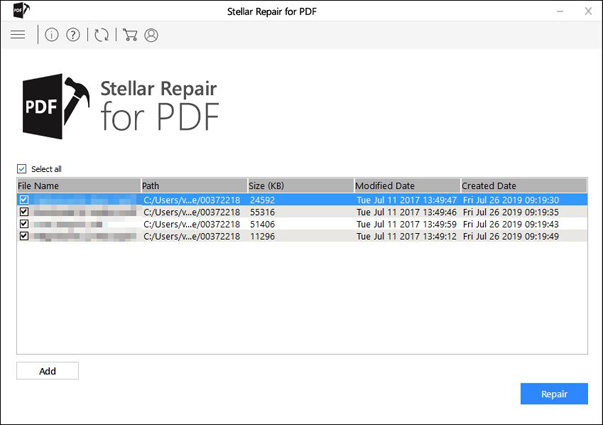
If the file is corrupted, you’ll need to repair pdf file using a dedicated tool. We have a full guide on how to repair pdf file, but the quick method is to use Ghostscript. Open a terminal and run a command like: gs -o repaired.pdf -sDEVICE=pdfwrite -dPDFSETTINGS=/prepress corrupted.pdf. This often fixes the issue. For a GUI alternative, try Mutool or a free online repair service.
Step 4: Convert PDF to Another Format and Back
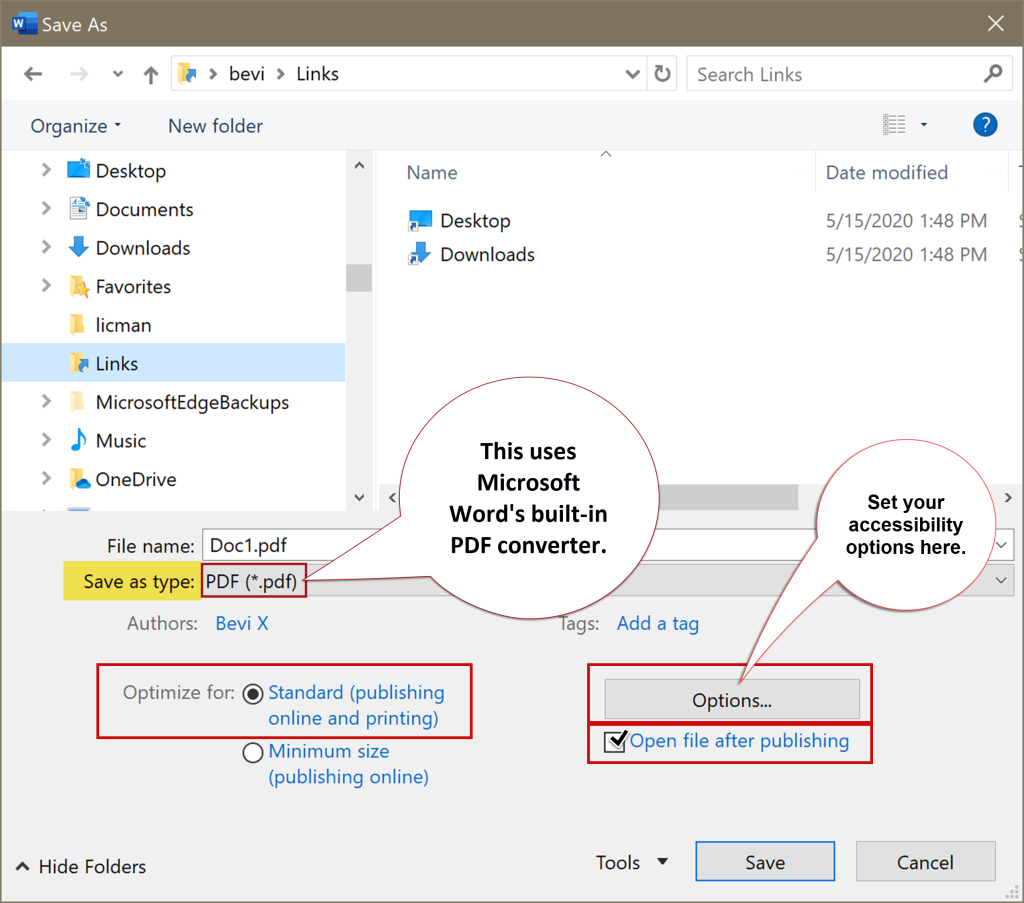
If the repair didn’t work, try converting the PDF to a different format and then back. Save it as a Word document (.docx) using Adobe Acrobat or an online converter, then convert that Word file back to PDF. This process can strip out corrupt elements. After conversion, the new PDF should print without errors.
Step 5: Tweak Printer Settings
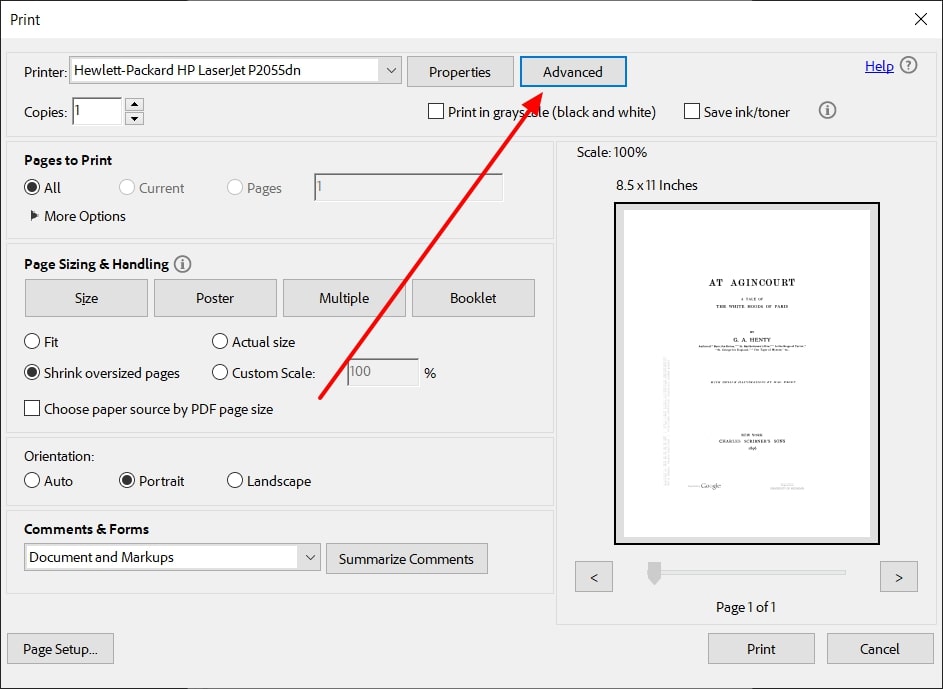
Sometimes the issue is in the print dialog itself. Go to Print > Properties and check for advanced options. Try changing the resolution from, say, 600 dpi to 300 dpi, or enable ‘Print as Image’ if available. Also, ensure the paper size matches what’s loaded in the printer. A mismatch can cause the job to fail. On Windows, you can also clear the print spooler if jobs are stuck.
Common Pitfalls
- Driver mismatch: Installing a generic driver instead of the specific model can cause failed prints. Always use the manufacturer’s driver.
- Ignoring file corruption: Many users assume the PDF is fine because it opens on screen. But printing errors often reveal deeper corruption. Always scan the file.
- Wrong print settings: PDFs optimized for screen (like web-optimized) may not print well. Check the ‘Print as Image’ or compatibility modes.
Where to Next?
Now that your PDF prints again, why not prevent future issues? Learn how to repair pdf on windows with our detailed guide. If you often deal with messy text, our fix garbled pdf text tutorial can help. And for ongoing PDF health, regular scans are key—check our guide on using a PDF repair tool to keep files pristine. Happy printing!