You open a PDF you really need — maybe it’s a contract, a study guide, or a scanned document — and the pages are completely blank. The file seems fine in file size, but nothing shows up. If that sounds familiar, you’re in the right place. This guide is for anyone dealing with a PDF that appears empty, whether due to a corrupted stream, missing fonts, or an export error. By the end, you’ll have a handful of practical methods to recover your content, from quick online fixes to command-line tools that dig deep into the PDF structure.
We’ll cover both free and built-in solutions that work on Windows, Mac, and Linux. You don’t need to be a technical expert — just follow the steps. Expect to try a few approaches because blank PDFs have different root causes. We’ll start with the easy stuff and move to more powerful tools. Let’s turn that blank page into readable text and images.
What You’ll Need
- Your blank PDF file (keep a backup copy!)
- A PDF viewer like Adobe Acrobat, Chrome, or Firefox
- Internet connection for the online method
- Basic command-line access (for Ghostscript and Mutool steps)
- Optional: a free PDF repair tool from our PDF recovery software guide
Step 1: Try a Different PDF Viewer
Sometimes the problem isn’t the file — it’s the app. A blank PDF might be perfectly fine but fails to render in a particular viewer due to missing fonts or outdated software. Before diving into repairs, test your PDF in at least two different viewers. Right-click the file and open with your web browser (Chrome or Edge work well), or try an alternative like Foxit Reader or SumatraPDF. If the content appears in one viewer, you’re golden — no repair needed.

Step 2: Use an Online PDF Repair Tool
If the blank issue persists across viewers, an online repair service can often do the trick. Upload your PDF to a trustworthy site — many offer free repairs for files up to a certain size. These tools rebuild the internal structure, fix cross-reference tables, and re-embed missing objects. The process is simple: upload, repair, download. Keep in mind that confidential documents should not be uploaded to untrusted sites. For a list of reliable services, check our guide on PDF recovery software.
Step 3: Recover via Ghostscript (Advanced)
Ghostscript is a powerful command-line interpreter for PDFs and PostScript. It can often salvage corrupt or blank PDFs by re-rasterizing the entire document. To use it, first download and install Ghostscript for your OS. Then open a terminal (Command Prompt on Windows, Terminal on Mac/Linux) and run:
gs -o output.pdf -sDEVICE=pdfwrite -dPDFSETTINGS=/prepress input.pdf
Replace “input.pdf” with your blank file’s name. This command decompresses and recompresses the PDF, often fixing blank pages caused by corrupted content streams. If you need more details, check out our dedicated article on repairing with Ghostscript.
Step 4: Try Mutool Clean Command
Mutool is part of the MuPDF library and includes a “clean” command that rewrites the PDF file, often resolving blank-page issues. It’s especially effective for files with broken internal references. Download MuPDF from its official site (it’s free and open-source). Then run this command in the terminal:
mutool clean input.pdf output.pdf
Like Ghostscript, this generates a fresh PDF from scratch. The process is fast and works on most platforms. We recommend using Mutool to fix PDFs as a second line of defense if Ghostscript doesn’t fully recover your content.
Step 5: Check for Hidden Layers or Transparency Effects
Sometimes a blank PDF isn’t truly blank — the content is hidden behind transparent layers, white text on white background, or zero-opacity objects. Open the PDF in Adobe Acrobat Pro (or a free alternative like Inkscape) and inspect the layers panel. Look for any optional content groups (OCGs) that might be turned off. In Acrobat, go to View > Show/Hide > Navigation Panes > Content to see a tree of objects. Select any invisible text and change its properties to visible. If the file has vector art, try exporting it as an image to reveal hidden data.

Common Pitfalls
- Not making a backup before attempting repairs. If you run a tool that overwrites the original, you might lose any recoverable data. Always copy the blank PDF first.
- Using the wrong tool for the cause. For example, a PDF with a broken cross-reference table (xref) won’t be fixed by simply re-saving in a viewer. Refer to our guide on how to fix a damaged PDF for targeted fixes.
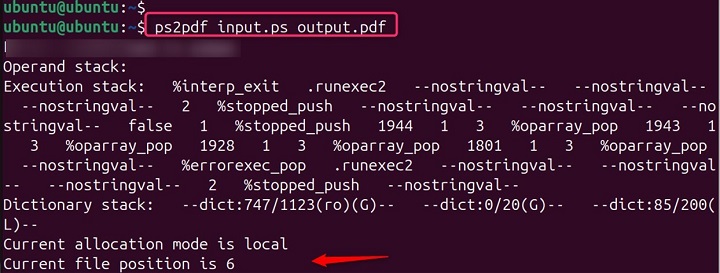
- Ignoring command-line errors. When running Ghostscript or Mutool, watch for error messages like “undefined” or “invalid”. These give clues about what’s broken — such as missing fonts or corrupt image streams.
Where to Next
You’ve just learned several ways to recover a blank PDF. If none of these worked, the file might be severely corrupted, but don’t give up. Next, explore our complete guide on how to repair a PDF file for more advanced techniques, or try dedicated PDF recovery software like Recuva for hard-drive-caused issues. For persistent problems, consider using a hex editor to manually inspect the file’s header — though that’s more of a last resort. Keep a copy of your blank PDF and revisit these steps; sometimes a fresh attempt after a system restart does the trick.




