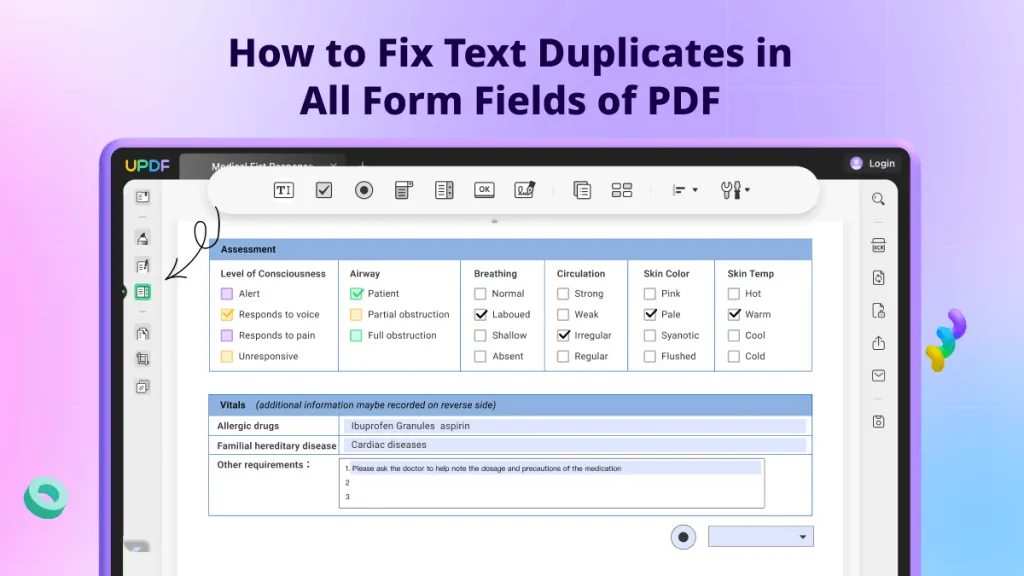
So you’ve got a PDF form that won’t let you type into its fields, or the checkboxes are misaligned, or the drop-down menus are just dead. It’s frustrating, especially when you need to submit that form yesterday. This guide is for anyone who’s ever stared at a broken PDF form and felt stuck—whether you’re a student, a freelancer, or just someone dealing with bureaucratic paperwork. By the end, you’ll know how to diagnose and fix common form field issues using free tools (and maybe a little help from Adobe Acrobat). We’ll cover everything from fields that won’t accept input to alignment problems, and you’ll walk away with a properly working PDF form.
You don’t need to be a tech wizard. I’ll walk you through each step with clear instructions and screenshots. We’ll start by figuring out what’s actually wrong, then move on to fixing it. Along the way, I’ll point out typical mistakes so you can avoid them. Ready to turn that broken mess into a functional form? Let’s dive in.
What You’ll Need
- A computer (Windows, Mac, or Linux)
- The broken PDF form file
- Adobe Acrobat Pro (free trial works) OR a free online tool like PDFescape or Sejda
- Optional: Ghostscript for advanced repair (if you need to handle PDF corruption)
- A PDF viewer (like Adobe Reader or your browser)
Step 1: Identify the Problem – Check Field Properties
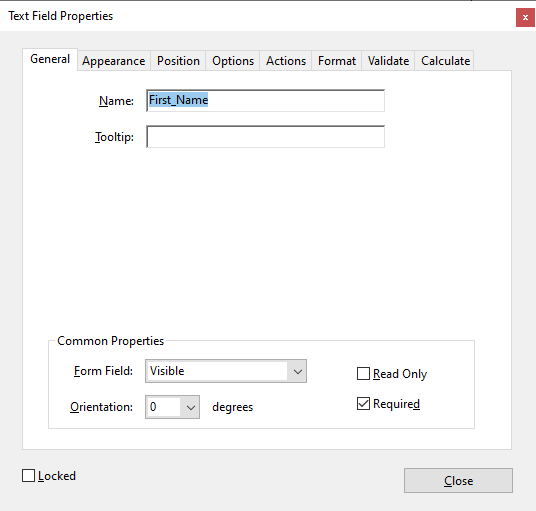
Before you start slapping fixes, you need to know what’s broken. Open your PDF in Adobe Acrobat Pro or a free tool like PDFescape. Click on a form field (like a text box or checkbox) and look at its properties. In Acrobat, right-click the field and choose ‘Properties’. Check the ‘General’ and ‘Options’ tabs. Is the field set to ‘Read Only’? That’s a common culprit. If you’re using PDFescape, click the ‘Form’ button then select a field to see its settings. Note any anomalies like missing field names, incorrect font, or wrong alignment values.
Another thing to check: whether the fields are actually ‘fillable’ or just static text. Sometimes a form looks like it has fields but they’re just lines drawn on the page. If you can’t click into them, they’re probably not real form fields. In that case, you’ll need to convert them—or add new fields. If you suspect broader file issues, consider a quick PDF corruption check first. That way you’re not wasting time on a file that needs a full restore.
Step 2: Unlock and Reset Form Fields
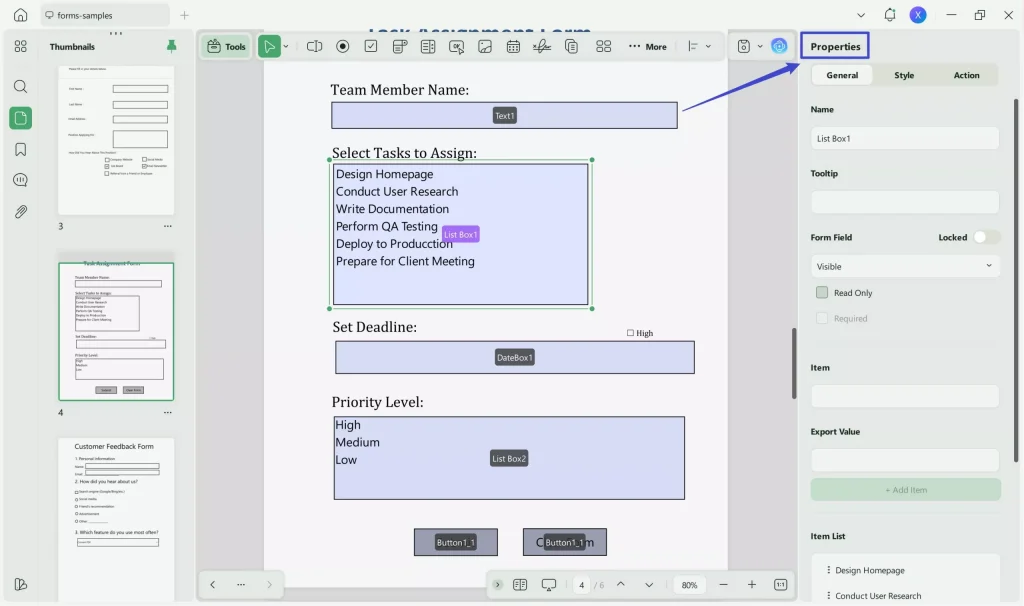
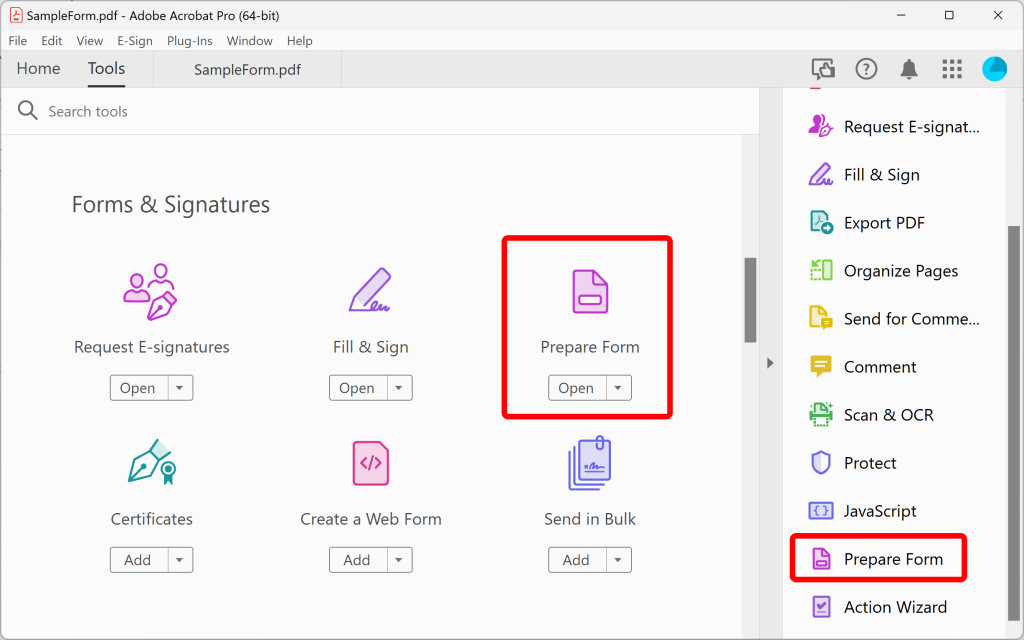
If you found ‘Read Only’ checked, uncheck it. Also make sure the field name is unique—duplicate names can cause fields to behave weirdly. In Acrobat, go to the ‘Prepare Form’ tool (Tools > Prepare Form). It’ll automatically detect form fields. Click ‘More’ and select ‘Clear Form Fields’ to reset all content, then click ‘Add New Field’ if any are missing. For free tools like Sejda, upload your PDF, click ‘Edit’, then click on a field to modify its properties. Don’t forget to save your changes. If you’re dealing with a blank PDF, you might need to recover it first using specialized steps.
Step 3: Fix Alignment and Z-Order Issues
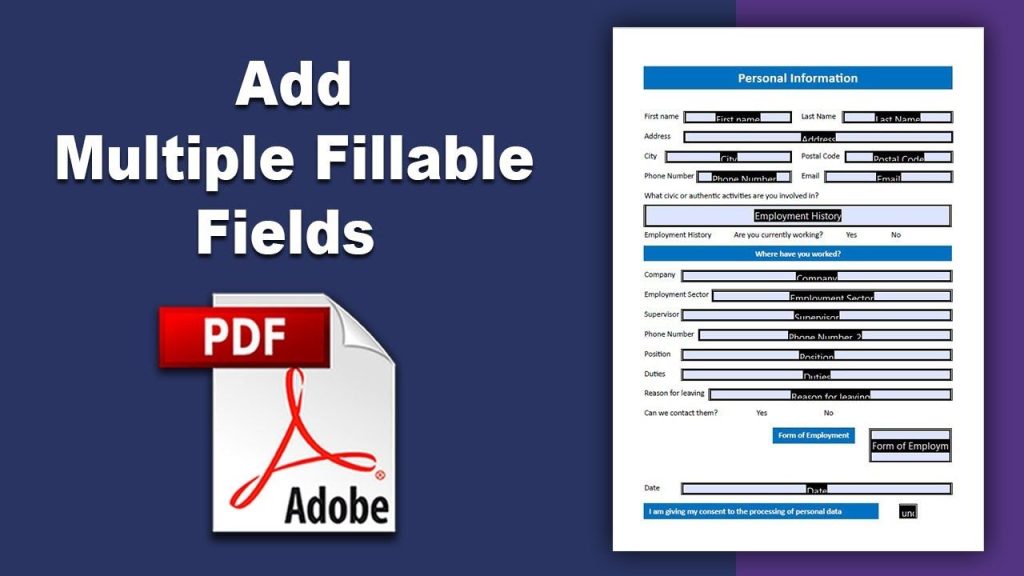
Misaligned fields are another common headache. In Acrobat, under ‘Prepare Form’, you can select multiple fields and align them using the ‘Align’ tools (left, right, center, etc.). Also check the ‘Order’ panel—fields in the wrong tab order can drive users crazy. Drag them into the correct sequence. If you see fields that overlap or appear behind other elements, adjust their Z-order (right-click field > Arrange > Bring to Front). For a quick fix using PDFescape, you can move fields by dragging them and snap to grid. If your form has garbled PDF text inside fields, text repair might be needed separately.
Step 4: Validate and Test the Form
After making changes, you need to verify the form works. Save your PDF and open it in a standard viewer (like Adobe Reader or your browser). Try filling in several fields—text, checkboxes, radio buttons, drop-downs. Check that the tab order flows logically. If you find issues, go back to Step 3. Also test on different devices if possible. Sometimes the problem is specific to one viewer. If the form still won’t accept input, it might be a deeper corruption issue. In that case, consider using Ghostscript to repair a PDF file programmatically, or try a dedicated repair tool.
Step 5: Alternative Method – Recreate Fields from Scratch
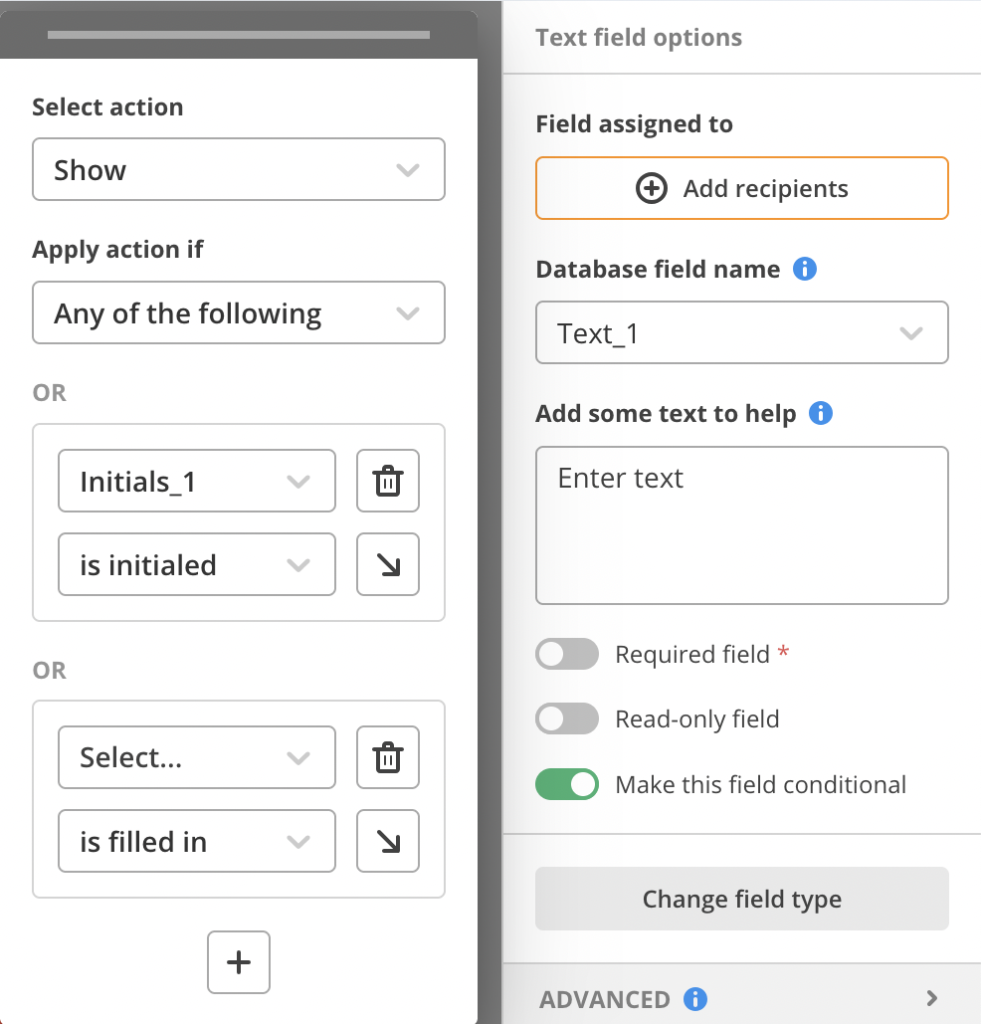
If the form is too broken to salvage, you can add new fields over the old ones. In Acrobat, use the ‘Prepare Form’ tool and click ‘Add New Field’. Place fields roughly where the old ones were. Match the font size and style to the surrounding text. Then delete the old broken fields (if they exist). This is more work, but it gives you complete control. For simple forms, free tools like PDFescape or Sejda allow you to add text fields, checkboxes, and radio buttons easily. Just make sure to set the field names correctly. If you run into issues with blank pages, refer to our blank PDF recovery guide.
Common Pitfalls
- Forgetting to uncheck ‘Read Only’ – that’s the most frequent reason fields don’t respond.
- Not saving a backup copy before editing – if you mess up, you’ll lose the original.
- Using a tool that doesn’t support the form field type – some online editors can’t handle radio buttons or signatures.
Where to Next
Now that you’ve got your PDF form working, you might want to explore other common fixes. If you ever encounter a PDF that won’t print, check our guide on pdf printing failed repair. Or if the text inside fields looks weird, our garbled PDF text fix might help. For general maintenance, learning how to repair a PDF document using Ghostscript is a great skill. Happy form filling!




