Ever opened a PDF only to find weird symbols, missing text, or just a blank page where your content should be? Don’t panic. You’re not alone, and you don’t need to be a tech wizard to fix it. This guide is for anyone who has a corrupted PDF file and wants to get the original text back without pulling their hair out.
By the end of this tutorial, you’ll have a clean, readable PDF with all the text restored. We’ll cover free online tools, desktop recovery software, and a few manual tricks to salvage text from even the most stubborn files. Grab your coffee and let’s get started.
What You’ll Need
- Your corrupted PDF file
- An internet connection (for online tools)
- Optionally: a PDF repair app (like Adobe Acrobat, PDFelement, or a free one)
- A simple text editor (Notepad, TextEdit) – yes, you read that right
- About 15 minutes of patience
Step 1: Try Opening the PDF in Another Viewer
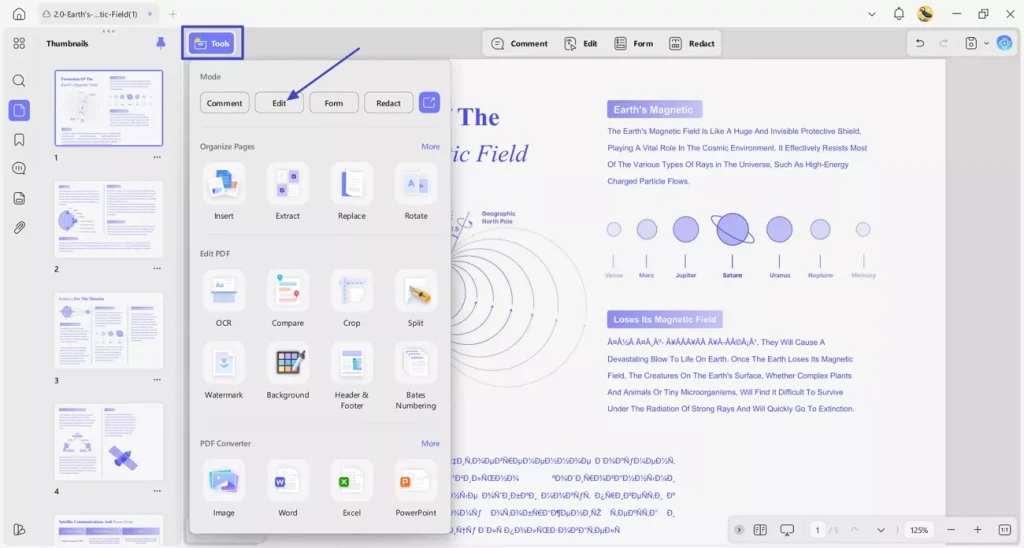
Sometimes the file is fine, but your PDF reader is the problem. Before you go full repair mode, test the file in a different program. Try opening it in your web browser (Chrome, Edge, or Firefox) – they all have built-in PDF viewers. If the text shows up fine there, then your regular reader might need an update or reinstall.
If the text is still messed up, move on to the next step.
Step 2: Use an Online PDF Repair Tool
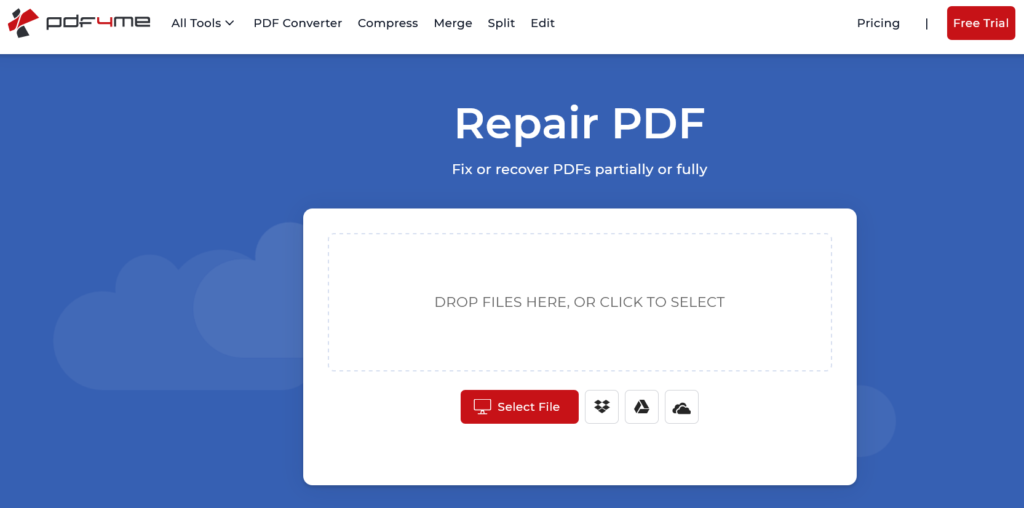
Online tools are the quickest fix for minor corruption. Search for a reputable service like Smallpdf, ILovePDF, or PDF2GO. Upload your file, let them work their magic, and download the repaired version. Most free plans handle basic text issues. If you have a signed PDF, you might need a specialized service to repair signed pdf – check that link for details.

Step 3: Run a Dedicated PDF Repair App
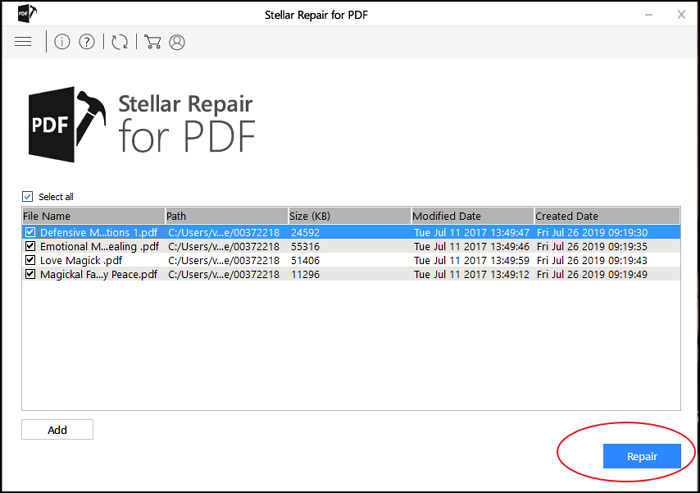
For stubborn corruption, a pdf repair app gives you more control. Programs like Adobe Acrobat Pro (paid) or the free PDF Repair Toolbox can analyze and rebuild the file structure. Open the app, load your file, and select “Repair” or “Recover Text”. Many apps let you save a new clean PDF. If your file is encrypted, refer to our guide on repair encrypted pdf.
Step 4: Extract Text Using a Text Editor (Manual Method)
This manual trick works when all else fails. Right-click your PDF and choose “Open with” then select Notepad (Windows) or TextEdit (Mac). You’ll see a mess of code – don’t freak out. Search for plain text by pressing Ctrl+F (Cmd+F) and typing a word you know was in the document. The raw text often sits between weird symbols. Copy the readable parts into a new document. This is a great way to recover text from damaged pdf without any fancy software.

Step 5: Save as a New PDF
Once you’ve recovered the text (via online tool, app, or manual extraction), save it as a new PDF. If you used a text editor, paste the clean text into a word processor like Google Docs or Microsoft Word, format it, then export as PDF. For garbled text, try the steps in our fix garbled pdf guide. If characters are still weird, check the repair pdf characters article.
Common Pitfalls
- Not checking if the PDF is simply password-protected – you might need to repair pdf with password first.
- Using online tools for sensitive documents – they may not be secure. Consider offline apps for confidential files.
- Opening the PDF in a text editor and accidentally editing the structure – only copy visible text, don’t save the raw file from Notepad or you’ll break it further.
Where to Next
Got your text back? Awesome! If you run into more specific problems – like a PDF that’s not opening on Android or has page errors – we’ve got step-by-step fixes for those too. And if you often deal with multiple bad files, you might want to batch pdf repair using a dedicated tool. Happy reading (and repairing)!




