
So you’ve got a PDF that looks like a glitchy mess—garbled text, weird symbols, or just blank pages where words should be. It happens to the best of us. Maybe the file got corrupted during a download, or your hard drive decided to throw a tantrum. Either way, you need the text inside. This guide is for anyone who’s staring at a damaged PDF and thinking, “I just need the words back.” By the end, you’ll have a handful of practical methods to extract readable text, from quick tricks to deeper repairs.
We’ll start with the easiest, free options and work our way up to more powerful tools. You won’t need any coding skills—just a bit of patience and a willingness to try a few different approaches. Whether it’s a corrupted PDF from a work report or that decades-old family recipe, you’ll have a solid plan to salvage the text.
What You’ll Need
- The damaged PDF file (obviously)
- A computer with internet access
- A free PDF reader (Adobe Acrobat Reader, SumatraPDF, etc.)
- Optional: A text editor like Notepad++ or Sublime Text
- Optional: An OCR tool like Tesseract (free) or online OCR service
Step 1: Assess the Damage – Can You See Anything?
Before diving into complex recovery, open the file in a standard PDF reader. Does it open at all? Do you see any text, even if it’s scrambled? Sometimes the damage is minor and you can copy-paste the visible text directly. Try selecting text with your mouse and copying it into a text file. If that works, great—you’re done. If not, move on.
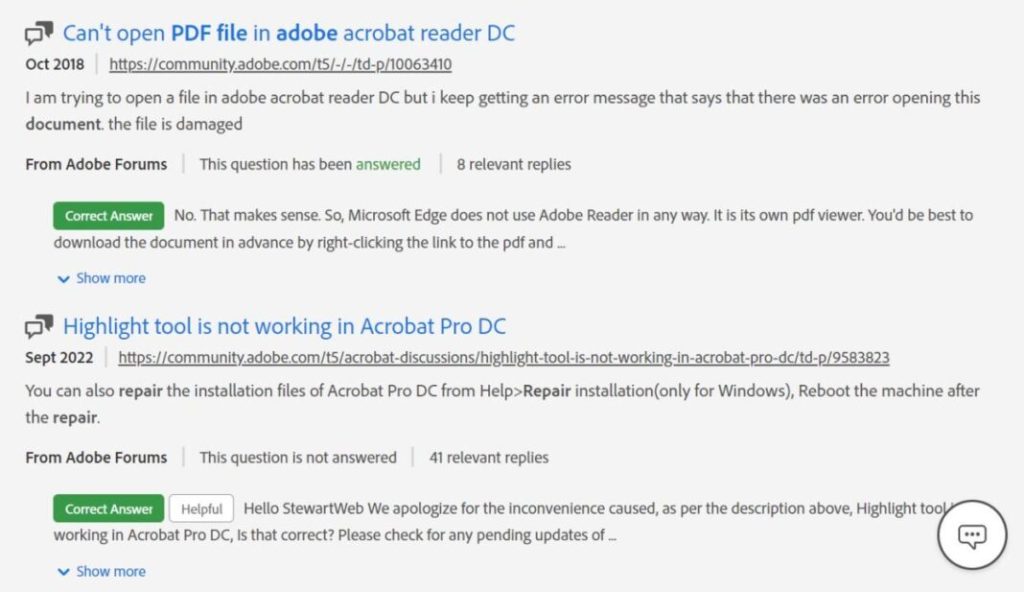
If the PDF won’t open or shows a blank page, don’t panic. The data might still be there. Proceed to the next step.
Step 2: Extract Raw Text with a Text Editor
PDFs are basically containers for text and images. You can often extract the raw text by opening the file in a plain text editor. Right-click the PDF, choose “Open with” and select Notepad (Windows) or TextEdit (Mac). You’ll see a bunch of gibberish—that’s the code. Search for readable strings: look for phrases between parentheses or after “Tj” operators. Use Ctrl+F (Cmd+F) to find common words. Copy any readable chunks into a new document.
This method works best for simple PDFs without complex formatting. For damaged PDFs, you might find partial text scattered around. Save everything you can—later steps might fill in the gaps.
Step 3: Use PDF Text Extraction Tools
If manual extraction is too messy, try a dedicated tool. Many free PDF extractors can pull text from corrupted files. For example, you can use online services (upload your file, get a text download) or install a small utility like pdftotext. On Windows, a quick Google search for “pdf text extractor free” will give you plenty of options. These tools ignore layout and just grab the raw text stream. If your PDF has been corrupted but the text data is intact, this can work wonders.

A reliable choice is to use pdf recovery software that includes a text extraction mode. These often recover more than simple extractors because they try to rebuild the file structure first.
Step 4: OCR – When Text Is Actually an Image
Sometimes a damaged PDF appears blank but the text was embedded as an image (e.g., scanned documents). Or the corruption scrambled the text layer, but the visual layer is fine. In that case, use Optical Character Recognition (OCR) to convert the images into text. Free tools like Tesseract (command-line) or online OCR services (Google Docs can import PDFs and OCR them) can help. Upload the PDF to Google Drive, open with Google Docs, and see if it can recognize the text. It’s surprisingly good.

If the PDF has garbled text but the images are clear, OCR reads the visible text. If the pages are scrambled, you may need to first use a garbled pdf text fix approach to reassemble the content.
Step 5: Repair the PDF Structure First
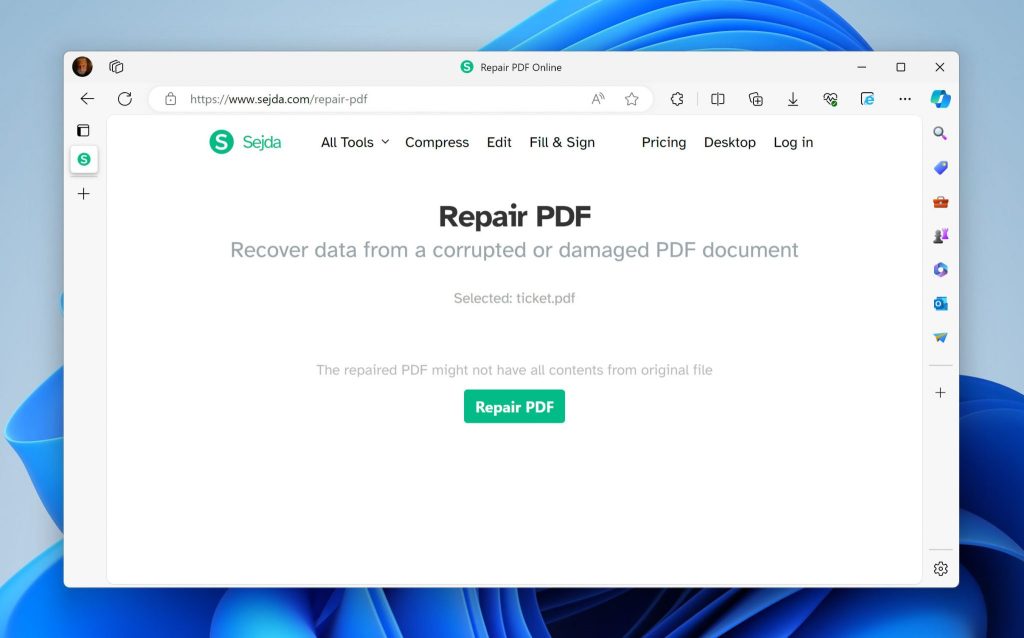
If the text extraction fails because the PDF is severely corrupted, you might need to repair the file structure before you can pull text. There are free online repair tools that can rebuild the cross-reference table and fix broken links. Upload your file to a service like PDF2Go or iLovePDF’s repair tool. These try to recover the original content. After repair, try Steps 1-4 again. This is especially useful if you have pdf page error fix issues like missing pages or blank sections.

Common Pitfalls
- Using the wrong tool for the type of damage – For example, trying OCR when the file is structurally corrupt (needs repair first).
- Overwriting the original file – Always work on a copy. Some tools might save a fixed version automatically, and if it fails, you lose the original.
- Ignoring encoding issues – Some PDFs use special fonts or encoding. If the text extracts as boxes or symbols, you may need to convert encoding or install the original font.
Pro tip: Always make a backup of your damaged PDF before attempting any repair or extraction. Some tools can worsen the corruption.
PDF Repair Community
Where to Next?
If none of these methods work, your PDF might be beyond simple text recovery. Check out our guide on how to repair pdf after file corruption for more advanced techniques. You can also try a dedicated recover damaged pdf tool that handles severe cases. And if you’re dealing with scanned documents often, consider setting up pdf recovery software on your computer for future mishaps.




