You’re trying to open a PDF on your Android phone, but nothing happens — or you get an error. It’s frustrating, especially when you need that file for work or study. This guide is for anyone whose PDF won’t open on Android, whether it’s a blank screen, a ‘file can’t be opened’ message, or just a file that refuses to launch.
By the end of this tutorial, you’ll have a working PDF viewer, and you’ll know how to fix corrupted files, switch apps, and even use online tools to repair stubborn PDFs. No technical expertise required — just follow the steps in order.
What You’ll Need
- Your Android phone (any version, any manufacturer)
- The PDF file that won’t open (stored on the device or cloud)
- An internet connection (for downloading apps or using online tools)
- A file manager app (most phones have one preinstalled; if not, install one like Files by Google)
- Optional: a USB cable or cloud account to transfer files to a computer
Step 1: Restart Your Phone and Try Again
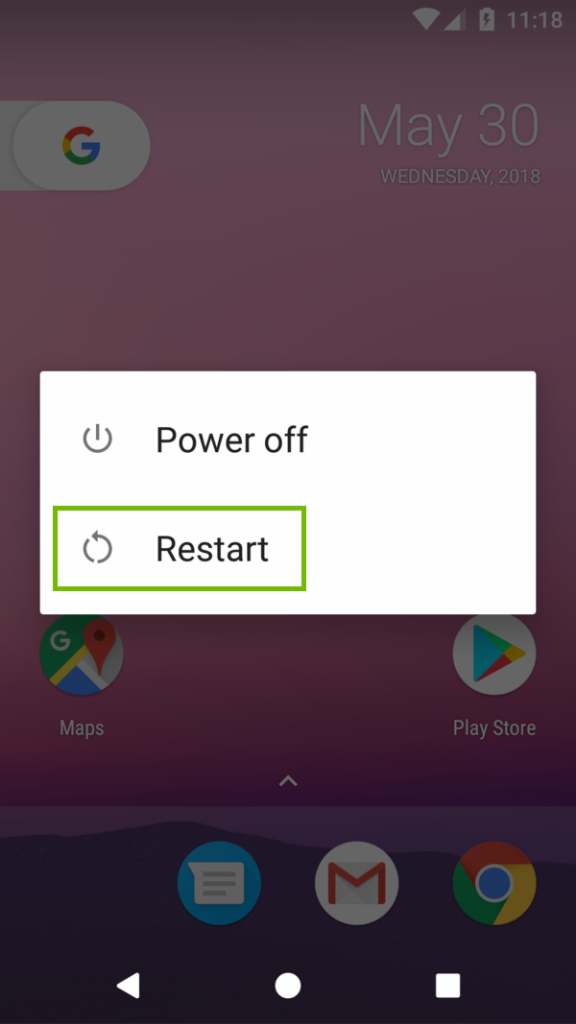
It sounds basic, but a quick restart clears temporary glitches that can prevent apps from working properly. Hold down the power button, tap ‘Restart’ (or ‘Reboot’), wait for your phone to turn back on, then try opening the PDF again.
Step 2: Clear the PDF App’s Cache and Data
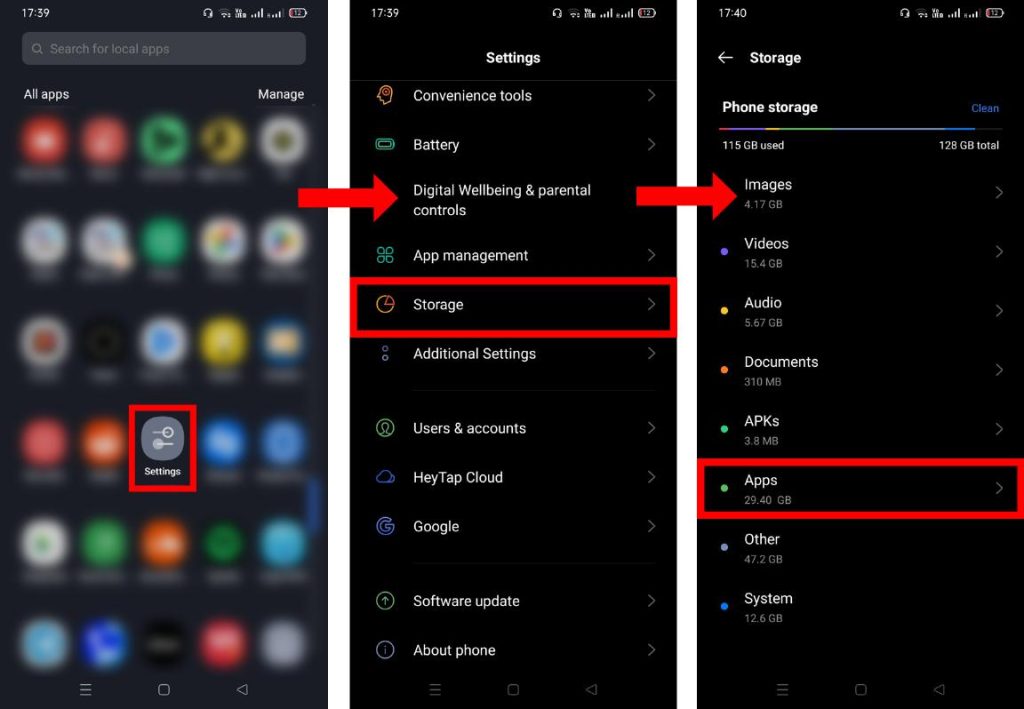
If the PDF still won’t open, the app you’re using may have corrupt cache data. Go to Settings > Apps > [Your PDF viewer] > Storage & cache > Clear cache. Then try again. If that doesn’t work, tap ‘Clear storage’ (this resets the app to factory defaults but won’t delete your files).
Step 3: Install a Different PDF Viewer
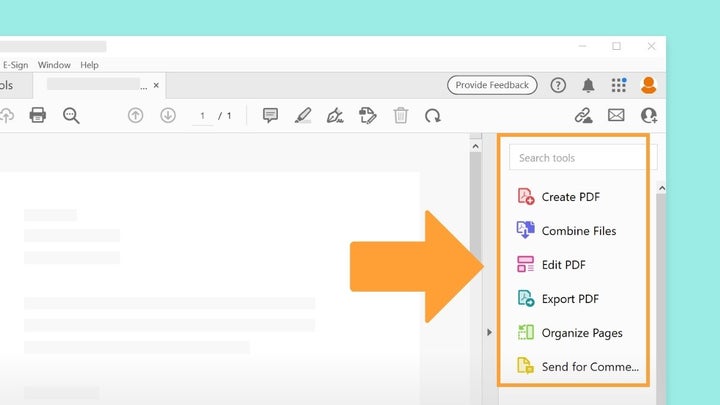
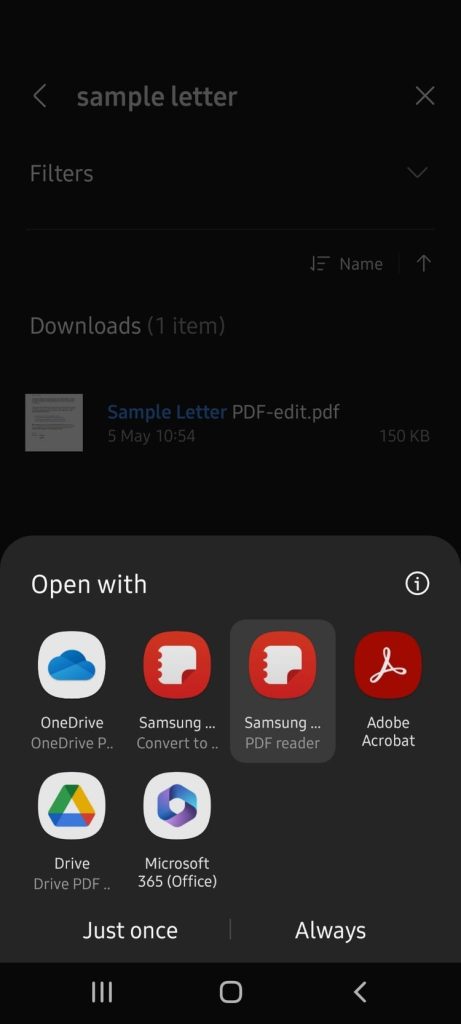
Sometimes the built-in viewer or a third-party app just doesn’t get along with your PDF. Try one of these free apps from the Google Play Store: Adobe Acrobat Reader, Google PDF Viewer, or Xodo PDF Reader & Editor. Download, install, and open your PDF with the new app.
Step 4: Use a File Manager to Check the File
Open your file manager app and navigate to where the PDF is saved. Check the file size: if it’s 0 bytes or very small, the file may be empty or damaged. Try renaming the file (e.g., from ‘document.pdf’ to ‘new.pdf’) to see if that helps. Also ensure the file extension is .pdf and not something else in disguise.
Step 5: Transfer the PDF to a Computer and Open It
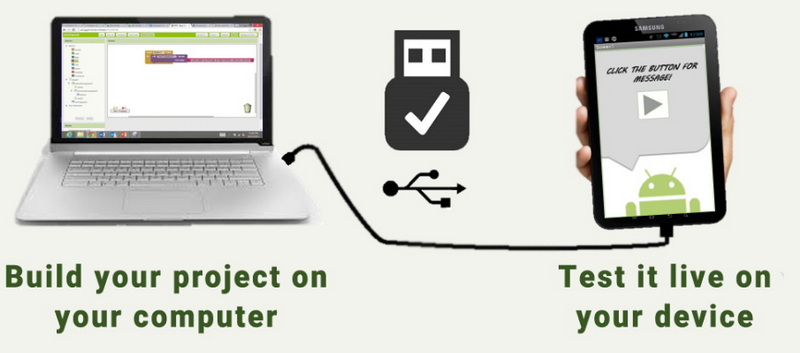
If it opens fine on a PC or Mac, then the issue is with your phone’s software, not the file. Connect your Android to a computer via USB, or upload the PDF to Google Drive or Dropbox, then download it to your computer and open it with Adobe Reader or your browser. If it works on the computer, move on to Step 6 to fix the phone-side issue.
Step 6: Use an Online PDF Repair Tool
If the PDF is corrupted or damaged, online tools can often recover its contents. Open your mobile browser and go to a trusted PDF repair website (like pdfrepairs.click). Upload the problematic PDF, let the tool fix it, and download the repaired version. For severe damage, you may need to recover text from damaged PDF using specialized software.
Step 7: Check for PDF Corruption
If the online tool fails or you want a diagnosis first, check if your PDF is corrupted with a quick online scan. Many repair sites offer a free analysis. If it’s confirmed corrupted, you can repair PDF after file corruption using automated tools that rebuild the file structure. For more detailed instructions, see our dedicated guide on how to check pdf corruption.
Common Pitfalls
- The file is actually corrupted — check if your PDF is corrupted before trying other fixes. Even if it opens on a computer, it might be partially damaged.
- You’re using an outdated PDF viewer — old versions may not support newer PDF features. Update all your PDF apps from the Play Store.
- The PDF is too large for your device — files over 100 MB can cause issues on low-RAM phones. Try compressing the file or using a cloud-based viewer.
Where to Next?
Got your PDF working? Great! If you want to dive deeper, check out our guides on how to repair PDF automatically for batch fixes, or explore PDF recovery software options. For recurring issues, keep experimenting with different apps and keep your phone’s software updated. Happy reading!




