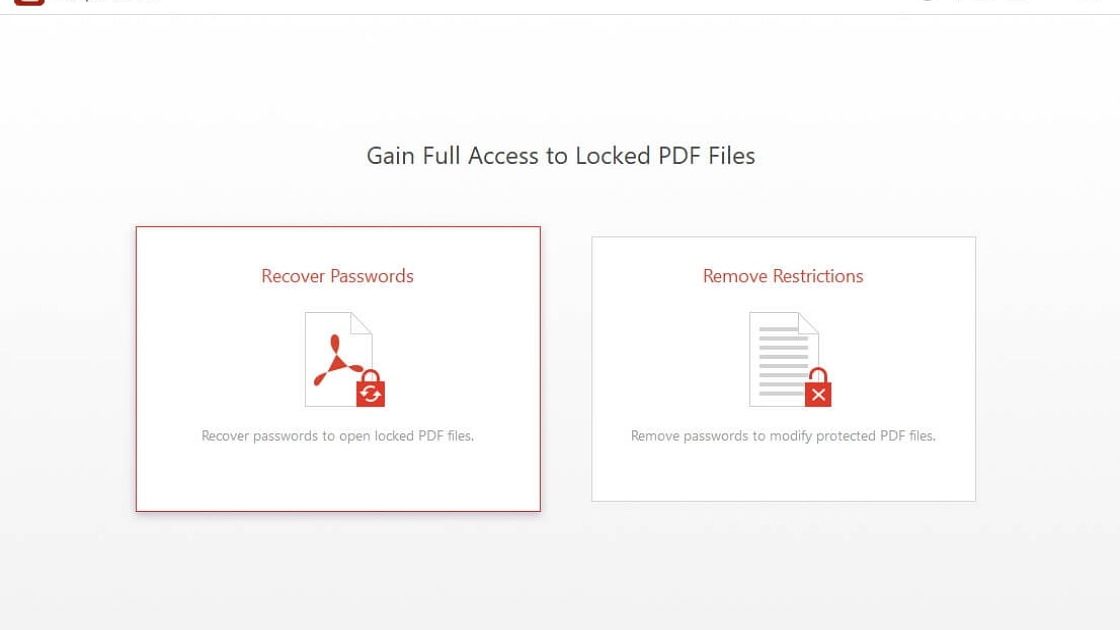
So you’ve got a PDF that’s password-protected and also acting up—maybe it won’t open, or it opens but looks garbled. Whether you forgot the password or the file got corrupted somehow, this guide is for you. By the end, you’ll have a clear, step-by-step plan to get that PDF back in working order, password removed (if needed), and your data accessible again.
We’ll cover everything from simple browser tricks to command-line tools and dedicated PDF recovery software. No prior tech expertise needed—just follow along and you’ll be surprised how easy it can be.
What You’ll Need
- Your password-protected PDF file (keep a backup copy!)
- A computer with internet access
- Optional: Adobe Acrobat Pro (paid) if you need advanced repair
- Free tools: Google Chrome, qpdf (Windows/Mac/Linux), or an online service
Most of the steps are free, so don’t stress about spending money upfront.
Step 1: Identify the Problem
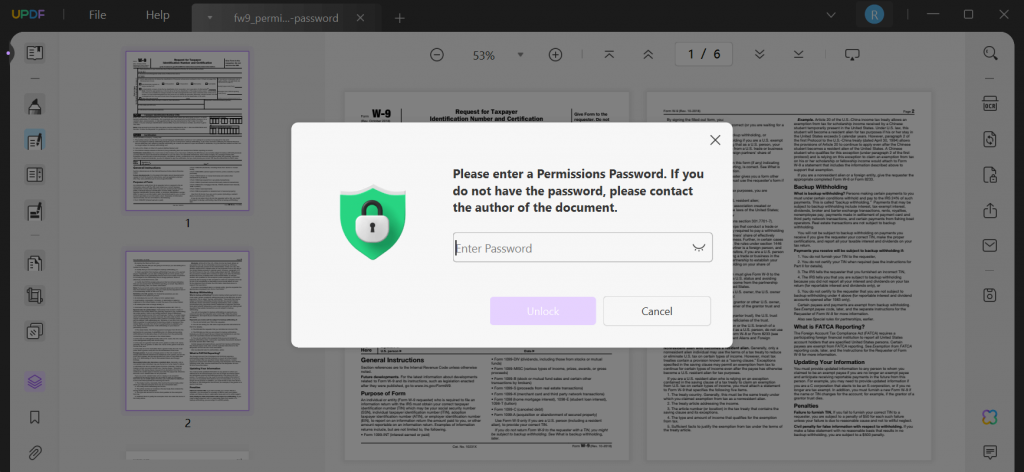
First, figure out what’s actually wrong. Try opening the PDF without any password—if it asks for one, that’s your main issue. If it opens but looks corrupted (blank pages, strange characters, missing content), you might have both a password and corruption problem. Knowing this helps you choose the right fix.
If you simply forgot the password, skip ahead to removing it. If the file is corrupted too, you’ll need to repair it afterward.
Step 2: Remove Password Using Google Chrome
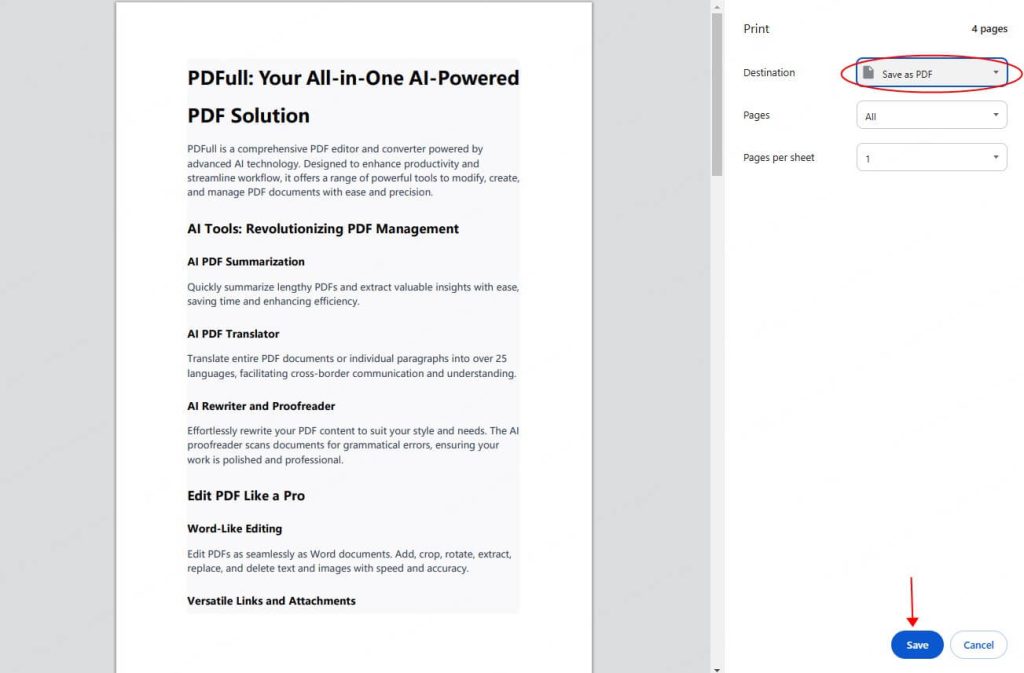
Google Chrome can bypass simple PDF passwords by printing the PDF to a new file. Here’s how:
- Open Chrome and drag your PDF into the browser window.
- Enter the password if prompted (you need to know it for this trick).
- Once the PDF opens, click the print icon (or press Ctrl+P / Cmd+P).
- In the print dialog, change the destination to ‘Save as PDF’.
- Click ‘Save’ and choose a location. The new PDF will have no password.
This method works for most simple PDFs. If the PDF is corrupted and Chrome can’t render it, move to the next step.
Step 3: Use an Online PDF Password Remover
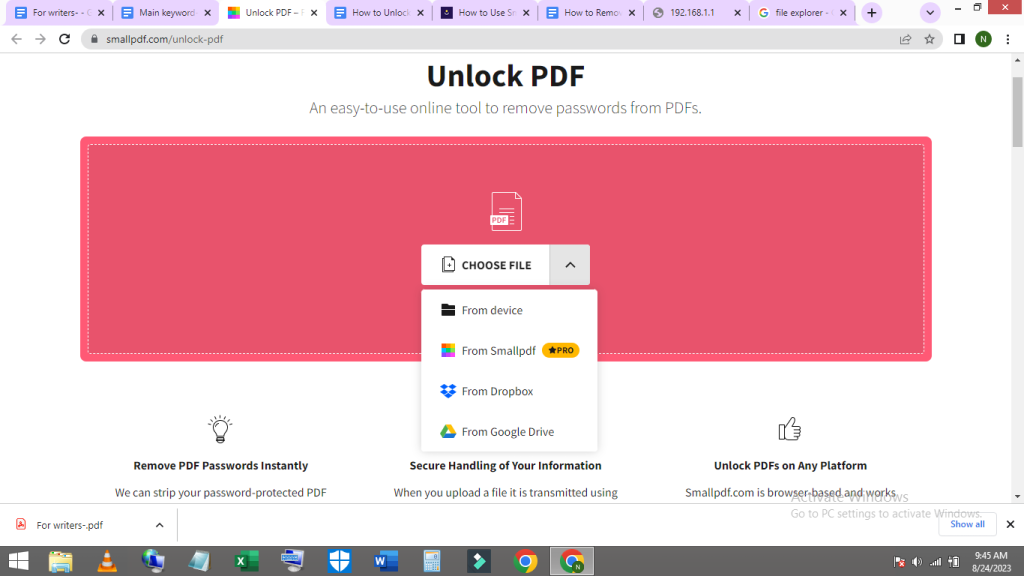
If Chrome fails, try a free online service like Smallpdf or iLovePDF. Be careful with sensitive documents—never upload confidential files to unknown sites.
- Go to Smallpdf’s Unlock PDF tool (or similar).
- Upload your password-protected PDF and enter the password.
- Download the unlocked version.
- If the resulting PDF is still corrupted, repair it using the next steps.
Online tools can handle many password issues, but they won’t fix deep corruption.
Step 4: Repair the PDF with Adobe Acrobat Pro
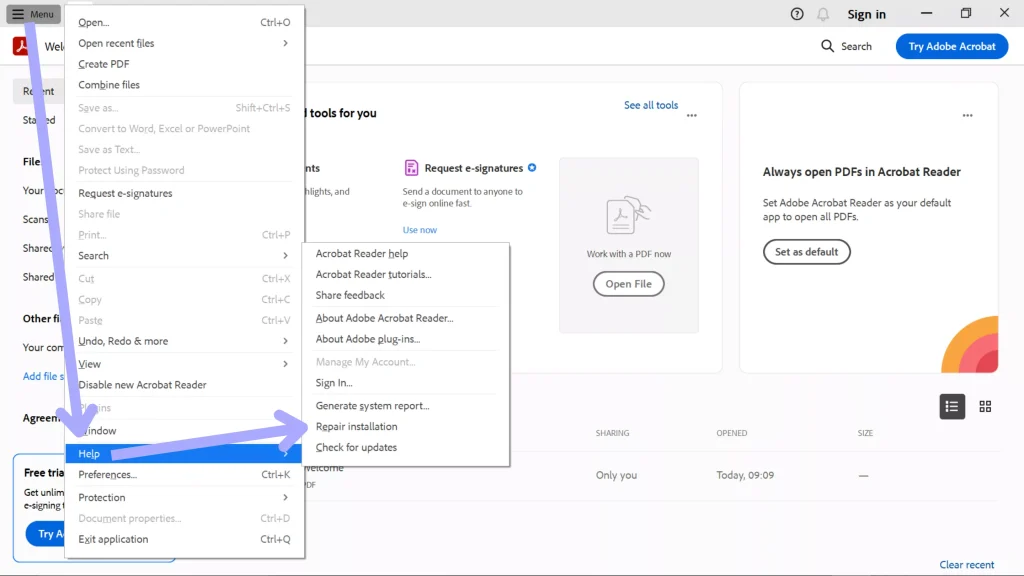
If your PDF is corrupted after password removal, Adobe Acrobat Pro has built-in repair features. Try these:
- Open the PDF in Acrobat Pro.
- Go to File > Save As Other > Reduced Size PDF. This sometimes fixes minor corruption.
- If that fails, go to File > Save As Other > Optimized PDF and uncheck all but the essentials.
- For heavy corruption, go to Tools > Protect > Encrypt > Remove Security (if password is still on). Then try the above.
Acrobat Pro isn’t free, but if you have it, it’s a powerful option.
Step 5: Use the Command-Line Tool qpdf (Advanced)
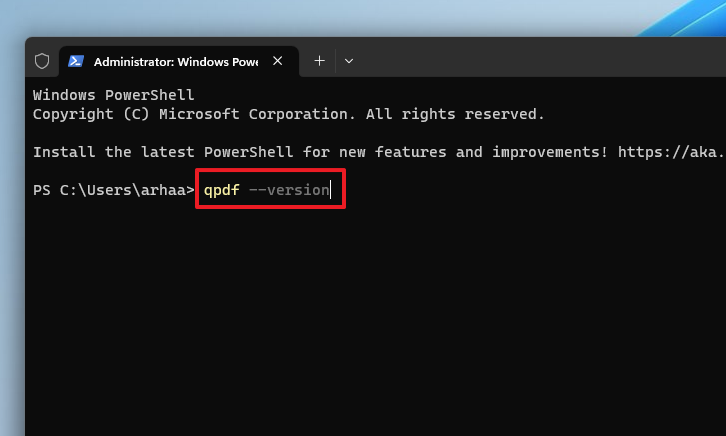
For tech-savvy users, qpdf is a free tool that can remove passwords and repair many PDF issues. Install it from the official website, then run:
Replace ‘yourpassword’ with the actual password. If that fails, try repair mode:
qpdf is reliable for both password removal and light corruption repair.
Step 6: Use Dedicated PDF Recovery Software
When everything else fails, dedicated recovery software is your best bet. Tools like Stellar Repair for PDF can handle heavily corrupted files, even those with passwords. They scan the file and extract recoverable data. Check out our guide on pdf recovery software for detailed comparisons.
These tools are usually paid but offer trial versions. If your PDF is critical, it’s worth the investment.
Common Pitfalls
- Losing the original file: Always keep a backup before trying repairs. If something goes wrong, you can start over.
- Online tools don’t fix corruption: Most password removers only strip the password—they won’t repair damaged content. You’ll need separate corruption repair.
- Password removal fails for strong encryption: Some PDFs use AES-256 encryption that simple tricks can’t break. You’ll need the password or a recovery tool.
Where to Next?
Now that your PDF is fixed, you might want to learn more about handling corrupted files. Check out our guide on how to recover text from damaged pdf if some content went missing, or the best way to fix corrupted pdf for other scenarios. Happy repairing!




