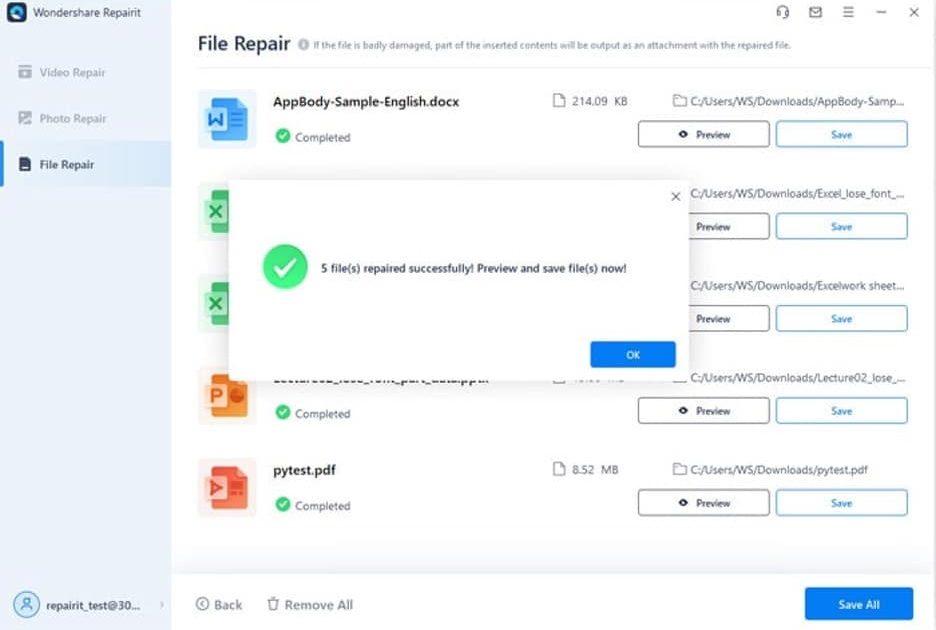
Ever opened a PDF only to see garbled text, missing pages, or an error saying the file is damaged? You’re not alone. Corrupted PDFs happen to everyone — whether it’s from an interrupted download, a faulty storage drive, or a software crash. The good news: most corruption is fixable, even without expensive tools. This guide walks you through the most effective methods to repair a corrupted PDF, from quick online fixes to manual command-line tricks. By the end, you’ll have a working PDF (or at least know exactly what went wrong and how to try again).
We’ll cover three main approaches: using free online repair services, leveraging Adobe Acrobat’s built-in repair feature, and resorting to command-line tools like PDFtk for stubborn cases. You don’t need to be a tech wizard — just follow the steps in order, and you’ll likely recover your file. If you’re not sure whether your file is actually corrupted first, check our guide on how to check PDF corruption before diving in.
What You’ll Need
- Your corrupted PDF file (keep the original safe)
- A stable internet connection (for online methods)
- Adobe Acrobat Reader or Pro (free version works)
- Optional: PDFtk (free command-line tool) or similar
- A backup of the file (just in case)
Step 1: Attempt an Online PDF Repair
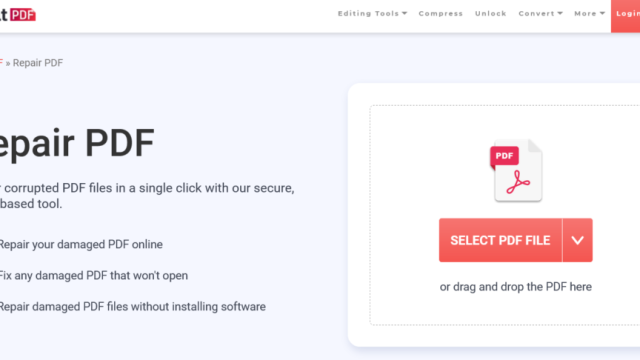
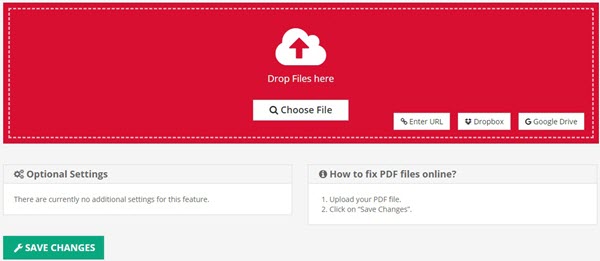
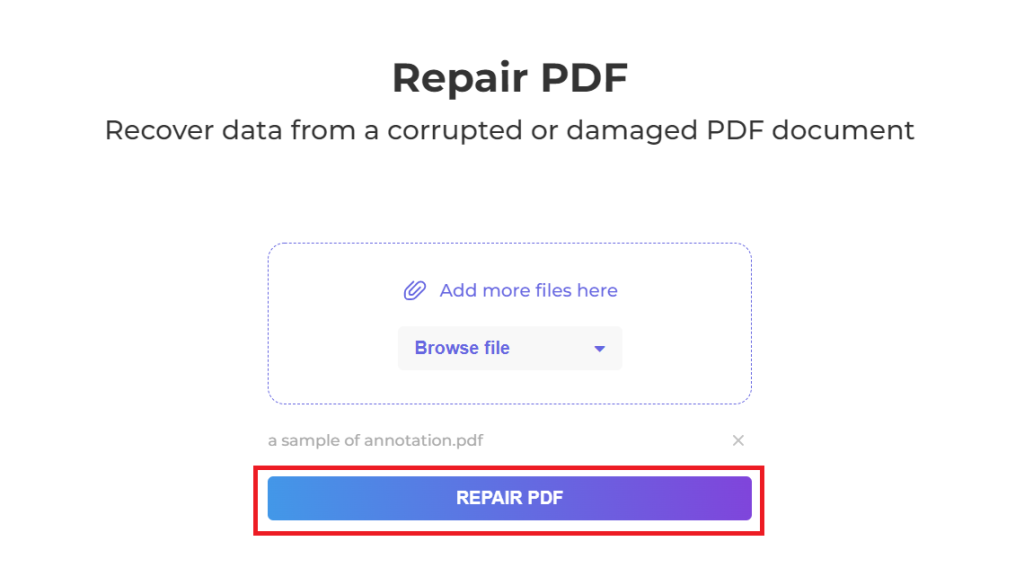
Online repair tools are the quickest first attempt. They work by re-parsing the file structure and extracting readable content. A solid option is iLovePDF’s Repair PDF tool — it’s free for small files and doesn’t require an account. Simply go to the site, upload your corrupted PDF, and let it process. Downloads usually come as a repaired PDF or a zip if the file is large. This method resolves many common corruption issues like broken headers or cross-reference tables.
If the online tool gives you an error or produces a blank PDF, don’t panic — move to Step 2. Some corruption types (like missing objects) need local software.
Step 2: Repair with Adobe Acrobat’s Built-In Feature
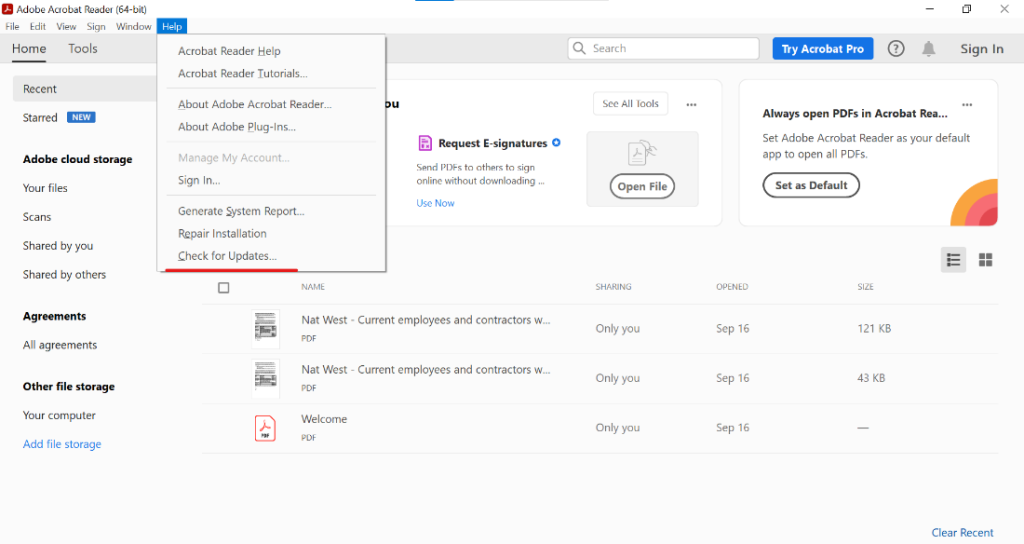
Adobe Acrobat (both Reader and Pro) includes a hidden repair function that can fix many file structure issues. Open the corrupted PDF in Acrobat — you’ll likely see an error message. Click ‘Yes’ when asked if you want to try to repair the file. Acrobat will attempt to rebuild the PDF’s internal structure. If it succeeds, save the repaired version with a new name. This is often the best way to fix corrupted PDF files, especially for minor corruption.
Acrobat’s repair works best on files that open but display garbled content. If the file doesn’t open at all, try opening it from within Acrobat using File > Open and selecting the corrupted file directly.
Step 3: Use PDFtk (Command-Line) for Stubborn Cases
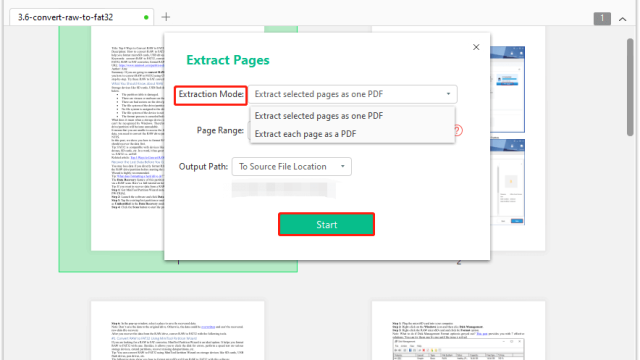
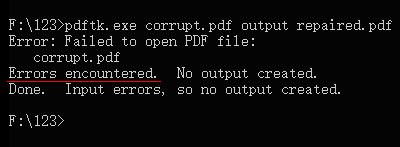
When online tools and Acrobat fail, PDFtk (PDF Toolkit) is a powerful free option. It’s a command-line tool available for Windows, Mac, and Linux. Download it from pdftk.com, then open your terminal or command prompt. Run a simple command: pdftk input.pdf output repaired.pdf. PDFtk will try to repair the PDF by re-serializing its objects. This can fix a malformed PDF that other tools can’t handle. It’s also great for extracting pages if only part of the file is corrupt.
For more complex issues, you can force PDFtk to burst the PDF into individual pages with pdftk input.pdf burst, then recombine only the good pages. That technique is perfect if you need to recover a blank PDF.
Step 4: Extract Content Using a PDF Unpacker
If the repair attempts above still don’t yield readable content, your file might be so corrupted that recovery tools can’t fix the structure. In that case, try extracting raw text and images. Tools like ‘pdfimages’ and ‘pdftotext’ (from the Poppler suite) can pull out embedded elements. On Windows, get the poppler binaries; on Mac, use Homebrew. Run pdftotext corrupted.pdf output.txt to get any text still in the file. For images, use pdfimages -j corrupted.pdf image_root. This gives you the raw assets that could be reassembled manually.
This step won’t restore the original layout, but it can save the data if you absolutely need the content. You can then recreate the PDF from the extracted parts.
Step 5: Fall Back to a Backup or Version History
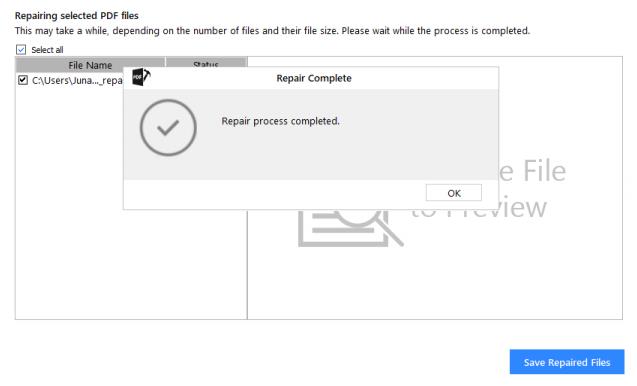
If all else fails, check for backups. Cloud services like Google Drive, Dropbox, or OneDrive often keep previous versions of files for 30 days. Right-click the file in your cloud storage and look for ‘Version history’ or ‘Previous versions’. Download an older, uncorrupted version. Similarly, if you use Time Machine (Mac) or File History (Windows), try restoring from a snapshot. This is the safety net you hope to never need, but it’s saved countless files.
To avoid future headaches, enable automatic versioning on your important PDFs — it’s a simple setting that can automate repair PDF automatically in many cases.
Common Pitfalls
- Working on the original file: Always make a copy before repairing. If the repair tool messes up, you’ll have the original to try again. Save repaired files with a new name.
- Assuming online tools are safe: Avoid uploading sensitive or confidential PDFs to free online services. For private documents, stick with offline methods like Acrobat or PDFtk.
- Skipping the easy steps first: Some corruption looks scary but is trivial to fix. Always try an online tool or Acrobat before diving into command-line tools.
Where to Next
Repairing a corrupted PDF is often easier than you think. Start with the online method, then work your way through Acrobat and PDFtk. If you’re still stuck, your file may have deeper issues like a damaged cross-reference table — in that case, check our guide on how to fix a malformed PDF for advanced techniques. And remember, the best way to fix corrupted PDF is prevention: keep backups and use reliable download sources. Good luck!