Have you ever tried to open a PDF and ended up staring at a mess of symbols, gibberish, or blank pages? Unreadable PDFs are frustrating, especially when you need that file for work, school, or something important. This guide is for anyone who’s stuck with a corrupted PDF that shows garbled text, missing content, random characters, or just won’t display properly. By the end, you’ll have a working PDF — or at least recovered the text inside it.
We’ll cover free and low-cost methods—no special skills needed. You’ll learn how to diagnose the problem, try quick fixes like switching viewers, use dedicated repair tools (both online and offline), extract text by copying, and even convert the PDF to another format and back. Most of these steps work even if the file looks completely destroyed. Let’s rescue your data.
What You’ll Need
- The unreadable PDF file (try to keep a backup copy)
- A computer (Windows, Mac, or Linux)
- Internet connection (for online tools or downloading software)
- Optional: PDF reader like Adobe Acrobat Reader or Foxit Reader
- Optional: A PDF repair tool (free options: PDF Repair Toolbox, Online2PDF, or Sejda)
Step 1: Identify the Problem
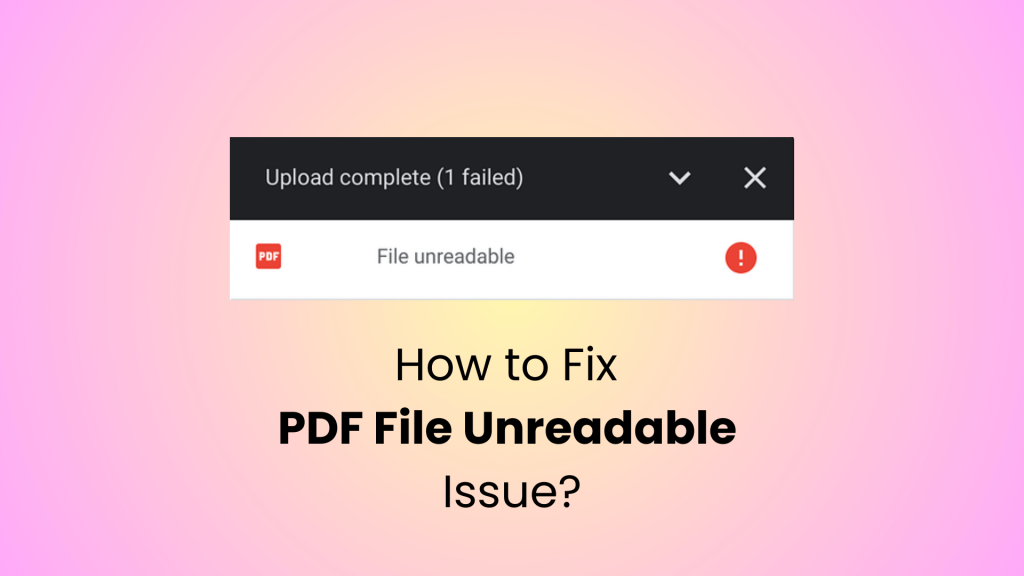
Before you dive into repairs, figure out what exactly is wrong. Is the whole file a mess of random characters? Are only certain pages blank? Does the file not open at all? Common symptoms include garbled text (é -@ symbols), missing images, blank pages, or error messages like ‘There was an error opening this document.’ Knowing the issue will help you pick the right fix. This step is similar to a quick check pdf corruption routine.
Step 2: Try Opening in a Different Viewer
Sometimes the problem isn’t the PDF itself, but the viewer you’re using. If you normally use your web browser, try a dedicated reader like Adobe Acrobat Reader or Foxit Reader. If you’re on a phone, try a different app — especially relevant if you deal with pdf not opening on android issues. On Windows, open with Microsoft Edge or a third-party app. A simple change can fix display glitches caused by outdated software.
Step 3: Use a Dedicated PDF Repair Tool
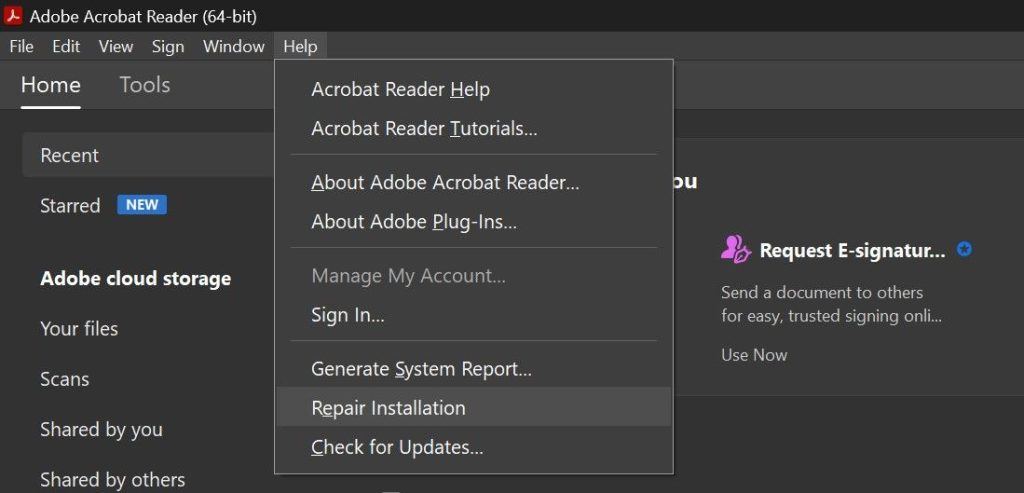
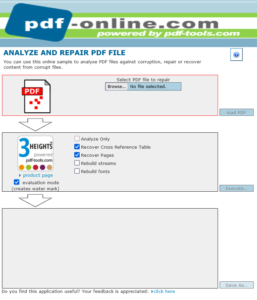
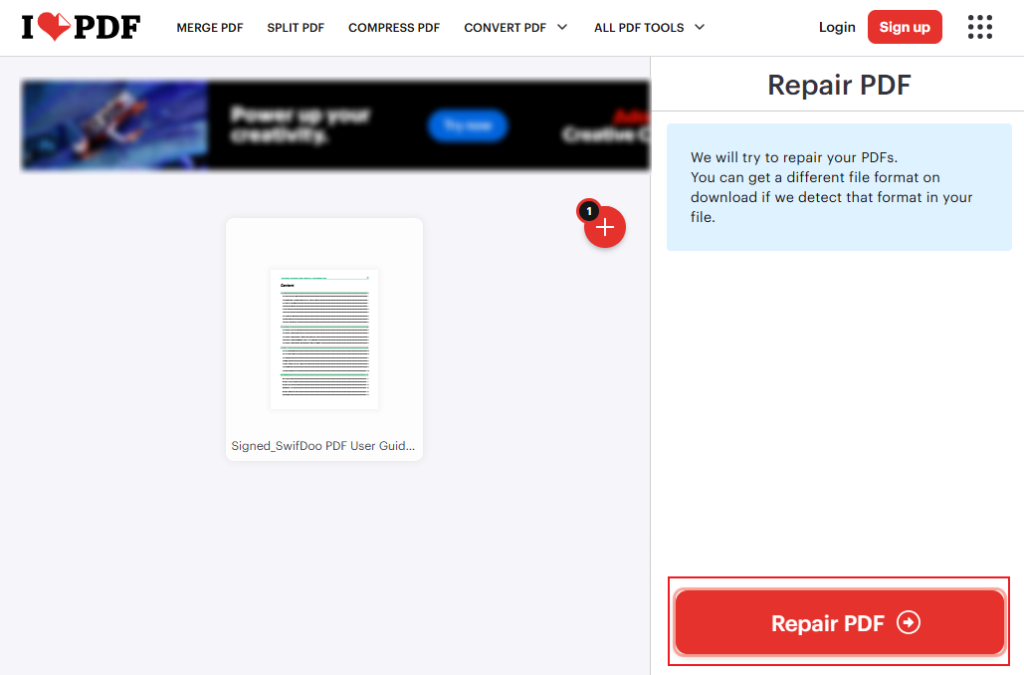
If swapping viewers didn’t work, it’s time for a repair tool. There are free online options like Sejda or Online2PDF that let you upload your file and download a repaired copy. For offline repair, try PDF Repair Toolbox (free for basic repairs) or Adobe Acrobat Pro’s built-in repair function. Simply upload the file and click ‘Repair’. These tools are designed to fix structural corruption, which often causes garbled text. This is a great way to repair pdf after file corruption issues.
Step 4: Recover Text via Copy and Paste
If the PDF seems unreadable but the text is actually selectable (you can highlight it), you can still copy the content. Open the file in a viewer like Adobe Acrobat, select the garbled text, copy it, and paste into a text editor (Notepad, Word). Often the underlying text is intact even if the display is corrupted. This method is a great example of how to recover text from damaged pdf without special tools. You might lose formatting, but you’ll get the words.
Step 5: Convert to Another Format and Back
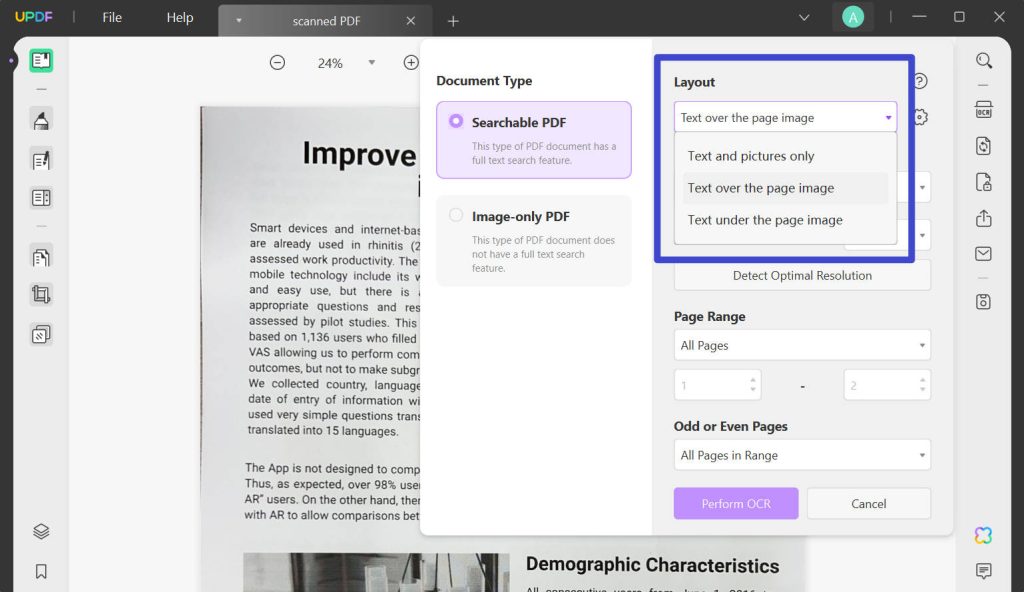
Conversion can bypass corruption. Use an online converter (like Zamzar or Smallpdf) to turn your PDF into a Word document or an image (JPG/PNG). Then convert that file back to PDF. This strips out underlying errors and regenerates the PDF structure. It works especially well for pdf page error fix situations where some pages are blank or out of order. Note: for scanned PDFs, this may create images of text rather than selectable text.
Common Pitfalls
- Trying to open the PDF repeatedly with the same broken viewer — you’ll waste time. Always try at least two different readers.
- Forgetting to back up the original file — if a repair tool damages it further, you lose everything. Keep a copy.
- Ignoring error messages — they often tell you exactly what’s wrong (like ‘Bad file descriptor’ or ‘Missing cross-reference table’). A quick web search for the error can give you a targeted fix.
Where to Next
If your PDF is still acting up, don’t give up. Check out our other guides: learn how to handle a pdf not opening on android, dive deeper into how to recover text from damaged pdf, or get more advanced with a repair pdf after file corruption strategy. For page-specific problems, our pdf page error fix is a must-read. And if you’re not sure where to start, use our check pdf corruption guide to diagnose first. Every problem has a solution — you’re already on the right track.




