You just saved an important PDF, and now it won’t open, shows garbled text, or throws an error. It happens more often than you’d think — a brief power outage, a hiccup during file write, or a glitchy cloud sync can corrupt the file at the moment of saving. This guide is for anyone who’s lost a PDF after a save and wants it back, no technical expertise required. By the end, you’ll have a working PDF again, using methods that have rescued files for countless users.
We’ll walk through straightforward checks and free tools. Even if the file seems completely dead, there’s a good chance we can resurrect it. If you’ve dealt with similar issues before, you might know about generic pdf repair for unreadable files, but this guide tackles the specific case of save corruption. You’ll also learn how to avoid future headaches.
What You’ll Need
- The corrupted PDF file (obviously)
- A reliable internet connection for online tools
- A second PDF viewer (like Chrome or Firefox) installed
- Optional: access to cloud storage (Google Drive, Dropbox) if you backed up there
- Patience — don’t save over the original until we’re sure
Step 1: Confirm It’s Really Corrupted
Before diving into repairs, make sure the problem isn’t just your viewer. Try opening the PDF in a different program — especially a web browser. Chrome, Firefox, and Edge all have built-in PDF viewers. If the file opens fine there, the issue is with your usual reader. If it fails everywhere, it’s truly corrupted. Also check the file size: a file that’s suspiciously small (like 1 KB) likely contains only an error message, not your content.

Step 2: Try a Different PDF Reader
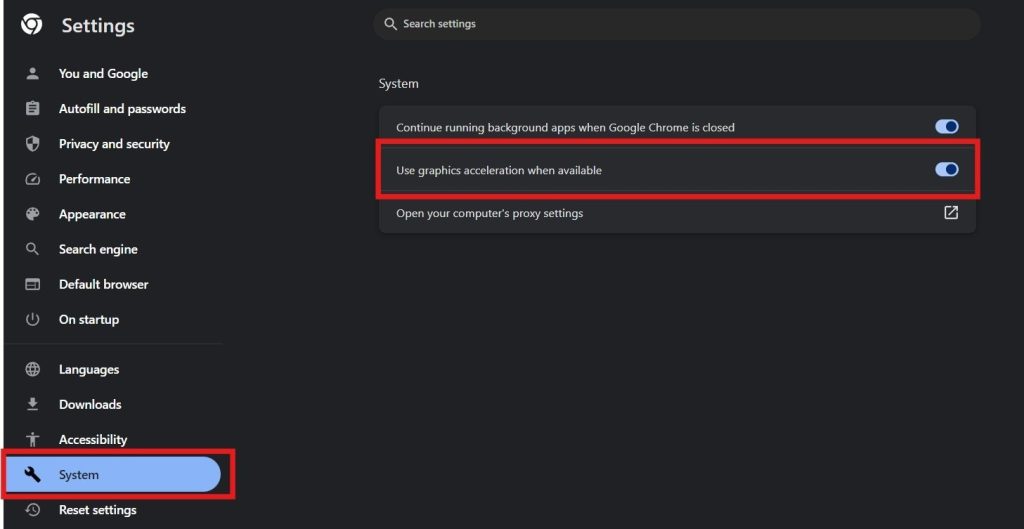
Sometimes the corruption is minor and a different reader handles it better. If you’re using Adobe Acrobat, try opening the PDF in Google Chrome or the Microsoft Edge browser. If the file opens, you can re-save it from the browser’s print-to-PDF option, which often cleans up minor corruption. For example, in Chrome, click the three dots at the top right, choose “Print,” then select “Save as PDF” as the destination.
Step 3: Use an Online PDF Repair Tool
If step 2 doesn’t work, it’s time for dedicated repair. Free online tools can often fix save-corrupted PDFs. Upload your file to a trusted service like PDFRepairs.click’s online repair tool (they have one specifically for this). The tool analyzes the file structure and attempts to reconstruct it. This is similar to a repair pdf after file corruption process that many users rely on. For password-protected PDFs, you may need a specialized repair pdf with password service.

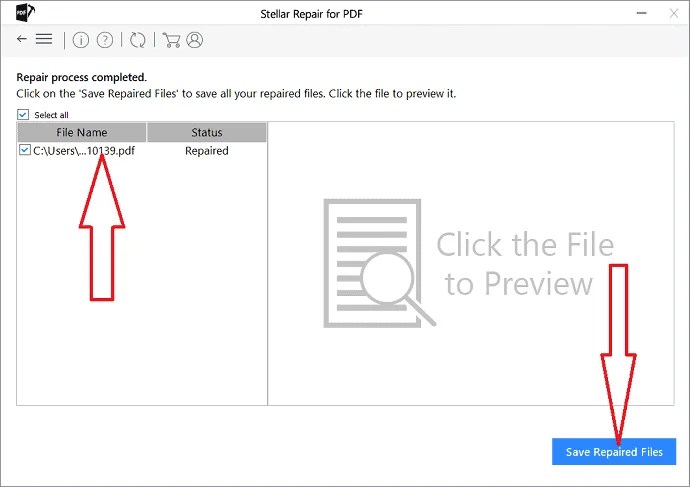
Step 4: Use Dedicated PDF Repair Software
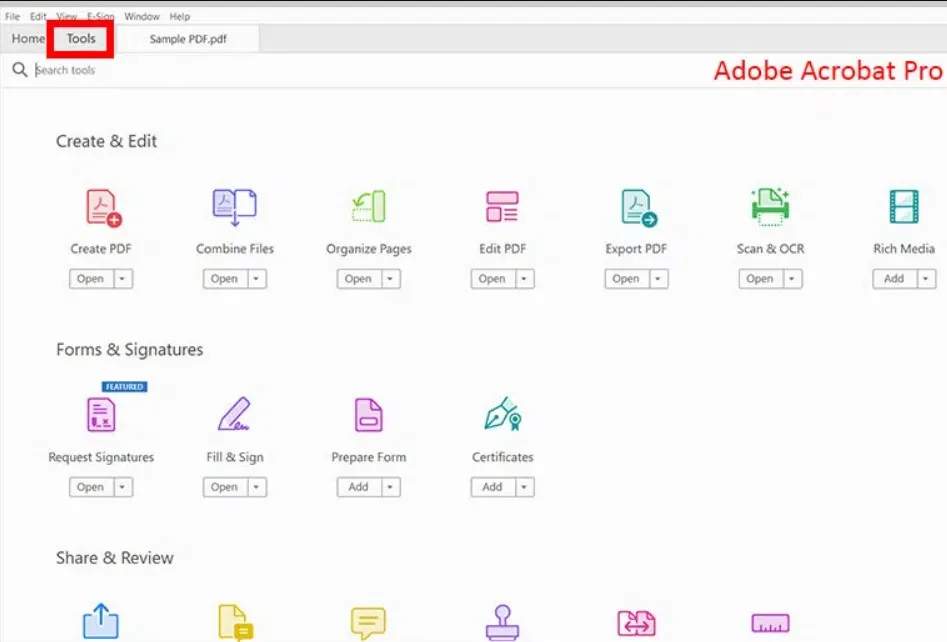
Online tools are great for quick fixes, but sometimes you need more power. Adobe Acrobat Pro has a built-in repair function: go to File > Open, select the corrupted PDF, and click the arrow next to the Open button. Choose “Open and Repair.” There’s also free software like PDF Repair Toolbox (Windows) and Recoll (cross-platform). If recovery is critical, the best way to fix corrupted pdf might involve a dedicated desktop app.
Step 5: Recover from Backup or Previous Version
If the above steps fail, check if you have a backup. Many cloud services (Google Drive, Dropbox, OneDrive) keep version history. Right-click the file and look for “Version history” or “Previous versions.” You might find a pre-corruption copy. Windows also has File History. This is often the fastest fix. For text-heavy PDFs, you might also try to recover text from damaged pdf using file extraction tools.

Common Pitfalls
- Saving over the original: Always work with a copy until you have a fixed version, or you might lose the chance to repair.
- Using an untrusted tool: Some free tools add watermarks or limit pages; worse, they could contain malware. Stick to reputable services like the ones we’ve linked.
- Ignoring permissions: Sometimes the PDF is encrypted or has restricted editing rights. Use a dedicated tool like repair pdf automatically to handle that.
Where to Next
You’ve got your PDF back — great! To prevent future issues, consider regularly backing up important files and enabling auto-save in your PDF editor. If you run into other PDF problems, check out our guides on pdf repair for unreadable files, repair pdf after file corruption, best way to fix corrupted pdf, recover text from damaged pdf, and repair pdf automatically. Each tackles a different scenario, so you’re ready for anything.




