So your PDF is acting up — won’t open, shows garbled text, or throws a syntax error. Before you give up, try pdftk. It’s a free command-line tool that’s been around forever and can fix many common PDF issues. This guide is for you if you’re comfortable opening a terminal (or want to learn) and just want to get your PDF working again. By the end, you’ll have a repaired PDF that opens cleanly in any reader.
pdftk (PDF Toolkit) can do a lot, but its “repair” operation is a gem. It basically re‑writes the file’s internal structure, smoothing out glitches and discarding broken bits. It’s not magic — it won’t fix missing pages or recover deleted content — but for many corruptions, it’s the fastest fix. We’ll also cover a second trick (decompress + recompress) for stubborn files.
What You’ll Need

- A computer running Windows, macOS, or Linux.
- A corrupted PDF file that you want to repair.
- pdftk installed on your system (see Step 1 if you don’t have it yet).
- Basic familiarity with opening a terminal or command prompt.
Step 1: Install pdftk

If you don’t have pdftk, grab it from the official site (pdftk.com) or use your package manager. On Windows, download the installer and run it. On macOS, you can use Homebrew: brew install pdftk. On Linux, it’s usually in the repos: sudo apt install pdftk (Debian/Ubuntu) or sudo dnf install pdftk (Fedora). After installation, open a terminal and type pdftk –version to confirm it’s working. If you see a version number, you’re good.
Step 2: Open Your Terminal and Navigate to the PDF Folder
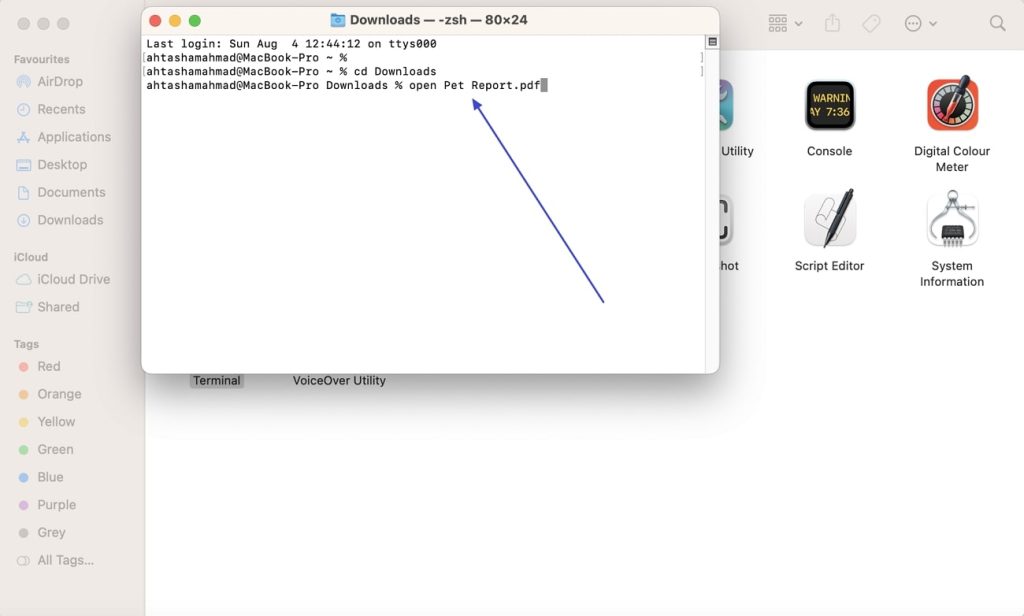
Launch Terminal (macOS/Linux) or Command Prompt (Windows). Use the cd command to go to the folder containing your broken PDF. For example: cd ~/Downloads or cd C:UsersYourNameDocuments. You can drag the folder into the terminal to avoid typing the full path. Once there, run ls (macOS/Linux) or dir (Windows) to see the file list. Make sure your PDF is in that folder.
Step 3: Run the Repair Command
Now for the magic. Run this command, replacing input.pdf with your corrupted file and output.pdf with whatever you want the repaired version to be called (use a different name to keep the original intact):
pdftk input.pdf output output.pdf
Basic pdftk repair command
This reads input.pdf, repairs it, and writes the result to output.pdf. If you want to see more details, add the verbose flag: pdftk input.pdf output output.pdf verbose. When it finishes, you should see a new file in the same folder.
Step 4: Check the Repaired PDF
Open output.pdf with your usual PDF reader (Adobe Acrobat, Preview, etc.). If it opens without errors, woohoo! You’re done. If you still see issues like garbled text or missing images, proceed to Step 5. Also, a quick tip: you can use the free online pdf fixer if pdftk alone doesn’t cut it.
If the command itself threw an error like “Error: Unable to find file” or “assword required”, see the Common Pitfalls section below.
Step 5: (Alternative) Decompress and Recompress the PDF
Some corruptions survive the basic repair. Try this two-step trick. First, decompress everything:
pdftk input.pdf output uncompressed.pdf uncompress
Decompression command
Then compress it again:
pdftk uncompressed.pdf output repaired.pdf compress
Recompression command
This forces pdftk to fully rewrite the PDF stream, often fixing deeper structural issues. Delete uncompressed.pdf when you’re done. If your file is still broken after this, you may need a more advanced tool — check out the how to fix invalid pdf file guide for other methods.
Common Pitfalls
- ‘pdftk’ is not recognized: This means pdftk isn’t in your system’s PATH. Either install it correctly or use the full path to the executable (on Windows, try C:Program FilesPDFtkbinpdftk.exe). On macOS/Linux, reinstall with Homebrew/apt and try again.
- Error: ‘Unable to find file’: You mistyped the filename or aren’t in the right directory. Use Tab to autocomplete filenames. Also check that the PDF isn’t open in another program — close any PDF readers that might be locking the file.
- Error: ‘Password required’ or ‘Bad password’: The PDF is encrypted. pdftk can’t repair encrypted files unless you have the owner password. You’ll need to remove the password first using a tool like qpdf or an online service, then retry. For more details, see the repair pdf with password guide.
Where to Next
If pdftk didn’t fully fix your PDF, don’t despair. There are many other ways to recover your document. You can try specialized tools for batch pdf repair if you have multiple files, or dive into how to recover text from damaged pdf for extracting content. And if syntax errors are your main issue, the fix pdf syntax error guide has you covered. Good luck!




