
You’re trying to open a PDF and all you get is an error, garbled text, or a blank page. Don’t panic — most PDF corruption is fixable, and you don’t need to be a tech wizard. In this guide, I’ll walk you through the easiest ways to repair a broken PDF, whether it’s a simple glitch or a completely unopenable file. By the end, you’ll have a working PDF you can actually use.
This guide is for anyone who has a PDF that won’t open, displays weird characters, or seems to be missing content. We’ll cover free online tools, built-in software tricks, and a few advanced methods. You don’t need to spend a dime or download sketchy software. Let’s get your file back in shape.
What You’ll Need
- Your corrupted PDF file (keep a backup copy!)
- A computer with internet access (for online tools)
- A PDF viewer like Adobe Acrobat Reader or your browser
- Optional: A cloud storage account (Google Drive, Dropbox) — sometimes re-saving helps
Step 1: Diagnose the Problem
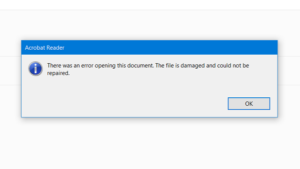
Before you jump into fixing, figure out what’s wrong. Open the PDF in different viewers (Chrome, Adobe Reader, etc.) and note the error message. Is it “File is damaged”? “Unsupported format”? Are pages missing? Knowing the symptom helps you pick the right fix. For example, garbled text might be an encoding issue, while a file that won’t open at all might be structurally corrupted.
Step 2: Try the Quick Fixes First
Many PDF issues are temporary. Try these zero-effort fixes before moving to dedicated tools:
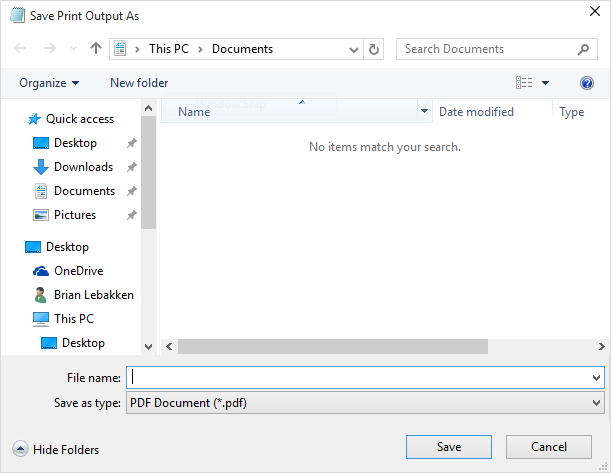
- Open the PDF in your browser and print it as a new PDF (Ctrl+P → ‘Save as PDF’).
- Upload the file to Google Drive, then download it again — this sometimes rebuilds the structure.
- Use Adobe Acrobat Reader’s built-in repair: File → Properties → check ‘Repair’ (if available).
- If your file is from a scan, try to fix garbled pdf by re-saving in a different application.
Step 3: Use a Free Online PDF Repair Tool
If quick fixes didn’t work, online tools are your best bet. They’re free, require no installation, and work on any device. Here’s what to do: Search for a reputable online PDF repair tool (like iLovePDF, Smallpdf, or PDF2Go). Upload your corrupted file, let the tool process it, and download the repaired version. Most tools can handle common corruption levels. If your file is password-protected, you’ll need to remove the password first — check our guide on how to repair PDF with password.
Step 4: Repair with Adobe Acrobat Pro (if you have it)
If you have a paid Adobe Acrobat subscription, use its robust repair feature. Open Acrobat, go to File → Open, select the corrupted PDF (Acrobat will warn you but still open it). Then go to File → Save As → choose ‘Optimized PDF’ or ‘Reduced Size PDF’ — this often fixes structural issues. You can also try File → Export To → Microsoft Word or HTML, which extracts the content and recreates the PDF. For severe corruption, use the ‘Inspect PDF’ tool under Tools → Print Production.
Step 5: Advanced Methods (Ghostscript & Command Line)
For stubborn files that still won’t fix, command-line tools like Ghostscript can rewrite the entire PDF. Download Ghostscript, then use a command like: gs -o repaired.pdf -sDEVICE=pdfwrite -dPDFSETTINGS=/default input.pdf. This regenerates the PDF from scratch. It’s powerful but geeky. If you’re dealing with multiple files, you can automate this with batch pdf repair. And if text is unreadable after all this, you may need OCR — see our guide on how to recover text from damaged pdf.
Common Pitfalls
- Skipping the backup — if you overwrite your original file with a bad fix, you lose everything. Always keep a copy.
- Using sketchy online upload tools — some may store your files or add watermarks. Stick to trusted names (iLovePDF, Smallpdf, PDF2Go).
- Trying to repair a password-protected PDF without removing the password first — most tools just fail silently.
Where to Next?
Got your PDF working? Awesome. If you still have specific issues, check out these guides: learn to fix garbled pdf when text is scrambled, repair pdf and restore text if content is missing, or tackle fix unreadable text in pdf. And if you ever run into a PDF that’s encrypted, we’ve got you covered.




