Ever opened a PDF from OneDrive only to find scrambled text, missing pages, or a flat-out error message? You’re not alone. OneDrive sync can sometimes mess with file integrity – especially if you’re working over a shaky Wi-Fi or editing the file from multiple devices. This guide is for anyone who’s got a busted PDF from OneDrive and wants to get it working again without losing their mind (or important data). By the end, you’ll have a clean, readable PDF that you can trust.
We’ll walk through the easiest fixes first – like re-downloading or using OneDrive’s version history – then move to free online repair tools, and finally a desktop method that can handle really stubborn corruption. No advanced tech skills needed. Grab your coffee, and let’s fix that PDF.
What You’ll Need
- Your corrupted PDF file (still in OneDrive or already downloaded)
- A web browser (Chrome, Edge, Firefox – whatever you like)
- Optional: Adobe Acrobat Reader (free) or a PDF repair app like PDF Repair Toolbox
- Optional: OneDrive web access
Step 1: Re-Download the PDF Fresh from OneDrive
Sometimes the PDF isn’t truly corrupted – it just got a bad download. First, delete the local copy you have. Then head to OneDrive on the web (onedrive.live.com), find the PDF, and download it again. Make sure your internet connection is stable. If the file opens fine now, you’re done! If not, move to Step 2.
Step 2: Use OneDrive’s Version History to Revert to an Older, Working Version
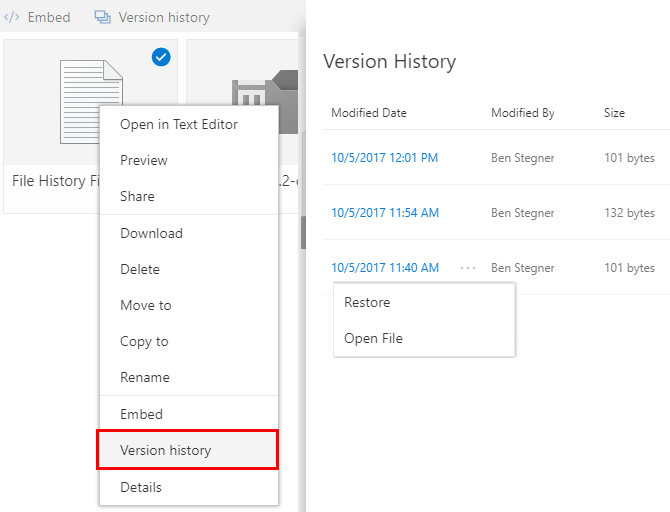
OneDrive automatically keeps version history for files. Right-click the PDF in your OneDrive folder (or on the web) and select ‘Version History’. You’ll see a list of previous versions. Pick one from before the corruption happened, click ‘Restore’, and then download that version. This often fixes sync-related corruption.
Step 3: Try an Online PDF Repair Tool
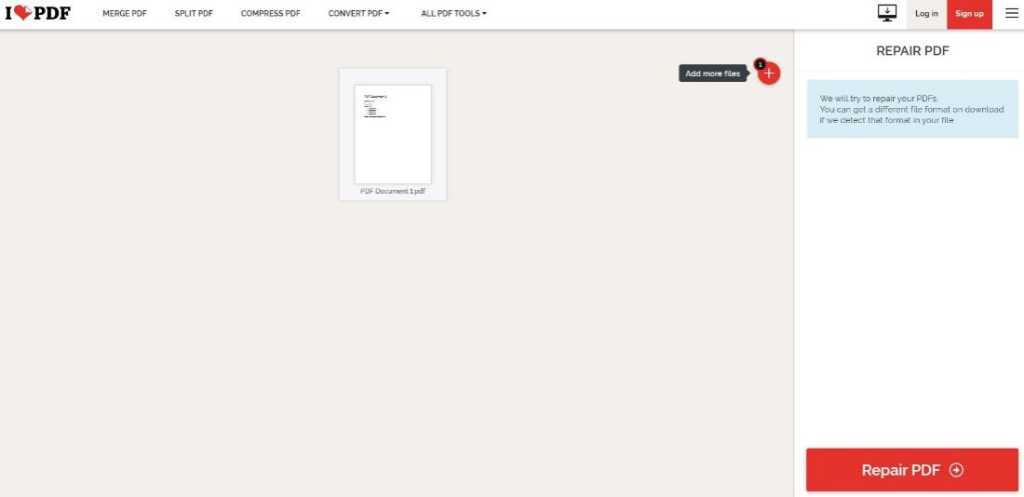
If version history didn’t help, use a free online service. Websites like iLovePDF, Smallpdf, or Sejda offer ‘Repair PDF’ tools. Upload your file, let them process it (usually takes a few seconds), and download the repaired version. These tools can fix minor corruption like lost metadata or broken cross-references. They’re great for a quick repair. For a more automated approach, check out our guide on how to repair pdf automatically.
Step 4: Repair Using Adobe Acrobat Reader (Desktop)
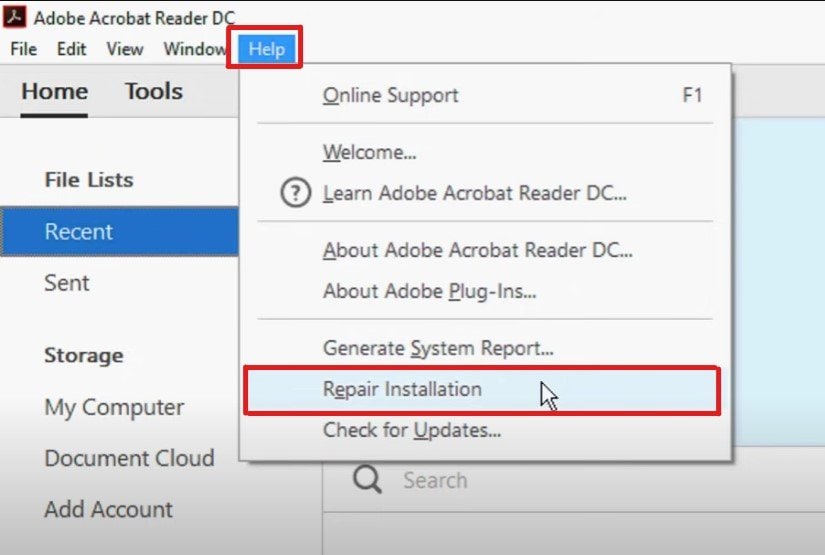
Adobe Acrobat Reader has a hidden repair feature. Open Acrobat Reader, go to Help > Repair Installation. This fixes the program, not the file directly, but sometimes the issue is with the reader itself. If that doesn’t work, try opening the PDF in Acrobat Reader and then ‘Save As’ a new file – this can rebuild the file structure and fix many issues. For persistent corruption, you might need a dedicated tool; our guide on how to fix invalid pdf file covers that in depth.
Step 5: Recover Content with a PDF Repair App
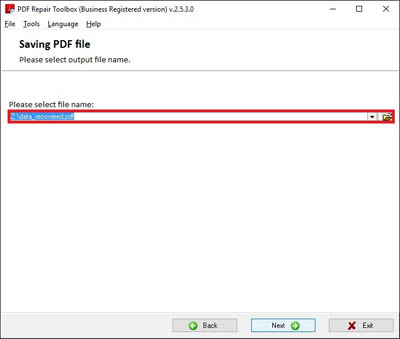
If the PDF is severely corrupted, you’ll need a dedicated pdf repair app. Tools like PDF Repair Toolbox or Recovery Toolbox for PDF can extract whatever text and images are intact. Download one (many have free trials), load your file, and let it scan. It will show you a preview of recoverable content. Save the output as a new PDF. This is your best bet for repair pdf after file corruption has gone too far for online tools.
Step 6: Fix Encoding or Text Display Issues
If your PDF opens but has garbled text, the issue might be encoding. Try using a tool that can fix pdf encoding. Online services like ‘PDF to Text’ can extract the text properly. Convert the PDF to plain text, then recreate it using a word processor. For more details, check our guide on fix pdf encoding.
Common Pitfalls
- Saving over the original file before trying to recover – always work on a copy.
- Ignoring OneDrive sync status – if the cloud icon shows a sync error, the file may not be fully downloaded. Wait for sync to finish before opening.
- Using a repair tool that asks for payment upfront – many free tools work for basic repairs. Only pay if the file is critical and the free version couldn’t recover it.
Where to Next
Now that your PDF is working, consider keeping a backup outside OneDrive to avoid future sync mishaps. If you deal with signed PDFs, you might want to read about how to repair signed pdf. For batch repairs, check out our batch pdf repair guide. And remember – prevention is easier than cure. Keep offline copies of important PDFs.




