Ever opened a PDF and gotten an error like ‘Trailer missing’ or ‘Invalid file structure’? That usually means the PDF’s trailer—a small piece of data at the end that tells readers where everything is—got corrupted. This guide is for anyone who’s comfortable using a command line or a hex editor but feels a bit lost with PDF internals. By the end, you’ll know how to use tools like pdftk, hex editors, and even manual reconstruction to get your PDF working again.
We’ll cover three methods: automatic repair with pdftk, manual trailer reconstruction with a hex editor, and verification. These techniques work on most PDFs that have a broken trailer but intact content. For broader issues, you might need a general PDF fixer or syntax error fixes. Ready? Let’s dive in.
What You’ll Need
- A corrupted PDF file (back it up first!)
- pdftk (PDF Toolkit) – free command-line tool
- qpdf (optional, for cross-checking)
- A hex editor (like HxD or Hex Fiend) or a plain-text editor
- A PDF reader (Adobe Acrobat, SumatraPDF, etc.) for testing
Step 1: Identify the Broken Trailer
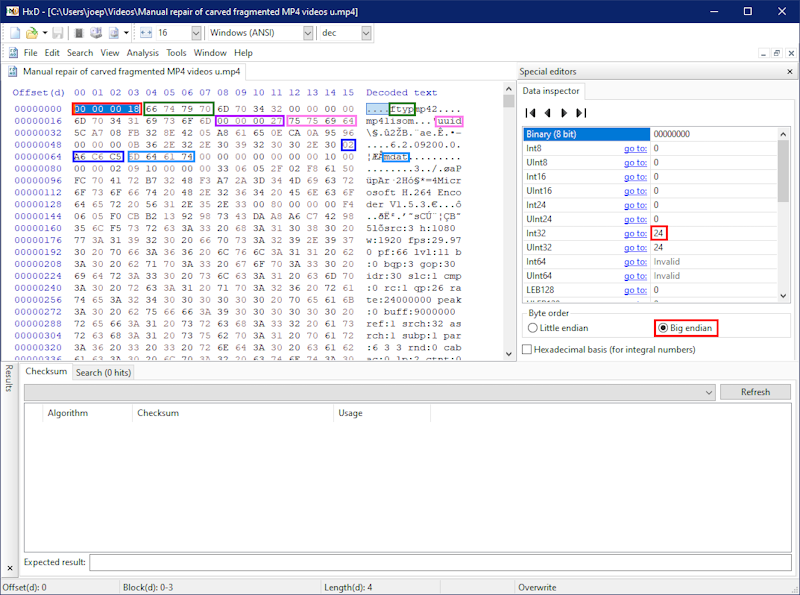
Open your corrupted PDF in a hex editor. At the very end of the file, you should see the word ‘trailer’ followed by key-value pairs like /Size, /Root, /Info, and then ‘startxref’ and a number. If the trailer is missing, truncated, or has gibberish, that’s your problem. For example, you might see ‘trailer<</Size 42…' cut off. This step confirms the issue.
Step 2: Try Automatic Repair with pdftk
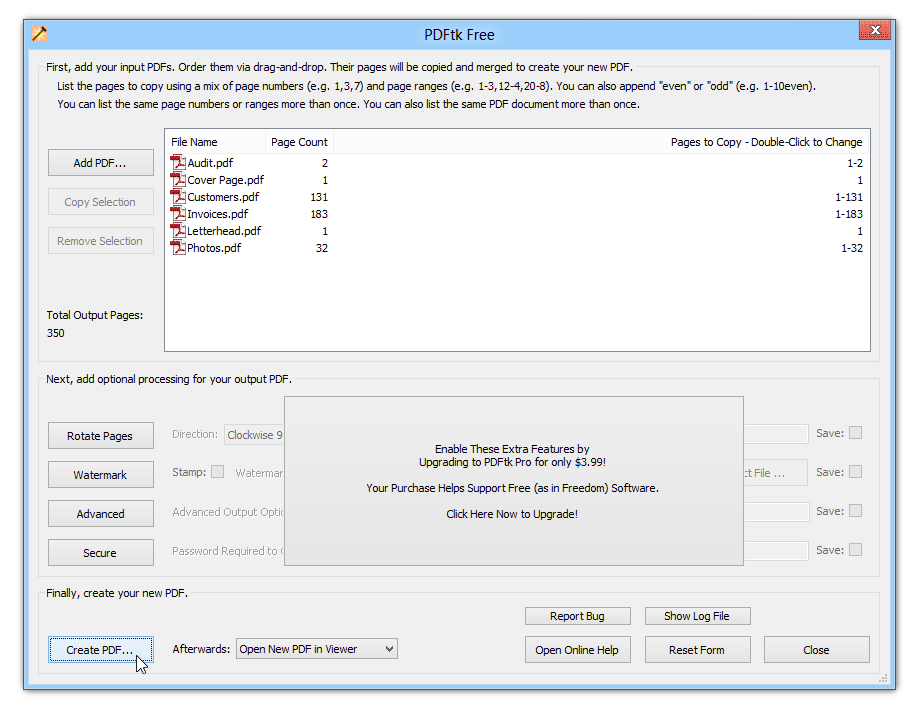
The easiest fix is using pdftk. Open a terminal and run: pdftk corrupted.pdf output fixed.pdf. pdftk parses the PDF and regenerates the trailer and cross-reference table. This often works even if the original trailer is damaged. If you get an error message like ‘Unexpected end of file’, the structure is more messed up—move to Step 3. For a deeper dive, check out our dedicated pdftk repair guide.
Step 3: Manually Reconstruct the Trailer
If pdftk fails, you’ll need to build the trailer by hand. First, find the cross-reference table (look for ‘xref’ near the end of the file). If it’s intact, note the byte offset of the ‘xref’ keyword from the start of the file. If the xref table is also damaged, you may need to use a text restoration technique to recover objects. Once you have the offset, append a new trailer section. In your hex editor, go to the end of the file and add: trailer <>. Replace the placeholders with real values. The catalog object is usually object 1 (check the beginning of the file for ‘1 0 obj << /Type /Catalog …'). Save and test.
startxref [byte offset of xref]
Step 4: Verify the Fix
Open the repaired PDF in your reader. If it loads correctly, you’re done. If not, the trailer may still be misaligned—double-check the byte offsets. For repeated repairs, consider using batch repair methods to process multiple files at once. Also, run qpdf --check fixed.pdf to validate the structure.
Common Pitfalls
- Not backing up the original file—if you mess up the manual edit, you can’t undo.
- Using wrong byte offsets—double-check that ‘startxref’ points to the beginning of the ‘xref’ keyword, not the line after.
- Incorrect /Root reference—the catalog object must exist; otherwise the PDF reader won’t know where to start. Use pdfinfo or qpdf to list objects if unsure.
Where to Next
You’ve fixed a broken trailer! If you run into other PDF issues, check out our guides on general PDF fixer tools, syntax error fixes, and text restoration technique. Want to process many files at once? Our batch repair methods article will show you how. Happy repairing!
Fixing a PDF trailer is like giving the file a new roadmap—once the pointer is correct, everything falls into place.
PDF Repair Community




