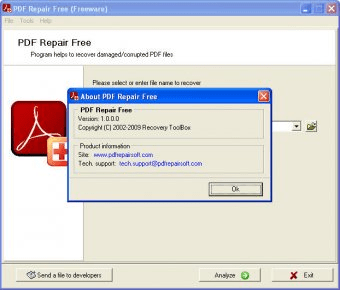
If your PDF won’t open, shows gibberish, or throws errors, you don’t need expensive software. This guide is for anyone who’s hit a PDF wall and wants a free fix. By the end, you’ll have a working PDF using free online tools, Ghostscript, or even your browser.
We’ve all been there: you need that PDF now, but it’s corrupted. Maybe it’s from a download that failed, a crash during save, or just age. I’ll walk you through three free methods that work for most corruptions. No credit card required.
What You’ll Need
- Your corrupted PDF file (even if it won’t open, keep a copy)
- A computer with internet access
- Optional: Ghostscript (free, open-source) for command-line repair
- A few minutes and a calm mindset – repair isn’t magic
Step 1: Try an Online PDF Repair Tool
The easiest free repair is via a website like PDF24 or Sejda. These tools re-save your PDF, often fixing minor corruption. Upload your file, click repair, and download the fixed version. Most work in your browser without installing anything.

I’ve had good luck with PDF24’s repair feature. It’s truly free and handles common issues like missing cross-references or syntax errors. If you’ve already used a general pdf fixer and it failed, try this anyway – it’s saved me many times.
Step 2: Use Ghostscript to Rebuild the PDF
Ghostscript is a powerful command-line tool that can read and rewrite PDFs, often fixing deep structural issues. Download and install Ghostscript from its official site. Then open Command Prompt (Windows) or Terminal (Mac/Linux).
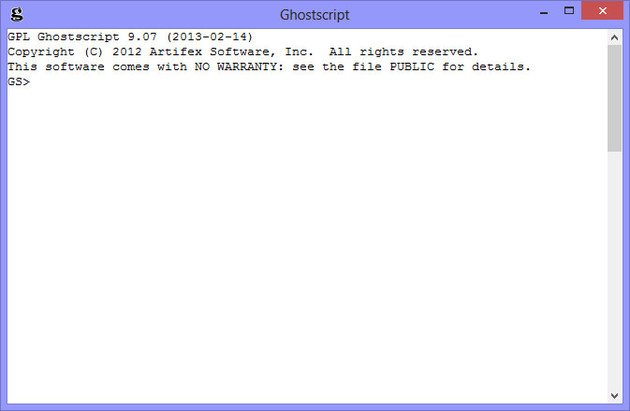
Run this command: gs -o output.pdf -sDEVICE=pdfwrite -dPDFSETTINGS=/prepress input.pdf. Replace input.pdf with your file’s name. This forces Ghostscript to rebuild the PDF from scratch. It’s a solid backup when online tools fail. For a similar approach using another tool, see our pdftk repair pdf guide.
Step 3: Open and Re-Save with Google Chrome
Chrome has a built-in PDF viewer that can sometimes open corrupted files. Drag your PDF into Chrome. If it displays (even partially), click the Print button (or Ctrl+P). In the print dialog, choose ‘Save as PDF’ as the destination. Save the file. This often strips out bad metadata and gives you a fresh copy.
This method works wonders for garbled text or missing pages. It’s my go-to for quick repairs. If you still get errors, consider a fix garbled PDF approach or a dedicated repair PDF and restore text tool.
Step 4: Repair Specific Errors with Text Extraction
Sometimes the PDF structure is fine but text is missing or garbled. Try extracting the content using free tools like PDFBox or online alternatives. If you just need the text, copy what you can and save as plain text. For more advanced situations, check our fix PDF syntax error article.
Common Pitfalls
- Trying too many online tools in a row – some add watermarks or limit size. Stick to PDF24 or Sejda for true free repair.
- Skipping backups – always keep the original corrupted file. A repair tool might make things worse, and you’ll want to try a different method.
- Ignoring permissions – password-protected PDFs won’t open in these free tools. You’ll need to remove the password first (legally, of course).
Where to Next
Free repair works for many issues, but not all. If your PDF is encrypted or has a broken signature, you might need a specialized approach. Browse our other guides for deeper fixes. And remember: when in doubt, keep the original file and try multiple free methods before giving up. Good luck!




