You open a PDF, expecting to see its contents in the preview pane or thumbnail — but instead you get a blank page, a broken icon, or an error message. Whether you’re on Windows File Explorer, Mac Finder, or inside your browser, a non-working PDF preview is frustrating, especially when you need to quickly identify a file. This guide is for anyone dealing with that annoyance: students, office workers, or casual users. By the end, you’ll have a reliable fix and know how to repair the underlying cause if the PDF itself is damaged.
We’ll cover five concrete steps: checking if the PDF is valid, updating your PDF reader, clearing preview caches, disabling problematic plugins, and using a dedicated repair tool. Most fixes take less than five minutes. If your PDF turns out to be corrupted, we’ll point you to a free pdf repair tool that can restore it. Let’s get that preview working again.
What You’ll Need
- A PDF file that won’t preview properly
- Internet connection (to download updates or use online repair tools)
- Administrator or root access (to install software or change system settings)
- Optional: a second PDF viewer (like Adobe Acrobat Reader or a browser)
Step 1: Verify the PDF Isn’t Corrupted
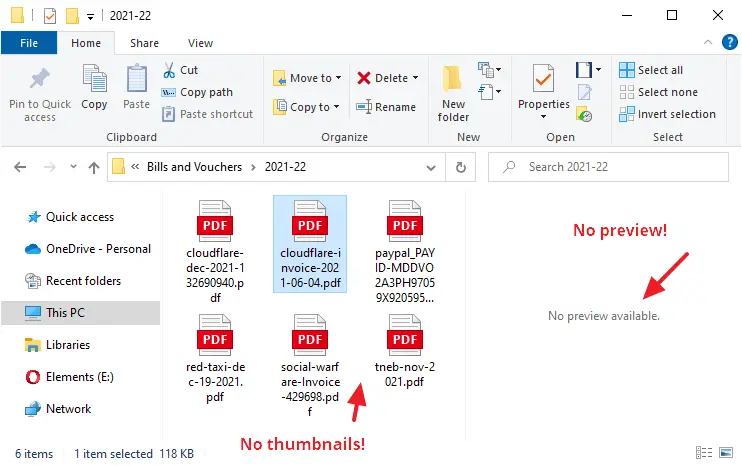
Before you blame your viewer, make sure the PDF itself opens correctly. Try opening the file in a different program — drag it into your web browser (Chrome, Edge, or Firefox) or use a dedicated reader like Adobe Acrobat. If it opens fine there, the preview issue is likely caused by system settings or software conflicts. If it still won’t open, the PDF may be corrupted. In that case, skip to Step 5 or use a pdf fixer to repair it. Also check if the file is stored on a cloud service like OneDrive; we have a dedicated guide to fix pdf from onedrive if that’s the case.
Step 2: Update Your PDF Reader or System
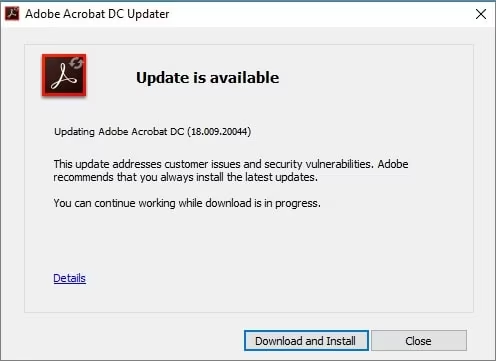
Outdated software is a common cause of preview failures. If you’re using a built-in preview (Windows thumbnail or Mac Quick Look), make sure your operating system is up to date. For third-party readers, visit the official website and download the latest version. For example, in Adobe Acrobat Reader, go to Help > Check for Updates. Similarly, if you use a browser’s built-in PDF viewer, update the browser. Restart your computer after updating to apply changes.
Step 3: Clear Preview Cache and Reset Settings
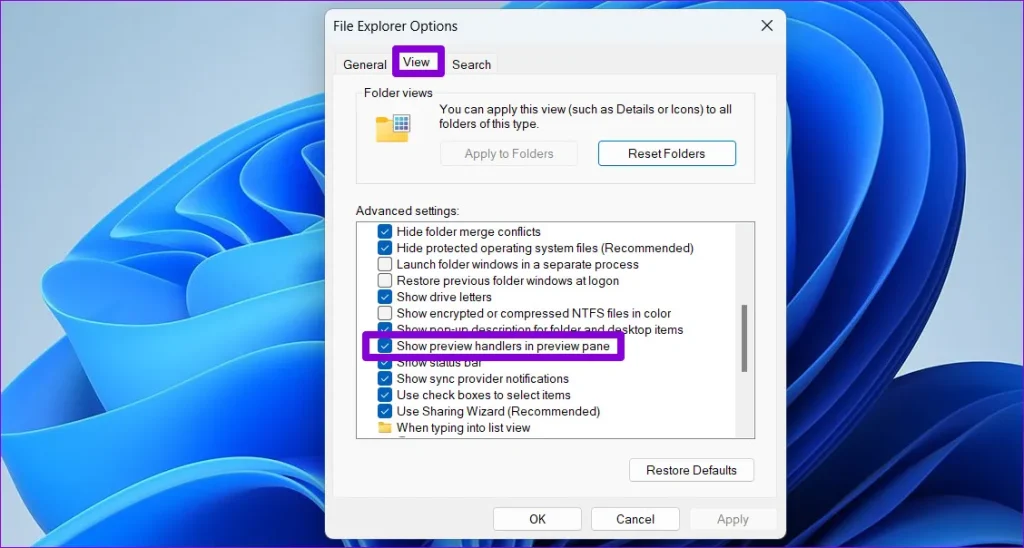
Sometimes old cached data causes previews to show incorrectly. On Windows, clear the thumbnail cache by opening Disk Cleanup (type ‘disk cleanup’ in Start), select the drive where your PDFs are stored, and check ‘Thumbnails’. Click OK to delete. On Mac, reset Quick Look by opening Terminal and typing ‘qlmanage -r cache’ then press Enter. For browser previews, clear your browser cache (Chrome: Settings > Privacy and security > Clear browsing data).
Step 4: Disable Conflicting Plugins or Extensions
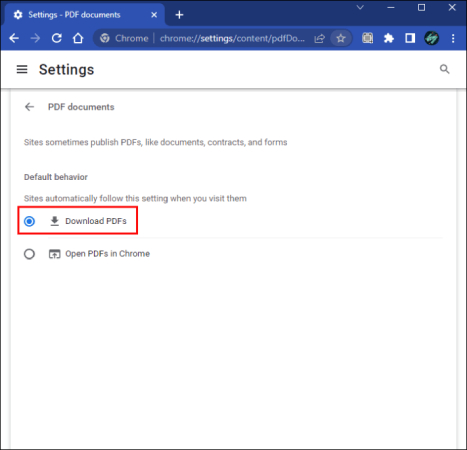
If the preview fails in your web browser, a plugin or extension might be interfering. Disable any PDF-related extensions (like ‘PDF Viewer’ or ‘Adobe Acrobat’) temporarily. In Chrome, go to chrome://extensions and toggle off each PDF extension. Restart the browser and test. Also, check if you have multiple PDF readers installed — sometimes they conflict with system preview handlers. Set your preferred reader as default in system settings. On Windows, go to Settings > Apps > Default apps > Choose default apps by file type, and set .pdf to your chosen program.
Step 5: Repair the PDF with a Dedicated Tool
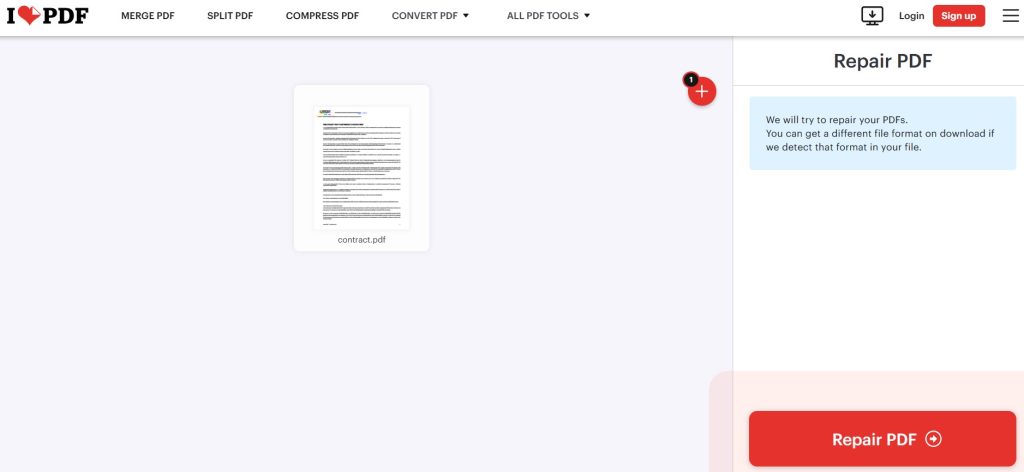
If none of the above work, the PDF itself is likely corrupted. Use a free pdf repair tool to fix it. Our step-by-step guide on pdf repair free walks you through the process. Alternatively, try a dedicated pdf fixer that can restore damaged files. If your PDF has a garbled appearance, check our guide to fix garbled pdf. Sometimes the issue is a corrupted PDF trailer; you can learn how to fix pdf trailer in a separate article. Upload your file to an online repair service or use desktop software like pdftk.
Common Pitfalls
- Confusing a slow network with a preview failure — if you’re opening a PDF from the web or cloud, wait a few seconds and try again.
- Forgetting to check file associations — if multiple programs claim .pdf, your system may not know which to use for previewing.
- Assuming a blank preview means a corrupted file — it might just be a missing font or encoding issue. Try a different viewer first.
Where to Next
With the steps above, your PDF preview should be working again. If you’re still having trouble, your PDF might need more advanced repair. Check out our other guides: batch pdf repair for multiple files, or repair pdf print issue if printing also fails. Bookmark this page for quick reference — PDF problems are always solvable.




