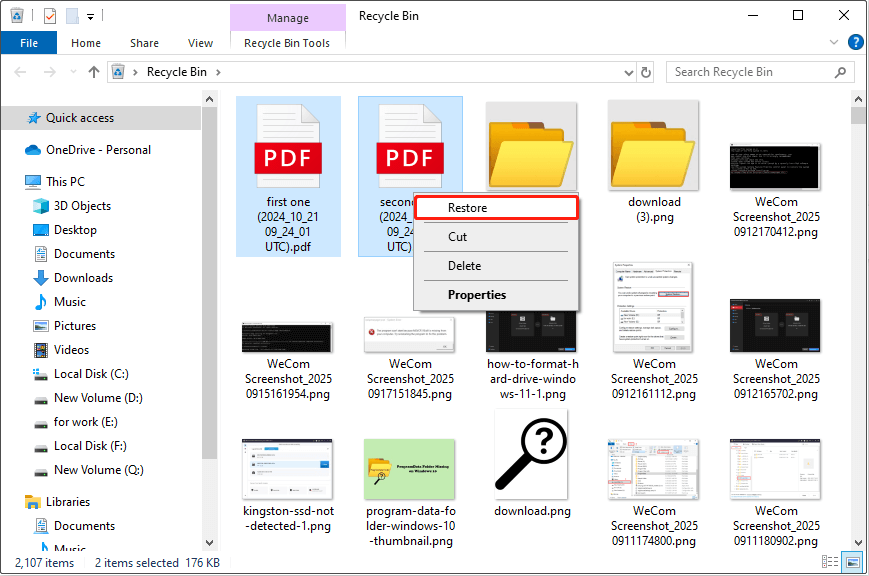
So you’ve got a bunch of PDF files that just won’t open, or they look garbled, or Adobe’s giving you that sad blank screen. This sucks, especially when you have a pile of important documents. This guide is for anyone who’s staring at a folder full of busted PDFs—freelancers, students, office workers, whoever. By the end, you’ll be able to recover multiple PDFs at once using free tools, command-line tricks, and online services. No coding degree required.
Before we jump in, a quick heads up: not every PDF can be fully recovered. If a file is physically damaged (like from a failing hard drive), you might only get partial content back. But in most cases—corrupted headers, broken trailers, encoding issues—you can salvage the whole thing. I’ll show you methods that work on Windows, Mac, and Linux, so you’re covered regardless of your setup.
What You’ll Need
- Your corrupted PDF files (back them up first!)
- A computer with internet access (for some steps)
- Optional: Adobe Acrobat Pro (paid) or a free trial
- Optional: pdftk (free command-line tool) – I’ll show you where to get it
Step 1: Back Up and Assess the Damage
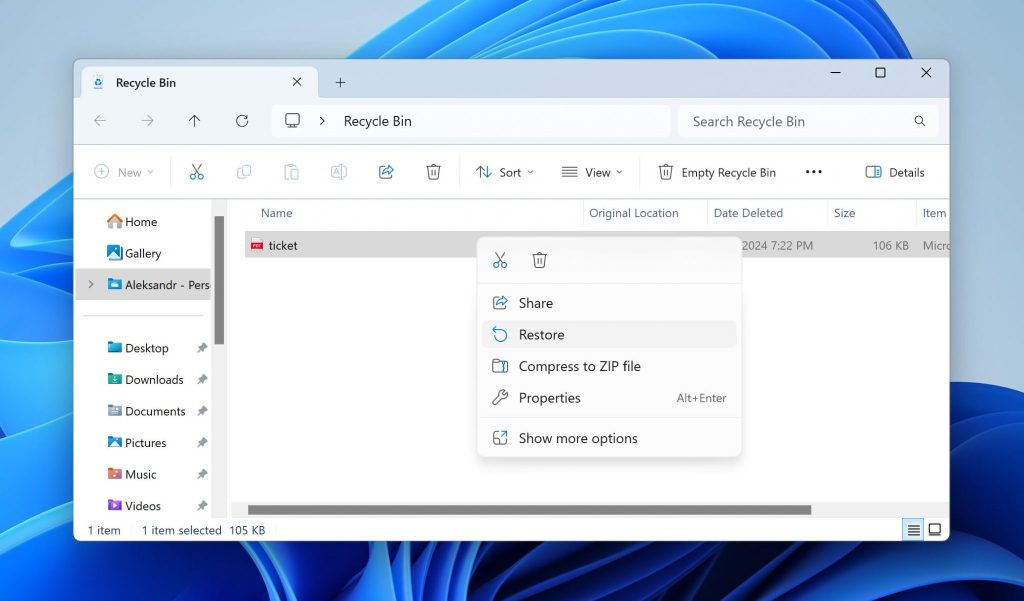
First things first, copy all your problematic PDFs into a new folder. Never work on the originals. Now open each one (or try to) with a standard PDF reader like Adobe Reader or your browser. Note what you see: blank pages, garbled text, missing images, or an error like “Invalid PDF” or “Trailer not found.” This will help you choose the right recovery method. For example, a trailer error is a classic case that the fix PDF trailer method can solve.
Step 2: Try a Free Online Batch Repair Service
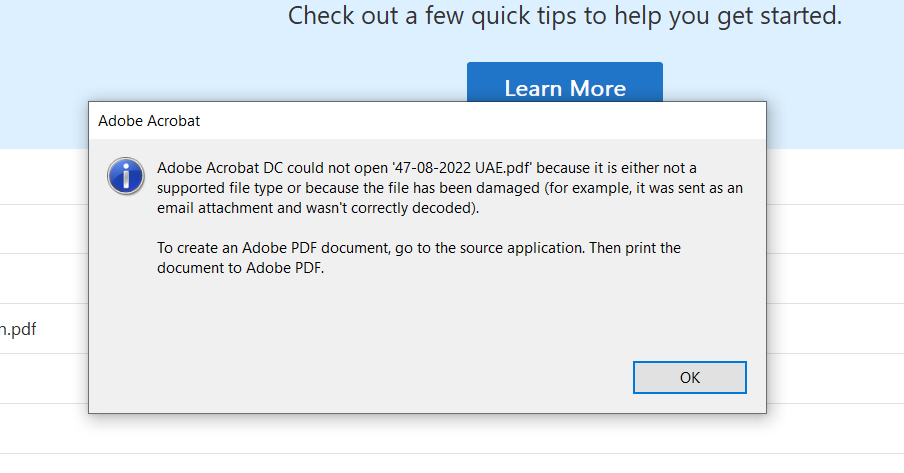
Your quickest bet is an online tool that handles multiple files at once. Websites like iLovePDF, Smallpdf, or PDF2Go offer batch uploads and are free for up to 2-3 files at a time. If you have more, you can do them in rounds. Just upload the corrupted files, let the site work its magic, and download the repaired versions. This works great for common corruption like content streams or formatting issues. For a deeper dive into free online tools, check out our guide to PDF repair free.
Step 3: Use pdftk for Command-Line Batch Repair
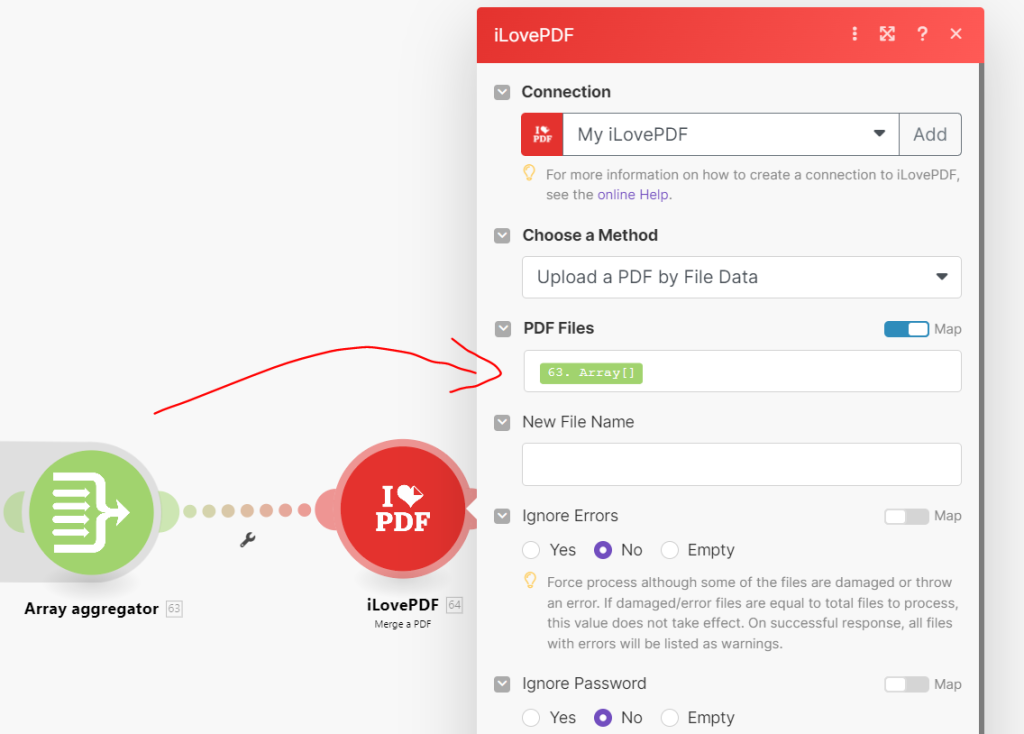
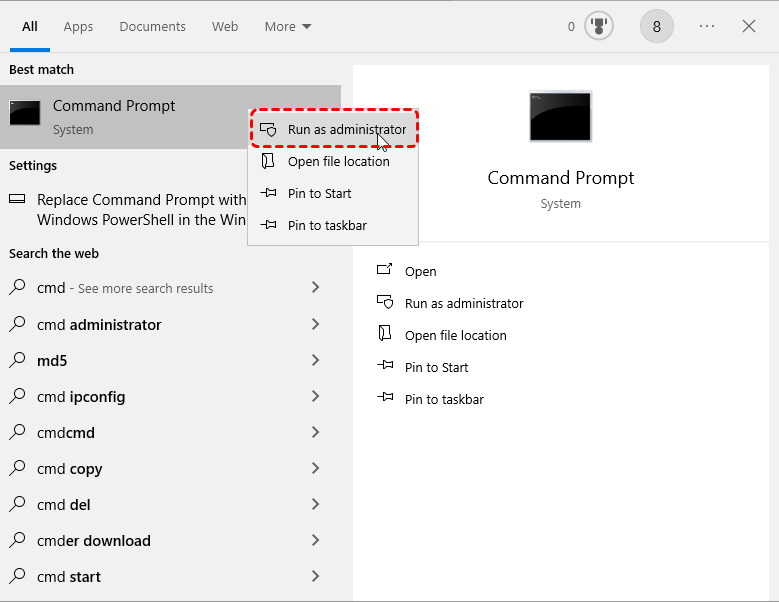
If you’re comfortable with a terminal, pdftk (PDF Toolkit) is a powerful free tool that can repair multiple files in seconds. First, download pdftk from the official site or your package manager (e.g., ‘sudo apt install pdftk’ on Ubuntu). Then open a terminal or command prompt, navigate to your folder, and run this command to repair every PDF in the folder:
for %i in (*.pdf) do pdftk “%i” output “repaired_%i”
Windows command (for Mac/Linux use a slight variation)
This creates new files prefixed with ‘repaired_’. If you hit a stubborn file, pdftk might output an error—that file likely has structure damage beyond a simple repair. We cover advanced cases in our pdftk repair PDF article.
Step 4: Try Adobe Acrobat Pro’s Batch Repair
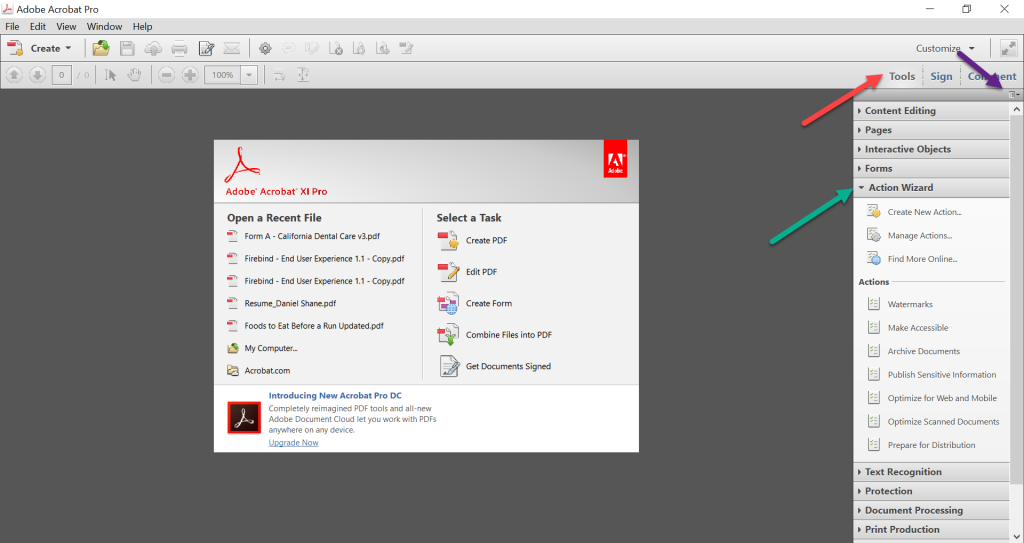
If you have access to Adobe Acrobat Pro (or the free trial), it includes a batch repair feature. Open Acrobat, go to Tools > Action Wizard, and create a custom action that applies the ‘Repair PDF’ operation to multiple files. This is especially effective for fixing encoding issues and restoring text. For more on text recovery, see our post on repair PDF and restore text.
Step 5: Recover from Previous Versions or Backup
Sometimes the file it self is fine, but your system’s PDF reader is the problem. Right-click a corrupted PDF, go to Properties > Previous Versions (Windows) or use Time Machine (Mac). If you have a backup, restore the file from an earlier version. This is a lifesaver for files that got corrupted during a save process. This technique is also covered in the batch PDF repair guide.
Common Pitfalls
- **Working on originals without backup.** Always make a copy first. One wrong command and you could lose everything.
- **Using a tool that overcomplicates simple issues.** If the PDF only has a minor header corruption, an online tool is all you need. Don’t jump to pdftk or paid software.
- **Ignoring the error message.** The exact error tells you what’s wrong. A “Trailer” error needs a different approach than “Syntax Error.” Check our fix PDF trailer guide for specific trailer issues.
Where to Next
That’s it. You’ve now got multiple ways to recover a bunch of PDFs without losing your mind. If one method doesn’t work, try the next. And if you hit a weird error like a syntax issue, don’t panic—we’ve got guides for that. Keep your files backed up, and you’ll rarely need these tricks again. Good luck!




