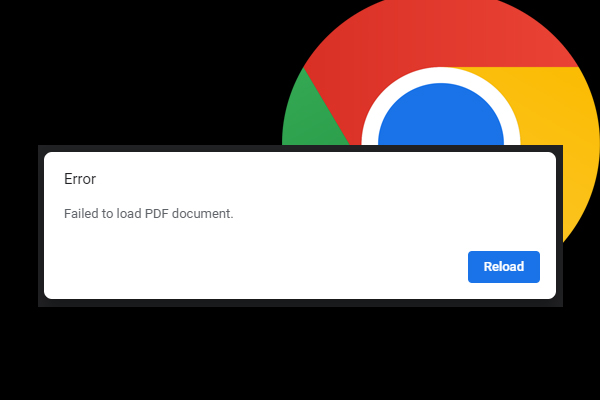
Have you ever been super excited to download an important PDF — maybe a contract, a manual, or a cool ebook — only to get a dreaded ‘PDF download error’? You’re not alone. This issue happens to almost everyone at some point. The good news? Most of the time, it’s easy to fix. This guide is for anyone who’s stuck with a failed download, whether you’re using Chrome, Firefox, or Safari. By the end, you’ll have a working PDF in your hands, plus some tricks to avoid this mess in the future.
We’ll walk through everything from basic browser tweaks to using professional repair tools. No technical degree required — just follow along. And if you ever run into other PDF problems like scrambled text or missing pages, we’ve got you covered with guides on how to fix PDF encoding issues and recover missing PDF pages.
What You’ll Need
- A computer (Windows, Mac, or Linux) with internet access
- The PDF file that gave you an error (or try to re-download it)
- A PDF reader like Adobe Acrobat Reader or a browser
- Optional: A PDF repair tool like pdftk (free) or an online service
- Patience — you’ll likely solve it in under 10 minutes
Step 1: Try a Simple Re-Download
Before diving into complex fixes, just try downloading the PDF again. Sometimes the file was partially transferred, or the server hiccuped. Use a different browser if possible — for example, if you usually use Chrome, try Firefox or Edge. Also, make sure you have a stable internet connection. If the download fails again, move to the next step.
Step 2: Clear Your Browser Cache and Cookies
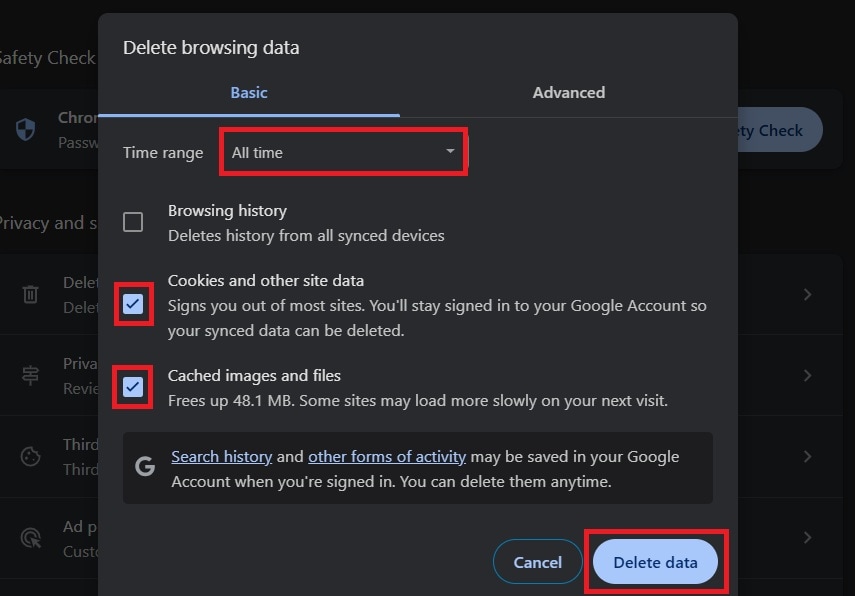
A corrupted cache can cause download errors. Clearing it gives you a fresh start. Here’s how:
– Chrome: Go to Settings > Privacy and security > Clear browsing data. Select ‘Cookies and other site data’ and ‘Cached images and files’, then click ‘Clear data’.
– Firefox: Go to Options > Privacy & Security > Cookies and Site Data > Clear Data.
– Safari: Go to Safari > Clear History… and choose ‘all history’.
After clearing, restart your browser and try the download again.
Step 3: Disable Download Blockers
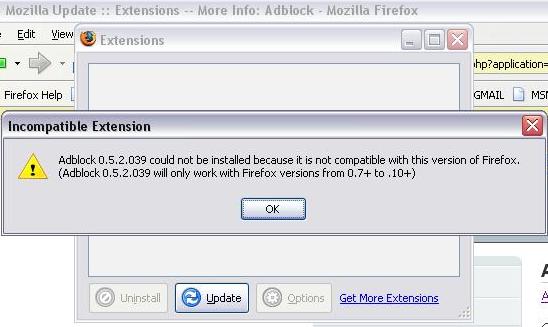
Some browser extensions or antivirus software can block PDF downloads. Temporarily disable any ad blockers, download managers, or security plugins. Also check your browser’s download settings — for example, Chrome has a ‘Ask where to save each file before downloading’ option that can sometimes interfere. Try turning it off. If you’re using a corporate computer, your IT admin might have restrictions; contact them.
Step 4: Check the File Extension
Sometimes the download is not a PDF at all. The server might send a .html or .php file instead. Check the downloaded file’s extension. If it’s not .pdf, rename it to .pdf and try opening. For example, if you downloaded ‘report.php’, change it to ‘report.pdf’. Then open it with your PDF reader. If it still fails, the file is likely corrupted.
Step 5: Repair the PDF Using a Free Tool
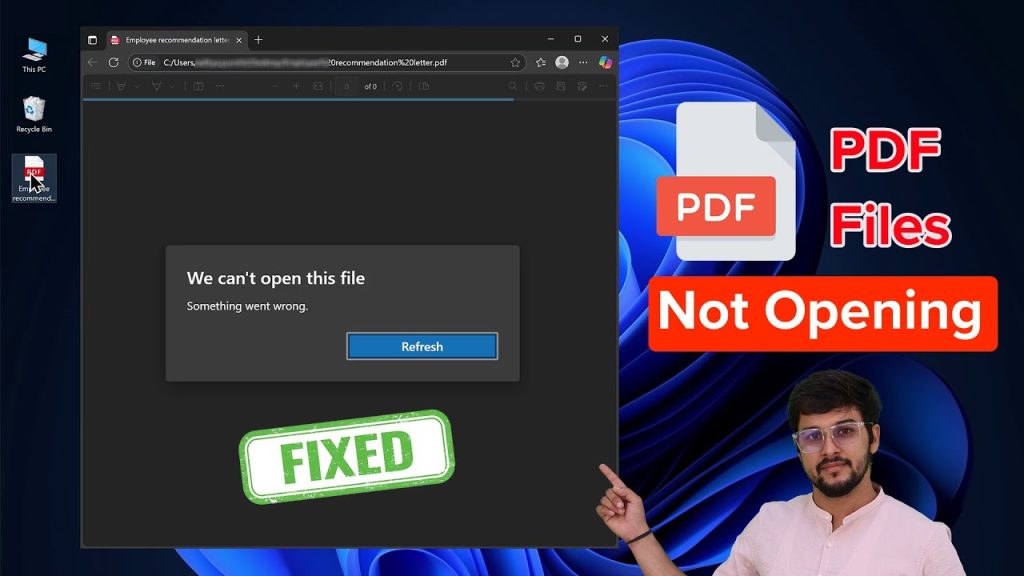
If the PDF is corrupted from a bad download, you can often repair it. One of the best free tools is pdftk (PDF Toolkit). It’s command-line based but easy to use. Download pdftk from the official site, install it, then open your terminal/command prompt and run:
pdftk corrupted.pdf output fixed.pdf
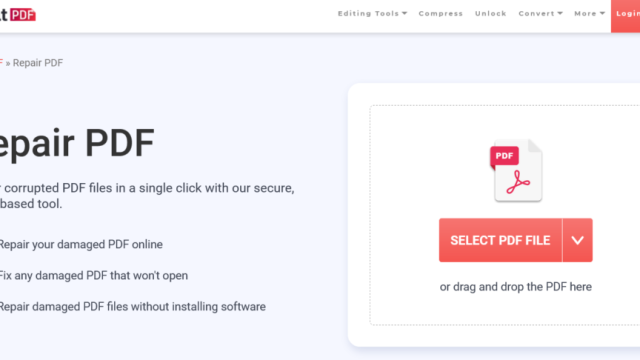
This often fixes simple corruption. For more detailed steps, check out our guide on how to pdftk repair pdf. If you prefer a GUI, try online options like Smallpdf or ilovepdf — upload the broken file and download the repaired version. Be careful with sensitive documents, though.
Step 6: Use a Dedicated PDF Repair App
For stubborn errors, consider a dedicated PDF repair app. There are free options like PDF Repair Toolbox (Windows) or RecoveryToolbox for PDF. These apps scan the damaged file and extract whatever data they can. They’re especially good for fixing corrupted trailers or broken cross-reference tables. For more info, see our article on how to fix a corrupted PDF trailer. After repairing, try opening the file again.
Step 7: Recover from Your Browser’s Download History
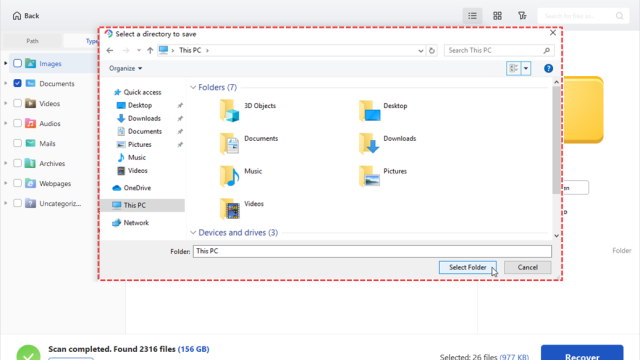
If the download failed but saved a partial file, you might still recover it. Chrome and Firefox keep a download history. Go to chrome://downloads or about:downloads and see if the file is there. Right-click the failed entry and select ‘Resume’ or ‘Retry’. Sometimes this completes the download. If not, the partial file may remain in your Downloads folder — try renaming it to .pdf and opening it. If that doesn’t work, use a repair tool on the partial file.
Step 8: Contact the Source or Use Batch Repair
If none of the above works, the issue may be on the server side. Contact the website owner and ask them to re-upload the PDF. If you have multiple corrupted PDFs from the same source, you can use batch PDF repair to fix them all at once. See our guide on batch PDF repair for instructions. Also, check if the PDF is actually an invalid file — sometimes the file is not a PDF at all. Learn more about how to fix an invalid PDF file.
Common Pitfalls
- Trying to open a partially downloaded file right away. Always let the download finish completely before opening.
- Ignoring antivirus software – some antivirus programs quarantine PDFs they think are unsafe. Check your antivirus logs.
- Using an outdated PDF reader – old versions of Adobe Reader may not support newer PDF features. Update your reader.
The most common PDF download error is a simple network interruption. Always re-download before panicking.
PDF Repair Expert
If you’ve tried all these steps and still get an error, don’t give up. There are advanced methods like hex editing, but those are for another day. For now, you should have a working PDF. Enjoy your file!
Where to Next?
Now that you’ve fixed your download error, you might encounter other PDF issues. Check out our guides on how to fix garbled PDF text, recover missing PDF pages, or repair a signed PDF. Happy reading!