
You’ve got a folder full of PDFs that are corrupted – maybe they won’t open, show garbled text, or throw errors. Manually fixing each one is a drag. That’s where automated PDF repair comes in. This guide is for anyone who needs to fix multiple PDFs fast, whether you’re a student, office worker, or IT admin. By the end, you’ll have a workflow that can batch repair dozens of files in minutes.
We’ll cover two main approaches: using the free open-source tool Ghostscript, and using Adobe Acrobat Pro’s built-in batch repair. Both methods are tested and reliable. You’ll also learn how to combine them with other tricks like pdftk repair pdf for stubborn cases.
What You’ll Need
- A computer running Windows, macOS, or Linux
- Ghostscript (free download from ghostscript.com) OR Adobe Acrobat Pro (subscription or one-time purchase)
- A folder with at least two corrupted PDF files (to test automation)
- Basic command-line familiarity (for Ghostscript method)
Step 1: Install Ghostscript and Test It
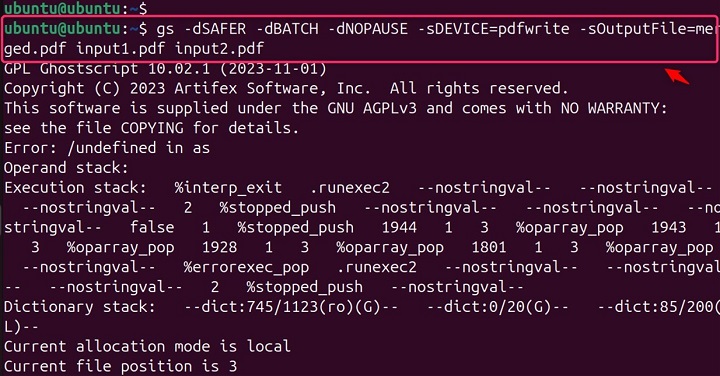
Ghostscript is a powerful command-line tool that can interpret PDFs and PostScript. It can fix many corruption issues by simply re-processing the PDF. First, download and install the latest version for your OS. On Windows, you’ll want the 64-bit installer. After installation, open your terminal (Command Prompt or PowerShell on Windows, Terminal on Mac/Linux) and type gswin64c --version (Windows) or gs --version (Mac/Linux). If you see a version number, you’re good.
Step 2: Create a Batch Repair Script
We’ll write a simple script that processes all PDFs in a folder. On Windows, create a new text file named repair.bat. Paste the following:
On Mac/Linux, create a shell script named repair.sh with:
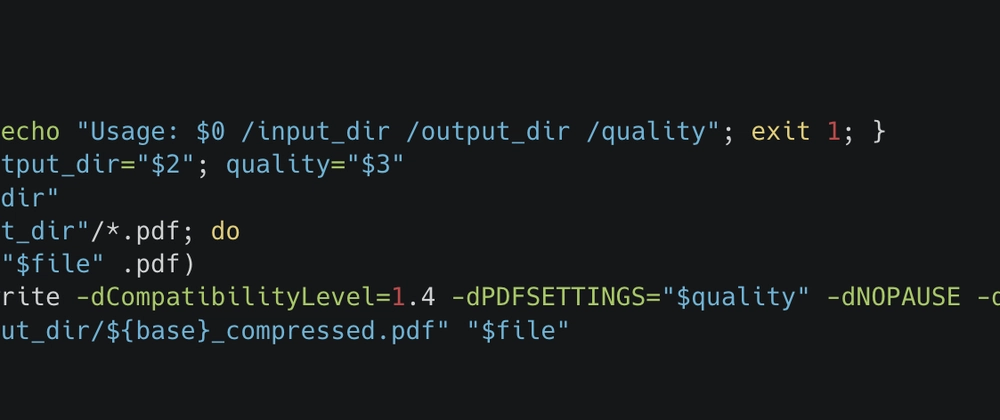
Save the file and move it into the folder containing your corrupted PDFs. Then run the script: double-click the .bat (Windows) or execute bash repair.sh in the terminal (Mac/Linux). Each PDF will be processed, and new files with the suffix _repaired will appear.
Step 3: Use Adobe Acrobat Pro’s Batch Processing
If you have Adobe Acrobat Pro, its built-in batch repair is even easier. Open Acrobat Pro and go to Tools > Action Wizard. Click Create New Action. Find the Optimize Scanned PDF or Validate PDF/A tool – both can correct minor corruption. Add it to the action, set parameters (like fixing date problems), and save the action. Then, when you run the action, select Add Files and choose multiple PDFs. Acrobat will process them sequentially.
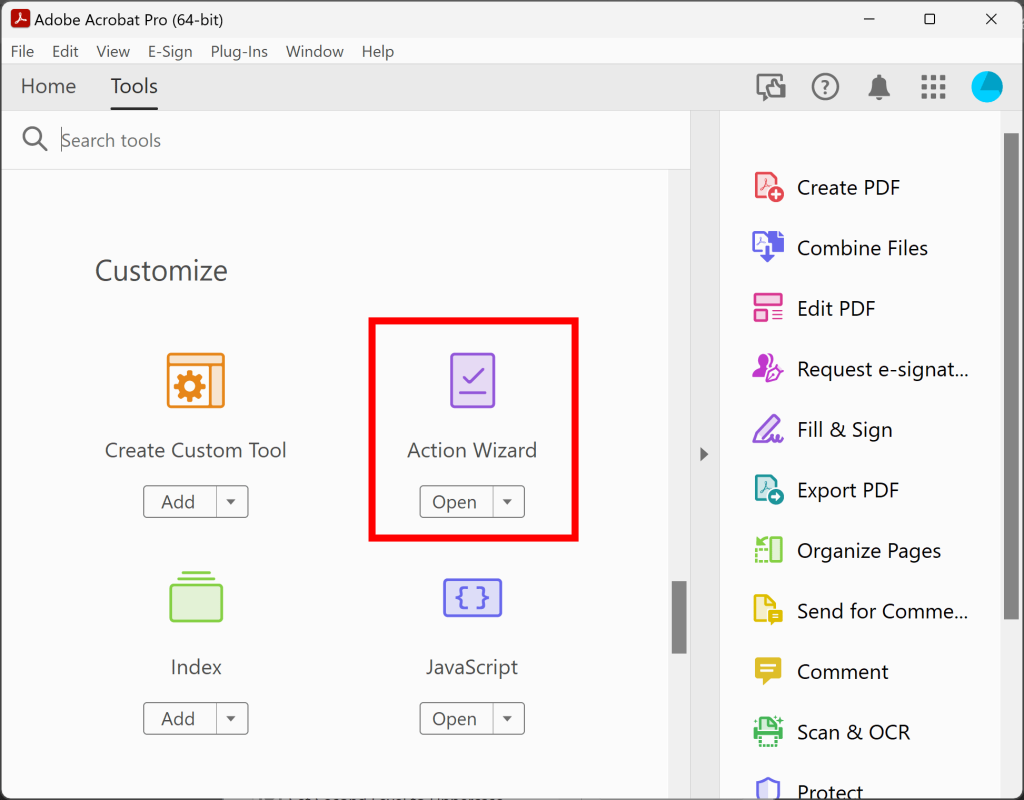
For more stubborn issues, you can combine steps. For example, first run a how to fix invalid pdf file step using the Preflight tool, then use repair encrypted pdf if needed. The Action Wizard lets you chain multiple tools.
Step 4: Automate with a Folder Watcher
To truly automate, set up the Ghostscript script to run on a schedule. On Windows, use Task Scheduler to trigger the .bat file every night. On Mac/Linux, use cron. This way, any new PDFs placed in the folder get repaired automatically. Alternatively, Adobe Acrobat Pro has a Watch Hot Folder feature (in some versions) that can apply an action to files placed in a specific directory.

Common Pitfalls
- Ghostscript might fail on encrypted or password-protected PDFs. For those, use repair encrypted pdf techniques first, like removing encryption with QPDF before batch repair.
- Batch naming: if you run the script multiple times, you’ll accumulate many ‘_repaired’ files. Consider adding a date stamp to the output name, or move repaired files to a separate folder after processing.
- Adobe Acrobat Pro’s batch repair can be slow if you include many heavy preflight checks. Stick to basic optimization to keep speed up.
Where to Next?
Now that you’ve automated the basics, explore more targeted fixes. Check out our guide on pdf repair free for more free tools like QPDF and PDFtk. If you’re dealing with broken page orders, batch pdf repair can be extended with page extraction. And if one file remains stubborn, the pdftk repair pdf method is a solid fallback. Happy repairing!




