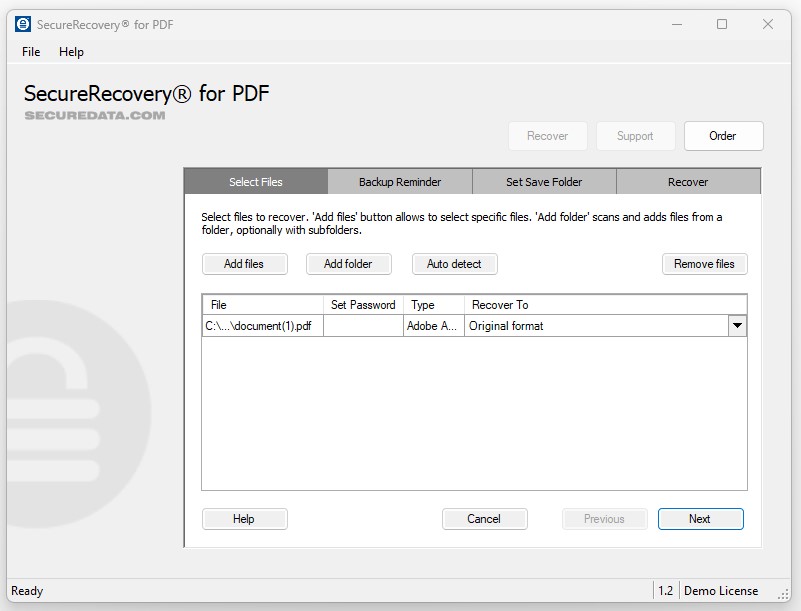
Ever been locked out of your own PDF because you forgot the password? Or maybe you received an encrypted file that seems corrupted and won’t open? This guide is for anyone who needs to repair an encrypted PDF—whether you have the password but the file is glitchy, or you lost it and need a workaround. By the end, you’ll have a working, unencrypted PDF (or a re-encrypted one with a new password) that opens without issues.
We’ll cover free tools like qpdf (command-line), Adobe Acrobat, and online services. No hacking—just ethical ways to handle your own files. If you don’t have the password, you’ll need to use recovery methods or contact the sender. Let’s get started.
What You’ll Need
- The encrypted PDF file (obviously)
- The owner password or user password (if known)
- A computer with internet access (for online tools)
- Optionally: qpdf installed (free, open-source) or Adobe Acrobat Pro
- Patience—encoding issues can be tricky
Step 1: Confirm the Encryption Type and Password
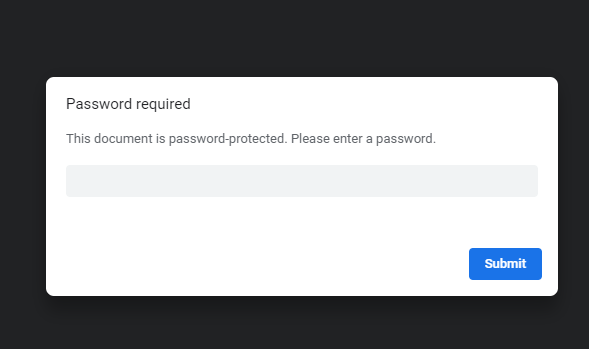
First, find out what kind of encryption your PDF uses. Open the file in a PDF reader—if it asks for a password, you know it’s encrypted. Try the password you have. If it’s wrong or you don’t have it, skip to Step 4. If you have the password, great! Move on.
If the PDF opens but looks garbled, it might have both encryption and corruption. You can try to fix garbled PDF issues separately using other guides on this site.
Step 2: Remove the Password Using qpdf (Command Line)
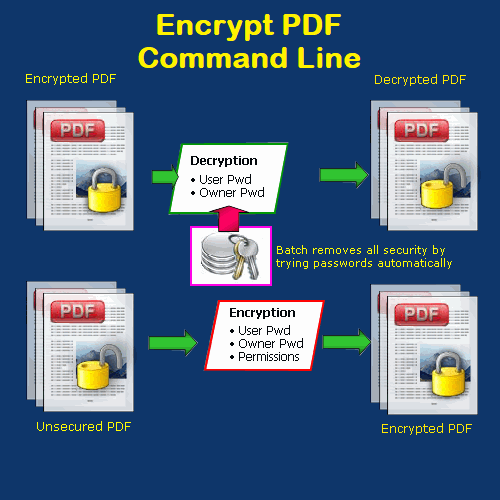
qpdf is a lightweight, powerful tool for handling encrypted PDFs. Install it from qpdf.sourceforge.io. Then open a terminal (Command Prompt on Windows) and run:
qpdf –password=YOURPASSWORD –decrypt input.pdf output.pdf
qpdf manual
Replace YOURPASSWORD, input.pdf, and output.pdf. If the password works, you’ll get a decrypted PDF that you can open without restrictions. If you get an error, the password might be wrong or the PDF is corrupted beyond qpdf’s ability. In that case, try other methods or automatically repair PDFs using dedicated tools.
Step 3: Use Adobe Acrobat Pro (GUI Method)
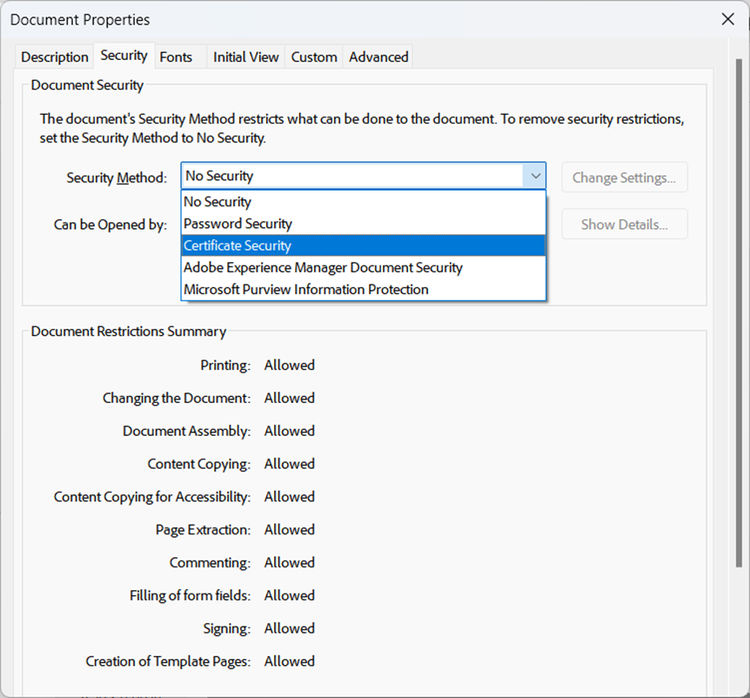
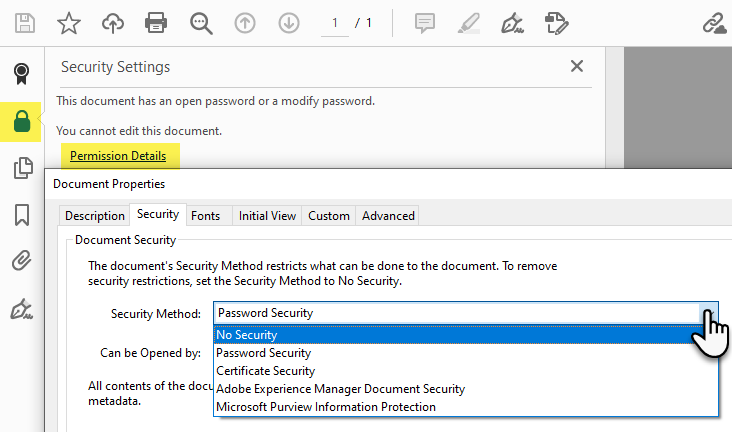
If you have Adobe Acrobat Pro, open the PDF and enter the password. Then go to File > Properties > Security tab. Change the Security Method to “No Security” and confirm the password. Save the file. This also works for fixing a corrupted encryption header. If the file is still buggy, you can batch repair PDF files by running a repair through Acrobat’s built-in optimizer.
Step 4: Online Services (When You Don’t Have the Password)
Several websites can remove PDF passwords—but be careful. Only use trusted services for non-sensitive files. Upload the encrypted PDF, pay if needed, and download the decrypted version. Popular options include Smallpdf, iLovePDF, and PDF2Go. After decryption, check if the file is intact. Sometimes encryption corruption causes syntax errors; you may need to fix PDF syntax errors afterward.
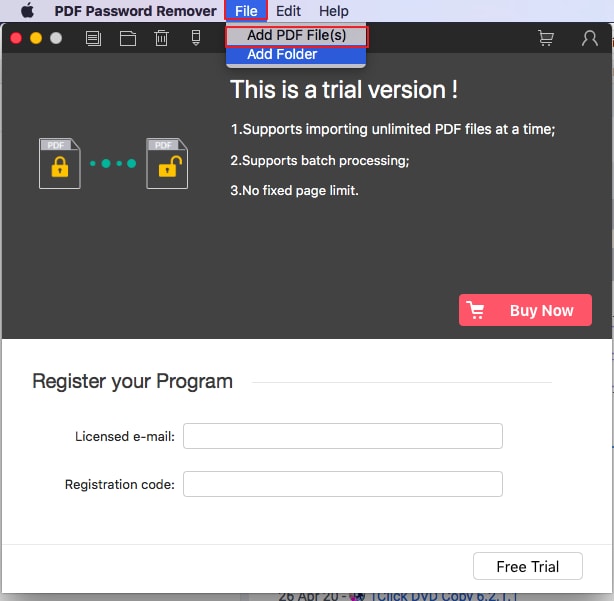
Never upload sensitive personal or corporate PDFs to online services—use offline tools instead.
Security best practice
Step 5: Re-Encrypt the PDF (Optional)
After repair, you might want to re-encrypt the PDF with a new password. Use qpdf with the –encrypt option or Adobe Acrobat’s security settings. This ensures your file stays protected. If you need to share it, remember to send the password separately.
Common Pitfalls
- Wrong password: If you don’t have the correct owner password, no tool can decrypt legally. Try common passwords or check with the author.
- Corrupted PDF: Encryption can mask corruption. After decryption, the PDF might still be broken. Use a PDF repair tool to recover text from damaged PDF or fix garbled content.
- Online service security: Uploading sensitive files to a third-party site is risky. Prefer offline tools like qpdf.
Where to Next?
Now that your encrypted PDF is repaired, you might run into other issues. If the content is garbled, check out our guide on how to fix garbled PDF. For batch processing multiple files, see how to batch repair PDF files. If you encounter syntax errors, learn to fix PDF syntax errors. And if you need to handle many files automatically, our tool can automatically repair PDFs without manual steps. Happy reading!




