You just got a digital copy of your hard-earned certificate, but when you open it—blank pages, garbled text, or an error message that says the file is corrupted. Don’t panic. This guide is for anyone who needs to salvage a certificate PDF: whether it’s a diploma, training completion, or professional credential. By the end, you’ll have a clean, readable PDF that preserves all the official seals and signatures.
Certificate PDFs often get damaged during transfer (email, cloud sync) or when saved from a scanner with glitches. The good news? Most corruptions are fixable with free tools you already have or can grab quickly. I’ll walk you through five steps, from simple online fixes to command-line rescues, so you can pick what works for your situation.
What You’ll Need
- The corrupted certificate PDF file
- A computer with internet access (for online tools)
- Optional: A tool like pdftk (free) or ghostscript (free) if online fails
- Backup of the original file (in case something goes wrong)
Step 1: Diagnose the Corruption
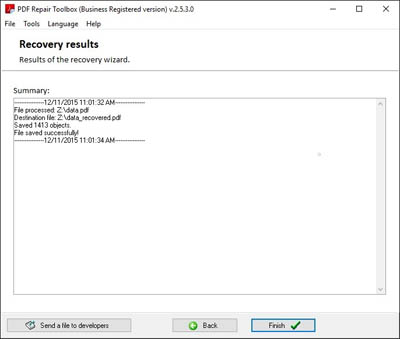
Before fixing, figure out what’s broken. Open the PDF in your default viewer. Common symptoms: error “File is damaged and could not be repaired,” blank pages, missing text, or warnings about a cross-reference table. If the file opens but looks weird, note the exact issue—this helps you choose the right repair method. For a deeper check, try a simple tool like pdfinfo (part of poppler) to see if the file structure is intact. This step saves time by matching the problem to the fix.
Step 2: Try an Online Repair Tool First
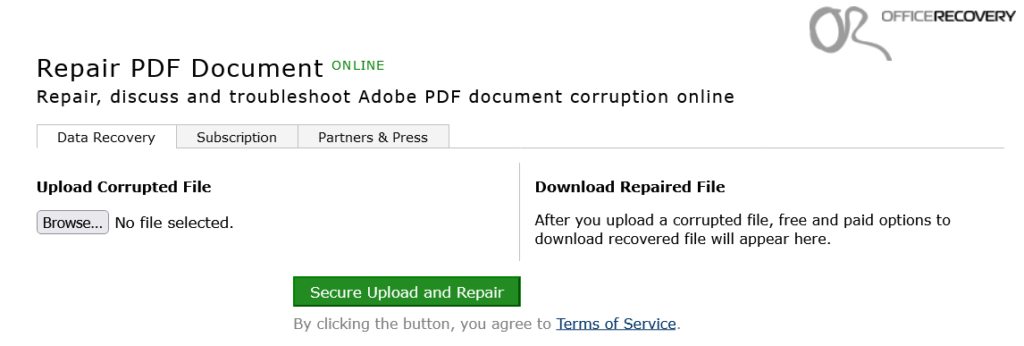
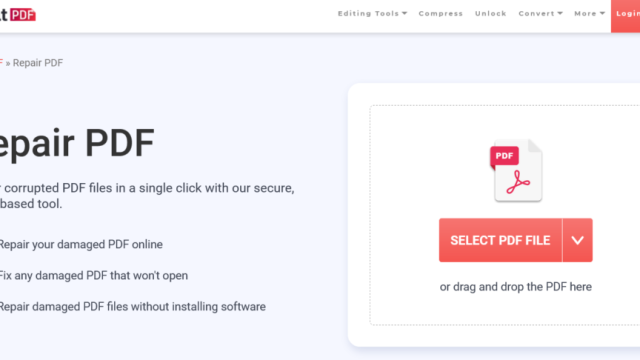
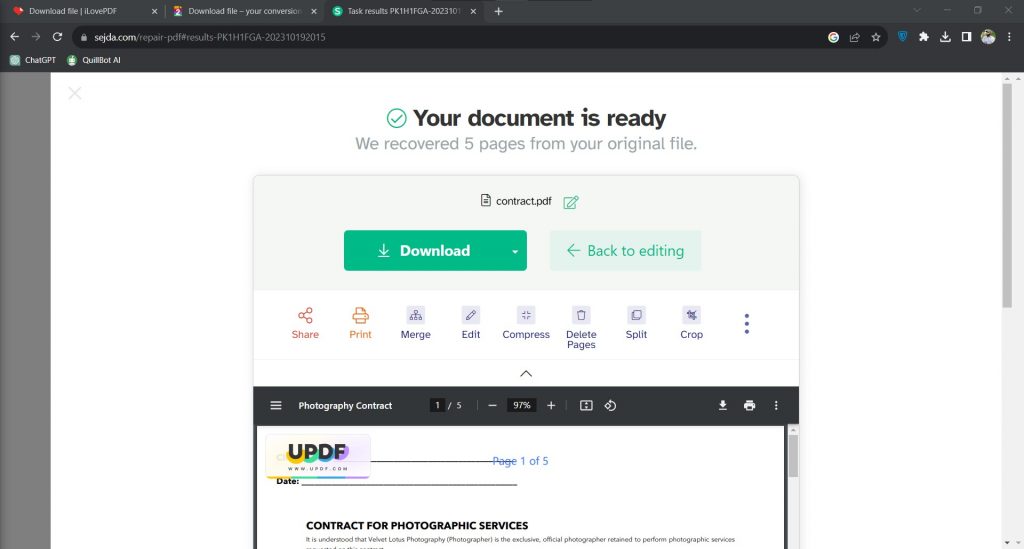
For quick fixes, use a free online service. You can fix pdf online free without installing anything. Upload your corrupted certificate to a reputable site like iLovePDF or Smallpdf (they preserve privacy). These tools often rebuild the PDF structure, fix cross-references, and restore basic content. After processing, download the cleaned file and check it. If it looks good, you’re done. If not—especially for scanned certificates—move to Step 3.
Step 3: Rebuild with pdftk (Command-Line Rescue)
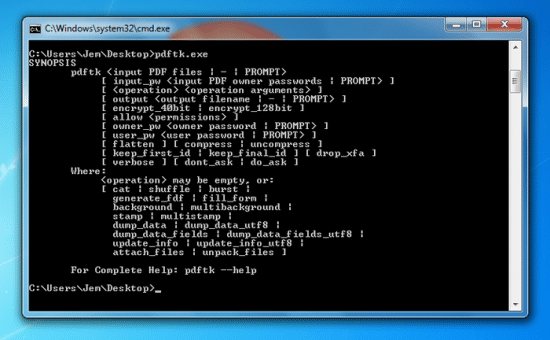
When online tools fail, pdftk is your next bet. It’s a free command-line tool that can reconstruct corrupted PDFs. Download pdftk for your OS. Open a terminal and run: pdftk input.pdf output fixed.pdf. This forces a rebuild of the PDF structure. If that alone doesn’t work, try extracting pages: pdftk input.pdf burst output page_%03d.pdf. Then recombine only the valid pages. For certificate PDFs, this often salvages the main content even if metadata is lost. For more details, check out our full guide on pdftk repair pdf.
Step 4: Restore Text and Layout
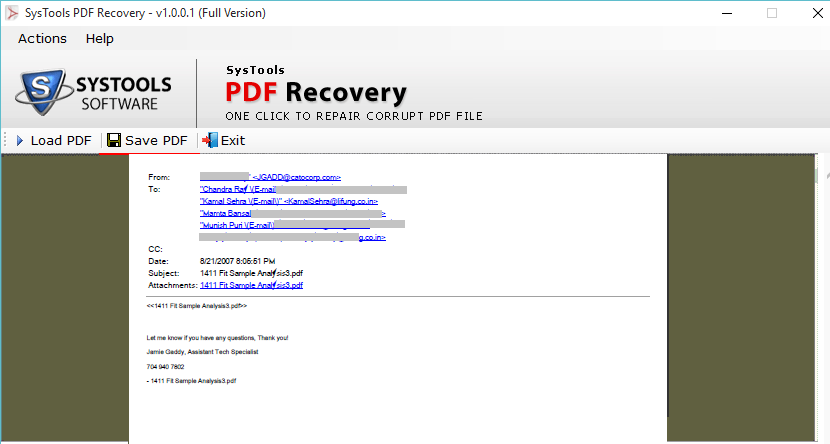
If your certificate’s text is garbled or missing after rebuild, you may need to repair pdf and restore text. Use ghostscript: gs -o output.pdf -sDEVICE=pdfwrite -dPDFSETTINGS=/prepress input.pdf. This re-processes the file and often fixes font encoding. For scanned certificates (image-based PDFs), run OCR with tools like Tesseract—first convert PDF to images, then OCR back to a searchable PDF. This preserves the visual integrity while making text selectable.
Step 5: Verify and Save as a Clean Copy
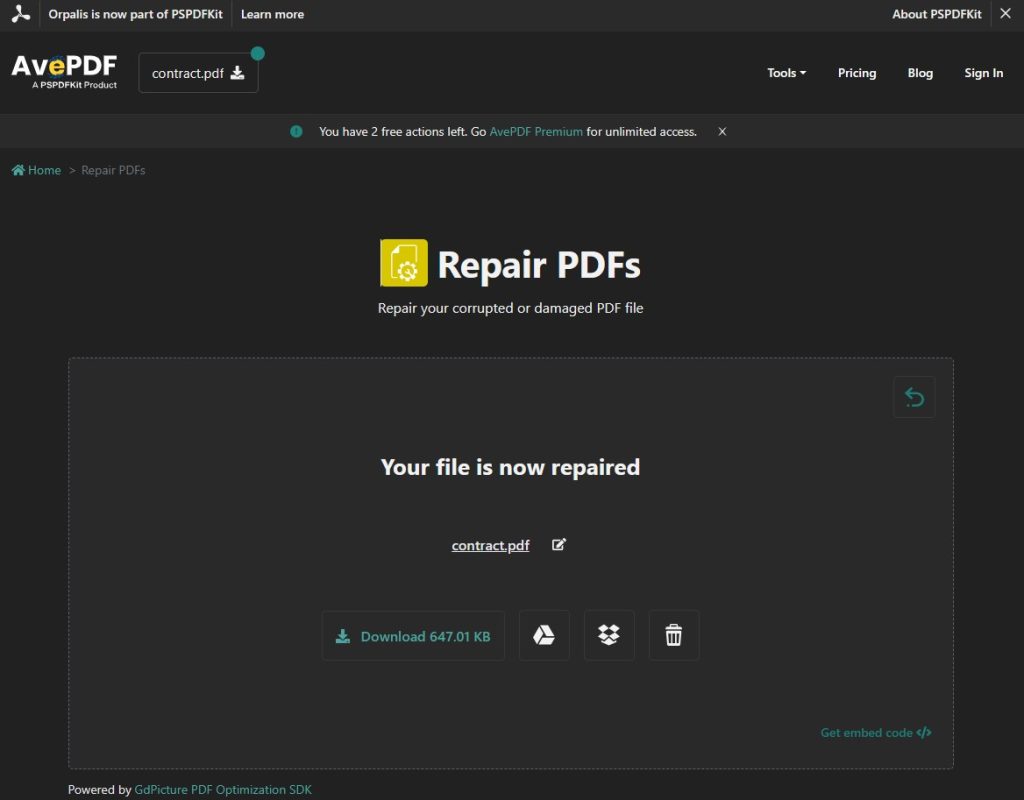
Once you have a readable file, verify everything: are the seals, signatures, and layout intact? Open in multiple viewers (Adobe Acrobat, browser, etc.) to ensure consistency. If any part still looks off, you may need to how to fix invalid pdf file by re-encoding with a tool like qpdf: qpdf --linearize input.pdf output.pdf. Finally, save a fresh copy with a new name, and keep the original backup just in case. Your certificate is now ready to print, email, or add to your portfolio.
Common Pitfalls
- **Overwriting the original** – Always work on a copy. If a repair goes wrong, you can start over without losing the original data.
- **Ignoring privacy** – Online tools upload your file to their servers. For sensitive certificates (e.g., diplomas with personal info), prefer offline methods like pdftk or a pdf repair app that runs locally.
- **Skipping step 1** – Applying a generic fix without diagnosing the specific corruption can make things worse, especially if the issue is a broken trailer or missing cross-reference table.
Where to Next?
You’ve just rescued a certificate that might have seemed lost forever. To keep your PDFs in top shape, consider batch-repair tools if you have multiple files—automated pdf repair using scripts can handle routine fixes. Also, learn to prevent corruption: always download certificates using a stable connection, avoid direct editing in unsupported apps, and keep backups in the cloud. For more targeted repairs, explore our other guides on fixing blank pages or recovering missing pages.