If you’ve ever tried opening a PDF from your hard drive and got nothing but an error message, you know the sinking feeling. Maybe the file was partially downloaded, the drive developed bad sectors, or the PDF simply got corrupted during a transfer. This guide is for anyone who has a damaged PDF sitting on their hard drive and wants to recover it without spending a fortune. By the end, you’ll have a working PDF—or at least a salvageable version—using free tools and a few manual tricks.
We’ll cover everything from simple quick fixes to using dedicated PDF repair software and even a bit of hex editing for the brave. Whether your PDF shows random characters, refuses to open, or tells you the file is invalid, these steps increase your chances of getting your document back. Let’s dig in.
What You’ll Need
- The corrupted PDF file on your hard drive
- A computer with internet access (for downloading tools)
- A backup of the original file (if possible)
- Optional: A hex editor (like HxD or Hex Fiend) for manual repair
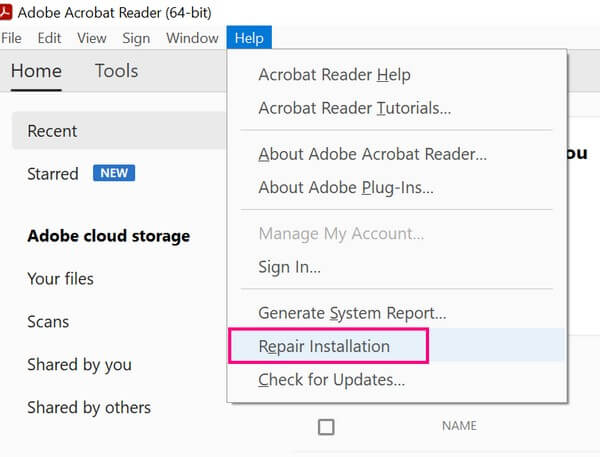
- Optional: Alternative PDF readers (Adobe Acrobat, Foxit, SumatraPDF)
Step 1: Back Up the Corrupted PDF
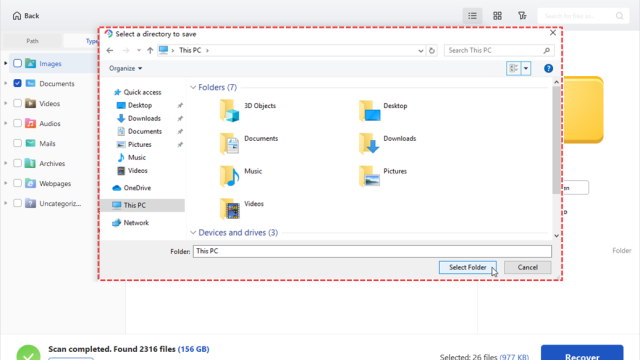
Before doing anything else, make a copy of the problematic file. Right-click it, select Copy, then paste it into a different folder or drive. This gives you a safety net so you can try different repairs without losing the original. If the file is on a failing hard drive, consider copying it off that drive first using recovery software—otherwise, further attempts might destroy what’s left.
Step 2: Try Opening in a Different Reader
Sometimes the problem isn’t the file but the reader. Try opening the PDF in another program like Foxit Reader, SumatraPDF, or even your web browser. If it opens, you can resave it from that reader. For instance, in Chrome, open the PDF and click the download icon—this often strips out minor corruption. If multiple readers fail, move on to the next step.
Step 3: Use a Dedicated PDF Repair Tool
The quickest way to fix a corrupted PDF is to run it through a purpose-built repair tool. I recommend the best free PDF repair tool, PDF24. Go to their website, download the free PDF24 Creator, and install it. Once installed, open the ‘PDF Repair’ tool from the PDF24 interface. Select your corrupted PDF, click ‘Repair’, and wait a few seconds. Often this alone gets your file back. If it doesn’t work, you can also try the online version. For more stubborn cases, check out our guide on repair PDF after disk error.
Step 4: Try an Online Repair Service
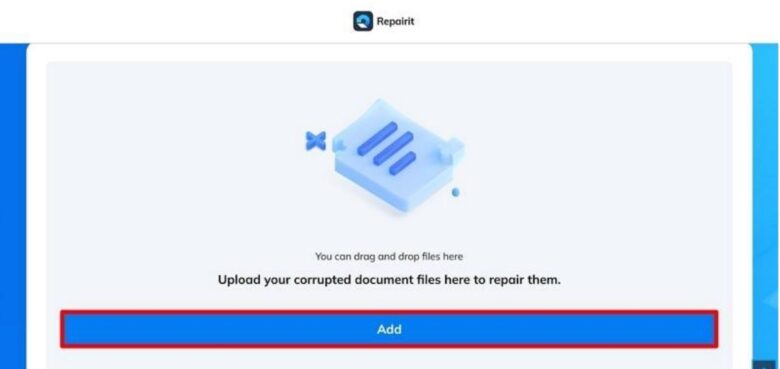
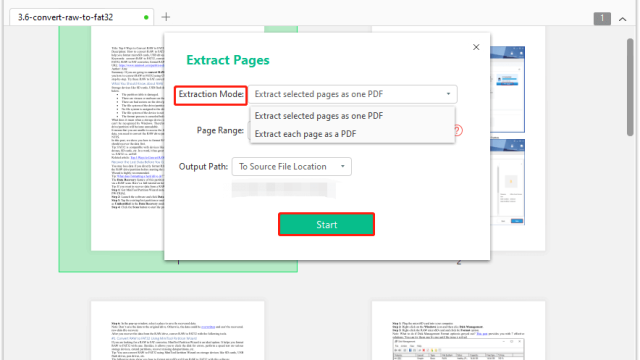
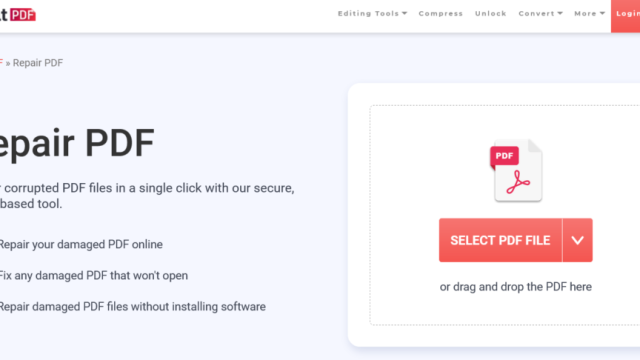
If you prefer not to install software, online PDF repair services can work wonders. Sites like iLovePDF, Smallpdf, or PDF2Go offer free repair options. Bear in mind that you’re uploading your file to a third-party server, so avoid sensitive documents. Upload the corrupted file, let the service process it, and download the repaired version. This approach is especially handy if you only need to extract pages from corrupted PDF rather than fix the entire file. If the online tool fails, you can also try our guide on fix PDF file is invalid error for alternative methods.
Step 5: Manual Repair with a Hex Editor (Advanced)
For those comfortable with tinkering, a hex editor can fix glaring structural issues. Download a free hex editor like HxD (Windows) or Hex Fiend (Mac). Open the backup copy of your PDF. Look at the beginning of the file: it should start with “%PDF-1.” (or similar). If that header is missing or corrupted, you can manually type it in. Also check the end: a valid PDF ends with “%%EOF”. If it’s missing, add it. Be careful—one wrong character can break the file further. This method works best for small PDFs; if your file is large, our guide on repair small PDF file might help.
Common Pitfalls
- Skipping the backup: Once you start modifying the original file, you might make things worse. Always work on a copy.
- Using unreliable tools: Some free repair tools inject ads or malware. Stick to well-known options like PDF24 or reputable online services.
- Giving up too early: If one method fails, try another. Sometimes combining approaches (like extracting pages first, then repairing) yields success.
Where to Next
Repairing a PDF from your hard drive is often possible with patience and the right tools. If your file still won’t open, consider converting it to another format (like Word) and then back to PDF, which can strip corruption. For more PDF rescue missions, check out our guides on fixing incomplete PDFs or repairing PDF error 110. Good luck!