You just double-clicked that important PDF and… nothing. Or maybe you got a vague error like “The file is damaged and could not be repaired.” It’s frustrating, especially when you need that document right now. This guide is for anyone—no tech experience required—who wants to get their PDF working again. By the end, you’ll have tried everything from simple restart tricks to command-line fixes, and you’ll likely have a usable file.
We’ll start with the easiest steps (checking your reader, trying another app) and move into more powerful methods like using online tools or a trusty old command-line warrior called Ghostscript. I’ll also link you to specific repair guides along the way, like a comprehensive pdf fixer guide if you need deeper help. Ready? Let’s get that PDF open.
What You’ll Need
- The PDF file that won’t open
- A computer with internet access
- Optional: Adobe Acrobat Pro (trial works) or free command-line tools (we’ll cover both)
- Patience (most fixes take under 5 minutes)
Step 1: Check Your PDF Reader and File Association
Before any heavy-duty repair, make sure the problem isn’t your PDF reader. Sometimes the default app changes after an update, or a glitch prevents it from launching. Right-click your PDF, select “Open with,” and choose Adobe Acrobat Reader (free). If you don’t have it, download it from Adobe’s website. If the file opens in another app like your browser, you know the file is likely fine—the issue is your default reader. In that case, reset the association in your OS settings.
Step 2: Try a Different PDF Viewer
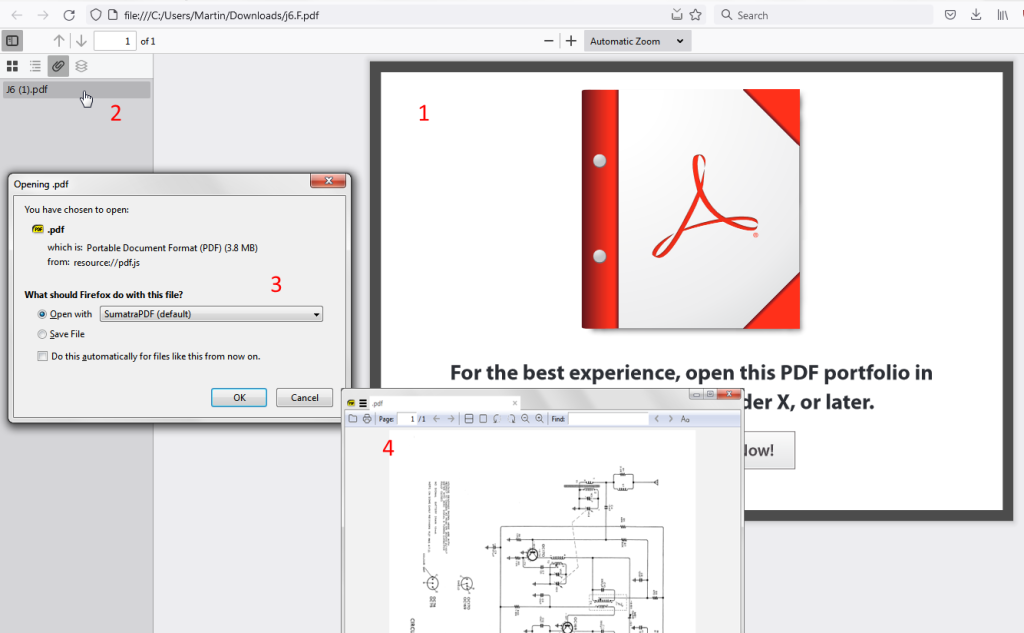
If Adobe Reader fails, try a lightweight alternative like SumatraPDF (Windows) or Preview (Mac). These viewers sometimes handle minor corruption gracefully. Download a free viewer—they’re small and portable. Open your PDF from within the app (File > Open) instead of double-clicking. If it works, you can copy the content to a new PDF using export or print-to-PDF. This trick alone can salvage many “bricked” files.
Step 3: Use a Built-in Repair Tool (Adobe Acrobat Pro)
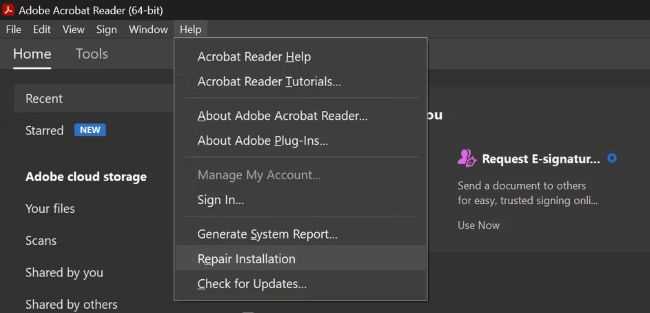
Adobe Acrobat Pro (paid, but has a 7-day trial) includes an automatic repair feature. Open Acrobat Pro, go to File > Open and select your troubled PDF. If the file is slightly corrupted, Acrobat will prompt you to repair it. You can also run File > Save As Other > Optimized PDF, which often rebuilds the file structure. After repair, save a copy with a new name. This method is solid for moderate corruption—think missing pages or garbled text.

Step 4: Run an Online PDF Repair Tool
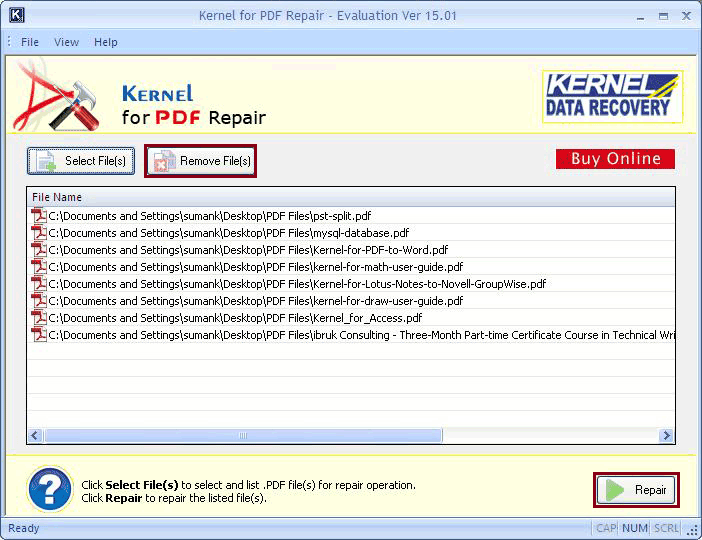
Prefer not to install anything? Use a free online repair service. Sites like iLovePDF, Smallpdf, or PDF24 allow you to upload a damaged PDF and download a repaired version. They work well for common issues like broken links or truncated files. Upload your file, wait a few seconds, and download. Be mindful of privacy—avoid uploading sensitive documents to unknown services. For a safe alternative, check out our free pdf repair tools article for recommended offline options.
Step 5: Repair with Command-Line Tools (Ghostscript, pdftk)
If the above steps fail, you can use command-line tools for a deeper fix. Ghostscript is a powerful engine that can recompile corrupt PDFs. Install Ghostscript, then open Command Prompt (as admin) and run: gswin64c -o repaired.pdf -sDEVICE=pdfwrite input.pdf. Another option is pdftk, which can repair and flatten files: pdftk input.pdf output repaired.pdf. For detailed cmd examples, see our pdftk repair methods guide. This approach recovers files that online tools cannot.

Common Pitfalls
- Forgetting to update your PDF reader—an outdated version can misinterpret file structures, making a healthy PDF seem corrupt. Always keep your viewer updated.
- Using shady online tools that may steal your data. Stick to reputable services or use offline methods. If you must upload sensitive files, consider cloud-based pdf repair after encrypting them.
- Overwriting the original file without a backup. Always save repairs as a copy (e.g., repaired.pdf) so you can retry with a different method if needed.
Where to Next?
You’ve just learned the essential fixes for a PDF that won’t open. But what if the problem recurs? Check out our related guides: if you’re dealing with a PDF from a cloud service, our article on fixing OneDrive PDF issues may help. For total PDF recovery scenarios, our comprehensive pdf fixer guide covers every angle. And if you ever lose pages or text, we’ve got you covered. Stay calm and keep those PDFs in check!




