Ever had a PDF that just won’t open, shows garbage characters, or crashes your reader? You’re not alone. Corrupted PDFs are a pain, but you don’t need to install heavy software to fix them. This guide is for anyone who wants to repair a PDF in the cloud — using only a web browser and an internet connection. By the end, you’ll have a working PDF, recovered from the corruption, without touching your hard drive.
Whether you’re a student with a broken textbook, a freelancer with a damaged invoice, or just someone who downloaded a glitchy file, cloud-based repair tools can save the day. We’ll walk through two simple methods: using a dedicated online PDF repair service and leveraging cloud storage’s built-in preview. Both are free (or freemium) and work for most common corruption issues.
What You’ll Need
- A corrupted PDF file (the one you want to repair)
- A stable internet connection
- A web browser (Chrome, Firefox, Edge, etc.)
- Optional: a cloud storage account (Google Drive, Dropbox, OneDrive) for method 2
Step 1: Choose Your Cloud Repair Method
There are two main approaches to repair a PDF in the cloud. The first uses a specialized online PDF repair tool — like the one on PDFRepairs.click. The second uses the preview feature of cloud storage services (like Google Drive) to re-save a clean copy. We’ll cover both, but start with the dedicated tool as it’s more powerful.
Step 2: Upload to an Online PDF Repair Tool
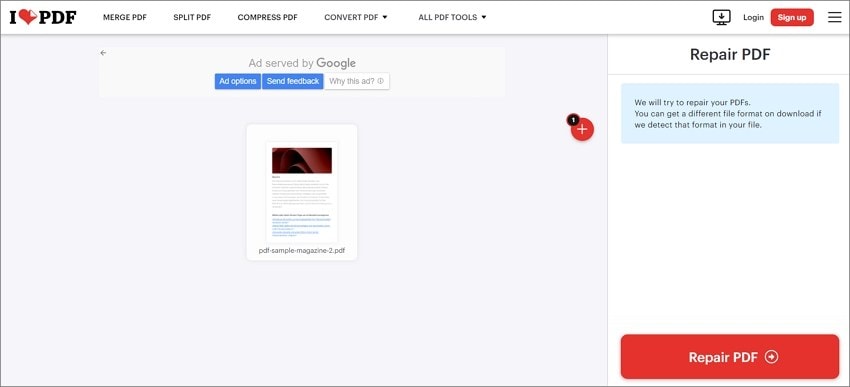
Open your browser and go to a reliable online PDF repair service, such as PDFRepairs.click (the same site that offers a pdf repair app for desktop). Look for the upload area — often a big button that says ‘Upload PDF’ or ‘Choose File’. Click it and select your corrupted PDF from your computer. Some tools also accept files from cloud storage like Google Drive or Dropbox, which is handy if your PDF is already up there.
Step 3: Let the Tool Work Its Magic
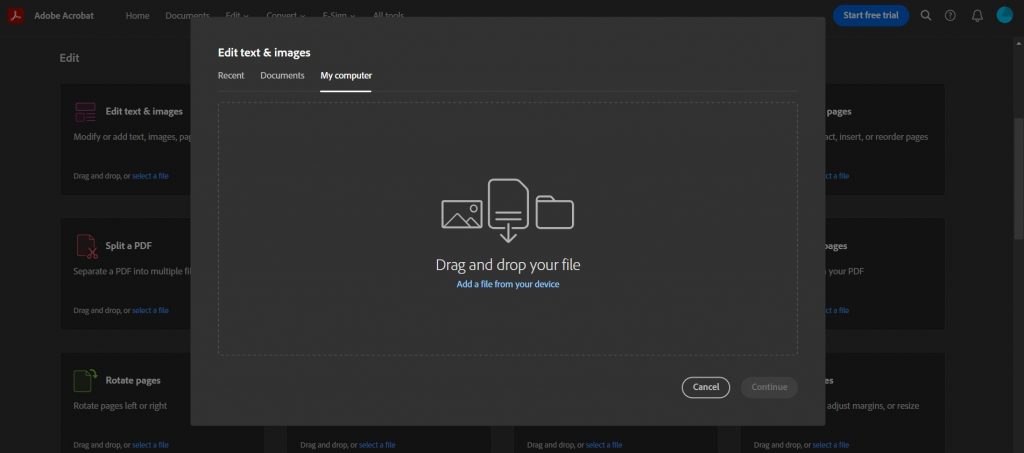
After uploading, the tool will scan and attempt to fix the file. This might take a few seconds to a minute depending on file size and corruption level. You’ll usually see a progress bar or a spinning icon. Don’t close the browser tab! Once done, a download link or preview button appears. Click ‘Download Repaired PDF’ to save the fixed file to your computer.
Step 4: Alternative Method – Use Cloud Storage Preview
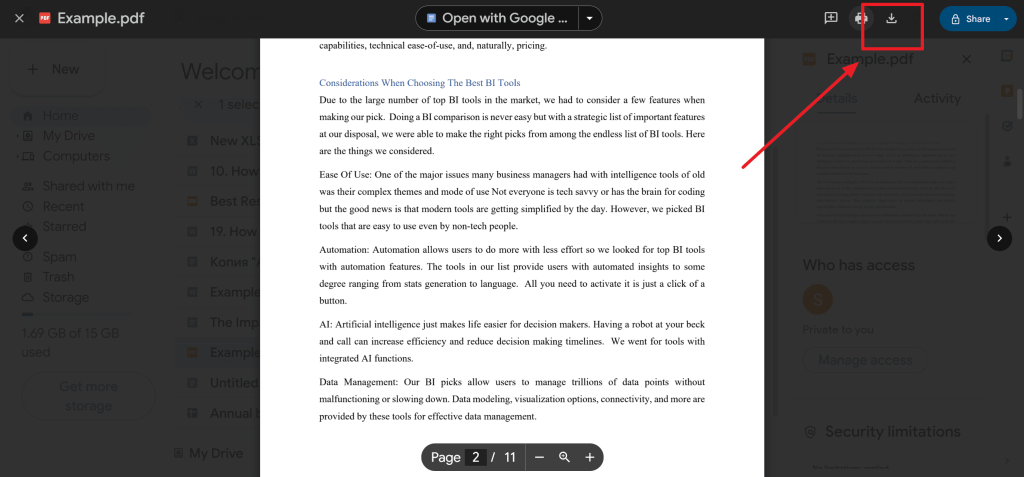
If the dedicated tool didn’t work or you prefer to keep everything in the cloud, try this: upload the corrupted PDF to Google Drive, Dropbox, or OneDrive. Open the file using the cloud service’s built-in PDF viewer (like Google Drive’s preview). Then, look for a ‘Print’ or ‘Download as PDF’ option. For Google Drive, click the print icon in the viewer and choose ‘Save as PDF’ as the destination. This re-creates the PDF, often stripping out corruption. It’s not perfect for heavily damaged files, but it can fix garbled PDF issues and missing text.
Step 5: Verify and Backup
Open the repaired PDF with your usual reader. Check that all pages are there, text is readable, and any images or links work. If it looks good, make a backup! Store it in your cloud drive or another safe location. If the file still has issues, you might need to try a different approach — like using a batch PDF repair tool if you have multiple damaged files, or a PDF corrupted after save repair tool for files that broke after editing.
Common Pitfalls
- File too large: Many free online tools have a size limit (often 10–50 MB). If your PDF exceeds that, you may need to use a desktop app or upgrade to a paid plan. Consider splitting the file first.
- Privacy concerns: Uploading sensitive documents to a third-party cloud service can be risky. Check the site’s privacy policy or use a tool that processes files locally in the browser (like PDFRepairs.click’s online tool that claims no server storage). For extra security, repair encrypted PDF only with trusted tools.
- Partial repair: Sometimes the tool will output a file that opens but has missing content, like blank pages or unreadable sections. In that case, try a different service or use cloud storage preview as a fallback.
Where to Next
Now that you’ve fixed your PDF in the cloud, explore other repair scenarios. If you regularly deal with broken PDFs, check out our guide on using a dedicated pdf repair app for more control. For specialized issues, see how to repair encrypted PDF or fix garbled PDF text. And if you have a pile of corrupted files, our batch PDF repair tutorial will save you time. Happy repairing!




