If you’ve ever tried to open a PDF and got nothing but a blank screen or an error message, you know the frustration. This guide is for anyone who has a damaged PDF that won’t open properly or behaves weirdly—maybe pages are missing, text is garbled, or the file refuses to load at all. By the end, you’ll know how to run a quick diagnostic using pdfinfo, a command-line tool that reveals what’s really going on inside that PDF. You’ll be able to identify issues like missing fonts, truncated data, or corrupt page structures, and then decide on the best next steps.
No prior command-line experience? No problem. I’ll walk you through everything step by step. You’ll have pdfinfo installed, run it against your damaged file, and learn to read the output so you can pinpoint the problem. From there, you can use other tools like pdftk or open source pdf repair tools to fix it, or head to a free pdf repair guide for online fixes. But first, let’s figure out what’s broken.
What You’ll Need
- A computer with command-line access (Terminal on Mac/Linux, Command Prompt on Windows)
- pdfinfo installed (part of the poppler-utils package)
- The damaged PDF file you want to diagnose
- Basic file navigation skills (cd, ls/dir)
Step 1: Install pdfinfo
pdfinfo comes with the poppler-utils library, which is available on all major platforms. On Ubuntu or Debian, open a terminal and run:
sudo apt install poppler-utils
On macOS, if you have Homebrew installed, use: brew install poppler. For Windows, download the official poppler binaries from poppler.freedesktop.org and add the bin folder to your PATH. After installation, test by typing pdfinfo –version. If you see a version number, you’re good to go. If not, double-check PATH or restart your terminal.

Step 2: Run pdfinfo on the Damaged PDF
Navigate to the folder containing your PDF and run:
pdfinfo damaged.pdf
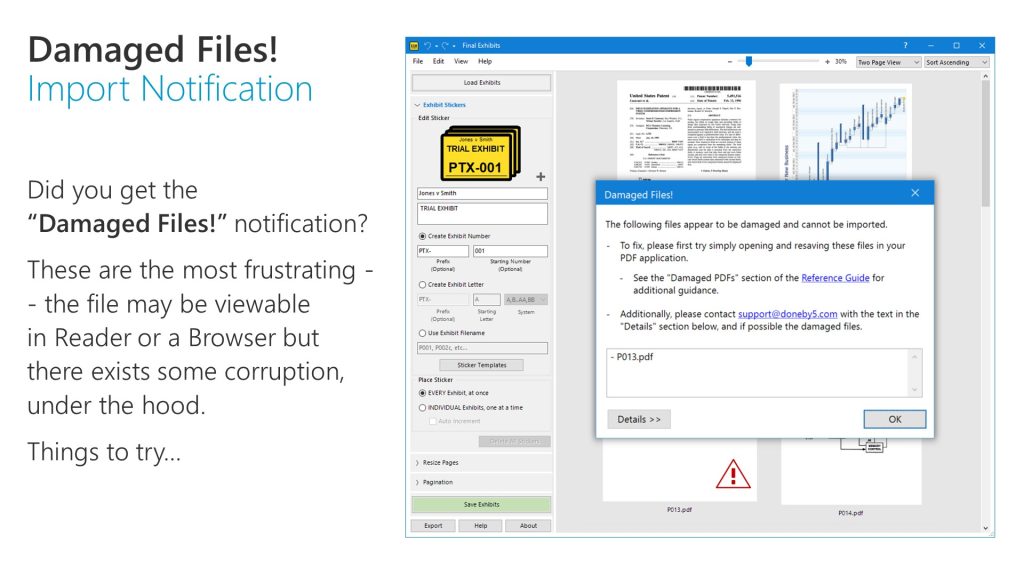
Replace damaged.pdf with your actual filename. pdfinfo will print out metadata about the PDF, including page count, file size, version, and any errors or warnings it encounters. If the PDF is severely corrupted, you may see error messages like ‘Could not read page’ or ‘Invalid XRef entry’. Those are clues.

Step 3: Check Individual Pages with -f and -l
Sometimes a PDF opens fine but has a specific damaged page. Use the -f (first page) and -l (last page) flags to target a page range. For example:
pdfinfo -f 5 -l 5 damaged.pdf
This checks only page 5. If pdfinfo throws an error for that page but not for others, you’ve isolated the damage. You can then try to extract that page with pdftk or restore text from a damaged pdf using dedicated tools.
Step 4: Interpret Key Output Fields
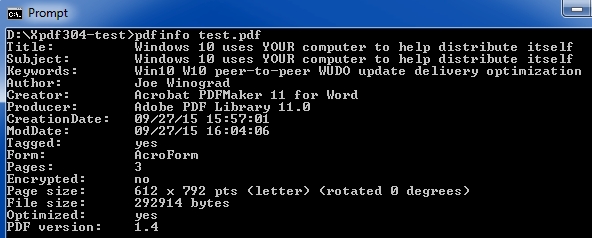
The pdfinfo output contains several important fields. ‘Pages’ shows the total number of pages the PDF claims to have—if it’s less than expected, the file might be truncated. ‘Page size’ can reveal odd dimensions. ‘PDF version’ tells you if the file is using an outdated standard. Watch for ‘Warning:’ lines; they often point to missing fonts or resources. If you see ‘Error: Could not find xref’, you may need to fix pdf trailer or rebuild the cross-reference table.

Step 5: Save the Diagnostic Info to a File
To keep a record, redirect the output to a text file:
pdfinfo damaged.pdf > pdfinfo_report.txt
Now you have a log you can share with support or review later. This is also useful if you’re dealing with multiple PDFs—run a batch script to generate reports for all files in a folder.
Common Pitfalls
- Missing fonts: pdfinfo may warn about missing fonts, but the PDF might still display correctly if the font is substituted. Don’t assume a warning means the file is broken.
- Truncated PDF: If the file is cut short (e.g., a web download interrupted), pdfinfo will report fewer pages or an abrupt end. The file may be unrecoverable without re-downloading.
- Incorrect installation: On Windows, if pdfinfo isn’t recognized, make sure you added the bin folder to PATH and restarted your Command Prompt. On Mac/Linux, check that you used the correct package manager.
Where to Next
Now that you’ve diagnosed your PDF, it’s time to fix it. If the issue is a corrupted trailer, check out our guide on how to fix pdf trailer. For general repairs, you can try repair pdf with pdftk or use open source pdf repair tools. If you need to recover text, our article on restore text from a damaged pdf covers that. And as always, browse our free pdf repair guide for more targeted solutions.




