
You’ve got a PDF that won’t let you edit, print, or even open it without a password. Maybe it’s a document from a colleague or a download from the web. Don’t worry — you’re not alone, and there are easy ways to fix that. This guide is for anyone who’s new to this and just wants to get their PDF unlocked without spending a dime or learning complicated software. By the end, you’ll have a working, unlocked PDF that you can use however you like.
We’ll cover several methods: using Google Chrome’s built-in print feature (the simplest), free online unlock tools, and Adobe Acrobat. Each method is tested and works on most locked PDFs. If one doesn’t work, try the next. Let’s get that PDF free.
What You’ll Need
- A locked PDF file
- A computer with internet access
- Google Chrome browser (or any modern browser, but Chrome works best)
- Optionally: Adobe Acrobat Reader (free) or Adobe Acrobat Pro (trial)
Step 1: Try to Open the PDF and Check the Lock Type
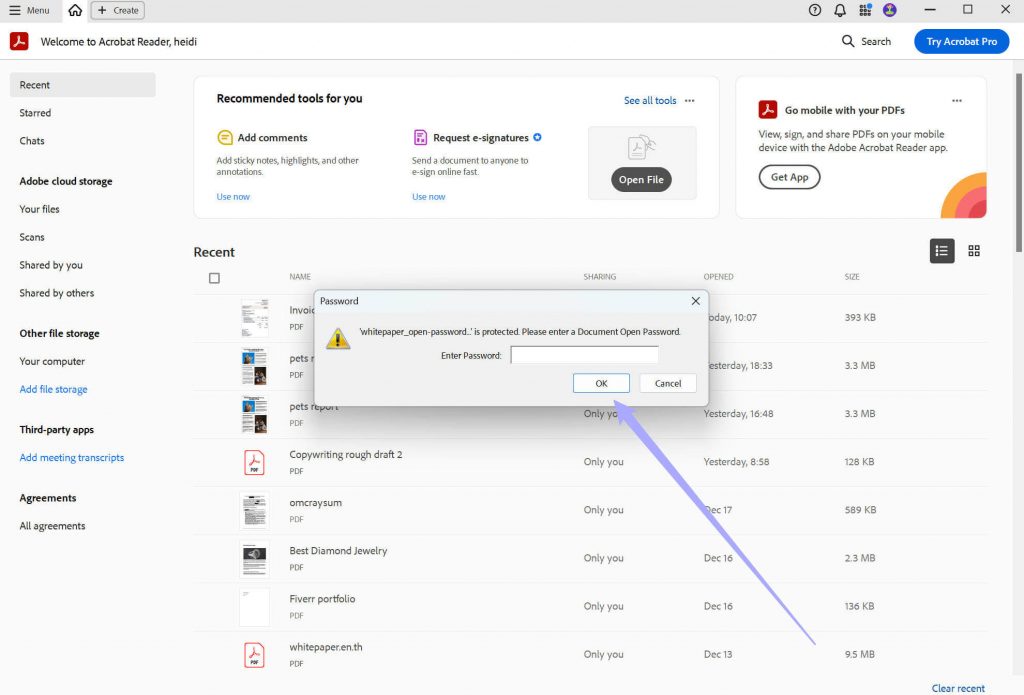
First, double-click the PDF. If you get a password prompt, it’s locked with an open password. If you see the document but can’t edit or print, it’s locked with permissions. Knowing this helps you choose the right method. For open passwords, you’ll need the actual password. For permissions, we can bypass it. If you don’t know the password, skip to Step 2.
Step 2: Unlock Using Google Chrome (Free & Easy)
Open Chrome, drag your PDF into the browser tab. The PDF will display even if it’s locked for printing/editing. Then click the print icon (or press Ctrl+P / Cmd+P). In the print dialog, select ‘Save as PDF’ as the destination, then hit Save. This creates a new, unlocked copy. This works for permissions-locked PDFs, but not for open-password PDFs (those you need the password to view). For open-password PDFs, try Step 3.

Step 3: Use an Online Unlock Service
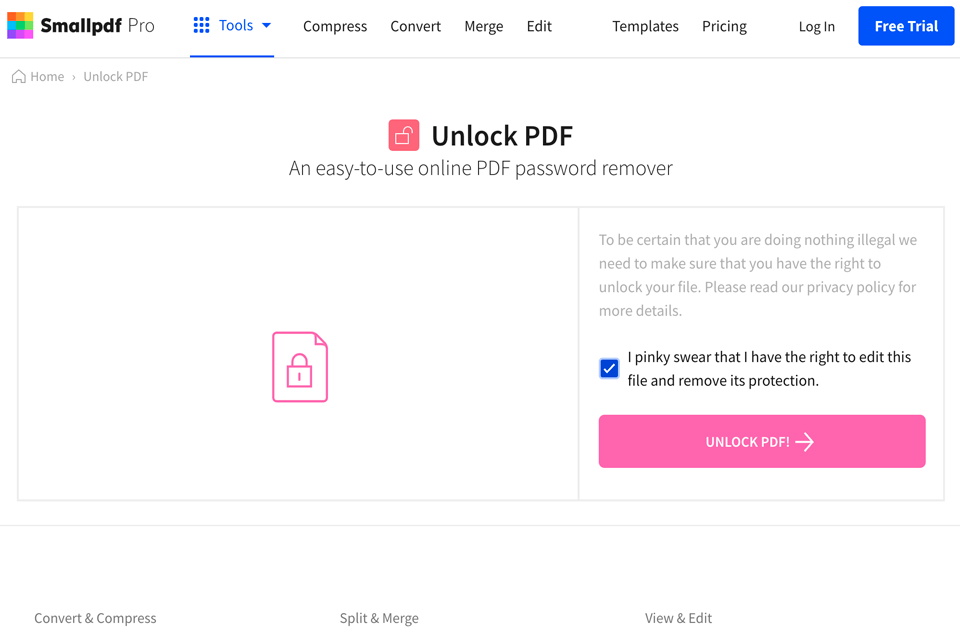
If Chrome didn’t work, try a free online unlock tool. Visit a reputable site like Smallpdf, iLovePDF, or PDF2Go. Upload your locked PDF. If it’s permissions-locked, they’ll remove the restrictions. If it’s open-password locked, some sites offer brute-force attempts, but that’s unreliable. Skip to Step 4 for a more reliable method. After processing, download the unlocked PDF. Always use a trusted service to avoid privacy issues.
Step 4: Use Adobe Acrobat (If You Have the Owner Password)
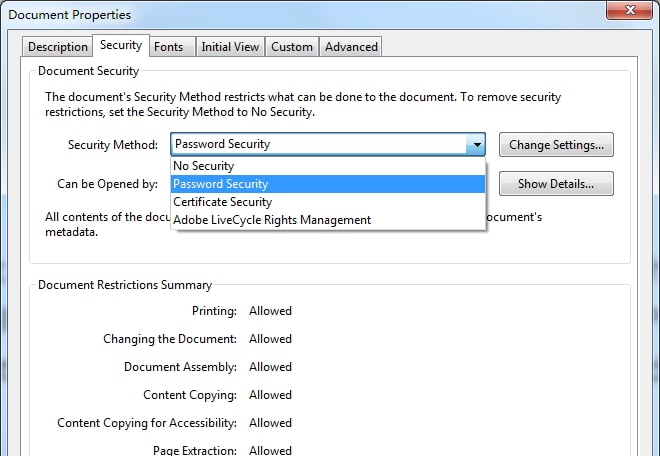
Open the PDF in Adobe Acrobat Pro (full version, not just Reader). Go to Tools > Protect > Encrypt > Remove Security. If you know the owner password, enter it and the restrictions vanish. If you only have the user password, try opening the PDF, then go to File > Properties > Security and click ‘No Security’ — it may prompt for the permissions password. This is the most reliable method if you have the right password.
If you’re interested in command-line tools, you can also use services like pdftk repair pdf to strip restrictions. For deeper issues like a corrupted trailer, check out our guide on how to fix pdf trailer.
Common Pitfalls
- File size increases: The ‘Print to PDF’ method can sometimes double the file size. If that bothers you, try an online tool that preserves quality.
- Online privacy: Uploading sensitive PDFs to free online services can be a security risk. For confidential documents, use a local tool like Chrome or Acrobat.
- Open password PDFs: If the PDF requires a password just to view it, methods like Chrome print won’t work. You’ll need to know the password or use advanced recovery tools. For a general solution, see our pdf fixer guide.
Where to Next
Now that you’ve unlocked your PDF, you might run into other issues like missing pages or encoding errors. Check out our guides on pdf repair free for a complete toolkit, or if you need to fix an invalid file, see how to fix invalid pdf file. Happy editing!




