So your PDF is corrupted — it won’t open, shows garbage, or throws an error. Don’t panic. Even if the file is busted, the text might still be in there. This guide is for anyone who needs to pull readable text out of a damaged PDF, whether it’s an important report, a scanned document, or a download that went wrong. By the end, you’ll have a plain text file (or at least a chunk of usable text) that you can copy into Word, Notepad, or wherever you need it.
We’ll cover multiple methods: free command-line tools like pdftotext, online text extractors, and even manual tricks for the truly stubborn files. No fancy software required — just a computer and a bit of patience. Let’s dig in.
What You’ll Need
- Your corrupted PDF file (keep the original safe)
- A computer running Windows, macOS, or Linux
- Internet connection (for the online method)
- Optional: Command-line terminal (for pdftotext or Tesseract)
- Optional: A text editor like Notepad++ or VS Code
Step 1: Try Opening with Different PDF Readers
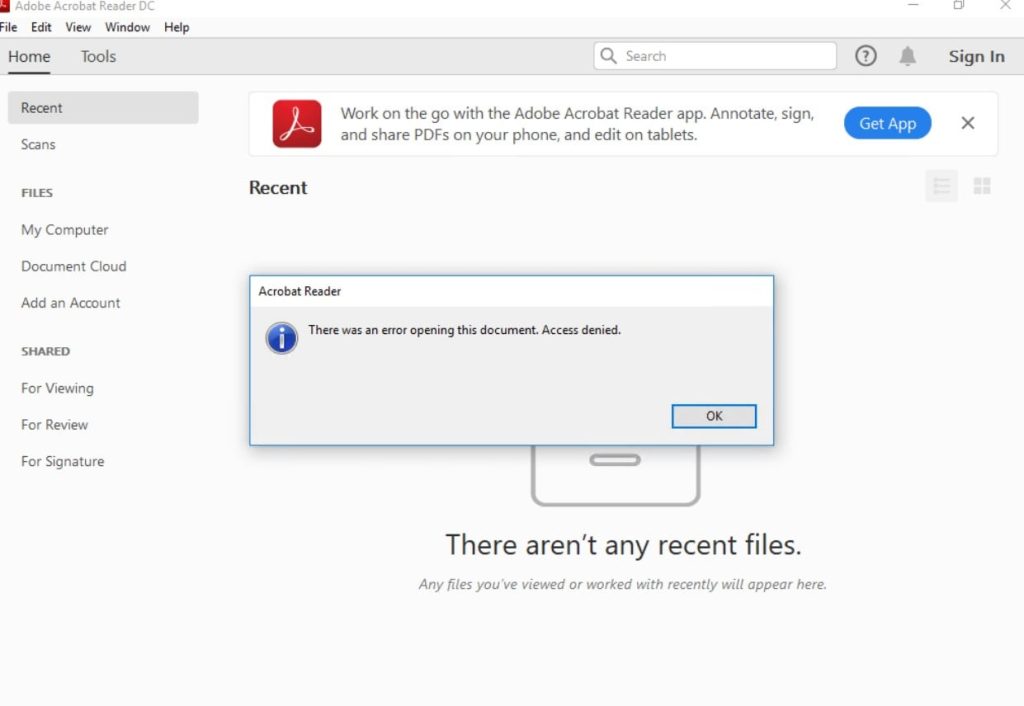
Sometimes a PDF is only partially corrupted — one reader might fail while another handles it fine. Before going full nerd mode, try opening the file in a different app. Adobe Reader, your browser (Chrome, Edge, Firefox), Foxit Reader, or even the built-in PDF viewer on your OS. If any of them can display part of the content, you can copy the text directly.
If you get something useful, great — you saved the text. If not, move to Step 2.
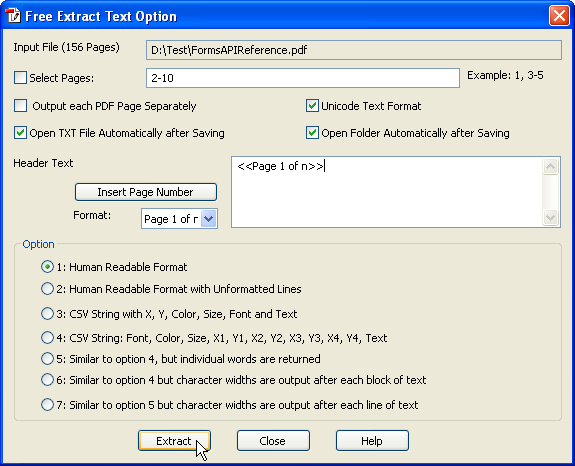
Step 2: Extract Text with pdftotext (Command Line)
pdftotext is a powerful free tool that comes with the poppler-utils package. It tries to extract text directly from the PDF’s internal structure, often succeeding even when the file looks corrupted.
Install it first:
- Windows: Download poppler for Windows from the official site (or via Chocolatey: `choco install poppler`).
- macOS: `brew install poppler` (requires Homebrew).
- Linux: `sudo apt-get install poppler-utils` (Ubuntu/Debian) or equivalent.
Once installed, open a terminal and run: `pdftotext corrupted.pdf output.txt`. Replace “corrupted.pdf” with your file’s name. If the command succeeds, you’ll get a text file. Open it and see if the text makes sense. Even if it’s messy, you can often salvage most of the content.
If you get an error or empty output, the PDF’s text layer might be damaged. Don’t worry — we have more tricks.

Step 3: Use an Online PDF Text Extractor
Online tools can sometimes handle corruption that local tools can’t. Services like Smallpdf, ILovePDF, or PDFtoText.com let you upload your file and download the extracted text. They’re simple, but be careful with sensitive documents — the file is uploaded to their servers.
Upload your PDF, wait for processing, and download the TXT result. If it works, you’re done. If not, move on to the next step.
Step 4: OCR the PDF (if Text Is in Images)
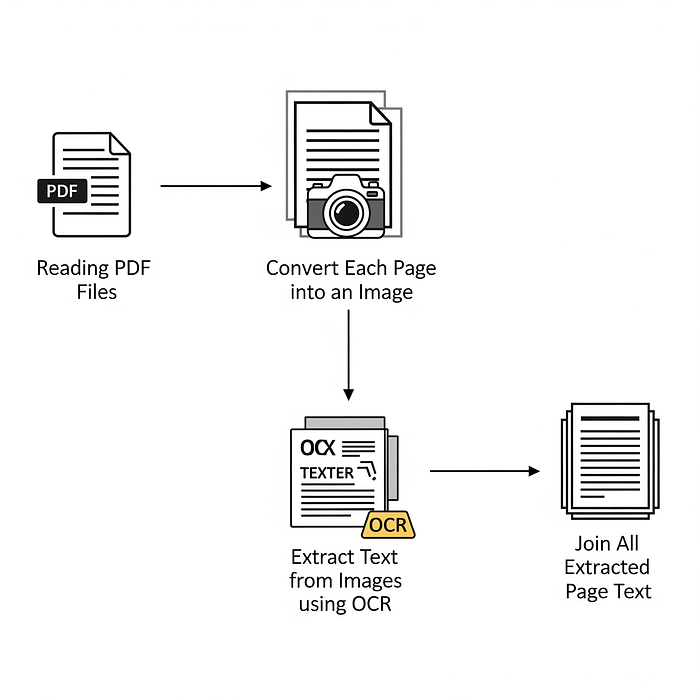
Sometimes a corrupted PDF still contains all the text as images — for example, scanned documents. In that case, you need OCR. Tesseract is a free, open-source OCR engine that can read text from images.
First, convert each page of your PDF to an image using a tool like Ghostscript (or an online converter). Then run Tesseract: `tesseract page1.png output -l eng`. This gives you a text file with the recognized text. It works even if the original PDF’s text layer is broken, as long as the images are still intact.
For a batch approach, use one of the many GUI tools that combine PDF-to-image and OCR, like PDF24 or OCR.space.
Step 5: Manual Extraction from Raw PDF Data
This is the last resort. Open the PDF in a text editor like Notepad++ (on Windows) or any plain text editor. You’ll see a ton of gibberish, but buried in there are often readable strings of text. Search for common words or phrases you know were in the document. Copy every readable chunk you find and paste it into a new file.
This method is tedious and works best for small PDFs, but it can recover text when everything else fails. Look for patterns like `(This is readable text)` between parentheses — PDF uses parentheses for literal text strings.
Common Pitfalls
- Online tools may fail with heavily corrupted files: They often give up quickly. Use local tools for stubborn cases.
- pdftotext produces jumbled output: If the file’s structure is messed up, you might get text but in the wrong order. Try combining with other methods.
- Large files cause memory issues: Very big PDFs can crash tools or time out. Split the PDF first using a repair tool (like our guide to repair a PDF under 100MB).
Where to Next
If text extraction wasn’t enough, consider repairing the PDF first. Check out our guides on how to fix a broken PDF using open-source PDF repair tools, or try a dedicated PDF fixer. For command-line fans, pdftk repair can also help rebuild the file structure. And if you just need a quick fix, an online repair service might do the trick. Good luck!




