Tax season is stressful enough without discovering your filled-out PDF is corrupt. Maybe it won’t open, shows scrambled text, or throws an error when you try to e-file. This guide is for anyone who needs to repair a tax PDF—whether it’s a W-2, 1099, or your entire return. By the end, you’ll have a working PDF that you can print, submit, or archive.
We’ll cover free methods using online tools, open-source command-line utilities, and a few tricks in Adobe Acrobat. No technical wizardry required—just follow the steps in order. If one method fails, move to the next. Let’s get your tax documents back in shape.
What You’ll Need
- The corrupted tax PDF file
- A computer with internet access (for online tools)
- Optional: Adobe Acrobat Reader or Pro
- Optional: pdftk (free command-line tool) if comfortable with terminal
- Patience—sometimes the first attempt doesn’t work
Step 1: Check the Error and Make a Backup
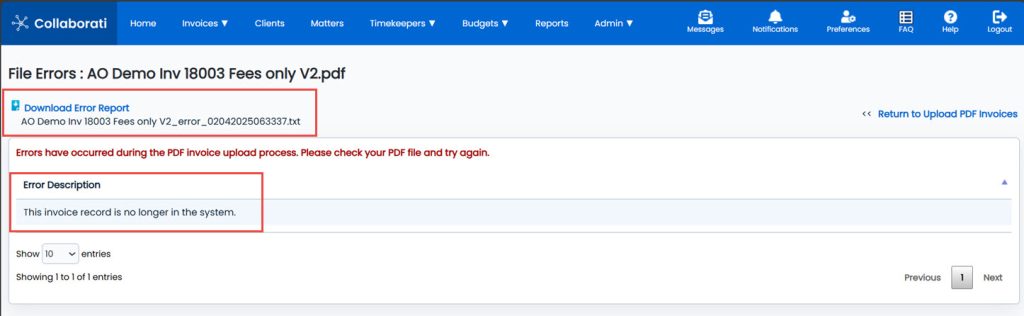
Before trying anything drastic, note the exact error message. Is it ‘File cannot be opened’ or ‘Damaged file’? Then make a copy of the original file—never work on the only copy. Right-click the file and select ‘Copy’, then paste it somewhere safe.
Step 2: Try an Online Repair Tool First
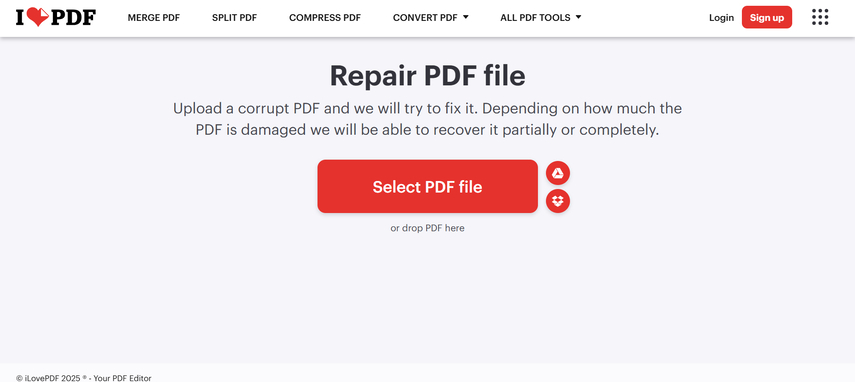
Online services are the quickest fix. Go to a trusted site like iLovePDF or Smallpdf, upload your file (usually under 100MB), and use their ‘Repair’ tool. After processing, download the repaired version. This works for many minor corruptions. If the file is too large, you can use the technique in our guide to repair pdf under 100mb.
Step 3: Use pdftk to Flatten and Regenerate the PDF
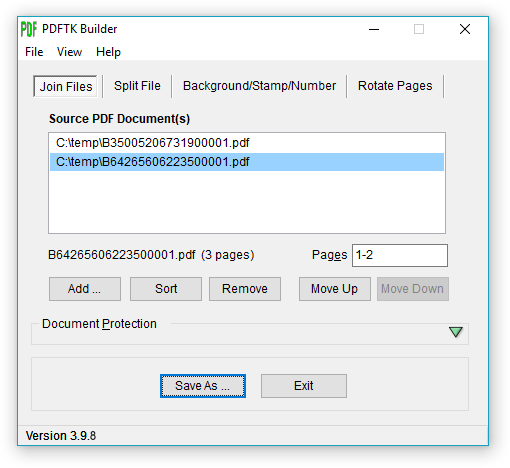
If the online tool fails, pdftk is a powerful free command-line utility. Download it from pdftk.com and install it. Open your terminal (Command Prompt on Windows, Terminal on Mac/Linux). Navigate to the folder with your PDF and run: pdftk original.pdf output repaired.pdf. This often fixes structural issues. Our detailed guide on pdftk repair pdf explains more options.
Step 4: Extract Text and Rebuild in a New PDF
When the PDF is still garbled, you might need to extract the text content. Use a tool like PDFtk’s ‘burst’ to split pages, or try online text extraction. If you get the text, paste it into a new document and save as PDF. This is a last resort, but it preserves the data. For a deeper dive, see how to extract text from corrupted pdf.
Step 5: Repair with Adobe Acrobat Pro
If you have Adobe Acrobat Pro, open the file. Go to File > Repair (or in some versions, go to Tools > Repair PDF). Acrobat will attempt to fix the file structure. If that doesn’t work, try File > Save As Other > Optimized PDF. This often resolves corruption. If Acrobat can’t even open it, try the previous steps first.
Common Pitfalls
- Working on the only copy – always make a backup before attempting repairs.
- Using untrustworthy online tools – stick to well-known services to avoid data leaks. Your tax documents are sensitive.
- Ignoring file size limits – many free tools cap at 100MB. If your PDF is larger, split it first or use desktop tools.
Where to Next
Now that you’ve repaired your tax PDF, check that all fields are readable and numbers are preserved. If you still have issues, try our free online fix pdf online free guide for alternative methods. For recurring problems, consider using automated pdf repair for batch processing next tax season. Happy filing!




