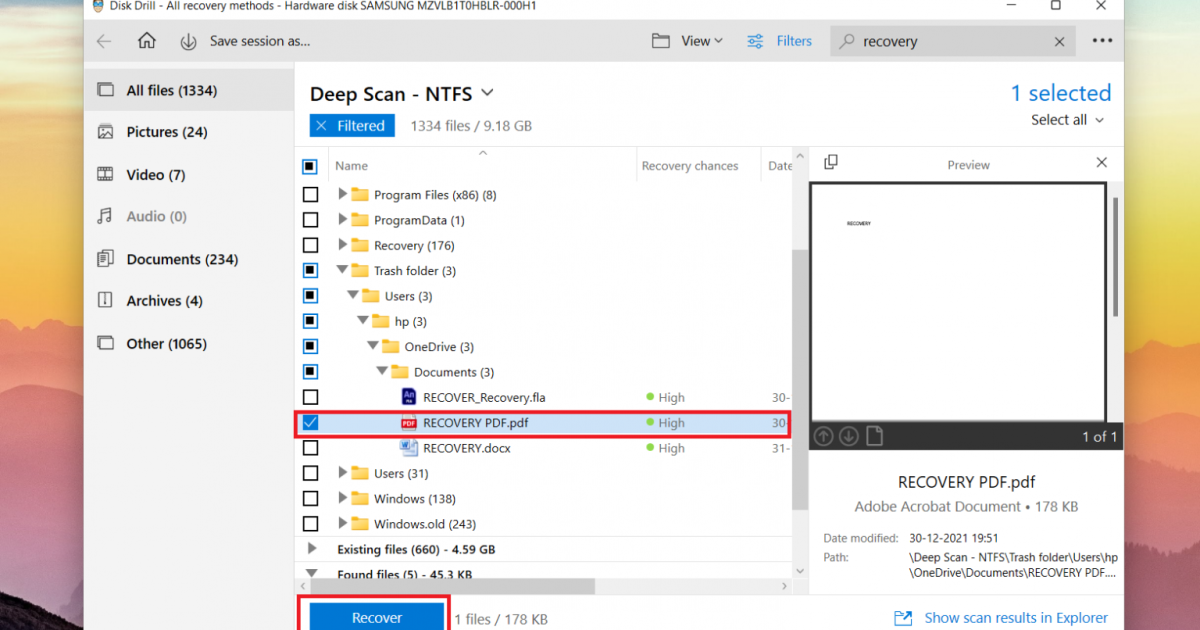
Ever opened a PDF only to find pages missing, blank, or just won’t load? Maybe you downloaded a file that looks incomplete, or a corrupted PDF is hiding important content. This guide is for anyone dealing with missing or unreadable PDF pages — from students to office workers. By the end, you’ll know how to recover those pages using free tools, online services, and a bit of patience.
We’ll cover everything from diagnosing the problem to extracting salvageable pages and rebuilding your PDF. No expensive software required. Let’s get your document back to normal.
What You’ll Need
- A computer (Windows, Mac, or Linux)
- The damaged PDF file
- Internet connection (for online tools)
- Open-source software: qpdf and/or PDFtk (optional but recommended)
- A backup of your original file (never work on the only copy)
Step 1: Diagnose the PDF
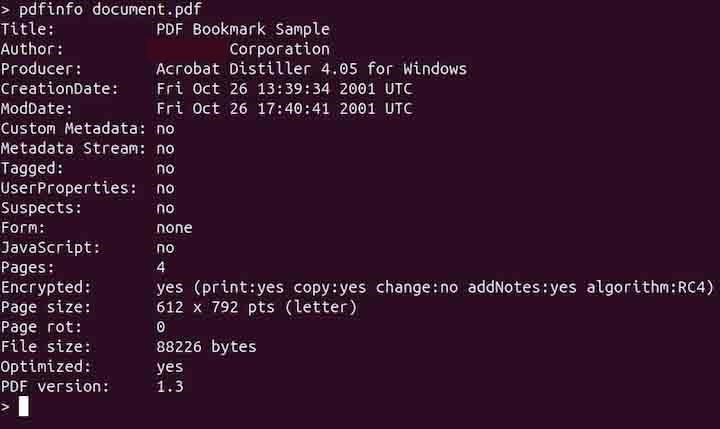
Before jumping into recovery, figure out what’s wrong. Open the PDF in different viewers (like Adobe Acrobat, browser PDF viewer, and a lightweight reader like SumatraPDF). Note how many pages it shows — if it says 10 pages but you only see 5, some are missing. For a deeper look, use the command-line tool pdfinfo (comes with Poppler) to check the file’s metadata. Run: pdfinfo yourfile.pdf. If it reports errors or a page count that seems off, you’ve confirmed the issue. This step helps you choose the right recovery method.
Step 2: Try an Online PDF Recovery Service
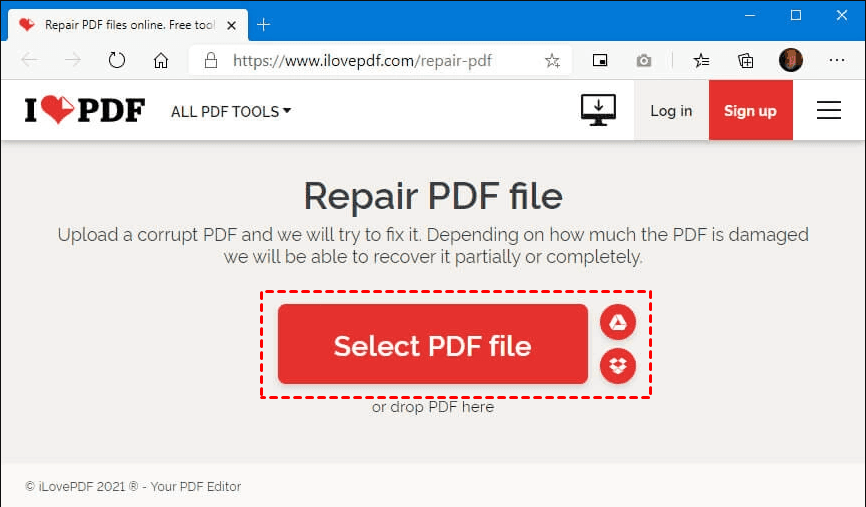
If you’d rather not install anything, start with a free online tool. Many websites let you upload a damaged PDF and download a repaired version. Be careful with sensitive documents — use a reputable service. One option is to look for tools that specifically offer to fix PDF online for free. Upload your file, wait for processing, and download the result. Often this recovers missing pages by fixing the internal structure. If the online service works, great! If not, or if you prefer offline tools, move to Step 3.
Step 3: Use Open-Source Tools to Extract Pages
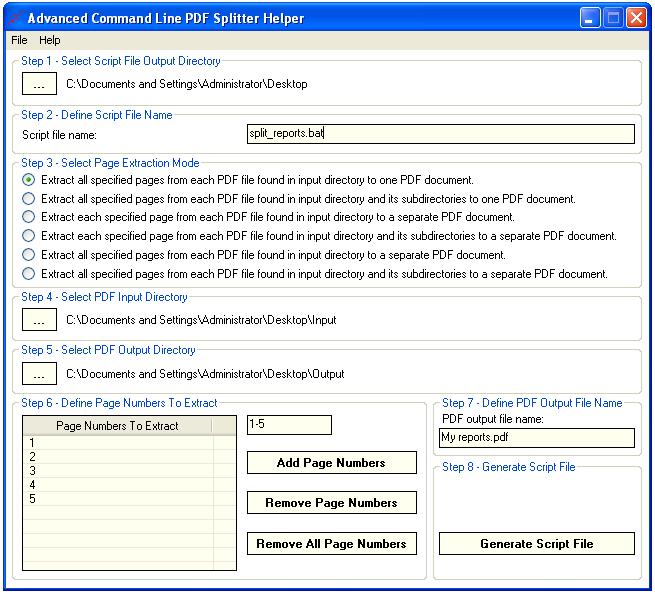
For a more powerful approach, install open-source tools like qpdf or PDFtk. They can extract pages even from mildly corrupted files. To extract all pages as individual files using qpdf, run: qpdf –split-pages yourfile.pdf output_%d.pdf. This creates separate PDFs for each page. Check the output folder — some pages may be missing or corrupt, but the ones that are there are likely recoverable. For open source PDF repair, qpdf and PDFtk are the go-to tools.
Step 4: Extract Specific Pages with PDFtk
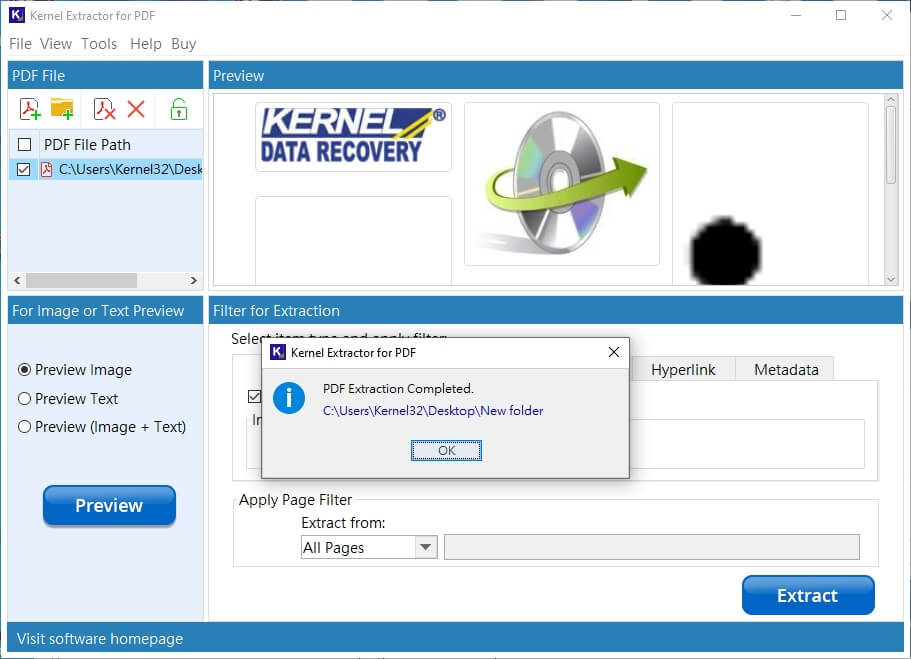
If you know which pages are missing or blank, you can target specific ones. With PDFtk, use the ‘burst’ command to split the PDF into single pages: pdftk yourfile.pdf burst. This outputs each page as pg_0001.pdf, pg_0002.pdf, etc. Look for pages that are too small (file size) or fail to open — those are the problematic ones. You can then discard corrupt pages and keep the good ones. This method is especially useful if you only care about a few key pages.
Step 5: Rebuild the PDF from Good Pages

Now that you have individual pages, combine the good ones into a new PDF. Using PDFtk, run: pdftk pg_0001.pdf pg_0003.pdf pg_0005.pdf cat output recovered.pdf. List only the pages you want, in order. With qpdf, you can do: qpdf –empty –pages *.pdf — output recovered.pdf. This creates a clean PDF containing only the recoverable pages. If you have blank pages in a PDF file, you can omit those. Your recovered document is ready to use!
Step 6: Verify the Recovered PDF
Finally, open the new PDF in your preferred reader and verify every page loads correctly. Scroll through the entire document to check for any remaining issues. If a page still looks wrong (blank or garbled), you can try to extract text from corrupted PDF using tools like pdftotext. But for most cases, your recovered PDF should be fully functional. Make sure to save a backup copy.
Common Pitfalls
- Not backing up the original file before trying recovery — if an online tool or command goes wrong, you might lose it permanently.
- Assuming all missing pages are lost — sometimes they’re just not visible due to corruption; extraction tools can still find them.
- Using unreliable online services that upload your file without privacy — for sensitive documents, always use offline tools.
If you need to deal with multiple corrupted files at once, check out our guide on how to recover multiple PDF files efficiently. And if you ever run into issues like printing or preview not working, we’ve got you covered.
Where to Next?
Now that you’ve recovered your PDF pages, you might want to learn more about how to fix PDF online for free for other types of corruption, or dive into open source PDF repair for advanced cases. If you often deal with damaged PDFs, consider batch-processing with automated tools. And remember, always keep backups!




