Ever tapped a PDF on your iPhone only to get a blank screen, an error message, or a file that just won’t open? You’re not alone. Corrupted PDFs happen all the time — from incomplete downloads, email glitches, or even cloud sync issues. This guide is for anyone with an iPhone who needs to bring a broken PDF back to life. By the end, you’ll have a working PDF (or at least recover the text) using tools already on your phone or free services online.
We’ll walk through five methods, starting with the simplest built-in tricks and moving to more advanced repairs. No tech degree required — just a few taps and swipes.
What You’ll Need
- Your iPhone (any model running iOS 12 or later)
- The corrupted PDF file (stored in Files, iCloud, or an app)
- A stable internet connection (for online methods)
- Optional: Adobe Acrobat Reader app (free from the App Store)
- Optional: A third-party PDF repair app like PDF Expert
Step 1: Check If the PDF Is Really Corrupted
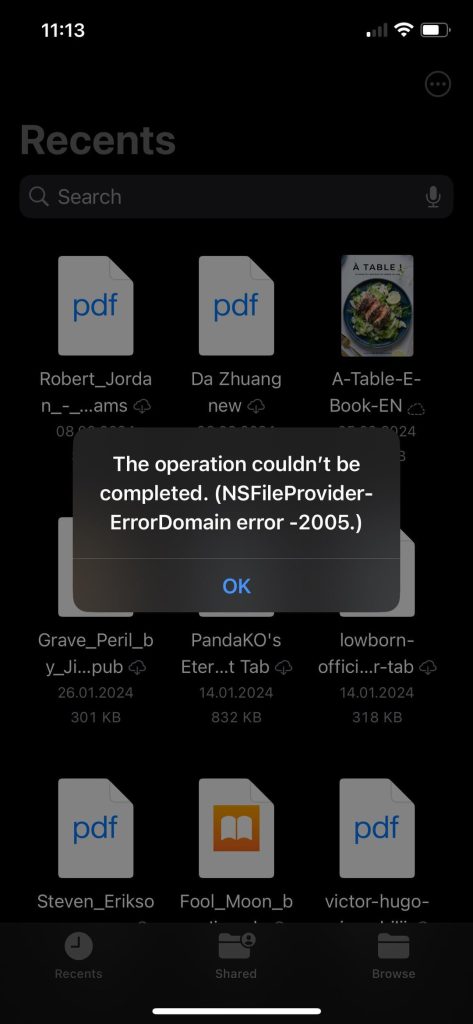
Before diving into repairs, make sure the file isn’t just a display glitch. Try opening it in a different app — for example, if it fails in Apple Books, try Files or Adobe Acrobat Reader. Sometimes the PDF is fine and the app is the problem. Also, restart your iPhone (hold the power button and slide to power off). If the PDF opens after a restart, you’re done. If not, move on.
Step 2: Re-Save the PDF (Print-to-PDF Trick)
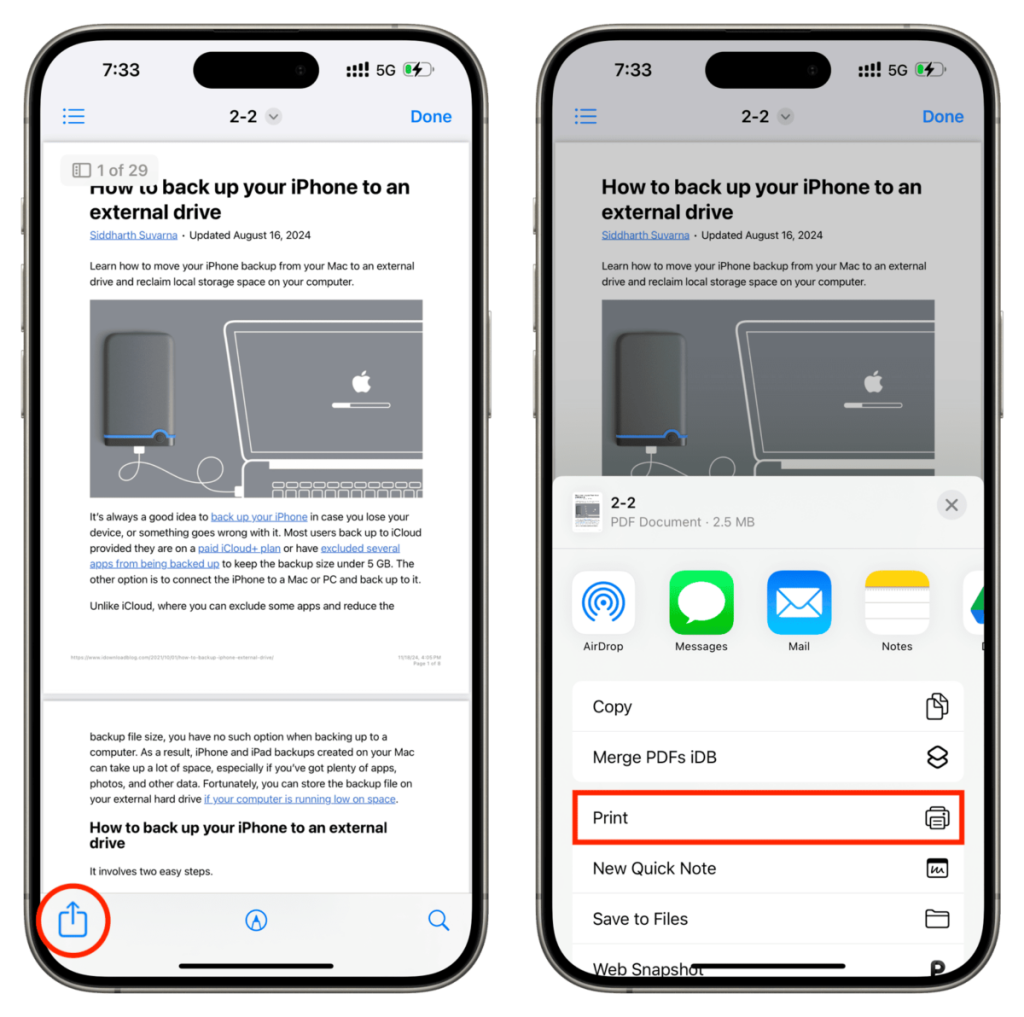
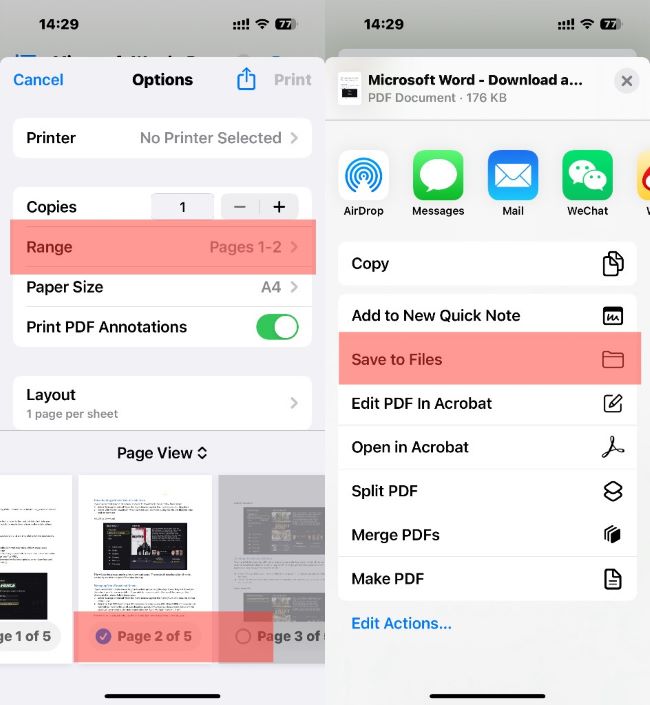
This built-in method works like magic for mildly damaged PDFs. Open the PDF in any app that can view it (like Files or Mail). Tap the Share icon (a square with an arrow), then select Print. In the Print Options window, use a two-finger pinch-out gesture to zoom in — this reveals a preview of the PDF as a new file. Tap the Share button in the top-right corner of the preview, then choose Save to Files. This creates a fresh, clean copy. Try opening the new file. If it works, great! If not, proceed to the next step.
Step 3: Use a Free Online PDF Repair Service
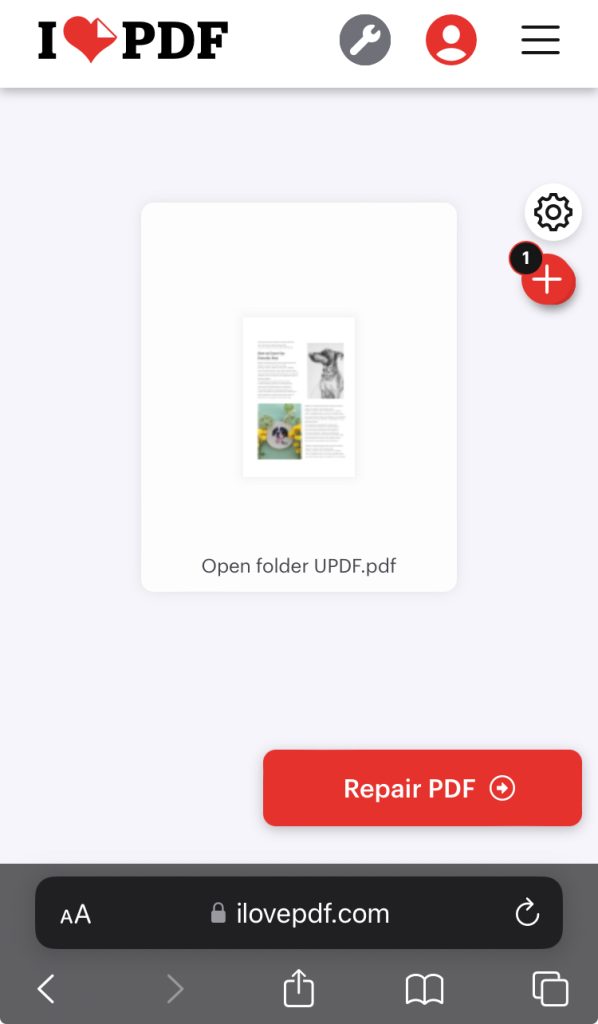
When the print-to-pdf trick fails, turn to a reliable online repair tool. Open Safari and visit a trusted site like the one behind our fix pdf online free guide. Upload your corrupted PDF (most services accept files up to 100MB for free). The server will analyze and rebuild the file. After a few seconds, download the repaired version to your iPhone. This method is surprisingly effective for common corruption issues. For a more detailed walkthrough, check out our pdf repair free article.
Step 4: Use a Dedicated iPhone PDF Repair App
If you frequently deal with broken PDFs, consider installing a dedicated repair app. Adobe Acrobat Reader includes a built-in repair tool: open the app, tap the PDF, then tap the three-dot menu and select Repair File. The app will attempt to fix the structure. Another option is PDF Expert, which has a similar feature. For more details, see our adobe pdf repair guide. These apps are free with optional subscriptions.
Step 5: Extract Text from the Corrupted PDF
When all repair attempts fail, don’t panic — you can still salvage the text. Open the PDF and take screenshots of each page (or as many as you can see). Then use Live Text on iOS 15+ to copy the text from the screenshots. Alternatively, upload the file to a service that can extract text from a corrupted PDF — our recover pdf pages article covers this in detail. It’s not perfect, but it’s better than losing everything.
Common Pitfalls
- Trying to repair a password-protected PDF without unlocking it first. Most tools will fail — use a broken pdf solution that includes password removal first.
- Using shady online repair tools that upload your file to unsecured servers. Stick to reputable services or consider offline methods.
- Overwriting the original file before testing the repair. Always keep a backup in case the repair makes things worse.
Where to Next
Now that your PDF is back in action, check out our other guides for more advanced scenarios. If you need to recover missing pages, dive into our recover pdf pages tutorial. For PDFs that still won’t open on desktop, see our fix pdf online free and pdf repair free articles. And if you’re dealing with a stubborn file, our broken pdf solution post has extra tips. Happy reading!




