If you’ve ever tried to open a PDF with Python and got slapped with a “expected a dict object” error, you’re not alone. This cryptic message usually means the PDF file is malformed or corrupted—something’s gone wrong with its internal structure. This guide is for anyone who’s comfortable with basic command-line usage and wants a practical fix. By the end, you’ll have a working PDF (or at least recovered text) using free, open-source tools.
We’ll tackle the problem in two ways: first with a quick command-line repair using qpdf, then with a Python script using pdfminer.six for more stubborn files. No fancy software required—just a little patience and a few terminal commands.
What You’ll Need
- A computer running Windows, macOS, or Linux
- Python 3.6 or newer installed (check with `python –version` in terminal)
- The pdfminer.six library (`pip install pdfminer.six`)
- qpdf command-line tool (`sudo apt install qpdf` on Linux, `brew install qpdf` on macOS, or download from the qpdf website on Windows)
- The problematic PDF file
Step 1: Try a Quick Fix with qpdf
qpdf is a powerful PDF manipulation tool that can often clean up structural issues. Open your terminal and navigate to the folder containing your PDF. Run this command:
qpdf –linearize input.pdf output.pdf
This linearizes the PDF, reordering its objects to fix cross‑reference table errors. If you get a successful output, try opening output.pdf. If the error persists, grab the original and move on to step 2. For more advanced repair options, check out our guide on pdf repair open source.
Step 2: Use Python and pdfminer to Extract & Rebuild
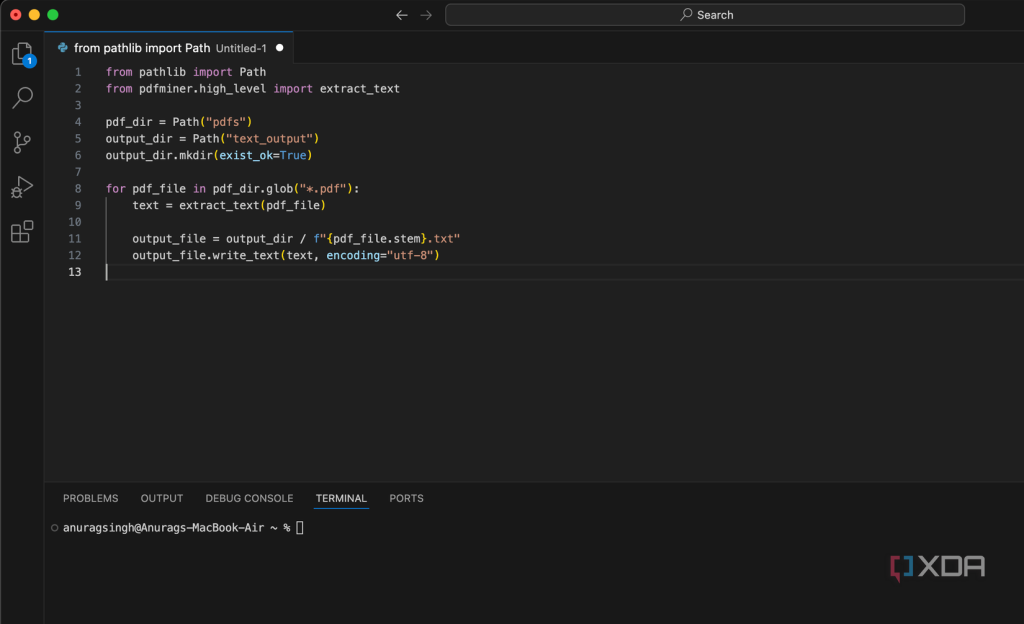
When qpdf isn’t enough, we’ll let Python do the heavy lifting. pdfminer.six can parse a PDF even when it’s broken, and we can extract every object then write it back to a clean file. Create a script called fix_pdf.py with the following code:
Run the script with `python fix_pdf.py`. If you see no errors, the file is at least readable. For a complete write‑back, you’d need to rebuild the PDF objects—a topic for another day. However, you can use this to extract text even if the file won’t open normally. For a deeper dive, see our tutorial on extract text from corrupted pdf.
Step 3: Manual Object Correction (Advanced)
Still stuck? The “expected a dict object” error often points to a specific object in the PDF that’s missing its dictionary header. You can inspect the raw PDF source. Open the file in a text editor (like VS Code). Look for lines starting with `obj` and ensure each object has a proper dictionary (e.g., `<>`). Sometimes a stray character or missing newline breaks the object. Fix it manually, then save and try again.
Common Pitfalls
- **Missing dependencies.** Forgetting to install qpdf or pdfminer.six will stop you cold. Double-check with `which qpdf` or `pip list | grep pdfminer`.
- **File permissions.** The PDF might be locked or read-only. Ensure you have write access to the output directory.
- **Overwriting the original.** Always work on a copy. If your fix accidentally corrupts the file further, you’ll want the original.
Where to Next
This fix should handle most “expected a dict object” errors. If the file is still stubborn, consider uploading it to an online repair service—though be careful with sensitive documents. We’ve also got guides on fix pdf online free and other PDF repair tools that might save you time. Happy debugging!




