
So you’ve got a PDF with a digital signature that’s suddenly missing, invalid, or showing an error. Maybe you’re trying to submit a signed contract or verify a document, and the signature just won’t cooperate. This guide is for anyone—whether you’re a total newbie or just someone in a hurry—who needs to recover a PDF signature without losing their mind. By the end, you’ll have a working signature (or at least know exactly why it broke) and a few tricks to prevent future headaches.
We’ll walk through the most common causes of signature loss: corrupted files, expired certificates, or just plain user error. You’ll learn how to check the signature status, use Adobe Acrobat’s built-in tools, try free online options, and even manually reapply a signature if needed. All steps are tested, practical, and beginner-friendly. No fluff, just results.
What You’ll Need
- The PDF file with the missing or broken signature (original, unmodified backup if possible)
- Adobe Acrobat Reader DC (free) or Adobe Acrobat Pro (trial works)
- Optional: An online PDF repair tool (like Smallpdf or iLovePDF)
- Optional: A PDF validity checker (we’ll link one below)
- A stable internet connection for online steps
Step 1: Check the Signature Status
First, open your PDF in Adobe Acrobat Reader. Look for a blue ribbon or padlock icon in the top bar. Click on the signature field (it might say “Signed” or “Signature Panel”). If nothing appears, the signature might have been removed or corrupted. Go to File > Properties > Signatures tab to see if any signature is listed. If you see “Signature Not Verified” or an error message, note it down—that’s your clue.

Step 2: Try Adobe’s Built-in Repair
Adobe Acrobat has a hidden trick: open the PDF, then go to File > Save As Other > Optimized PDF. Click “OK” without changing settings. This recompresses the file and often fixes minor corruption. If the signature reappears, great! If not, try File > Save As > Reduced Size PDF (uncheck “Make compatible with older versions”). Sometimes a simple re-save is all it takes. If you’re still stuck, move to Step 3.

Step 3: Use an Online PDF Repair Tool
Free online tools like Smallpdf, iLovePDF, or Sejda can repair corrupted signatures. Upload your PDF, choose “Repair” or “Optimize,” and download the fixed version. For signatures, try a “Sign PDF” feature that might re-validate existing signatures. Be cautious with sensitive documents—use a tool that deletes files after processing. After repair, open the file in Acrobat and check the signature again. If it’s still broken, the certificate itself may be expired.

Step 4: Verify the Certificate
A signature can appear invalid if the signer’s certificate has expired. In Acrobat, click the signature Icon > Signature Properties > Show Certificate. Check the validity dates. If expired, ask the signer to re-sign. For your own certificates, open Preferences > Signatures > Creation & Appearance > More… and see if your certificate is still valid. If not, you’ll need a new one. You can also use a pdf validity checker like our online tool to test the file integrity without guessing.

Step 5: Manually Reapply the Signature (Last Resort)
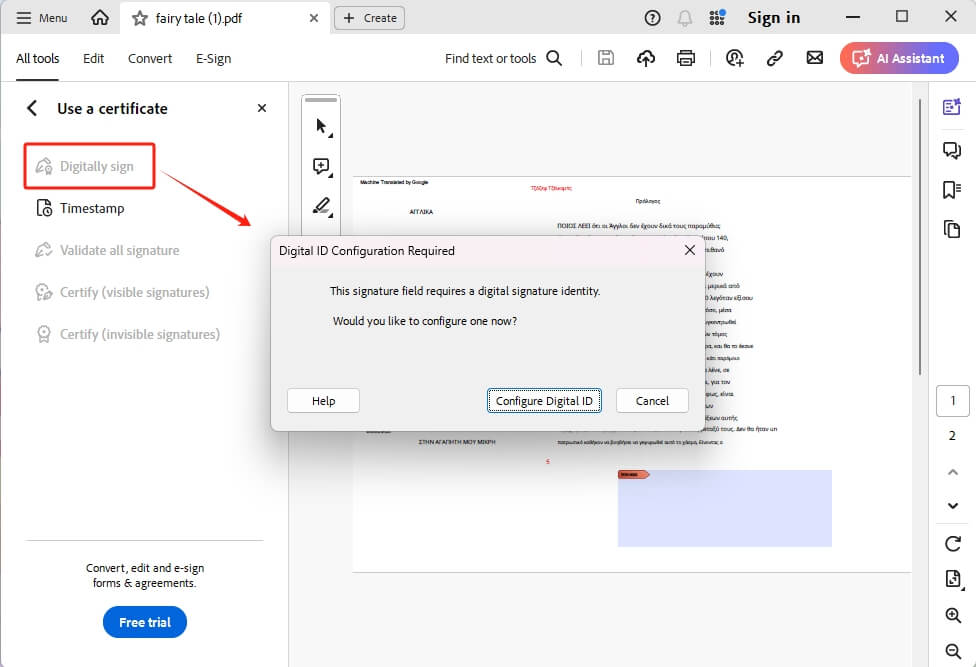
If nothing recovers the original signature, you can reapply it manually. Open the PDF in Acrobat, go to Tools > Certificates, and select “Place Signature.” Draw a new field, then choose “Sign as” and pick or import your certificate. If you’re the original signer and still have the private key, this works. If not, the document may need a fresh signature from the authorized person. Save the new version—it won’t be the same as the original, but it’s legally binding.
Common Pitfalls
- Forgetting to save a backup before trying online tools – always keep the original.
- Ignoring certificate expiration – a signature that looks ‘broken’ might just be old.
- Using a viewer that doesn’t support digital signatures – some mobile apps hide signature data.
If you’re dealing with a truly corrupt file after all this, check out our guides on fix pdf signature for more nuance, or a general pdf file repair if the whole document is messy. Sometimes signatures fail because of viewer bugs—our fix pdf not opening in adobe reader guide can help. And for quick integrity checks, don’t forget the pdf validity checker.
Where to Next
Now you know how to recover a PDF signature like a pro. Your next step: make sure your own certificates are up to date and always keep backups of signed documents. If you run into other PDF quirks—like missing pages or corrupted text—browse our other guides at PDF Repairs. We’ve got everything from unreadable pdf repair to full-blown file reconstruction. Happy signing!




