You’re double-clicking a PDF and nothing happens—or worse, you get a cryptic error message. Maybe Adobe Reader just sits there, or it crashes immediately. This guide is for anyone who’s stuck with a PDF that won’t open in Adobe Reader, whether it’s one file or all of them. By the end, you’ll have a working viewer and a set of steps to prevent this headache in the future.
We’ll walk through four practical fixes, from simple updates to repairing the PDF itself. Most solutions take just a few minutes, and you won’t need any fancy tools. If you’re dealing with a corrupted file, we’ve got you covered too. Let’s get that PDF open.
What You’ll Need
- Your PDF file (the one that won’t open)
- Adobe Reader installed (or you can download it again)
- Internet connection (for updates and downloads)
- Admin rights on your computer (to install software)
- Optional: A free PDF repair tool like qpdf or Adobe Acrobat
Step 1: Update Adobe Reader to the Latest Version
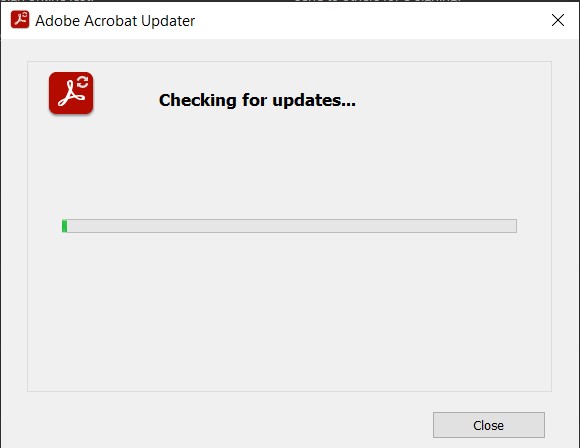
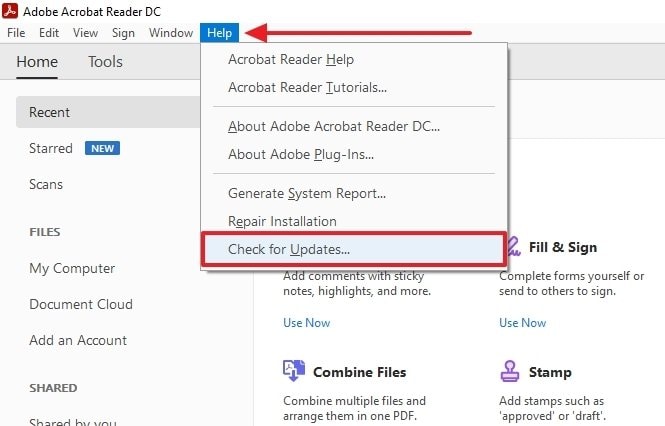
Outdated software is the most common culprit. Adobe Reader updates often fix bugs that cause files to not open. Open Adobe Reader, go to Help > Check for Updates (or About Adobe Acrobat Reader DC > Check for Updates). Follow the prompts to install any available updates. Restart your computer and try opening the PDF again.
Step 2: Reset Adobe Reader Preferences
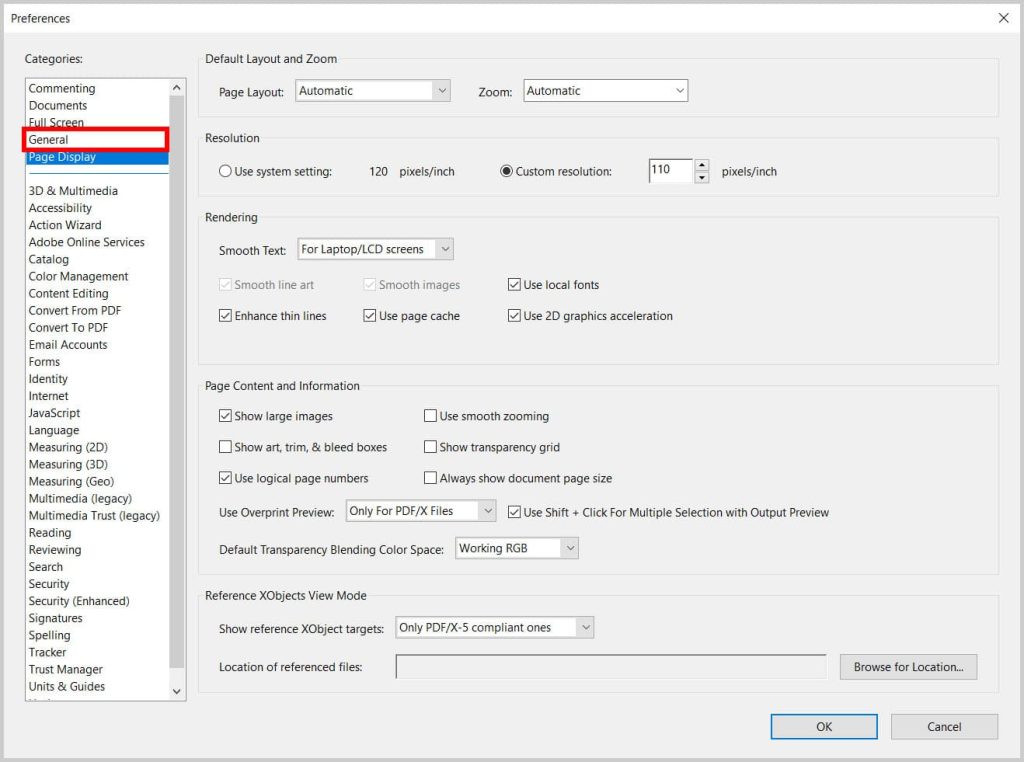
Corrupted preferences can cause Reader to refuse files. To reset, close Adobe Reader. Press Win+R (Windows) or Cmd+Space then type (Mac). Enter %appdata%AdobeAcrobatReaderDC (for Windows; on Mac go to ~/Library/Preferences/com.adobe.Reader.plist). Rename the ‘Reader’ folder to ‘Reader_old’ or delete the plist file. Restart Reader—it will create fresh preferences. Try opening your PDF.
Step 3: Repair the PDF File Using a Free Tool
If the file itself is damaged, repair it using a dedicated tool. One reliable option is qpdf. Download qpdf (for Windows, use the pre-built binary). Open Command Prompt in the folder with your PDF and run: ‘qpdf –replace-input yourfile.pdf’. This attempts inline recovery. If that fails, try: ‘qpdf –linearize corrupted.pdf repaired.pdf’. For a simpler approach, try an online tool or use Adobe Acrobat’s built-in repair. If you’re dealing with a large file, you can also use steps to repair PDFs under 100MB.
Step 4: Reinstall Adobe Reader
If nothing else works, a clean reinstall can fix stubborn issues. Uninstall Adobe Reader via Control Panel (Windows) or drag to Trash (Mac). Restart your computer. Download the latest version from Adobe’s official site and install it. After installation, check for updates again. This should resolve any corruption in the application itself. If you’re still stuck, you might need to use Adobe Acrobat to repair your file.
Common Pitfalls
- The PDF is actually corrupted beyond easy repair—try a dedicated tool like qpdf or use Adobe Acrobat to repair.
- Antivirus software might be blocking Adobe Reader or the PDF—temporarily disable it to test.
- File permissions could prevent opening—right-click the PDF, go to Properties, and ensure ‘Read’ is allowed.
If you’re still having trouble, check out our guide to fix Adobe Reader errors for more advanced troubleshooting. And if you’re dealing with a completely broken file, learning how to fix a broken PDF step-by-step can save your document.
Where to Next?
You’ve got your PDF open now, but what if it happens again? Consider preventing future issues by keeping Adobe Reader updated and regularly backing up important files. If you run into other problems, our site has guides on everything from repair a PDF with qpdf to using Adobe Acrobat for deeper repairs. Happy reading!




