
If you’re staring at an error message that says “Adobe Reader cannot open PDF” or the app just silently fails, you’re not alone. This guide is for anyone who needs a quick, practical fix—whether you’re a student, office worker, or occasional PDF user. By the end, you’ll know exactly how to diagnose and resolve the issue, and have a working PDF viewer ready to go.
We’ll walk through five steps, from simple checks to deeper repairs. Most solutions take under 10 minutes and require no special tools. If the problem is a corrupted file, we’ll point you to our pdf won’t open repair guide for extra help.
What You’ll Need
- Adobe Reader installed (free version is fine)
- The PDF file that won’t open (and one known-good PDF for testing)
- Internet connection (to check for updates or use online repair tools)
- Admin access on your computer (to repair or reinstall)
- Optional: a backup of the problematic PDF
Step 1: Check If the Problem Is the File or Reader
First, rule out a simple file issue. Try opening a different PDF—one you know works. If that opens fine, the problem is likely with the specific file. If no PDFs open, it’s an Adobe Reader issue.
Also check the file size: a 0-byte or tiny file is broken. For a broader broken pdf solution, see our related guide.

Step 2: Update Adobe Reader to the Latest Version
An outdated version can cause compatibility issues. Open Adobe Reader, go to Help > Check for Updates, and install any available updates. Restart Reader afterward.

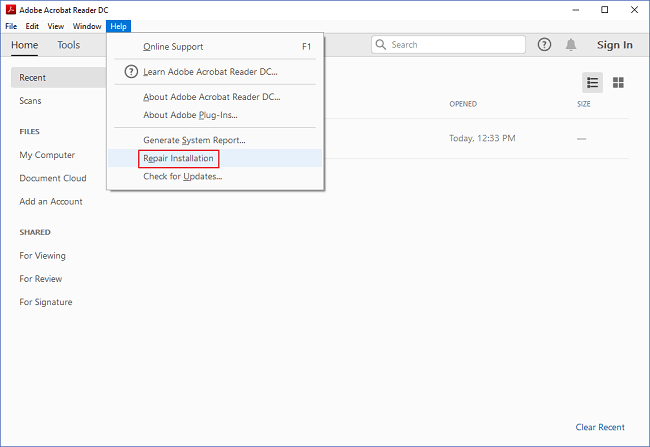
Step 3: Repair or Reinstall Adobe Reader
If updating didn’t work, use the built-in repair tool. Go to Control Panel > Programs and Features, right-click Adobe Reader, and choose Repair. If that fails, uninstall and download the latest version from Adobe’s site. Reinstalling fixes many corrupted installation files.
Step 4: Clear Adobe Reader’s Cache
A corrupt cache can prevent PDFs from opening. Close Reader, then delete the cache folder. On Windows, it’s usually at C:Users[YourUsername]AppDataLocalAdobeAcrobatDCCache. On Mac, go to ~/Library/Caches/com.adobe.Reader. Restart Reader—it will recreate the cache.

Step 5: Use an Alternative Viewer or Repair the PDF
If Adobe Reader still won’t open the PDF, try a different viewer like SumatraPDF or Foxit Reader. If those work, the file is fine but Reader has a conflict. If no viewer works, the PDF is likely corrupted. Use a pdf repair free tool online or try our step-by-step repair guide. Also check if the pdf preview not working fix helps if you had preview issues.

Common Pitfalls
- Thinking the PDF is corrupted when it’s actually a permissions issue—ensure the file isn’t blocked by Windows (right-click Properties > Unblock).
- Skipping a restart after updating—always restart Adobe Reader or your computer to apply changes.
- Ignoring the cache—clearing it is an easy fix but often overlooked.
Where to Next
Now that you’ve fixed the issue, you might want to protect your PDFs from future problems. Check out our guide on automated pdf repair for batch fixes, or learn how to fix pdf from onedrive if you work with cloud files. Happy reading!




