So you had a disk error — maybe your computer crashed, a bad sector appeared, or you got a scary ‘Cyclic Redundancy Check’ error — and now your important PDF won’t open. Don’t panic. This guide is for anyone who’s dealing with a PDF that became inaccessible after a disk problem. By the end, you’ll have a working PDF (or at least a chunk of it) using free tools you already have or can download.
We’ll walk through five steps: stop using the drive, check for bad sectors, try command-line repair tools (like qpdf or mutool), restore from a backup, and — as a last resort — use data recovery software. You don’t need to be a tech wizard; just follow along.
What You’ll Need
- A computer (Windows, Mac, or Linux) with the corrupted PDF drive connected
- Basic comfort using Command Prompt (Windows) or Terminal (Mac/Linux)
- Optional: A second drive to copy recovered files to
- Optional: A free data recovery tool like Recuva (Windows) or PhotoRec (cross-platform)
Before we begin, make sure you have a separate storage location to save any recovered files — never write back to the same failing drive.
Step 1: Stop Using the Drive Immediately
This is the most important rule: as soon as you suspect a disk error, stop doing anything that writes to that drive. Every new file or edit can overwrite the very data you’re trying to save. Unmount the drive safely or just shut down your computer and remove the drive if it’s external. If the PDF is on your system drive, boot from a live USB to avoid writing any more data.
Step 2: Check for Bad Sectors and Try to Copy the File
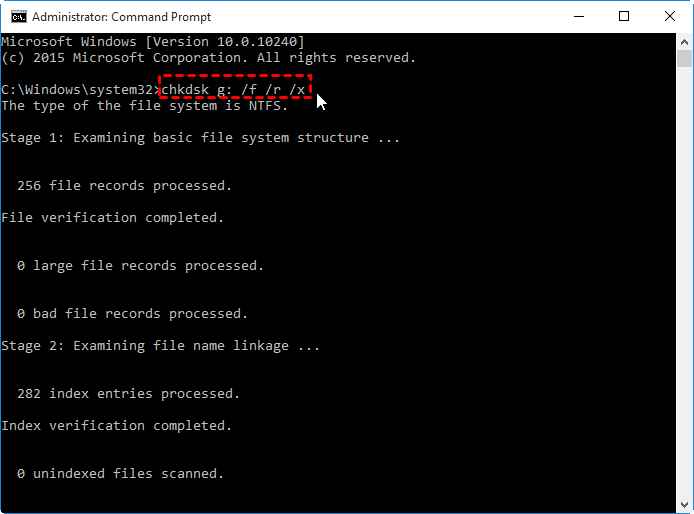
On Windows, open Command Prompt as Administrator and run chkdsk X: /f /r (replace X with the drive letter). This scans for bad sectors and attempts to read data from them. On Mac, use Disk Utility First Aid. On Linux, use fsck. After the scan, try to copy the PDF to another drive. If it copies, you’re golden. If you get a ‘data error (cyclic redundancy check)’ error, the file is partially unreadable — move to the next step.
Step 3: Repair the PDF with Command-Line Tools
If the file copied but won’t open, or if you got a partial copy, use a free tool like qpdf or mutool to fix it. These tools are designed to repair corrupt PDFs. To repair PDF with qpdf, run qpdf --repair input.pdf output.pdf. If that fails, try qpdf --linearize input.pdf output.pdf. Mutool is another excellent option: install it, then run mutool clean -s input.pdf output.pdf. The -s flag strips away damaged objects. For a complete guide, check our step-by-step on how to repair PDF with mutool.
These tools often recover most of the content, even when Adobe Reader gives up. If you need a more automated solution, try a free PDF repair tool like PDF repairing software that does the job with a click.
Step 4: Recover from Backup or Previous Versions
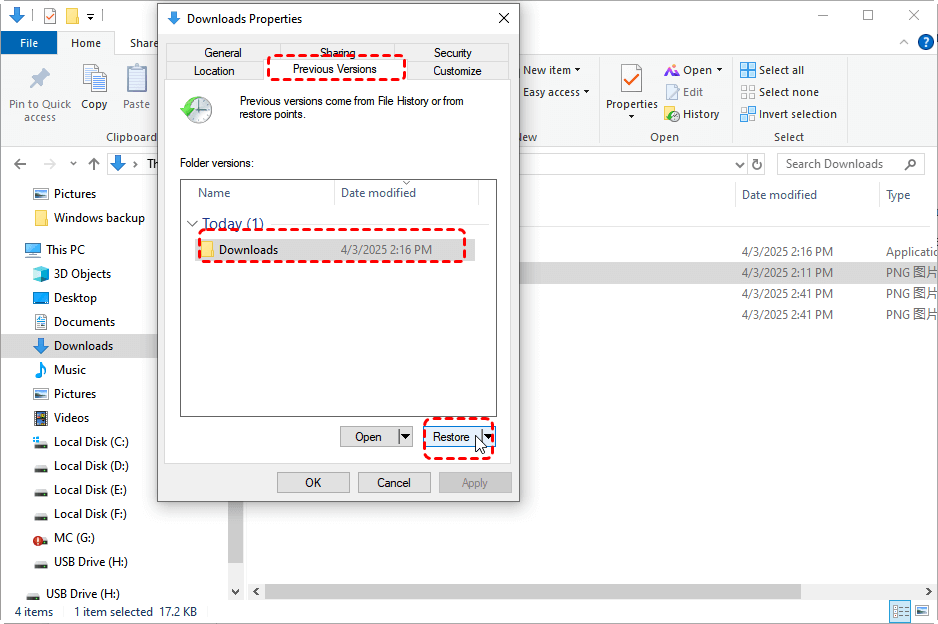
If the disk error is recent and you have backups, now’s the time to use them. On Windows, right-click the folder where the PDF was stored, select ‘Restore previous versions’, and choose a snapshot from before the error. On Mac, use Time Machine. If you use cloud sync like Google Drive or Dropbox, check the web interface for a version history. You might be able to recover PDF pages lost in the corruption by pulling a prior version.
Step 5: Use Data Recovery Software as a Last Resort
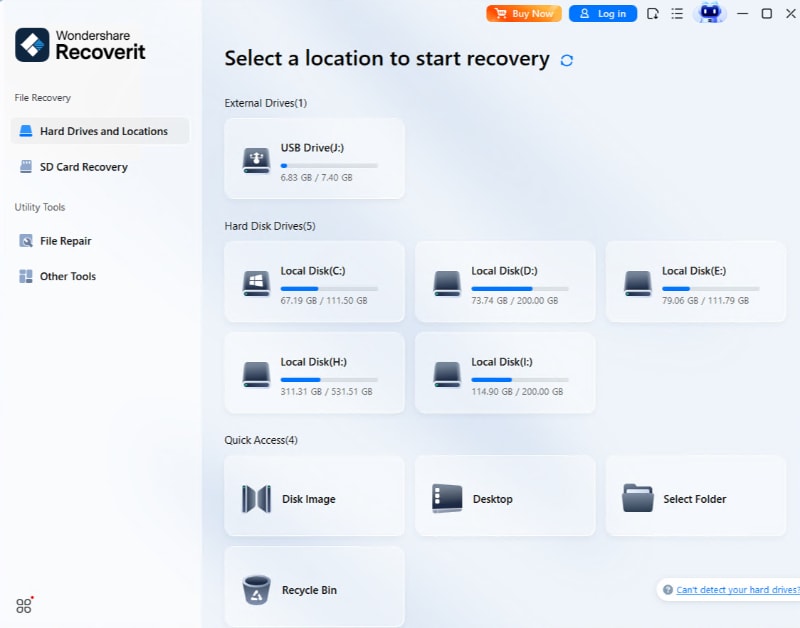
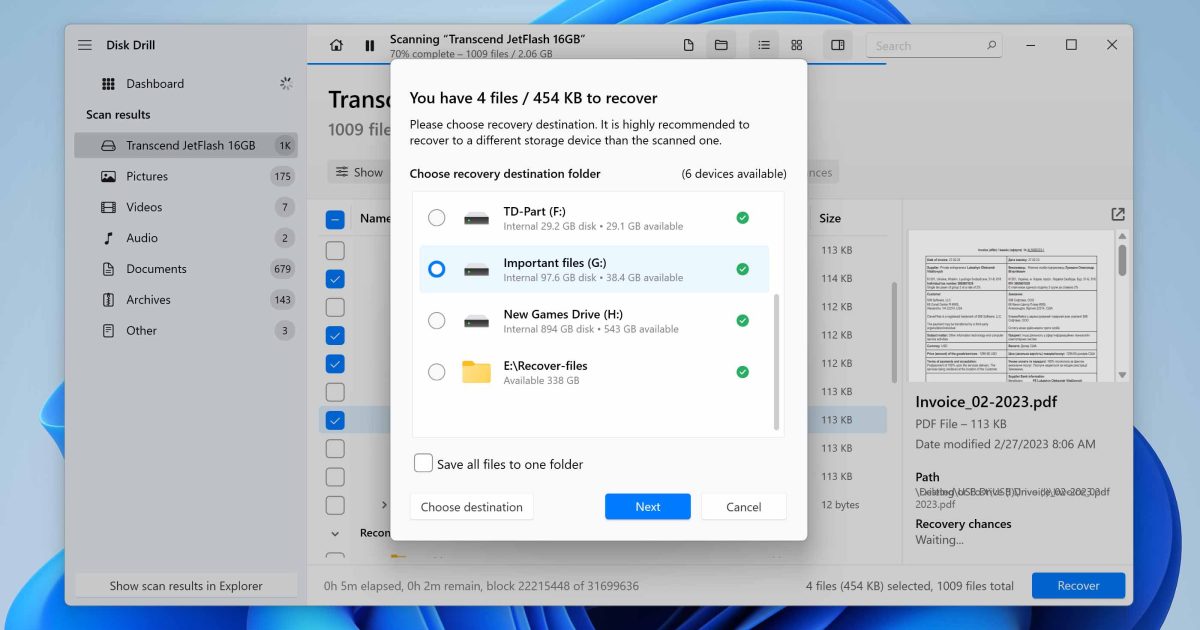
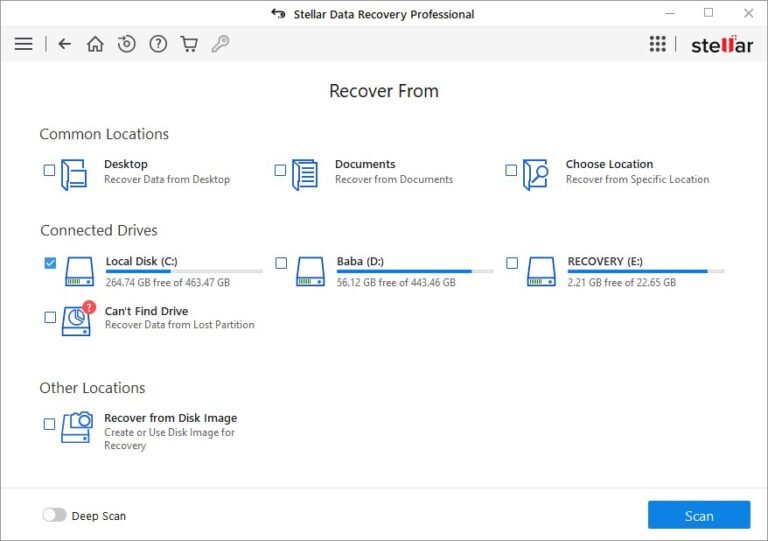
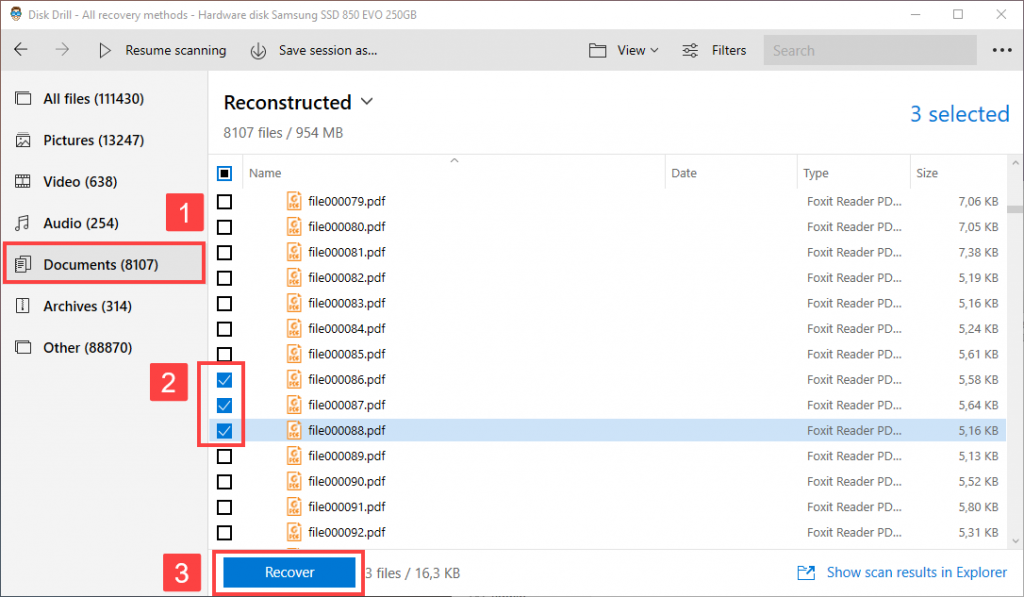
When all else fails — if the PDF is still missing or too damaged — data recovery software can scan the drive for residual fragments. Tools like Recuva (Windows), PhotoRec (cross-platform), or Disk Drill (Mac/Windows) can find deleted or lost PDFs. Install the software on a different drive, scan the failing drive, and save recovered files to a safe location. Be aware: you might get multiple salvaged PDFs, and you’ll need to open each to see which is the most complete. You can also extract text from corrupted PDF using specialized data recovery tools that grab raw text even when the structure is gone.
Common Pitfalls
- Continuing to use the drive after the error. Every write operation risks overwriting the PDF’s data forever.
- Opening the PDF in a viewer before repairing it. Some programs, like Adobe Reader, try to fix minor errors automatically but can make things worse by saving a flawed ‘repaired’ version.
- Using the wrong repair tool. Not all tools handle disk-error damage well — qpdf and mutool are designed for structural repair, while generic file repair tools may fail. Stick to tools proven for this job.
Where to Next
Once you’ve recovered your PDF, you might want to protect it from future disk errors. Consider backing up regularly to an external drive or cloud service. If you often deal with corrupted PDFs, learning to repair PDF with qpdf and mutool can save you hours. For more on detecting corruption early, check our guide on how to detect a corrupted PDF.




