We’ve all been there: you double-click a PDF, and nothing happens, or you get an error saying ‘Cannot open the file’ or ‘The file is damaged.’ It’s frustrating, especially if that PDF contains an important report, a signed contract, or a family photo album. This guide is for anyone who has a PDF that just won’t open—whether it’s from email, a download, or a USB drive. By the end, you’ll have at least one working copy of your file, or at least recover the text or images inside.
We’ll walk through four main methods, from simple checks to free repair tools, and finally a last-resort extraction. You don’t need to be a tech wizard—just follow the steps in order. Let’s get your PDF back!
What you’ll need
- Your corrupted PDF file (back it up before trying anything)
- A computer with internet access (for online tools)
- A file archiver like 7-Zip or WinRAR (optional, for checking file structure)
- A command prompt or terminal (if using qpdf or Mutool)
Step 1: Check if it’s really the file and not your PDF reader
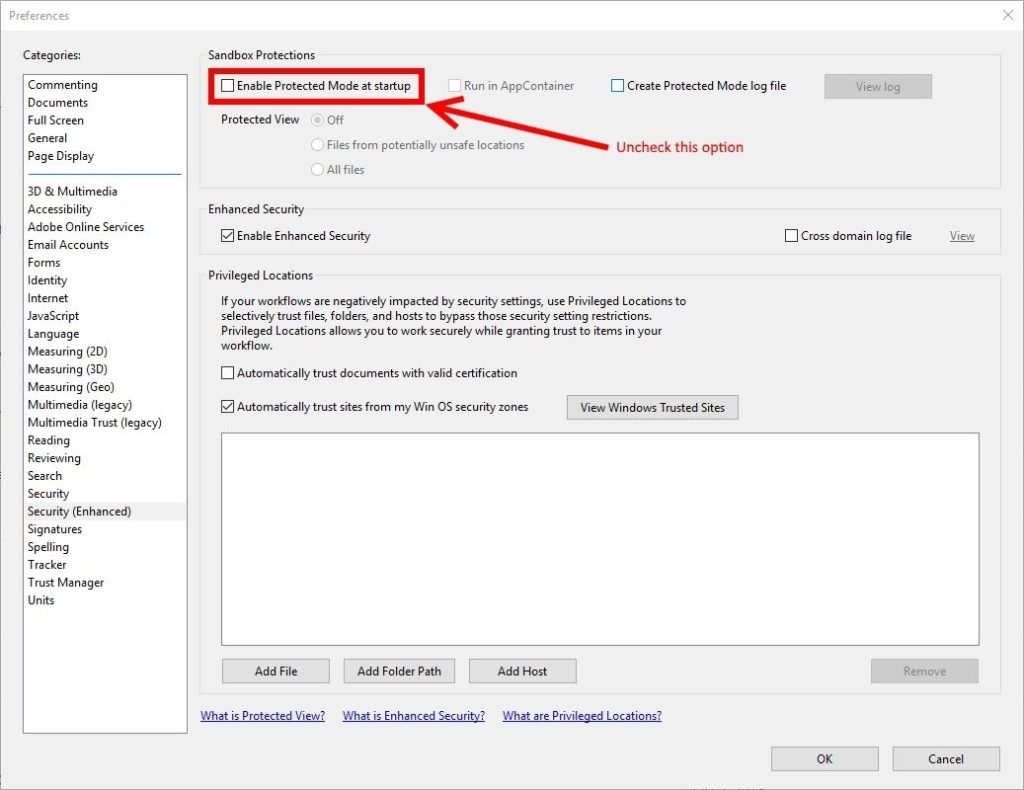
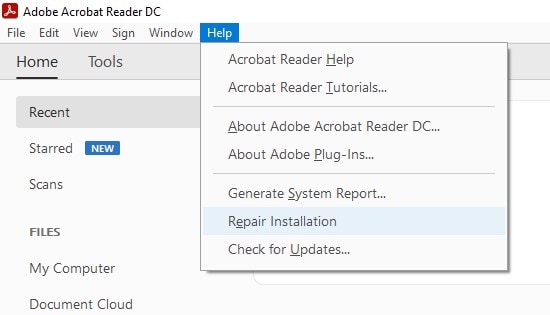
Before diving into repairs, make sure the problem isn’t your PDF reader. Try opening the file in a different app—like a web browser (Chrome, Edge), or a free reader like SumatraPDF. If it opens there, the issue is with your default reader. In that case, check our guide on how to fix pdf not opening in adobe reader. If it fails everywhere, the file is likely corrupted and we need to repair it.
Step 2: Use a free online PDF repair tool
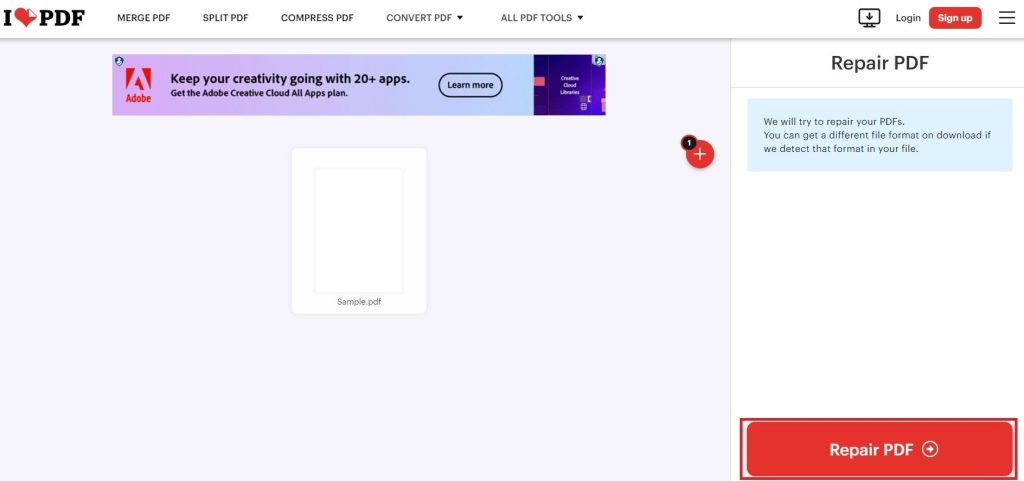
Quickest fix: upload your file to a reputable online PDF repair service. Sites like Smallpdf, iLovePDF, or PDF24 offer free repair for files up to a certain size. They’ll try to reconstruct the file structure. Note: for sensitive documents, don’t upload to a website you don’t trust. Also, many free services have file size limits (often 100MB). If your file is bigger, check our article on how to repair pdf under 100mb or consider the next method. A good free pdf repair tool is PDF24’s online tool—it works for most minor corruptions.
Step 3: Repair using qpdf (command-line tool)

If online tools fail, qpdf is a powerful free utility that can fix structural corruption. It works on all platforms. First, download and install qpdf. Then open a command prompt (Windows) or terminal (Mac/Linux). Run this command to check and repair: qpdf --check yourfile.pdf to see errors. To create a repaired copy, use: qpdf --linearize yourfile.pdf repaired.pdf or qpdf --replace-input yourfile.pdf to overwrite. For more details, see our dedicated guide on how to repair pdf with qpdf.
Step 4: Extract the content as a last resort

If no repair method works, you can still salvage the text or images. Open the PDF in a plain text editor (like Notepad) to see if any readable text remains. For images, try tools like PDFResurrect or online extractors. Another option is to use the free software ‘pdfimages’ from the poppler-utils package to extract embedded images. If you just need the text, our guide on how to extract text from corrupted pdf covers this in detail.
Common pitfalls
- Not backing up the original file. Always make a copy before any repair attempt.
- Using shady online repair sites that may steal your data. Stick to well-known services.
- Ignoring file extension issues. Sometimes a file named .pdf is actually not a PDF (e.g., it’s a renamed .exe or .doc). Check file properties.
Keep in mind: if the PDF is severely corrupted (e.g., zero bytes), special recovery methods are needed. For a 0KB file, see our article on recovering a pdf file became 0kb. And if you’re looking for a more permanent solution, consider using a dedicated PDF repair tool like Stellar Repair for PDF (paid) for business-critical files.
Where to next
You’ve successfully repaired or extracted your PDF. If you want to prevent future issues, learn how to detect corrupted pdf early. Also, explore other related guides: fix pdf not opening in adobe reader, repair pdf with qpdf, free pdf repair tool, and extract text from corrupted pdf. Bookmark this page for next time your PDF acts up!




