
You just finished polishing a Word document, hit “Save as PDF,” and the result looks like a ransom note—text overlapping images, fonts replaced with Courier, or tables that forgot how to math. Sound familiar? You’re not alone. This guide is for anyone who needs a clean, professional PDF from Word without the headache. Whether you’re preparing a resume, a report, or an ebook, by the end you’ll know exactly what went wrong and how to fix it—or even avoid the mess in the first place.
The tricks here cover both prevention and repair: from tweaking Word’s export settings to using free and paid tools that rescue broken files. You’ll get practical steps that work on Windows and Mac, and you’ll learn why some online converters cause chaos. Ready to turn that PDF nightmare into a dream? Let’s dive in.
What You’ll Need
- Microsoft Word (or a compatible app like Google Docs)
- The original .docx file that was converted
- A PDF viewer (Adobe Acrobat Reader, browser, etc.)
- Optional: A PDF editor (Adobe Acrobat Pro, Foxit PhantomPDF, or a free tool like PDF24)
- Optional: A dedicated PDF converter (e.g., LibreOffice, Soda PDF, or an online service like SmallPDF)
Step 1: Check the Conversion Settings in Word
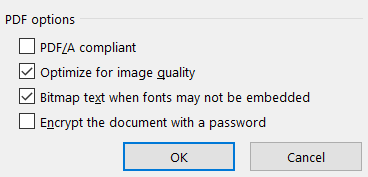
Most formatting issues start with the way Word exports the PDF. Open your .docx file and go to File > Save As. Choose PDF from the dropdown, but don’t just click Save—click the Options button instead. A new window appears with several checkboxes. Make sure “Document structure tags for accessibility” is unchecked unless you need tags. Also check “ISO 19005-1 compliant (PDF/A)” if you need an archival format, but for everyday use, leave it off. Then select “Optimize for: Standard” rather than “Minimum size” to preserve image quality. Hit OK and save. Compare this new PDF with your original. If it’s still broken, move to Step 2.
Step 2: Use a Reliable PDF Converter
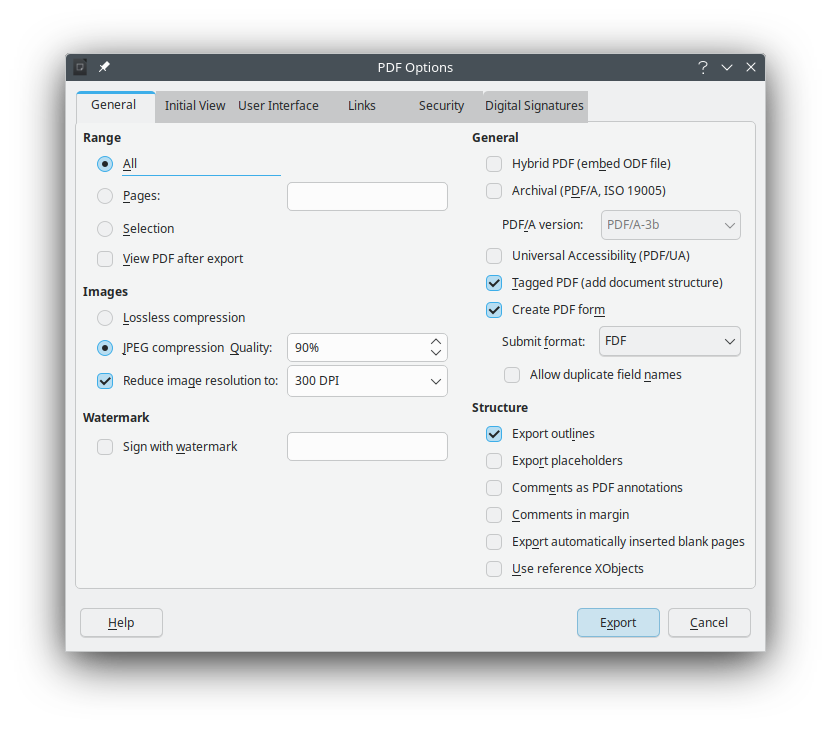
Word’s built-in exporter works for simple documents, but complex layouts (tables with merged cells, advanced formatting) often fail. Try a third-party converter. If you have LibreOffice (free and open source), open your .docx in Writer and export as PDF. LibreOffice often handles table borders and embedded fonts better than Word. Alternatively, upload your .docx to SmallPDF or ilovepdf—these online services are generally better than Word’s native output. After converting, check the PDF. If the layout is still messed up, the issue might be in the Word document itself. Save your working document as a PDF/A or re-embed fonts (Step 3). If you’re stuck with a broken PDF you can’t fix, consider a dedicated tool like an instant pdf fixer that scans and repairs structure.
Step 3: Fix Common Issues – Fonts, Images, and Layout
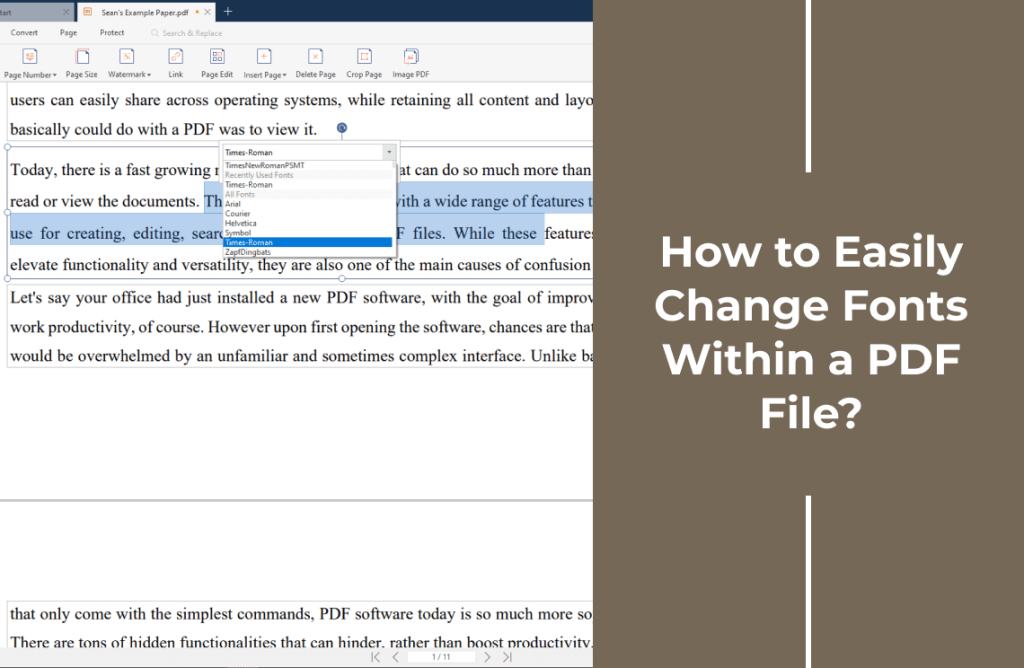
Open the broken PDF in a PDF editor (free option: PDF24’s online editor). For missing fonts: save your Word doc as a PDF/A (File > Save As > PDF, Options > check ISO 19005-1). This embeds all fonts. For blurry images: go back to Word, right-click the image, select “Size and Position,” and uncheck “Compress pictures in file.” Re-export. For misaligned tables: try converting the table to an image in Word (select table, copy, paste as picture) or use a dedicated tool like LibreOffice Calc instead of Word tables. If the PDF is entirely garbled, you might have a corrupted file—learn how to repair corrupted pdf using specialized software.
Step 4: Manual Cleanup with a PDF Editor
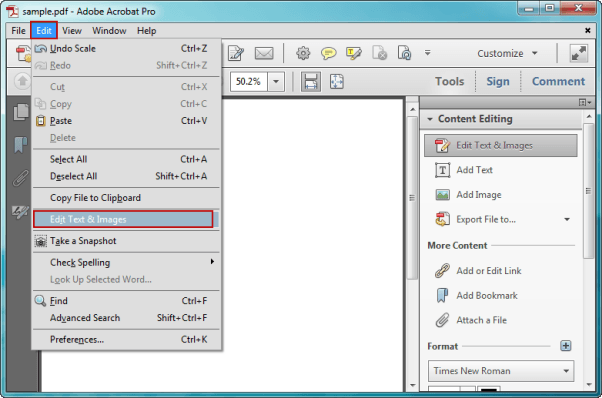
When automatic fixes don’t cut it, open the PDF in Adobe Acrobat Pro (or Foxit, or the free PDFescape). Use the “Edit PDF” tool to reorder text boxes, resize images, or add missing elements. For stubborn issues, export the PDF to an image (e.g., high-res PNG) and re-insert it into a new Word document—then export again. This manual approach is time-consuming but works for short documents. If you’re dealing with a signature or annotation that disappeared, check out our guide on how to repair pdf without acrobat—it covers free alternatives that can salvage your work.
Common Pitfalls
- Using the browser’s “Print to PDF” instead of Word’s export. Browser printing often strips fonts and messes up layout—use Word’s built-in Save As PDF or a dedicated converter.
- Forgetting to embed fonts. If your PDF uses a font that the reader doesn’t have, it’ll substitute with something ugly. Always export as PDF/A or check “Embed fonts in the file” in Word’s options.
- Relying solely on free online converters. While convenient, many free services compress images, add watermarks, or have file size limits. For sensitive documents, use desktop software or a paid online tool.
Where to Next
Fixing a PDF from Word is often just the beginning. If your PDF has deeper issues—like missing bookmarks or a completely scrambled appearance—browse our guides on repairing ebook PDFs or recovering lost bookmarks. And remember: the best fix is prevention. Now you know how to save your Word document as a perfect PDF every time. Happy converting!




