Ever clicked a link in a PDF only to get an error or nothing at all? You’re not alone. Broken hyperlinks are a common headache, whether you downloaded a file, received it via email, or edited it yourself. This guide is for anyone who needs to recover those dead links — no prior tech wizardry required. By the end, you’ll have a reliable workflow to fix most PDF link issues using free or built-in tools.
We’ll cover three main methods: checking links with Adobe Acrobat’s built-in tools, manually editing link properties, and using online repair services. Along the way, we’ll reference related fixes like how to scan pdf for errors to find broken elements, and if you’re dealing with a file that won’t open at all, check our article on pdf file not opening repair first.
What You’ll Need
- Your PDF file with broken links
- Adobe Acrobat Pro DC (trial works) or a free alternative like PDF-XChange Editor
- A web browser for online link checkers
- Patience — some links may need manual replacement
Step 1: Identify the Broken Links
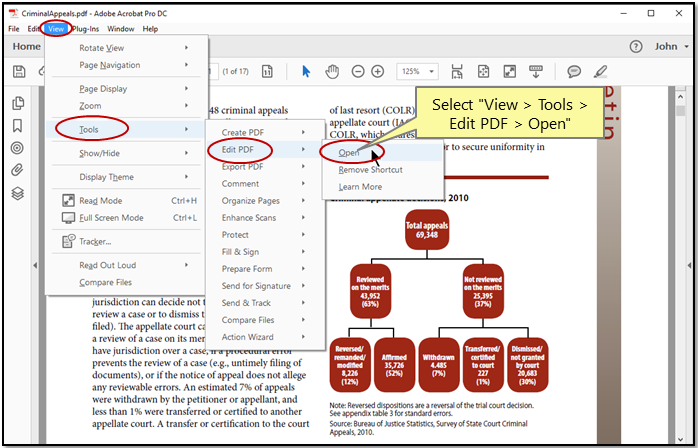
First, you need to know which links are broken. Open your PDF in Adobe Acrobat Pro, then go to Tools > Print Production > Preflight. In the Preflight window, select ‘PDF syntax issues’ or ‘Links’ from the list of profiles. Click Analyze. Acrobat will flag any links that are missing destinations, have invalid URLs, or point to non-existent pages. If you don’t have Acrobat, you can use online tools like the one we recommend for broken pdf repair online — but scanning locally gives you more control.

Step 2: Repair Links Using Acrobat’s Link Tool
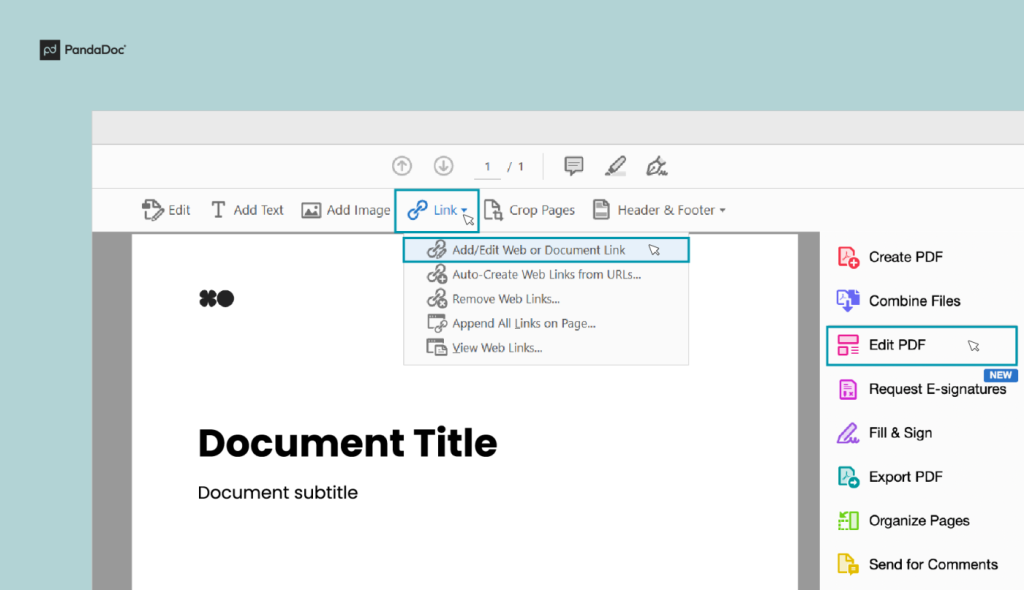
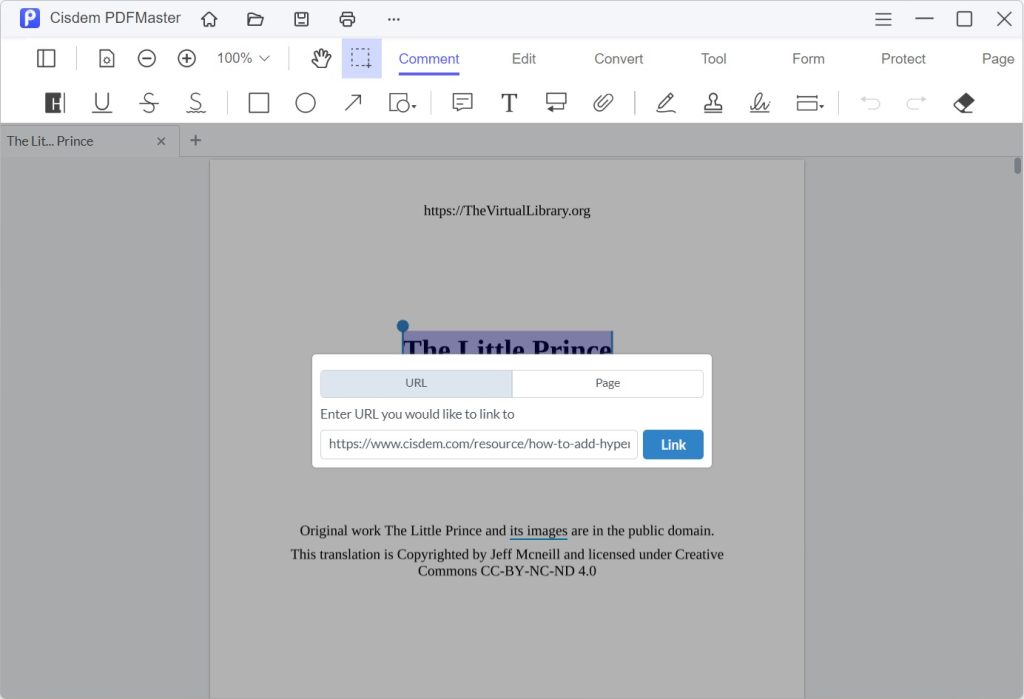
With the broken links identified, switch to the Edit PDF tool. Go to View > Show/Hide > Navigation Panes > Links to open the Links panel. Each link is listed; click the one you want to fix. Right-click and choose Properties. In the Actions tab, you can change the URL or adjust the destination. For internal links, set the correct page number. If the link is meant to open a web page, paste the correct URL. Verify it ends with .html, .pdf, or similar. If you’re dealing with an encrypted PDF, you’ll need to fix encrypted pdf before you can edit links.
Step 3: Use an Online PDF Link Repair Tool
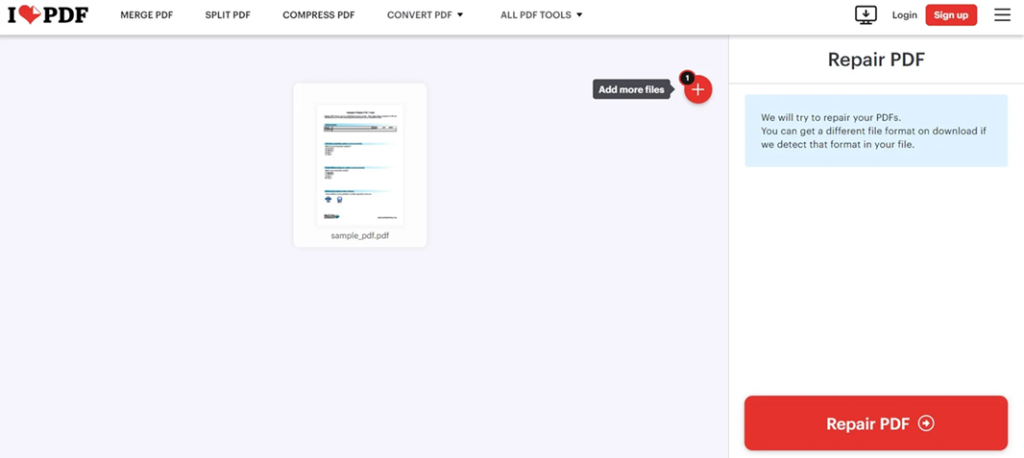
If you don’t have Acrobat, or the links are deeply corrupted, an online repair service can help. Search for ‘PDF link repair online’ and choose a reputable site like PDF24 or iLovePDF. Upload your file and select the link repair option. These tools often fix broken internal links and re-link bookmarks. Be cautious with sensitive documents — if privacy is a concern, stick to offline methods. Also, if your PDF was damaged by a virus, run a antivirus scan first and follow our guide on repair pdf after virus.
Step 4: Verify All Links Work
After repairs, test every link. In Acrobat, enable ‘Hand Tool’ and click each link. For web links, check that the browser opens the correct page. For internal links, ensure the jump lands on the expected page. If any still fail, repeat the steps or manually replace the link. You can also export a report using the Preflight tool’s ‘Create Report’ option to see a summary. This verification step ensures your document is fully functional.
Common Pitfalls
- Links not updating after edit: Make sure you click ‘Save’ after modifying link properties. Acrobat sometimes caches old values.
- Permissions: If the PDF is secured (e.g., no editing allowed), you won’t be able to change links. Remove security first or use a password if you have it.
- Outdated software: Old PDF viewers may not support modern link actions. Update your reader or test in a current browser.
If you’re still stuck, remember that not all PDF links can be recovered — sometimes the file is simply too damaged. In that case, consider recreating the document from the source.
PDF Repair Community
Where to Next?
Now that your links are alive again, check out our other PDF repair guides. For instance, if you notice other oddities like blank pages or corruption, our step-by-step article on how to scan pdf for errors can help diagnose deeper issues. And if you ever need to share a repaired file, make sure it’s clean with our tips on broken pdf repair online.




