
You just downloaded an important PDF, but when you check the file size, it’s 0KB. Or maybe you created a document that somehow saved as zero bytes. Don’t panic—this happens more often than you think. This guide is for anyone dealing with a 0KB PDF file, whether from a failed download, a corrupted transfer, or a software glitch. By the end, you’ll know several methods to recover or rebuild your file, plus tools to avoid this in the future.
We’ll start with simple checks and move to more advanced repair techniques. Even if your PDF appears empty, the data might still be on your drive or partially salvageable. Let’s get your file back.
What You’ll Need
- The 0KB PDF file (keep the original location, don’t delete it yet)
- A backup of the original file (if available)
- Internet access for online repair tools
- A desktop PDF repair tool (recommended: Stellar Repair for PDF or Wondershare Repairit)
- Optional: data recovery software like Recuva or Disk Drill
Step 1: Verify the File Size and Try Opening It
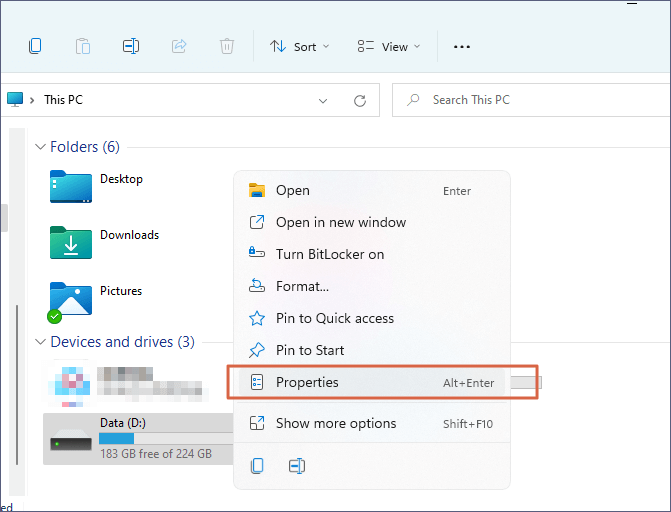
First, confirm the file is truly 0KB. Right-click the PDF and select Properties. Check the Size field—if it says 0 bytes, proceed. Sometimes the file may be tiny but still show as 0KB due to a glitch. Also try opening the PDF in different viewers: Adobe Acrobat, your browser, or a lightweight reader like SumatraPDF. If it opens, save it as a new file.
Step 2: Download Again or Get a Fresh Copy
If the PDF came from an email attachment or download, try obtaining it again. Request a resend from the sender or re-download from the source. Use a different browser or a download manager that resumes transfers. This simple step often solves a 0KB situation caused by an incomplete download. For more on this, see our guide on how to repair PDF after download.

Step 3: Use an Online PDF Repair Tool
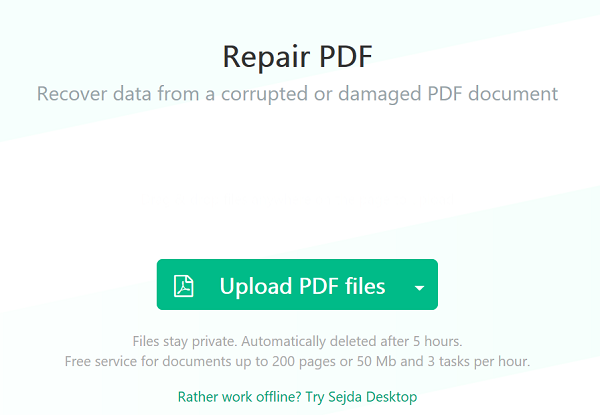
Free online tools can sometimes fix 0KB files that aren’t completely empty. Upload the file to a service like iLovePDF or PDF2Go’s repair feature. These tools check the file’s internal structure and may recover viewable content even if the header is missing. Be cautious with sensitive documents—use a trusted service. If the file is a partially corrupted PDF, this method often works.
Step 4: Scan with Desktop PDF Repair Software
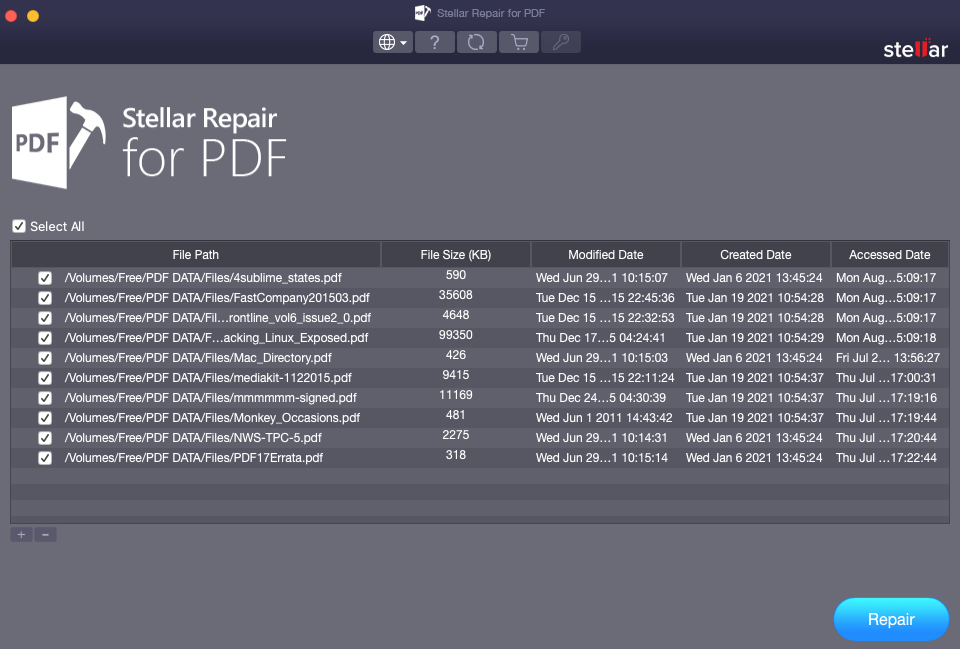
For a more thorough recovery, use a dedicated desktop tool like Stellar Repair for PDF or Wondershare Repairit. Install the software, select the 0KB PDF, and run the scan. These tools dig into the file’s raw data to extract text, images, and layout. They’re especially effective if the file was created but then truncated. If you’ve tried everything and the PDF is truly blank, these tools can also help you repair blank PDF files.
Step 5: Use Data Recovery Software to Retrieve Lost Data
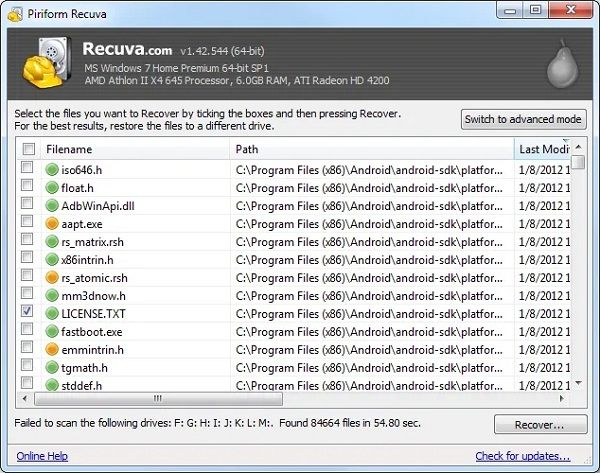
If the file size is 0KB but you suspect the data is still on your hard drive (e.g., after a crash or failed save), try data recovery software. Tools like Recuva, EaseUS Data Recovery Wizard, or Disk Drill scan your drive for deleted or lost files. You might find a larger, recoverable version of your PDF. This is also useful if you accidentally saved an empty file over the original. After recovery, you may still need to repair a corrupted PDF using the steps above.
Step 6: Manual Hex Editor Repair (Advanced)
As a last resort, you can inspect the file with a hex editor like HxD. A valid PDF starts with ‘%PDF-‘. If those bytes are missing, the file may be empty or have a corrupted header. You can try copying the header from a known good PDF and pasting it at the beginning of the 0KB file. Save it and open. This is tricky and often doesn’t work if the file truly has zero content. If you get no data, the file is likely gone for good.
Common Pitfalls
- Assuming the file is beyond recovery: Many 0KB PDFs can be restored with the right tool, especially if the data is still on the disk.
- Ignoring backups: If you have a backup, restore it first. This is faster and safer than any repair method.
- Using untrusted online tools: Uploading sensitive PDFs to unknown sites can compromise your privacy. Stick to reputable services or use desktop software.
If after all steps the file remains 0KB, it’s likely the data is completely lost. In that case, check our guide on how to fix a PDF that won’t open or explore ways to prevent future corruption.
Where to Next
You’ve learned several ways to tackle a 0KB PDF. For related issues, check out our guides on repairing blank PDF files, fixing partially corrupted PDFs, and repairing PDFs after download. If your PDF is opening but looks wrong, our general guide to repairing corrupted PDFs can help.




