
You just downloaded an important PDF — maybe a contract, a manual, or a study guide — and when you try to open it, nothing happens. Or it’s garbled, blank, or throws an error. Don’t panic. This happens more often than you’d think, especially with large files or flaky internet connections. This guide is for anyone who’s ever stared at a broken download and wondered what to do. By the end, you’ll have a clean, readable PDF — no tech degree required.
We’ll walk through five methods, starting with the simplest (re-downloading) and moving up to free online tools and desktop software. You’ll also learn what not to do, so you don’t waste time or make things worse. Let’s get that file back in shape.
What You’ll Need
- The downloaded PDF file (keep the original !)
- A computer with internet access
- A web browser (Chrome, Firefox, Edge)
- Optional: free PDF repair tools (Adobe Acrobat Reader, online services)
- Optional: a USB stick if you need to transfer the file
Step 1: Try a Different PDF Viewer
Sometimes the file is fine, but your PDF viewer is the problem. If you’re using a browser’s built-in viewer, try opening the file in Adobe Acrobat Reader, Foxit Reader, or even a different browser. Right-click the file, choose “Open with,” and pick another app. If it opens, you’re good — just use that viewer from now on.

Step 2: Check the File Size and Re-Download
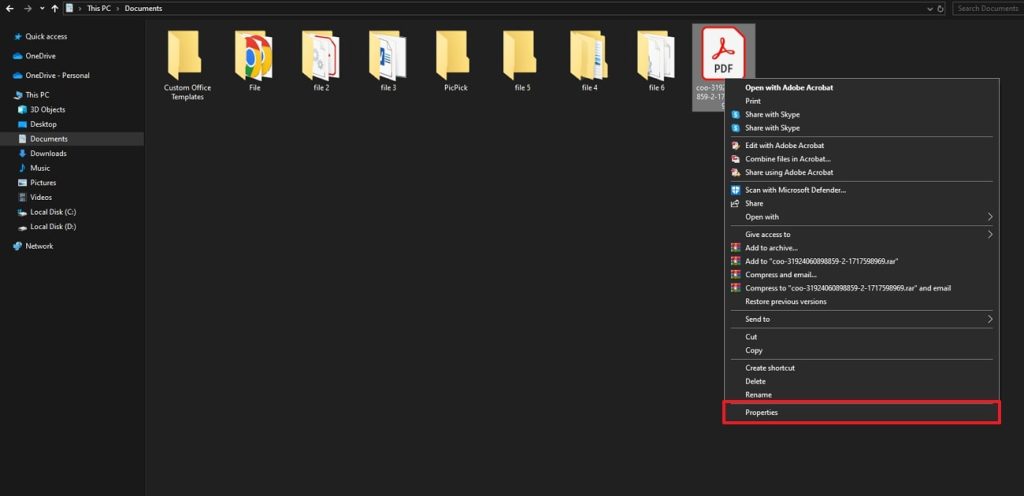
A corrupted download often results in a file that’s much smaller than expected. Right-click the PDF and select “Properties” (Windows) or “Get Info” (Mac). Compare the size to what the website said. If it’s tiny (e.g., a few KB for a supposed 2 MB file), the download failed. Delete the file and download it again, preferably using a download manager or a different browser.
Step 3: Use an Online Repair Service
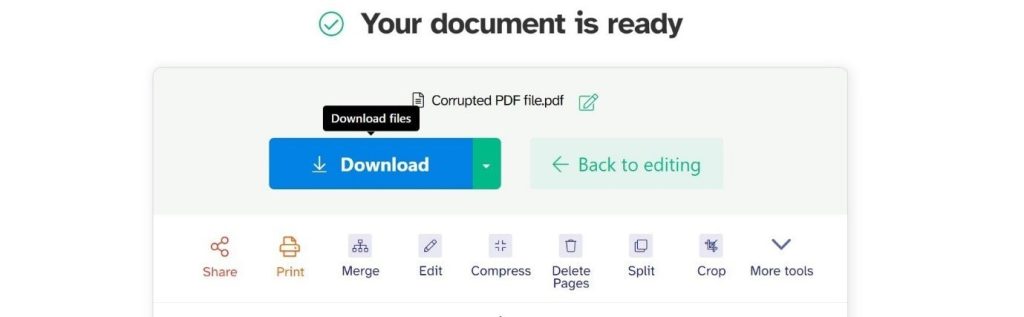
If re-downloading doesn’t help, try a free online repair tool. Visit a trusted site like pdfrepairs.click and use their broken PDF repair online service. Upload your file, wait a few seconds, and download the repaired version. These tools fix common issues like damaged cross-reference tables or missing page data. For a step-by-step on this method, check out our guide on how to repair blank PDF.
Step 4: Use Free Desktop Software
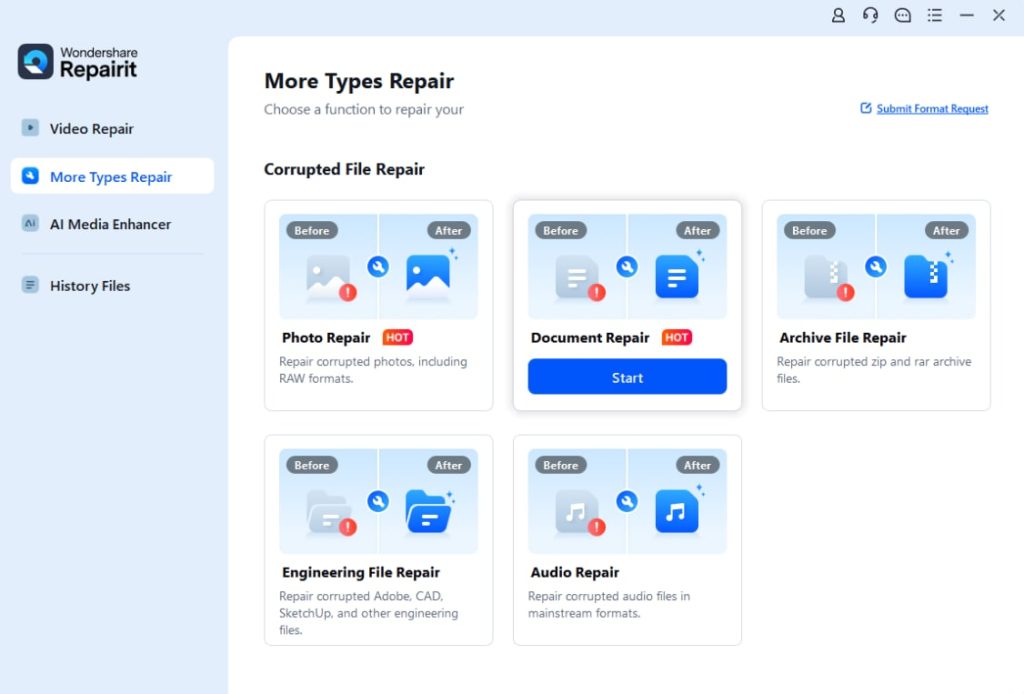
Online tools are convenient, but if your file is large or sensitive, offline software might be better. Tools like PDFtk or QPDF (command-line) can rebuild a PDF’s structure. For a more user-friendly option, check out our review of the best PDF repair software. These programs can often fix corrupted PDF that online tools can’t handle. Download a reputable tool, run it, and point it to your file.
Step 5: Advanced — Fix the PDF Structure Manually
If you’re comfortable with hex editors, you can attempt a manual fix. Many PDF errors come from a broken cross-reference table. Use a tool like Hex Fiend to inspect the file and locate the “xref” keyword. Deleting and regenerating that section can work. For a detailed walkthrough, see our guide on PDF XREF table repair. This method is only for advanced users — backup your file first.
Common Pitfalls
- Overwriting the original: Always work on a copy. If the repair fails, you still have the original file to try again or for a PDF corruption checker.
- Using untrusted online tools: Some free services may upload your file to public servers. For sensitive documents, use offline software or our recommended method to fix corrupted PDF.
- Ignoring metadata corruption: Sometimes the content is intact but the file’s metadata is damaged. Use a dedicated tool to strip metadata before attempting repair.
A little patience and the right tool can turn a useless download into a perfectly readable document.
PDF Repairs Team
Where to Next
Got your PDF working again? Great. If you run into other issues, check out our guides on how to fix blank PDF pages and how to extract pages from a corrupted PDF. For regular maintenance, run a PDF corruption checker periodically to catch problems early. Happy reading!




