Ever opened a PDF only to find it’s half there? Maybe page 1 is fine, but page 2 is blank or garbled. Or you see an error message saying the file is damaged but it still opens partially. This is a partially corrupted PDF, and it’s super common — especially after a bad download, a crashed system, or an incomplete file transfer. If you’ve got an important report, homework, or contract that’s only partly readable, don’t panic: you can often fix it without starting over.
By the end of this guide, you’ll have a fully working PDF (or at least recovered text and images) using free or low-cost tools. No fancy tech skills required — just follow these steps in order, and you’ll save your file more often than not. We’ll start with quick online fixes, then move to desktop software for tougher cases.
What You’ll Need
- The corrupted PDF file itself
- A computer with internet access (for online tools)
- A web browser (Chrome, Firefox, Edge — any modern one works)
- Optional: A PDF reader like Adobe Acrobat Reader or Foxit Reader
- Optional: A PDF repair tool (free trial or open source — we’ll cover the best options)
Step 1: Check If the File Is Really Corrupted
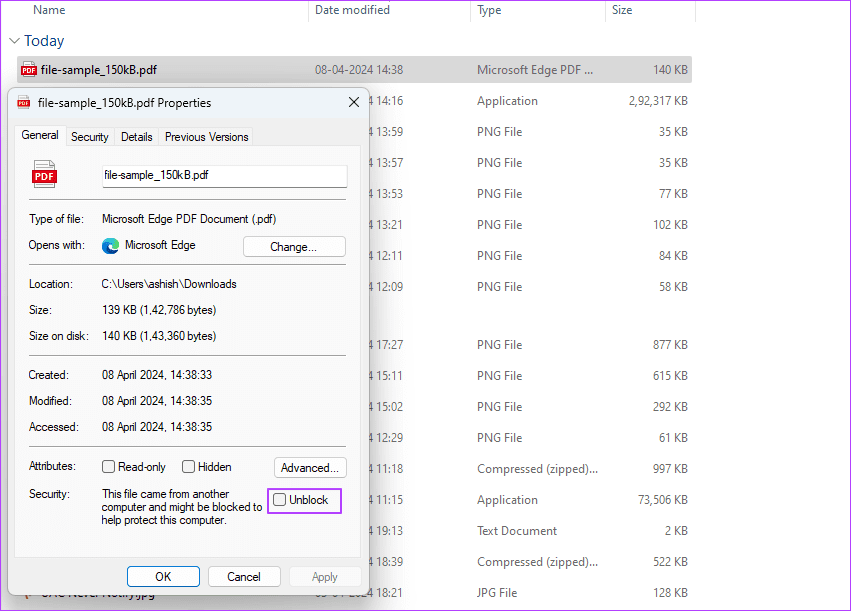
Before diving into repairs, rule out simple causes. Try opening your PDF in a different reader — sometimes the issue is with the viewer, not the file. If it still looks funny, check the file size: right-click the PDF and go to Properties (Windows) or Get Info (Mac). A partially corrupted file often has a smaller file size than expected because data is missing. You can also use a pdf corruption checker like the one at PDFRepairs.click to see exactly what’s wrong.
If the file size is much smaller than the original (say 100 KB instead of 10 MB), it’s likely cut off. That’s a strong sign of partial corruption.
Step 2: Try a Quick Online Fix
Online tools are your best first bet for a partially corrupted PDF. They require no installation and can often recover enough data to make the file usable. Head over to a trusted service like ilovepdf.com, Smallpdf, or the broken pdf repair online tool at PDFRepairs.click. Upload your file — most services accept files up to 50 MB for free. They’ll scan for recoverable content and output a repaired version.
Tip: Save the repaired PDF with a new filename (e.g., ‘fixed_report.pdf’) so you don’t overwrite the original. If the online tool succeeds, you’re done. If it fails or produces gibberish, move to the next step.
Step 3: Use a Dedicated PDF Repair Tool (Desktop)
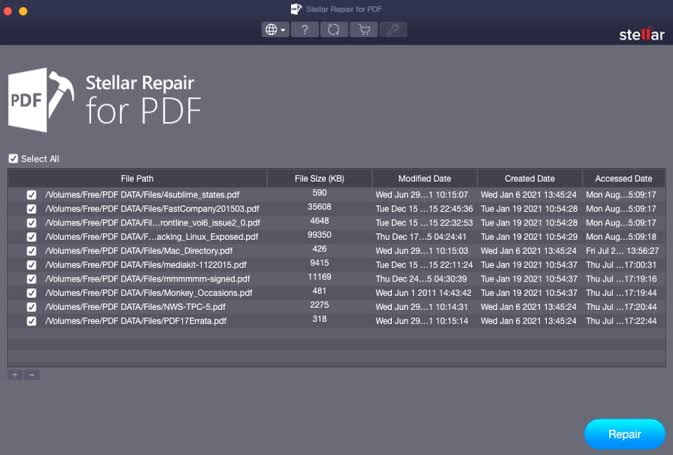
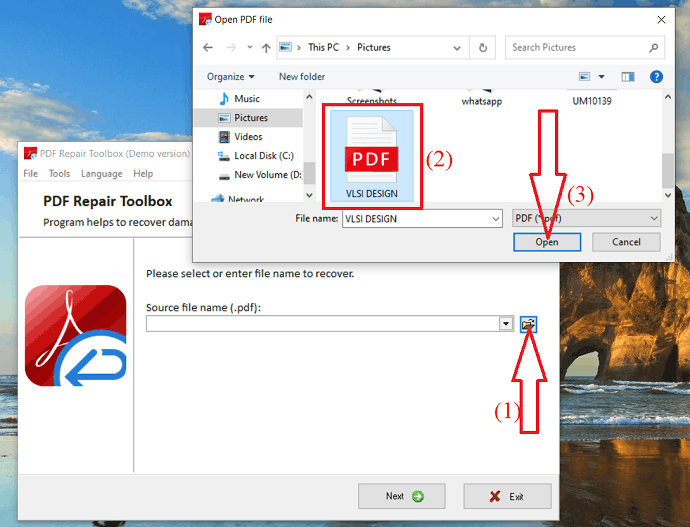
When online tools aren’t enough, desktop software usually does a deeper job. Some of the best pdf repair software options include Adobe Acrobat Pro’s built-in repair function, PDF Repair Toolbox, and Recovery Toolbox for PDF. These programs can reconstruct internal structure and recover images, fonts, and text from partial files.
Download and install a tool (many have free trials). Open it, select your corrupted PDF, and start the repair. Most will give you a preview of recoverable content before you save. After the process, check the output: if text is there but formatting is off, you can often copy-paste it into a new document.
Step 4: Manual Recovery Using Ghostscript (Advanced)
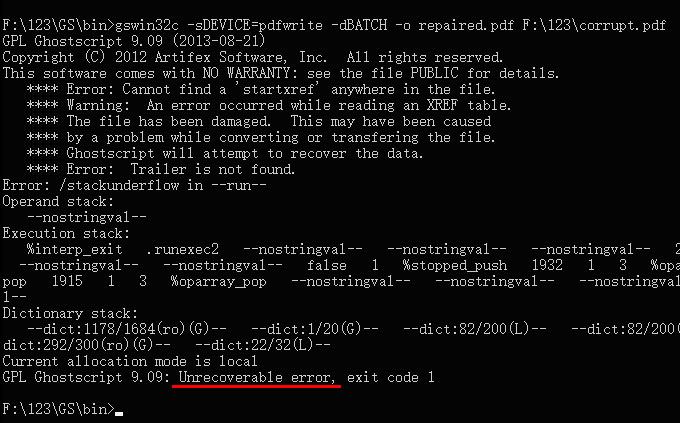
If automated tools fail, you can try extracting raw content from the PDF using Ghostscript, a free command-line tool. This is more technical but can salvage text from even heavily corrupted files. First, download and install Ghostscript. Then open a terminal (Command Prompt or Terminal) and run something like: gs -dNOPAUSE -dBATCH -sDEVICE=txtwrite -o output.txt input.pdf. This converts the PDF to plain text.
You might not get perfect formatting, but you’ll likely recover the text. If you need images, use -sDEVICE=png16m to export each page as a PNG. For a pdf parse error fix, Ghostscript can sometimes re-encode the file structure and produce a valid PDF.
Common Pitfalls
- Trying to open a corrupted PDF repeatedly without a backup — each open can make it worse (actually it usually doesn’t, but it wastes time).
- Using random online tools that upload your file to unsecured servers. Always check privacy policies, especially for confidential documents.
- Assuming the file is completely gone if one method fails. Partial corruption can often be fixed by trying a different tool or the command-line approach.
Where to Next
If this guide didn’t solve your issue, your PDF might be completely corrupted — but don’t give up yet. Check out our guide on how to fix a completely pdf file is corrupted for more aggressive methods. Also, learn to spot signs of corruption early with a pdf corruption checker. And if you’re regularly dealing with broken files, investing in one of the best pdf repair software packages could save you hours in the long run.




