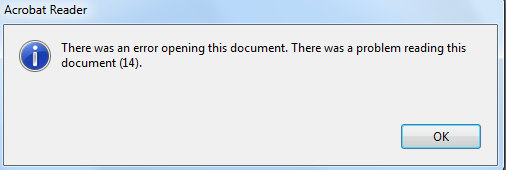
Ever had that sinking feeling when you try to open a PDF and it just won’t load? Maybe it shows garbage characters, throws an error, or appears blank. You’re not alone—corrupted PDFs happen to everyone. This guide is for anyone, from students to professionals, who needs to fix a broken PDF fast. By the end, you’ll know exactly which software to use and how to get your file back in working order.
We’ll cover the best PDF repair software available, including free online tools and professional desktop apps. You’ll learn a step-by-step process that works for most corruption issues, whether it’s a simple header problem or a broken cross-reference table. Plus, we’ll point you to related guides like PDF repair for students and how to recover your thesis PDF if those fit your situation.
What You’ll Need
- A corrupted PDF file (the one you want to fix)
- A computer or mobile device with internet access
- A backup of the original file (just in case)
- Optional: a sample uncorrupted PDF to test the repair software
Step 1: Identify the Type of Corruption
Before jumping into repair, it helps to know what’s wrong. Common symptoms: “PDF file is damaged” error, garbled text, missing pages, or the file won’t open at all. If you see a message about a broken XREF table, that’s a specific issue we cover in our PDF XREF repair guide. But don’t worry—most tools handle all types.

Step 2: Choose the Best PDF Repair Software
Not all repair tools are created equal. For a deep dive into the top options, check out our dedicated post on the best PDF repair tool. But here’s a quick rundown: Adobe Acrobat Pro is the gold standard for serious repairs, while free online tools like PDF Repair Toolbox work well for quick fixes. We’ll use a free online tool for this tutorial so you can follow along without spending a dime.

Step 3: Repair Your PDF Using an Online Tool
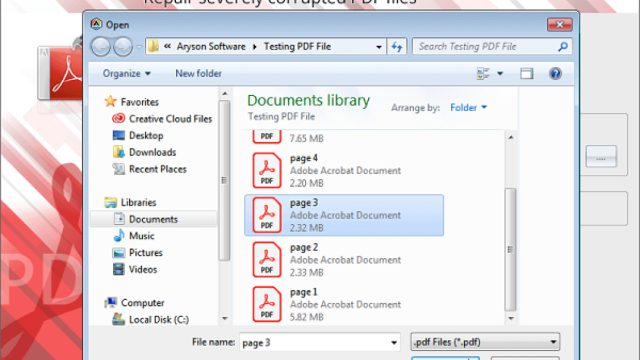
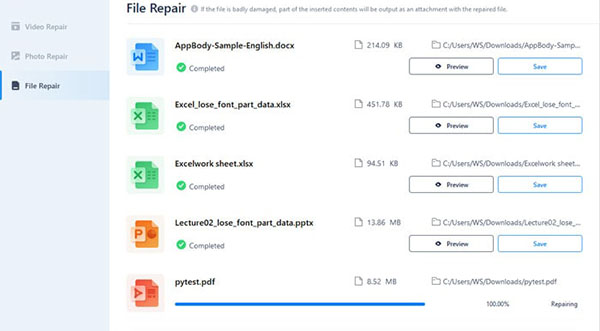
Let’s walk through the process with a free online repair service. Go to a trusted site like PDF Repair Toolbox or Smallpdf. Click “Choose File” and select your corrupted PDF. The tool will upload and analyze it. Most tools have a “Repair” button—click it and wait a few seconds. Once done, download the repaired file. This method is great for casual use, but if the file is severely damaged, you may need a desktop app like Adobe Acrobat Pro.

Step 4: Verify the Repaired PDF
After downloading, open the repaired PDF in your usual reader (like Adobe Reader or a browser). Check if all pages are there, text is readable, and images load correctly. If something still looks off, try a different tool. Remember, some corruption—like a 0KB file—requires special methods; see our guide on repairing 0KB PDFs if that’s the case. Also, if the error mentions a stream issue, learn how to fix a PDF stream with our step-by-step instructions.
Common Pitfalls
- Using unreliable free tools: Some download sites bundle malware. Stick to well-known names or the ones we recommend in our best PDF repair tool post.
- Skipping the backup: Always keep the original corrupted file—if the repair goes wrong, you can try again.
- Confusing repair with recovery: If your PDF shows 0KB, it’s not corrupt, it’s gone. You need data recovery, not repair. For that, see our resources on PDF repair for students and recover your thesis PDF.
Where to Next
Now that you’ve fixed your PDF, why not learn more? If you’re a student, our PDF repair for students guide has tips tailored for academic work. Had a thesis disaster? Check out how to recover your thesis PDF. For more advanced issues, explore our guides on PDF XREF repair and fix a PDF stream. Happy repairing!